
1. Introdución
This manual provides detailed instructions for the installation, operation, and maintenance of your Skyworth H30P WiFi 3MP Indoor Camera. Please read this manual carefully before using the product to ensure proper and safe operation. Keep this manual for future reference.
2. Información de seguridade
- Asegúrese de que a fonte de alimentación voltage is within the specified range for the camera.
- Do not expose the camera to water, moisture, or extreme temperatures. This product is designed for indoor use only.
- Evite colocar a cámara preto de fontes de calor ou baixo a luz solar directa.
- Non intente desmontar nin modificar a cámara. Isto podería anular a garantía e causar danos.
- Manteña a cámara e os seus accesorios fóra do alcance dos nenos.
- Use only the power adapter provided with the camera.
3. Contido do paquete
Verifica que todos os elementos estean presentes no teu paquete:
- Skyworth H30P WiFi 3MP Indoor Camera
- Adaptador de alimentación
- Accesorios de montaxe (parafusos, tacos)
- Manual de usuario
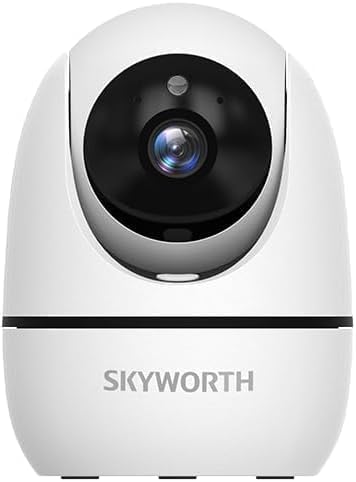
Image: The Skyworth H30P camera shown with its instruction manual and other accessories, indicating typical package contents.
4. Produto rematadoview
The Skyworth H30P camera features a compact design with advanced surveillance capabilities. Familiarize yourself with its main components:
- Lente da cámara: Captura vídeo de 3MP.
- Micrófono: Para entrada de audio e comunicación bidireccional.
- Relator: Para saída de audio e comunicación bidireccional.
- Luz indicadora de estado: Shows camera status (e.g., connected, recording).
- Porto de alimentación: Conéctase ao adaptador de alimentación.
- Botón de reinicio: Úsase para restaurar a configuración de fábrica.
- Porto Ethernet RJ45: Para conexión de rede por cable.
- Ranura para tarxetas MicroSD: Para almacenamento de vídeo local.
Imaxe: Traseira view of the Skyworth H30P camera, highlighting the RJ45 Ethernet port, power input, and other rear components.
5. Configuración
5.1 Acendido
- Conecta o adaptador de corrente ao porto de alimentación da cámara.
- Enchufe o adaptador de alimentación a unha toma de corrente.
- The camera will power on, and the status indicator light will illuminate. Wait for the camera to initialize.
5.2 Instalación da aplicación
- Download the recommended surveillance app (e.g., 'Skyworth Smart' or similar, check product packaging for specific app name) from your smartphone's app store (App Store for iOS, Google Play Store for Android).
- Rexístrese para obter unha conta e inicie sesión.
5.3 Conexión á rede
The H30P supports both wireless (WiFi 6) and wired (RJ45) connections.
Wireless Connection (WiFi)
- Open the app and select 'Add Device'.
- Follow the on-screen instructions to connect the camera to your WiFi network. This typically involves scanning a QR code on the camera or entering your WiFi credentials.
- Ensure your WiFi network is 2.4GHz or 5GHz compatible (WiFi 6 for optimal performance).
Wired Connection (RJ45)
- Connect an Ethernet cable from your router to the RJ45 port on the back of the camera.
- Open the app and select 'Add Device'. The app should automatically detect the camera via the wired connection.
- Follow any remaining on-screen prompts to complete the setup.
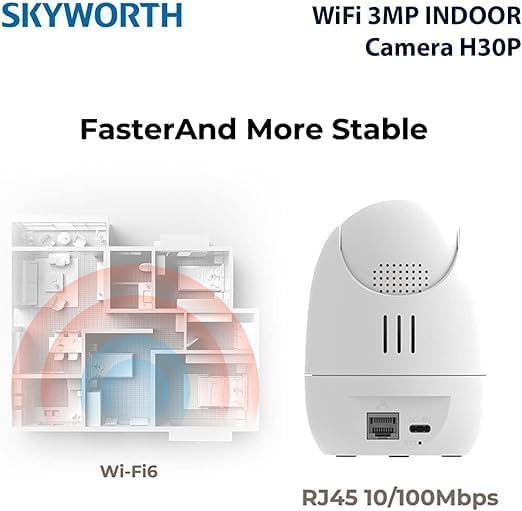
Image: A diagram illustrating the enhanced coverage of Wi-Fi 6 and the physical RJ45 port on the camera for stable network connectivity.
5.4 Montaxe da cámara
The Skyworth H30P camera can be placed on a flat surface or mounted to a wall.
Montaxe en parede
- Choose a suitable location on a wall, ensuring it is within range of a power outlet and your network.
- Use the provided mounting template (if included) or mark the screw holes on the wall.
- Drill pilot holes and insert the wall plugs.
- Secure the mounting bracket (if applicable) or the camera directly to the wall using the screws.
- Axusta o ángulo da cámara segundo sexa necesario.
6. Instrucións de funcionamento
6.1 En directo View
Unha vez conectado, abre a aplicación para view the live feed from your camera. You can select the camera from your device list to access its real-time video stream.
6.2 Control de panorámica, inclinación e zoom (PTZ)
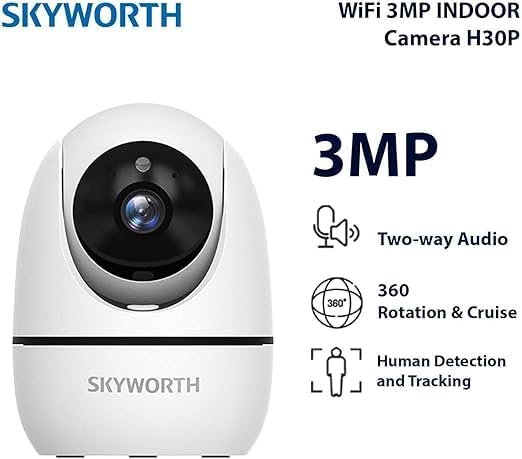
The H30P camera offers 360-degree horizontal rotation and vertical tilt. Use the controls within the app to remotely adjust the camera's viewing angle. This allows for comprehensive coverage without blind spots.
6.3 Audio bidireccional
The camera features a built-in microphone and speaker. In the app, activate the microphone icon to speak through the camera and the speaker icon to listen to audio from the camera's location. This enables real-time communication.
6.4 Visión nocturna
The H30P camera supports color night vision, providing clear images even in low-light conditions. This feature typically activates automatically when ambient light is insufficient.
6.5 Detección e seguimento de movemento
Enable motion detection in the app settings to receive alerts when movement is detected. The camera can also be configured to track detected motion, keeping the subject in view.
6.6 Gravación e almacenamento
The camera supports local storage via a MicroSD card (not included) and may offer cloud storage options (subscription may be required). Insert a MicroSD card into the designated slot for continuous or event-triggered recording. Manage recording settings and view playback through the app.

Image: A visual representation of the Skyworth H30P camera's key features, including 3MP resolution, two-way audio, 360-degree rotation, and human detection capabilities.
7. Mantemento
7.1 Limpeza
To clean the camera, gently wipe the lens and body with a soft, dry cloth. Do not use harsh chemicals or abrasive cleaners.
7.2 Actualizacións de firmware
Periodically check the app for available firmware updates. Keeping your camera's firmware up-to-date ensures optimal performance and security features.
8 Solución de problemas
| Problema | Causa posible | Solución |
|---|---|---|
| A cámara non se acende | Sen corrente, adaptador defectuoso | Check power connection and outlet. Ensure adapter is working. |
| Non se puido conectar a wifi | Incorrect WiFi password, camera too far from router, 5GHz only network (if camera is 2.4GHz only) | Verify password. Move camera closer to router. Ensure router supports 2.4GHz or camera supports 5GHz. Reset camera and try again. |
| Sen feed de vídeo | Network issue, camera offline | Check network connection. Restart camera and router. Verify camera status in app. |
| O audio bidireccional non funciona | Microphone/speaker muted in app, volume too low | Check app settings for audio controls. Adjust volume. |
| A detección de movemento non se activa | Detection sensitivity too low, feature disabled | Adjust motion detection sensitivity in app. Ensure feature is enabled. |
9. Especificacións
| Característica | Detalle |
|---|---|
| Número de modelo | H30P |
| Resolución de captura de vídeo | 3 megapíxeles |
| Tecnoloxía de conectividade | Wireless (WiFi 6), Wired (RJ45) |
| Protocolo de comunicación | Rede WiFi |
| Características especiais | HD Resolution, Two-Way Audio, Color Night Vision, Motion-Activated Recording, Motion Sensor |
| Uso interior/exterior | Interior |
| Dispositivos compatibles | Teléfono intelixente |
| Fonte de enerxía | Eléctrico con cable |
| Tipo de montaxe | Soporte de parede |
| Usos recomendados | Baby Monitoring, Pet Monitoring, Indoor Security, Gaming, Tracking |
| Dimensións do produto | 4 x 8 x 8 cm; 240 gramos |
| Requírense baterías? | Non |
| Compoñentes incluídos | Skyworth Body |
| País de Orixe | China |
10. Garantía e soporte
Your Skyworth H30P camera comes with a standard manufacturer's warranty. Please refer to the warranty card included in your package or contact Skyworth customer support for details regarding warranty terms and conditions.
For technical support, troubleshooting assistance, or any inquiries regarding your product, please visit the official Skyworth websitio web ou póñase en contacto co seu departamento de atención ao cliente. A información de contacto adoita atoparse na embalaxe do produto ou na ficha do fabricante. websitio.