
1. Introdución
This manual provides comprehensive instructions for the Maxwest Gravity G64 Smartphone. It covers setup, operation, maintenance, and troubleshooting to help you maximize your device's capabilities. Please read this manual thoroughly before using your new smartphone.
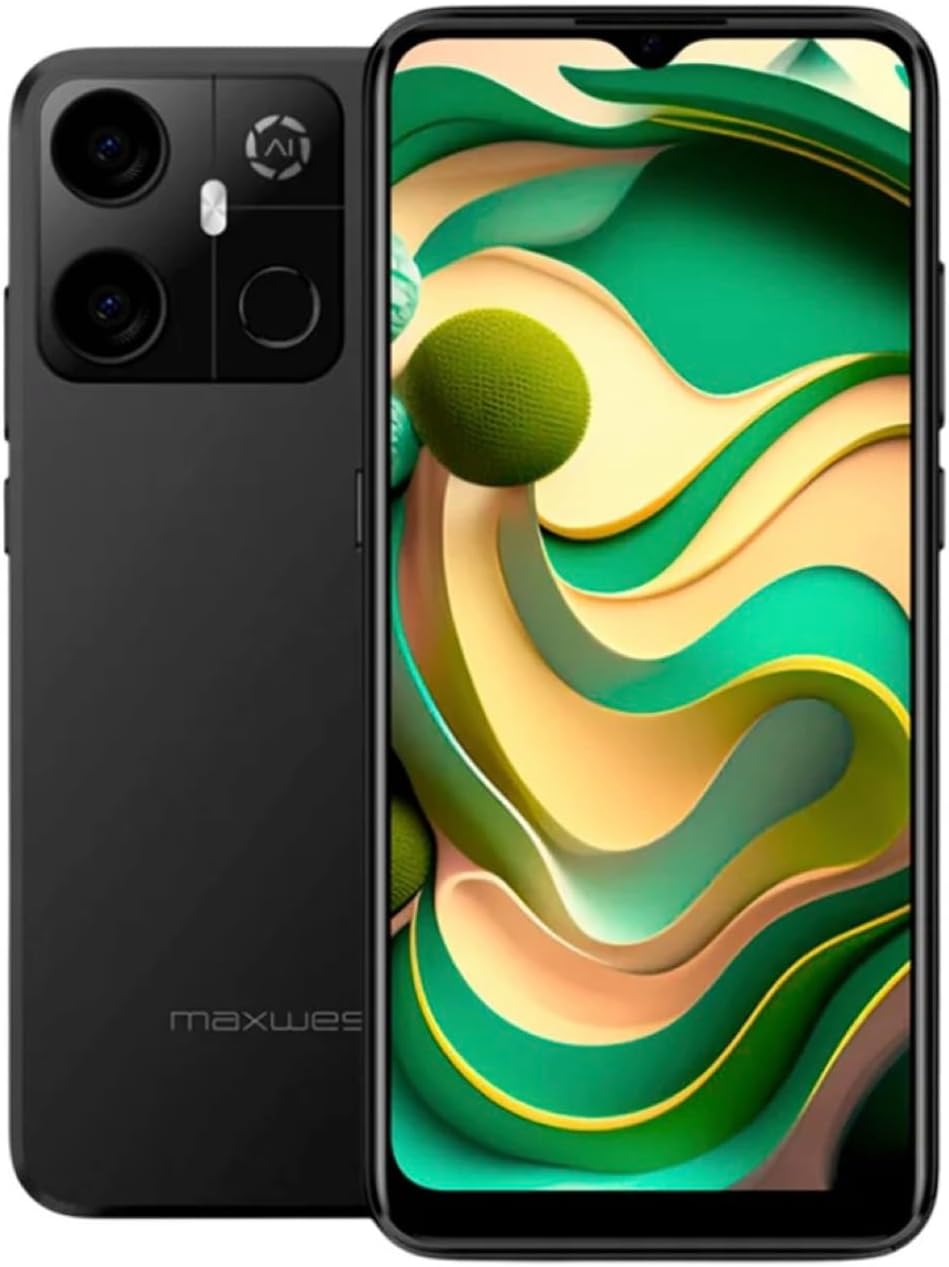
Image: Maxwest Gravity G64 Smartphone, front and back view. The front displays a vibrant screen, while the rear highlights the camera module and Maxwest branding.
2. Configuración
2.1. Que hai na caixa
- Maxwest Gravity G64 Smartphone
- Adaptador de alimentación
- Battery (1 C battery, included)
2.2. Instalación da tarxeta SIM e da tarxeta de memoria
Locate the SIM card tray on the side of your device. Use the provided SIM ejector tool to open the tray. Insert your Nano-SIM card(s) and/or microSD card into the designated slots. Ensure the cards are correctly oriented before reinserting the tray firmly into the phone.
2.3. Acendido e carga iniciais
Press and hold the power button located on the side of the phone until the Maxwest logo appears. For first-time use, it is recommended to fully charge the device. Connect the USB Type-C cable to the phone's charging port and the power adapter to a wall outlet. The battery indicator will show charging status.
3. Funcionamento
3.1. Navegación básica
The Gravity G64 features a responsive touchscreen. Swipe up, down, left, or right to navigate through menus and home screens. Tap icons to open applications. Use pinch-to-zoom gestures for images and web páxinas.
3.2. Características da pantalla
The 6.57-inch HD+ display with a 60Hz refresh rate provides clear visuals and smooth scrolling. Adjust brightness and display settings via the 'Settings' menu under 'Display'.
3.3. Uso da cámara
Launch the Camera application to utilize the 16MP AI Camera system. Tap to focus, pinch to zoom, and use the on-screen shutter button to capture photos. Explore various modes like Portrait, Panorama, and Night mode for enhanced photography.
3.4. Características de seguridade
Your Gravity G64 offers dual security options: Fingerprint Sensor and Face Unlock. To set these up, navigate to 'Settings' > 'Security & privacy' > 'Device unlock'. Follow the on-screen instructions to register your fingerprint(s) and face data.
3.5. Conectividade
- Móbil 4G: Insert a compatible SIM card to access 4G networks. Manage mobile data settings in 'Settings' > 'Network & internet'.
- Wi-Fi: Connect to wireless networks via 'Settings' > 'Network & internet' > 'Wi-Fi'. Select your desired network and enter the password if required.
- Bluetooth: Pair with Bluetooth devices (headphones, speakers) through 'Settings' > 'Connected devices' > 'Bluetooth'.
3.6. Sistema Operativo
The device runs on Android 14, providing access to the latest features, security updates, and a vast ecosystem of applications available on the Google Play Store.
4. Mantemento
4.1. Coidado da batería
To prolong battery life, avoid extreme temperatures. Use only the provided power adapter and USB Type-C cable for charging. Avoid completely draining the battery frequently.
4.2. Actualizacións de software
Regularly check for software updates to ensure optimal performance and security. Go to 'Settings' > 'System' > 'System update' to check for and install available updates.
4.3. Limpeza do dispositivo
Usa un pano suave e sen pelusa para limpar a pantalla e a carcasa do teléfono. Evita o uso de produtos químicos agresivos ou materiais abrasivos que poidan danar o dispositivo.
5 Solución de problemas
- O dispositivo non se acende: Asegúrate de que a batería estea cargada. Conecta o cargador e inténtao de novo.
- As aplicacións fallan ou conxélanse: Close and reopen the app. If the issue persists, restart the phone. Clear app cache or reinstall the app.
- Sinal de rede deficiente: Check your SIM card installation. Move to an area with better coverage. Contact your carrier if issues persist.
- O desbloqueo facial/de pegada dixital non funciona: Ensure your fingers are clean and dry, or your face is clearly visible. Re-register your biometric data if necessary.
- Restablecemento de fábrica: As a last resort, you can perform a factory reset. Go to 'Settings' > 'System' > 'Reset options' > 'Erase all data (factory reset)'. Warning: This will erase all data on your phone. Back up important data first.
6. Especificacións
| Característica | Detalle |
|---|---|
| Nome do modelo | Gravity G64 |
| Mostrar | 6.57-inch HD+ (60Hz Refresh Rate) |
| Procesador | Octa-Core Engine |
| RAM | 8 GB |
| Almacenamento interno | 64 GB |
| Cámara traseira | Sistema de cámara con IA de 16 MP |
| Sistema Operativo | Android 14 |
| Capacidade da batería | 4000 mAh |
| Conectividade | 4G, Bluetooth, Wi-Fi, USB tipo C |
| Seguridade | Sensor de impresión dixital, desbloqueo facial |
| Dimensións | 6.43 x 3.31 x 0.35 polgadas |
| Peso | 1.21 libras |
7. Garantía e soporte
7.1. Información da garantía
For detailed warranty information, please refer to the warranty card included with your product or visit the official Maxwest websitio. Garda o comprobante de compra para reclamacións de garantía.
7.2. Atención ao cliente
If you encounter any issues not covered in this manual, please contact Maxwest customer support. Contact details can typically be found on the Maxwest official websitio web ou na embalaxe do produto.