
HP Z2 Mini G1a
HP Z2 Mini G1a Workstation User Manual
Model: Z2 Mini G1a (BN4F9UT#ABA)
1. Introdución
This manual provides essential information for setting up, operating, maintaining, and troubleshooting your HP Z2 Mini G1a Workstation. Please read this manual thoroughly before using the device to ensure proper functionality and safety.
The HP Z2 Mini G1a is a compact workstation designed for demanding professional workflows, featuring an AMD Ryzen AI MAX PRO processor and AMD Radeon 8050S Graphics.
2. Información de seguridade
Always follow basic safety precautions to reduce the risk of fire, electric shock, and injury to persons, and damage to the product.
- Do not open the computer chassis unless instructed by qualified personnel.
- Ensure the power cord is properly grounded.
- Keep the workstation away from liquids and excessive humidity.
- Non bloquee as aberturas de ventilación.
- Use only HP-approved power adapters and accessories.
3. Contido do paquete
Verifica que todos os elementos estean presentes no paquete:
- HP Z2 Mini G1a Workstation
- Adaptador de alimentación e cable
- Guía de inicio rápido
- Información da garantía
4. Configuración
4.1 Desembalaxe e colocación
Carefully remove the workstation from its packaging. Place the unit on a stable, flat surface with adequate ventilation. Avoid placing it in enclosed spaces or near heat sources.
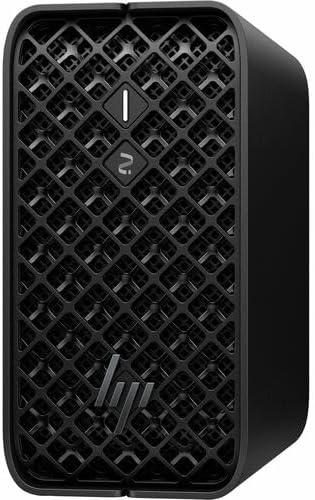
Figura 1: Fronte view of the HP Z2 Mini G1a Workstation, showcasing its compact design and ventilation grille.
4.2 Conexión de periféricos
Connect your monitor, keyboard, and mouse to the appropriate ports on the workstation. Refer to the port diagram below for guidance.

Figure 2: A user working with the HP Z2 Mini G1a Workstation connected to a monitor, keyboard, and mouse in an office setting.
4.3 Conexión de alimentación
- Conecte o cable de alimentación ao adaptador de alimentación.
- Plug the power adapter into the workstation's power input port.
- Conecte o outro extremo do cable de alimentación a unha toma eléctrica conectada a terra.
4.4 Arranque inicial
Press the power button located on the front of the workstation. The system will initiate the Windows 11 Pro setup process. Follow the on-screen instructions to complete the operating system configuration.
5. Operating the Workstation
5.1 Encendido/apagado
- Encendido: Preme o botón de acendido.
- Apagado: Click the Start button in Windows, then select Power > Shut down. Alternatively, press and hold the power button for 5 seconds to force a shutdown (use only when necessary).
5.2 Conectarse a unha rede
The workstation supports both wired (Ethernet) and wireless (Wi-Fi) network connections.
- Cablado: Connect an Ethernet cable from your router or network switch to the Ethernet port on the workstation.
- Sen fíos: In Windows, click the Wi-Fi icon in the taskbar, select your network, enter the password, and click Connect.
5.3 Uso de portos USB
The workstation is equipped with multiple USB ports for connecting external devices such as storage drives, printers, and other peripherals.

Figura 3: Lateral view of the HP Z2 Mini G1a Workstation, showing various input/output ports for connectivity.
5.4 AI Acceleration Features
The HP Z2 Mini G1a Workstation features an AMD Ryzen AI MAX PRO processor with hardware AI accelerators. These are designed to enhance performance for AI-driven tasks and professional workflows. Utilize software optimized for AI acceleration to leverage these capabilities.
6. Mantemento
6.1 Limpeza
- Use a soft, dry cloth to clean the exterior of the workstation.
- Para marcas difíciles, d lixeiramenteampgl o pano con auga ou un limpador suave e non abrasivo.
- Do not spray cleaners directly onto the workstation.
6.2 Actualizacións de software
Regularly update your Windows operating system and drivers to ensure optimal performance and security. Check for updates via Windows Update and the HP Support Assistant application.
6.3 Copia de seguranza de datos
It is recommended to regularly back up your important data to an external storage device or cloud service to prevent data loss.
7 Solución de problemas
7.1 Sen enerxía
- Asegúrate de que o cable de alimentación estea conectado correctamente tanto á estación de traballo como á toma de corrente.
- Verifica que a toma de corrente funcione conectando outro dispositivo.
- Comprobe se o adaptador de corrente presenta algún dano visible.
7.2 Sen visualización
- Confirm the monitor is powered on and connected correctly to the workstation.
- Try connecting the monitor to a different display port if available.
- Asegúrate de que estea seleccionada a fonte de entrada correcta no monitor.
7.3 Desaceleración do sistema
- Pecha as aplicacións innecesarias que se executan en segundo plano.
- Comprobe e instale calquera actualización pendente de Windows ou de controladores.
- Run a system diagnostic tool (e.g., HP Support Assistant) to identify potential hardware issues.
8. Especificacións
| Característica | Detalle |
|---|---|
| Modelo | HP Z2 Mini G1a Workstation (BN4F9UT#ABA) |
| Procesador | AMD Ryzen AI MAX PRO 390-32 GB |
| Gráficos | AMD Radeon 8050S Graphics |
| Almacenamento | 1 TB SSD (NVMe Controller, RAID Levels 0, 1) |
| Sistema Operativo | Windows 11 Pro |
| Dimensións (H x W x D) | 19 x 7.5 x 11 polgadas |
| Peso | 11.2 libras |
9. Garantía e soporte
9.1 Información da garantía
Your HP Z2 Mini G1a Workstation comes with a standard manufacturer's warranty. Please refer to the warranty document included in your package for specific terms and conditions. Keep your proof of purchase for warranty claims.
9.2 Soporte técnico
For technical assistance, visit the official HP support website or contact HP customer service. Have your product model number (BN4F9UT#ABA) and serial number ready when contacting support.
Soporte HP Websitio: www.hp.com/support
Ask a question about this manual
Ask about setup, troubleshooting, compatibility, parts, safety, or missing instructions. Manuals+ will review the question and use this page’s manual context to help answer it.