
Introdución
The Ninestar G&G Thermal Printer GG-D220 is a compact and portable mini thermal printer designed for a wide range of applications. This device allows you to print photos, labels, study notes, and organize various items directly from your smartphone via Bluetooth connection. Its thermal printing technology ensures ink-free operation, making it convenient and cost-effective for everyday use.
Que está incluído

The package for your Ninestar G&G Thermal Printer GG-D220 includes the following items:
- 1 x Thermal Printer (GG-D220)
- 3 x Thermal Paper Rolls
- 1 x Thermal Sticker Roll
- 1 x cable USB tipo C
- 1 x Skin Sticker (Greg & Grace design)
- 1 x App Instruction Manual
Note: A USB AC adapter (DC5V 1A) is required and sold separately. Product design may vary slightly from images but quality remains consistent.
Guía de configuración
Follow these steps to set up your Ninestar G&G Thermal Printer and connect it to your smartphone.
Step 1: Download the "Print-Label" App

Locate and download the official "Print-Label" application from your smartphone's app store. The app is available on both the Apple App Store and Google Play Store. Busca "Print-Label" by Ninestar Corporation.
Note: If your Android device's app language is English, you may need to change it to Japanese within the app settings for full functionality.
Step 2: Power On and Connect via Bluetooth
Turn on your Ninestar G&G Thermal Printer. Open the "Print-Label" app on your smartphone. Navigate to the connection settings within the app and select your printer (e.g., "GG-D220-XXXX") from the list of available Bluetooth devices to establish a connection.
Paso 3: carga de papel
To load thermal paper or stickers:
- Grip the protrusions (red parts) on both sides of the cover and open it.
- Insert the thermal roll paper with the printing side facing outwards, towards the button.
- Close the cover, ensuring about 1 cm of paper protrudes from the printer.
Instrucións de funcionamento
The "Print-Label" app offers various functions to customize your prints. Once connected, you can freely edit and enjoy printing.
Funcións de impresión

The "Print-Label" app allows you to print various types of content:
- Impresión de imaxes: Print photos and images directly from your phone's gallery.
- Impresión de texto: Create custom text labels, notes, or lists.
- Icons & Graphics: Utilize a library of icons and simple graphics to enhance your prints.
- Códigos de barras e códigos QR: Generate and print barcodes or QR codes for various purposes.
- Modelos: Use pre-designed templates for common tasks like to-do lists, study notes, or kitchen labels.
Example Usos

The GG-D220 printer is versatile and can be used in various scenarios:
- Impresión de imaxes: Print small photos or illustrations.
- Study Memos: Create quick notes or diagrams for studying.
- Coleccións: Label items in your collections.
- Task Lists: Print to-do lists for daily organization.
- Impresión de documentos: Print small documents or excerpts.
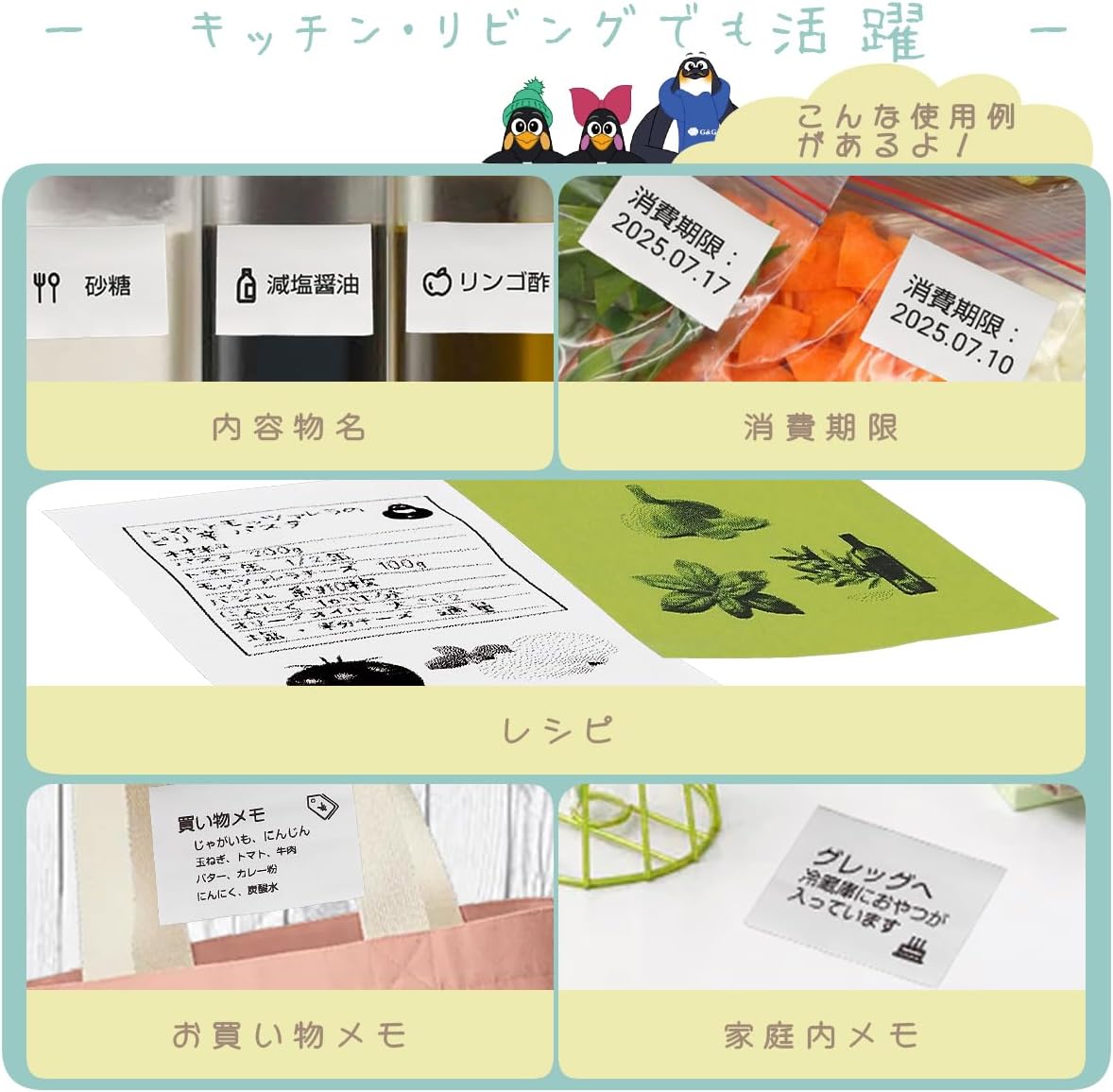
It's also highly useful in the kitchen and living room:
- Content Names: Label containers with their contents.
- Datas de caducidade: Print expiration dates for food items.
- Receitas: Print small recipe cards.
- Shopping Memos: Create quick shopping lists.
- Household Memos: Print notes for family members.
Maintenance: Changing Thermal Rolls
Replacing the thermal paper or sticker rolls is a simple 3-step process.
- Abre a portada: Grip the protrusions (indicated in red in the diagram) on both sides of the printer cover and gently open it. No holder is needed, making it easy.
- Inserir novo rolo: Place the new thermal roll paper into the compartment. Ensure the printing surface of the paper is facing outwards, towards the button side of the printer.
- Pechar a cuberta: Close the cover, making sure approximately 1 cm of paper protrudes from the printer's output slot.
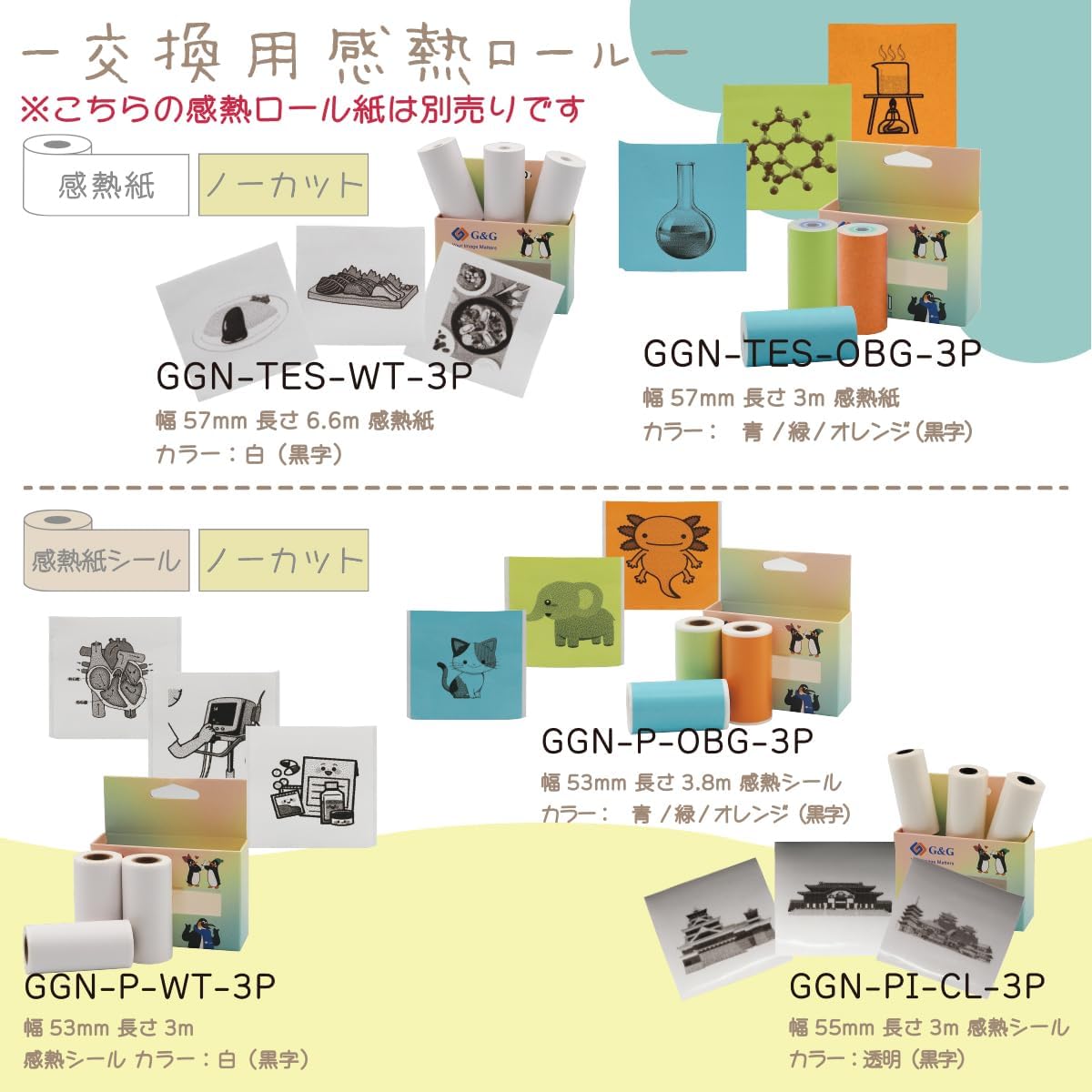
Note: Replacement thermal rolls and stickers are sold separately. Various types are available, including non-cut thermal paper (57mm width, 6.6m length, white/black text) and thermal stickers (53mm width, 3m length, white/black text; 55mm width, 3m length, transparent).

Different types of thermal paper and stickers are available for purchase:
- Thermal Paper (Non-cut): GGN-TES-WT-3P (57mm width, 6.6m length, white paper, black text), GGN-TES-OBG-3P (57mm width, 3m length, blue/green/orange paper, black text).
- Thermal Stickers (Non-cut): GGN-P-WT-3P (53mm width, 3m length, white sticker, black text), GGN-P-OBG-3P (53mm width, 3.8m length, blue/green/orange sticker, black text), GGN-PI-CL-3P (55mm width, 3m length, transparent sticker).
Resolución de problemas
If you encounter any issues with your Ninestar G&G Thermal Printer, please refer to the following common troubleshooting steps:
- A impresora non se conecta por Bluetooth: Ensure the printer is powered on and within range. Check your smartphone's Bluetooth settings to confirm it's enabled and visible. Try restarting both the printer and your smartphone.
- No print output or blank prints: Verify that the thermal paper is loaded correctly with the printing side facing outwards. Ensure there is enough paper in the roll. The printer uses thermal technology, so no ink is required.
- Mala calidade de impresión: Check if the thermal paper is old or exposed to heat/light, which can degrade its quality. Ensure the printer's print head is clean (refer to maintenance section for cleaning instructions if available in the app manual).
- Problemas coa aplicación: Make sure the "Print-Label" app is updated to the latest version. If the app crashes or freezes, try force-closing and reopening it. Reinstalling the app might also resolve persistent issues.
- A batería non se carga: Ensure you are using a compatible USB AC adapter (DC5V 1A) and the provided USB Type-C cable. Check the charging port for any debris.
If these steps do not resolve your issue, please contact Ninestar customer support for further assistance.
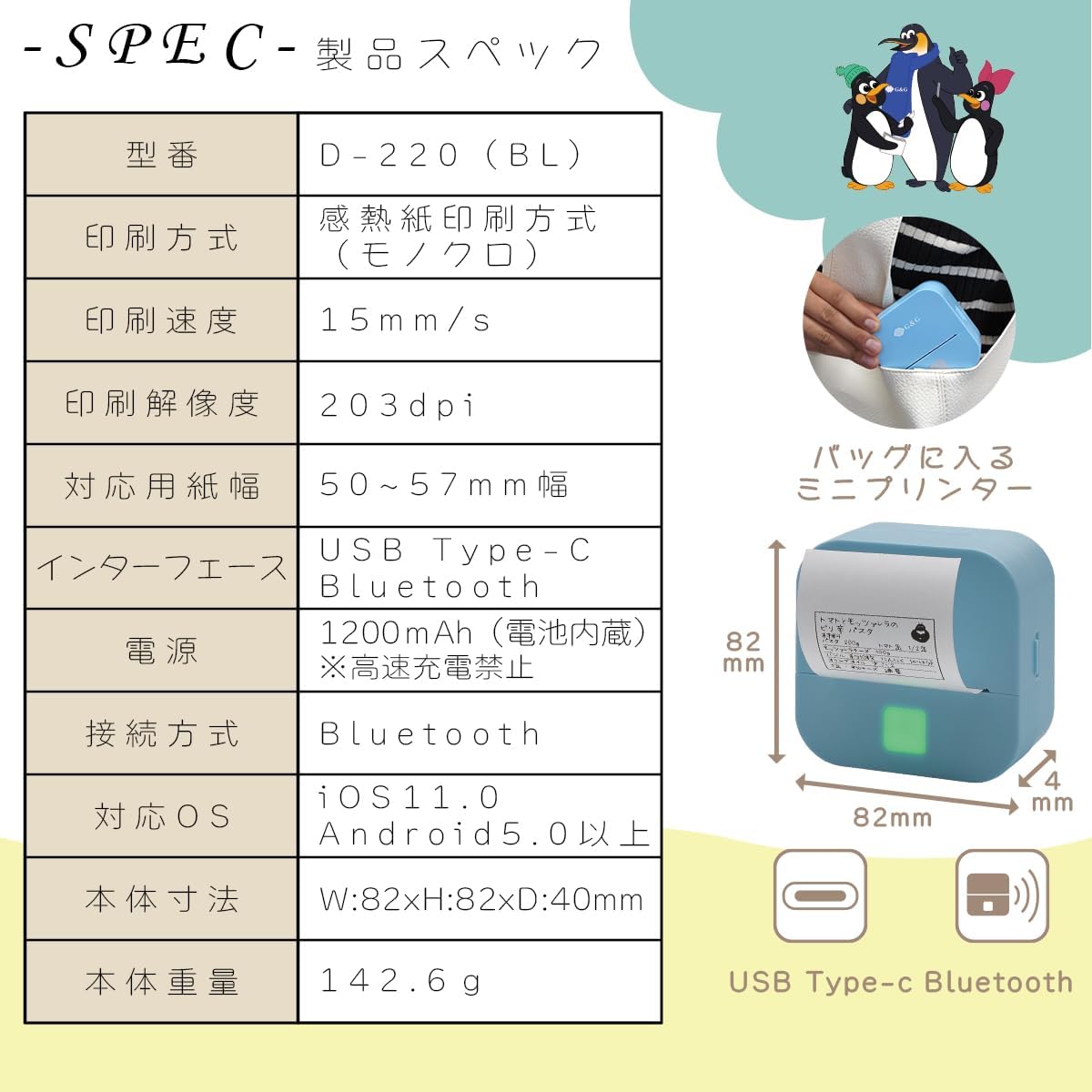
Especificacións
| Característica | Detalle |
|---|---|
| Número de modelo | D-220 (BL) |
| Método de impresión | Thermal Printing (Monochrome) |
| Velocidade de impresión | 15 mm/s |
| Resolución de impresión | 203 ppp |
| Compatible Paper Width | 50 ~ 57 mm |
| Interface | USB tipo C, Bluetooth |
| Poder | 1200mAh (Built-in Battery) *High-speed charging prohibited |
| Método de conexión | Bluetooth |
| OS compatible | iOS 11.0 e superior, Android 5.0 e superior |
| Body Dimensions (W x H x D) | 82 x 82 x 40 mm |
| Peso corporal | 142.6 g |
The Ninestar G&G Thermal Printer GG-D220 is designed to be compact and lightweight, making it highly portable. Its dimensions are 82mm in width, 82mm in depth, and 40mm in height, with a total weight of 142.6 grams. It features a built-in 1200mAh battery and connects via Bluetooth or USB Type-C.
Garantía e Soporte
For warranty information and customer support, please refer to the documentation included with your product or visit the official Ninestar websitio. Garde o recibo da compra como proba de compra para calquera reclamación de garantía.
For common questions and troubleshooting, you may also refer to the FAQ section within the "Print-Label" application.
Official Ninestar Store: Visit the Ninestar Store on Amazon