
1. Introdución
The EWEADN F61 is a compact 60% wired gaming keyboard designed for efficiency and performance. It features vibrant RGB backlighting, durable PBT keycaps, and an ergonomic design for comfortable extended use. This manual provides detailed instructions for setting up, operating, and maintaining your keyboard.
2. Contido do paquete
- EWEADN F61 60% Wired RGB Gaming Keyboard
- Cable USB-C desmontable
- Manual de usuario
3. Configuración
To begin using your EWEADN F61 keyboard, follow these simple steps:
- Conecta o cable USB-C: Plug the detachable USB-C cable into the Type-C port on the keyboard and the other end into an available USB port on your computer (PC, laptop, gaming console, smartphone, or tablet). The keyboard is plug-and-play, requiring no additional drivers.
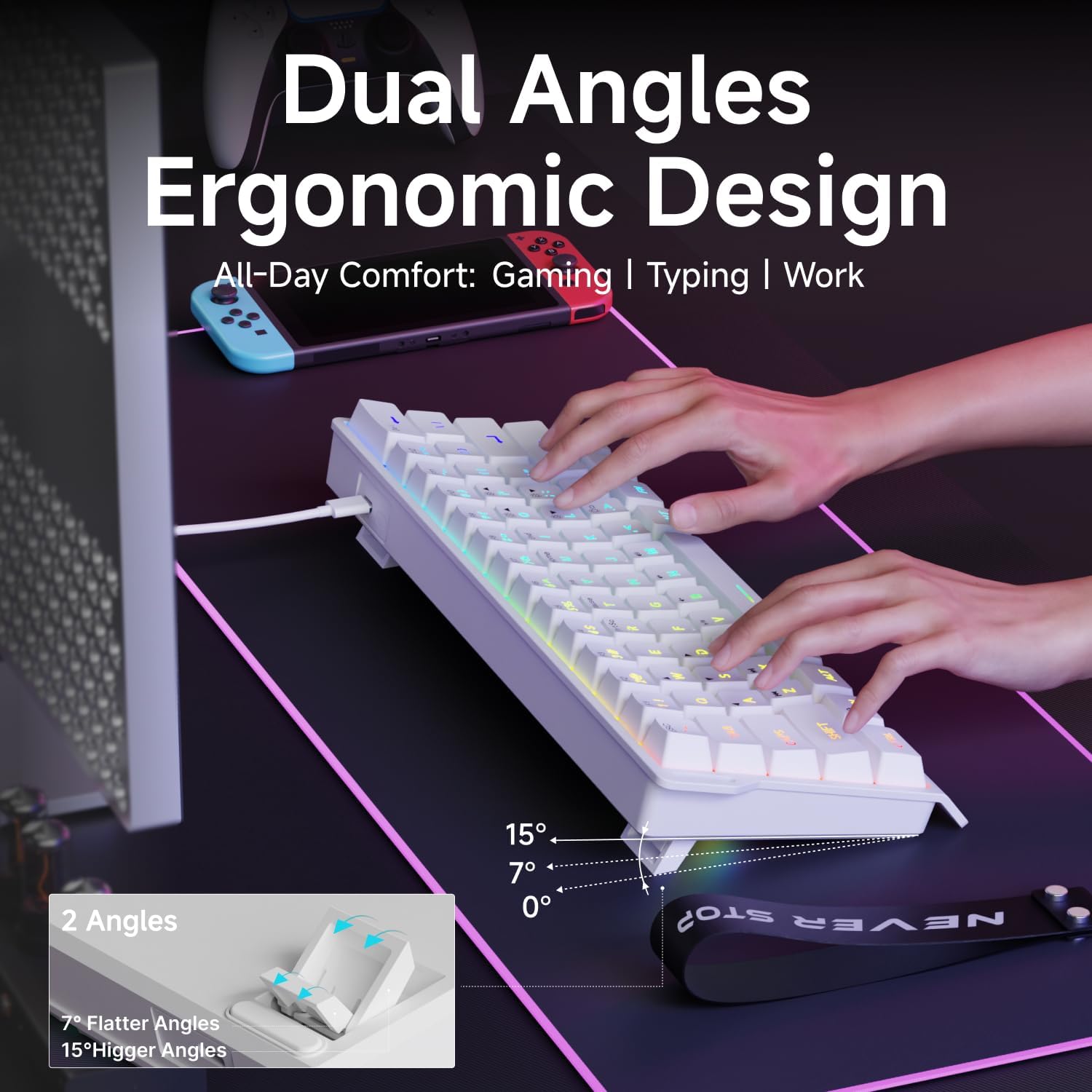
- Adjust Ergonomic Kickstands: The keyboard features dual-layer feet support with two adjustable angles (7° and 15°) for enhanced typing comfort. Flip out the kickstands on the underside of the keyboard to your preferred height.
- Compatibilidade do sistema: The keyboard is compatible with both Windows and Mac operating systems. To switch between modes, hold down the 'FN' key and press 'A' for Windows or 'S' for Mac.
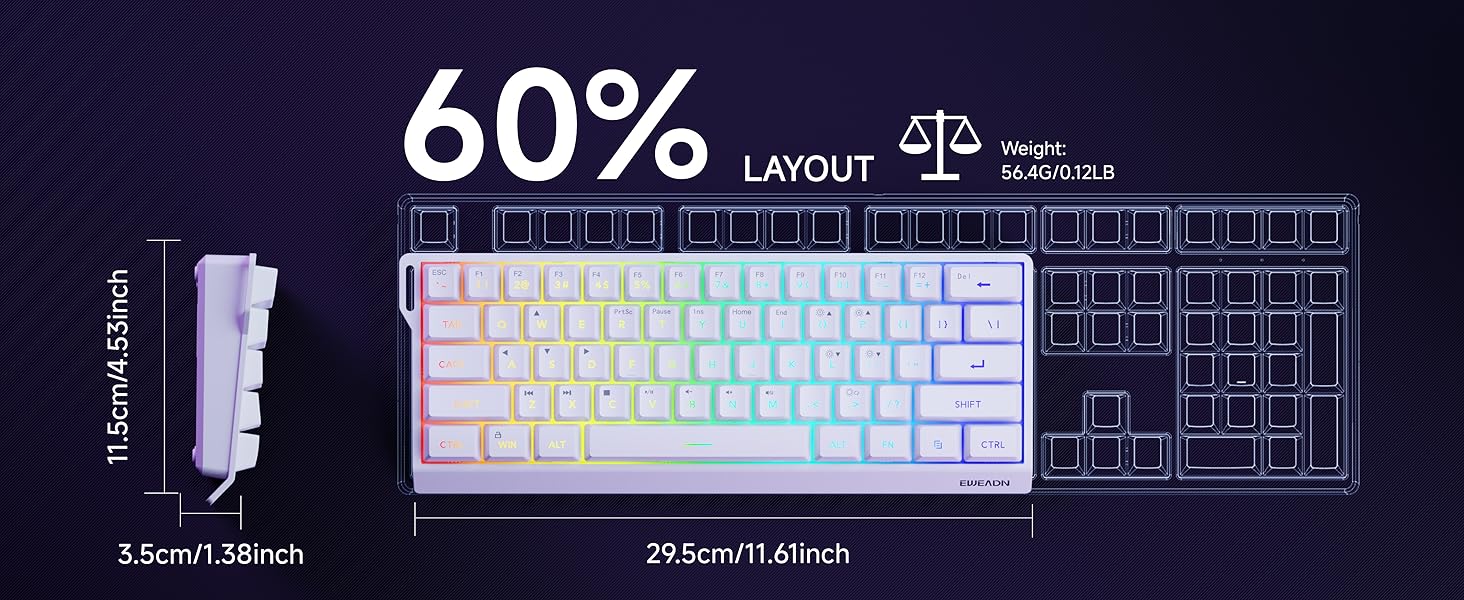
Video: Demonstrates the compact 60% design of the EWEADN F61 keyboard, highlighting its portability and suitability for gaming and travel. Shows the keyboard being connected and used.
4. Instrucións de funcionamento
4.1 Control de iluminación RGB
The EWEADN F61 features 16.8 million RGB backlight colors with 6 effects and 5 brightness levels. Use the following key combinations to customize your lighting:
- Cambiar efectos de retroiluminación: Manteña FN + INS to cycle through the 6 available lighting effects.
- Axustar o brillo: Manteña FN + P (to increase brightness) or FN + ;: (to decrease brightness). There are 5 brightness levels.
- Axustar a velocidade da iluminación: Manteña FN + O (to increase speed) or FN + L (to decrease speed).
- Acender/apagar as luces: Manteña FN + Retroceso para activar ou desactivar a retroiluminación.
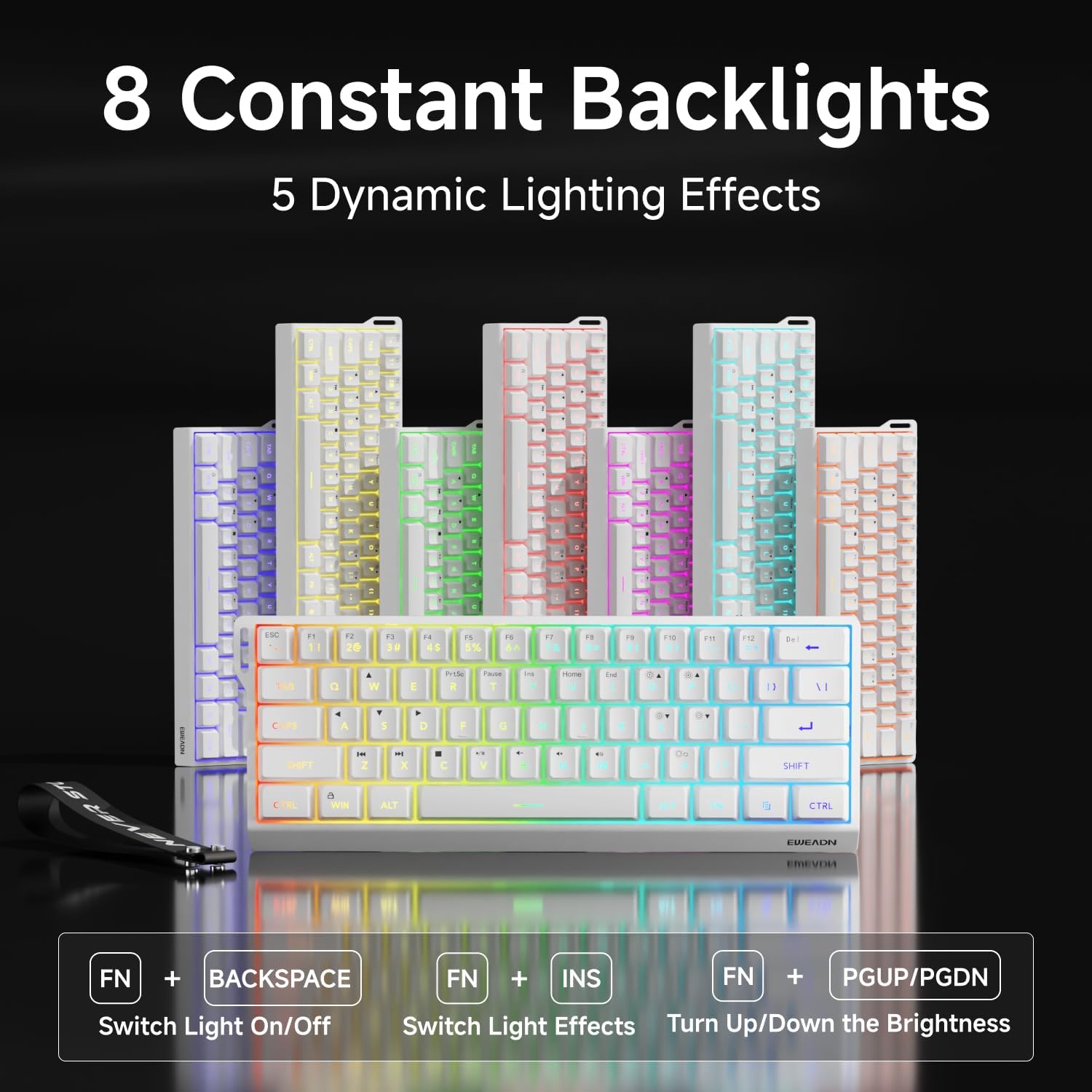

Video: A vertical video showcasing the EWEADN F61 60% Wired RGB Backlit Gaming Keyboard, demonstrating its compact size and various RGB lighting effects.
4.2 Funcións e deseño das teclas
The F61 features a 60% compact layout, which means some keys are accessed via the 'FN' (Function) key. This design saves desk space while retaining essential functionality.
- Lockable Win Key: Prevent accidental interruptions during gaming by locking the Windows key. Press FN + Gañar to toggle the Win key lock.
- Teclas PBT: The keyboard is equipped with dual-layer injection PBT keycaps, ensuring durability and clear, translucent characters that resist fading.
- Silent Membrane Switches: Experience quieter keystrokes for a more comfortable and less disruptive typing or gaming session.


5. Mantemento
To ensure the longevity and optimal performance of your EWEADN F61 keyboard, follow these maintenance guidelines:
- Limpeza regular: Usa un pano suave e seco para limpar as teclas e a superficie do teclado. Para unha limpeza máis profunda, podes usar unha lata de aire comprimido para eliminar o po e os residuos que hai entre as teclas.
- Evitar derrames de líquidos: While durable, direct exposure to liquids can damage the internal components. In case of a spill, immediately disconnect the keyboard and allow it to dry completely before reconnecting.
- Coidado do cable: Handle the detachable USB-C cable with care. Avoid sharp bends or excessive pulling to prevent damage to the cable or port.
6 Solución de problemas
If you encounter any issues with your EWEADN F61 keyboard, refer to the following troubleshooting tips:
- O teclado non responde:
- Asegúrate de que o cable USB-C estea conectado correctamente tanto ao teclado como ao ordenador.
- Tenta conectar o teclado a un porto USB diferente do teu ordenador.
- Reinicia o teu ordenador.
- Luces RGB non funcionan/incorrectas:
- Comprobe se a retroiluminación está desactivada (FN + Retroceso).
- Cycle through lighting effects (FN + INS) to see if they respond.
- Adjust brightness levels (FN + P / ;:).
- Keys Not Functioning as Expected (e.g., Esc, Delete):
- Remember that due to the 60% layout, many functions are accessed via the 'FN' key in combination with other keys. Refer to the keycap legends or the user manual for specific combinations.
- Ensure the correct system compatibility mode is selected (FN + A for Windows, FN + S for Mac).
7. Especificacións
| Característica | Detalle |
|---|---|
| Fabricante | EWEADN |
| Número de modelo | F61 |
| Maquetación | 60 % Compacto |
| Conectividade | Con cable (USB-C) |
| Material de chaveiro | PBT (Dual-Layer Injection) |
| Tipo de cambio | Membrane (Silent) |
| Retroiluminación | RGB (6 efectos, 5 niveis de brillo) |
| Ergonomía | Dual-Angle Adjustable Feet (7°, 15°) |
| Dispositivos compatibles | Consola de xogos, portátil, PC, teléfono intelixente, tableta |
| Sistemas operativos | Windows, Mac |
| Dimensións | 11.61 x 4.53 x 1.93 polgadas (29.5 x 11.5 x 4.9 cm) |
| Peso do elemento | 1.32 libras (0.6 kg) |
8. Garantía e soporte
For any product inquiries, technical assistance, or warranty claims, please contact EWEADN customer support:
- Soporte por correo electrónico: eweadnkeyboard@outlook.com
Please have your product model number (F61) and purchase details ready when contacting support.
