
Surge SG60094
Manual do usuario do controlador sen fíos Surge Pro
Modelo: SG60094
Introdución
This manual provides instructions for the Surge Wireless Pro Controller, Model SG60094. It covers setup, operation, maintenance, troubleshooting, and specifications. Please read this manual thoroughly before using the controller.
The Surge Wireless Pro Controller is designed for multi-platform compatibility, featuring Hall Effect thumb sticks and triggers for precision control.
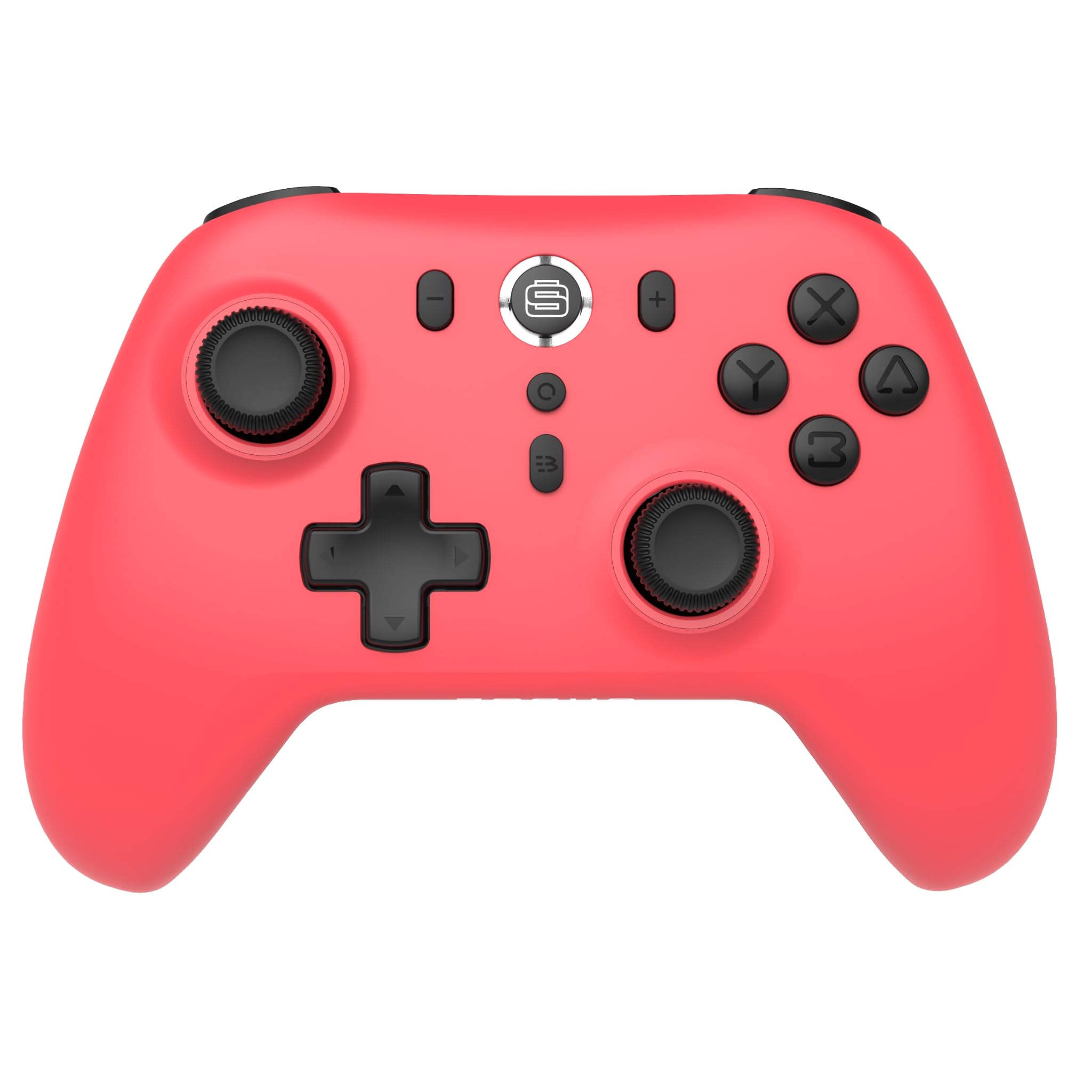
Imaxe: Fronte view of the Surge Wireless Pro Controller in Neon Red.
Características clave
- Compatibilidade multiplataforma: Supports Nintendo Switch/Switch 2 (Note: No C Button/Audio Port on Switch 2), Windows PC, Steam Deck, Android, and iOS devices.
- Hall Effect Thumb Sticks & Triggers: Engineered for precise control and to prevent stick drift.
- Turbo Functionality: Offers 3 adjustable turbo levels for rapid-fire actions.
- Feedback de vibración: Features 4 customizable vibration levels for enhanced haptic feedback.
- Controis de movemento: Compatible with games that utilize motion sensing.
- Console Wake Up: Ability to wake the Nintendo Switch console from sleep mode (Nintendo Switch only).
- Batería recargable: Built-in 600mAh Li-polymer battery provides up to 10 hours of gameplay per charge.
- Carga USB-C: Includes a 1-meter USB-C charging cable.
Instrucións de configuración
1. Carga inicial
Before first use, fully charge the controller. Connect the included USB-C cable to the controller's charging port and the other end to a USB power source (e.g., console, PC, USB wall adapter). The charging indicator will show status.

Image: The controller connected to a USB-C charging cable.
2. Emparellar con Nintendo Switch
- Na túa consola Nintendo Switch, vai ao menú INICIO.
- Seleccione Controladores, entón Cambiar Grip/Orden.
- Manteña premido o Botón de emparejamento on the top of the Surge Wireless Pro Controller until the player indicator lights begin to flash.
- Once paired, the player indicator light(s) will remain solid.
- To wake the console from sleep mode, press the Home button on the controller.
3. Pairing with PC, Android, or iOS
The pairing process may vary slightly depending on your device's operating system. Generally, you will need to enable Bluetooth on your device and search for new devices.
- Ensure Bluetooth is enabled on your PC, Android, or iOS device.
- On the Surge Wireless Pro Controller, press and hold the Botón de emparejamento until the indicator lights flash.
- On your device, select "Surge Pro Controller" from the list of available Bluetooth devices.
- Siga as instrucións que aparecen na pantalla para completar o emparellamento.
Vídeo: Un overview of the 8Bitdo Ultimate 2 Wireless Controller, demonstrating general wireless controller setup principles.
Instrucións de funcionamento
Deseño de botóns

Image: Diagram showing the button layout of the Surge Wireless Pro Controller.
- Manetas analóxicas esquerda/dereita: For movement and camera control. Features Hall Effect technology for enhanced durability and precision.
- D-Pad: Para entrada direccional.
- Botóns A/B/X/Y: Botóns de acción estándar.
- Botóns E/D: Botóns de ombreiro.
- Disparadores ZL/ZR: Analog triggers with Hall Effect sensors.
- Botón de inicio: Returns to the console's home menu.
- Botón de captura de pantalla: Fai capturas de pantalla.
- Botóns máis (+) / menos (-): For in-game menu navigation.
- Botón Turbo: Activates/deactivates turbo function.
- Botón de sincronización: Usado para o emparellamento Bluetooth.
Función Turbo
To activate turbo for a button, press and hold the Botón Turbo, then press the desired action button (A, B, X, Y, L, R, ZL, ZR). Repeat the process to deactivate. There are 3 adjustable turbo levels; refer to the full product manual for detailed adjustment instructions.
Axuste de vibración
The controller offers 4 levels of vibration intensity. Specific button combinations or software may be required to adjust these levels. Consult the full product manual or manufacturer's website for precise instructions.
Mantemento
- Limpeza: Usa un pano suave e seco para limpar o controlador. Evita o uso de produtos químicos agresivos ou materiais abrasivos.
- Almacenamento: Garde o controlador nun lugar fresco e seco, lonxe da luz solar directa e de temperaturas extremas.
- Coidado da batería: Para prolongar a duración da batería, evite descargala completamente con frecuencia. Cargue o controlador regularmente, mesmo se non o usa durante períodos prolongados.
- Coidado do cable: Handle the USB-C charging cable carefully. Avoid bending or twisting it excessively.
Resolución de problemas
| Problema | Solución |
|---|---|
| O controlador non se acende. | Asegúrate de que o controlador estea completamente cargado. Conéctao a unha fonte de alimentación mediante o cable USB-C. |
| Non se pode emparellar co dispositivo. | Make sure Bluetooth is enabled on your device. Press and hold the pairing button on the controller until lights flash. Ensure the controller is not already paired with another device. Try restarting both the controller and the device. |
| Stick drift or inaccurate input. | The controller features Hall Effect sticks to minimize drift. If issues persist, ensure the controller's firmware is up to date. Contact customer support if the problem continues. |
| A vibración non funciona. | Check in-game settings to ensure vibration is enabled. Verify the vibration intensity level on the controller. |
| Console Wake Up not functioning. | This feature is only supported on Nintendo Switch. Ensure the controller is properly paired with the Switch. |
Especificacións
- Número de modelo: SG60094
- Batería: 1 Nonstandard Battery (600mAh Li-polymer, included)
- Duración da batería: Ata 10 horas (aproximadamente)
- Porto de carga: USB-C
- Conectividade: Bluetooth sen fíos
- Dimensións: 20.1 x 14 x 6.6 cm (aproximadamente)
- Peso: 310 g (aproximado)
- País de orixe: China
Garantía e Soporte
For warranty information and customer support, please refer to the official Surge website or contact support directly at support@surgegaming.com.
The product typically comes with a manufacturer's warranty covering defects in materials and workmanship. Please retain your proof of purchase for warranty claims.
Ask a question about this manual
Ask about setup, troubleshooting, compatibility, parts, safety, or missing instructions. Manuals+ will review the question and use this page’s manual context to help answer it.