1. Introdución
This manual provides essential information and instructions for setting up, operating, and maintaining your H3C AX5400 WiFi 6 Router (NX54). The NX54 is designed to deliver high-speed, low-latency wireless internet connectivity, supporting multiple devices simultaneously for demanding applications like 4K/8K streaming, online gaming, and video conferencing. Please note: This router functions as a wireless access point and must be connected to your Internet Service Provider's (ISP) equipment (modem) to provide internet access.
2. Produto rematadoview
2.1 Características principais
- Blazing-Fast WiFi 6 Technology: Supports up to 4804 Mbps on the 5GHz band with 4K QAM modulation and a 160MHz channel for enhanced speed and network efficiency.
- Smooth Multi-Connections: Features a dedicated NPU, 4T4R antenna structure, and True MU-MIMO technology to manage stable and responsive connections for numerous devices.
- Total & Balanced Coverage: Equipped with 6 high-gain external antennas, strategically positioned for optimal signal distribution across 2000+ sq.ft, supporting over 80 devices.
- Lifetime Parental Controls: Subscription-free parental controls include customizable WiFi Schedules, Internet Usage Monitoring, and URL Filtering for online safety.
- Configuración e xestión sinxelas: User-friendly mobile application allows for quick setup and convenient management of network settings.
- Comprehensive Network Security: Includes built-in security features like isolated Guest WiFi, WPA3 protocol, IPv6, and VPN support.
2.2 Que hai na caixa
- H3C AX5400 WiFi 6 Router (NX54)
- Adaptador de alimentación
- Cable Ethernet
- Guía de inicio rápido

Figura 1: Fronte view of the H3C AX5400 WiFi 6 Router (NX54).
3. Instrucións de configuración
3.1 Conexión física
- Colocar o router: Place the router in a central location in your home, away from obstructions and electronic devices that may cause interference. Ensure the antennas are extended for optimal signal.
- Conectar á enerxía: Plug the power adapter into the router's power port and then into a wall outlet. The LED indicator on the router will light up.
- Conectar ao módem: Use the provided Ethernet cable to connect the WAN port on the H3C NX54 router to your ISP's modem or gateway.
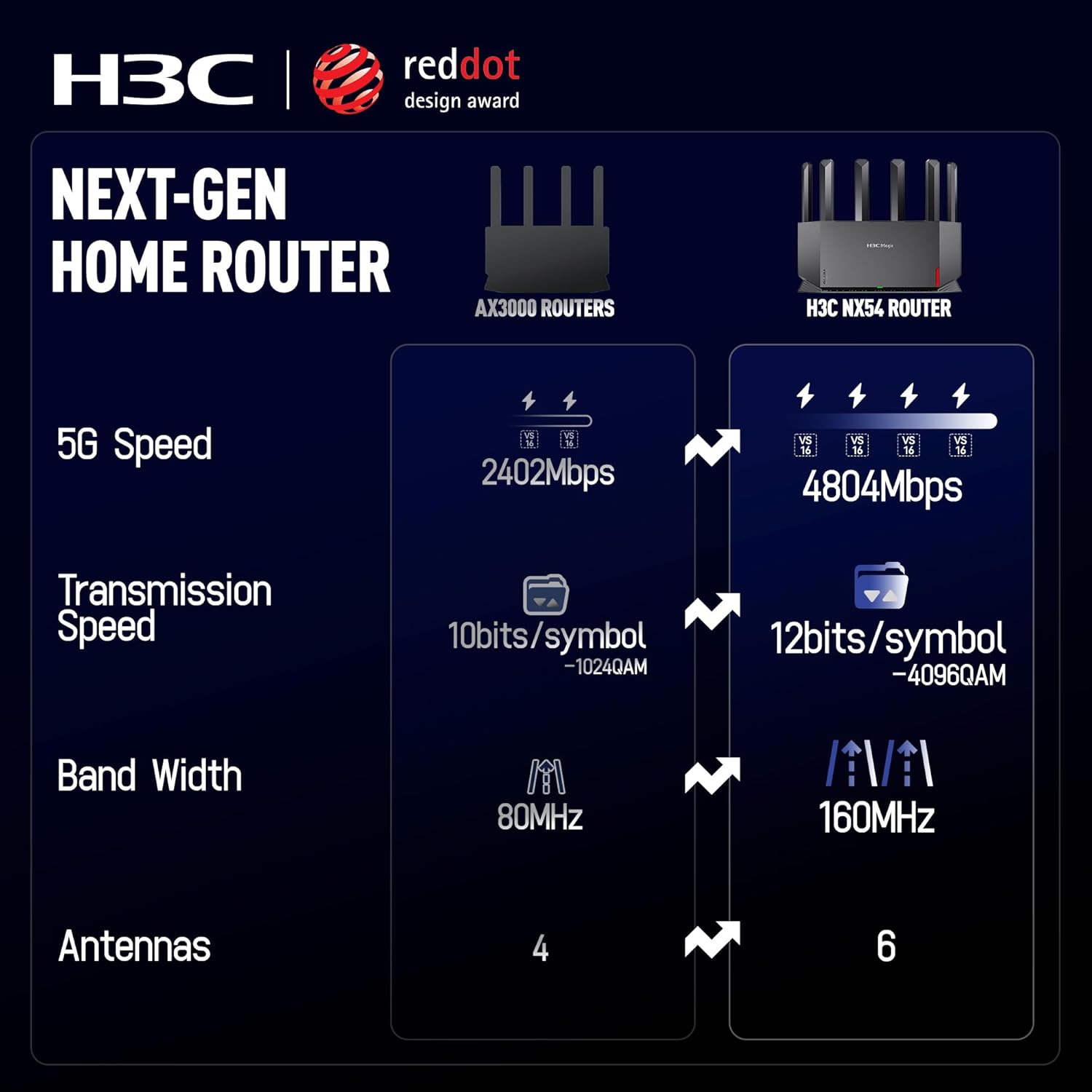
Figura 2: Atrás view of the H3C AX5400 WiFi 6 Router with port labels.
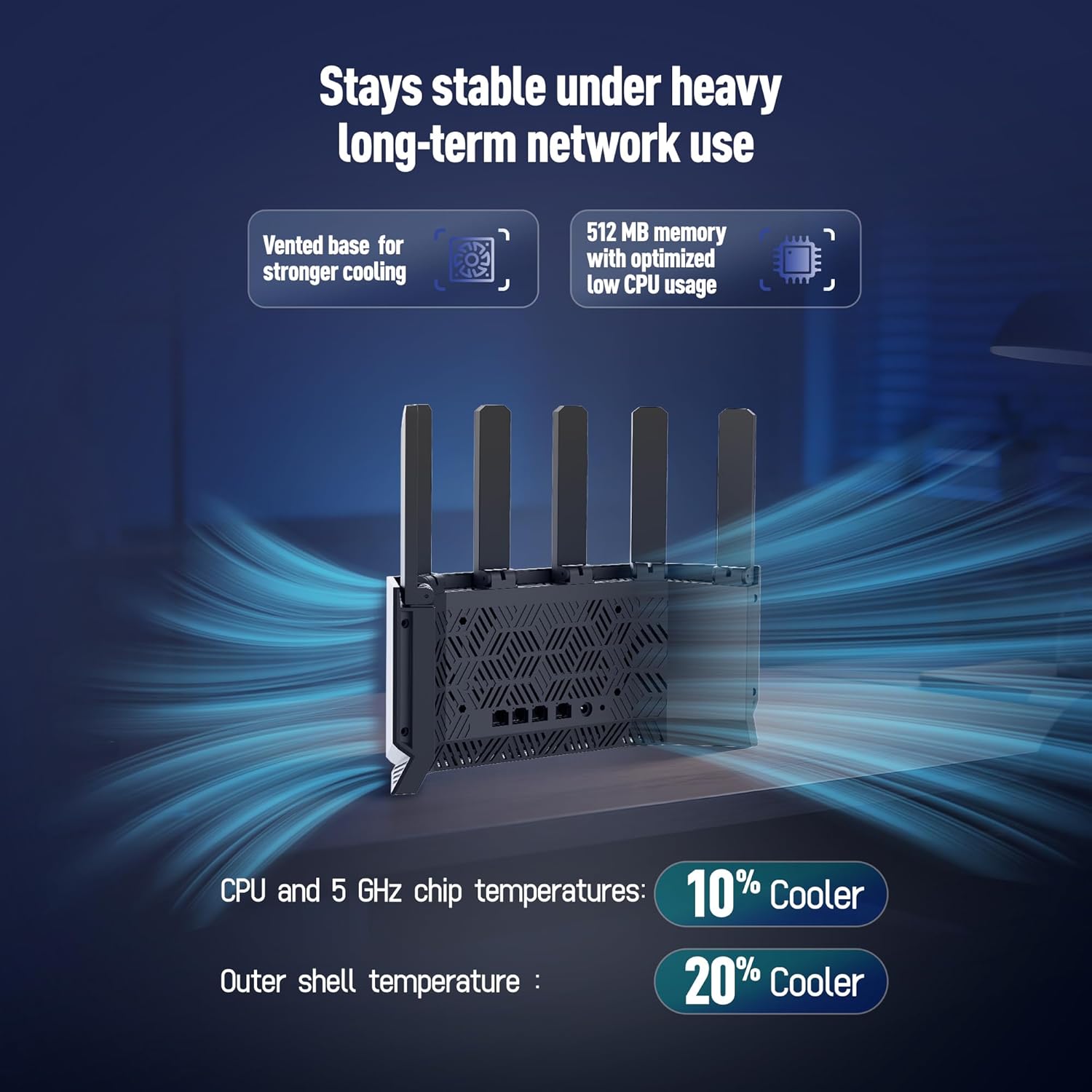
Figure 3: H3C AX5400 WiFi 6 Router with antennas extended for optimal coverage.
3.2 Initial App Setup
- Descarga a aplicación: Download the "H3C Magic" mobile application from your device's app store (available on Google Play and Apple App Store). You can also scan the QR code found on the router's label or in the Quick Start Guide.
- Connect to Default Wi-Fi: On your smartphone, connect to the router's default Wi-Fi network (SSID and password are on the product label).
- Launch App & Configure: Open the H3C Magic app. Follow the on-screen instructions to complete the initial setup, including setting your preferred Wi-Fi network names (SSIDs) for 2.4GHz and 5GHz bands and creating a strong Wi-Fi password.

Figure 4: H3C Magic App interface for easy setup and access to customer service.
3.3 Guía de vídeo de configuración
Video 1: H3C NX54 Quick Start Guide. This video demonstrates the physical connection and initial app setup process for the router.
4. Instrucións de funcionamento
4.1 Xestión de aplicacións móbiles
The H3C Magic app provides a centralized interface for managing your router and network settings. After initial setup, you can use the app to:
- Monitor real-time download and upload speeds.
- View dispositivos conectados e o seu estado.
- Access various network optimization tools.
4.2 Configuración Wi-Fi
- Dual-Band Configuration: Manage separate 2.4GHz and 5GHz Wi-Fi networks or enable unified 2.4G/5G settings for automatic band steering.
- Rede de invitados: Create an isolated guest Wi-Fi network with a temporary password for visitors, ensuring your main network remains secure.
- EasyMesh: Expand your Wi-Fi coverage by adding compatible H3C Magic devices to create a seamless mesh network throughout your home.
4.3 Controis parentais
The router includes comprehensive, subscription-free parental control features:
- Wi-Fi Schedules: Set custom schedules to automatically pause internet access during specific times (e.g., bedtime, study hours).
- Internet Usage Monitoring: Track online activity for connected devices.
- URL Filtrado: Bloquear o acceso a contidos inapropiados websitios.

Figure 5: H3C Magic App interface for managing parental controls.
4.4 Seguridade da rede
The H3C NX54 router offers robust security features to protect your home network:
- Seguridade WPA3: Supports the latest Wi-Fi Protected Access 3 protocol for stronger encryption and enhanced network security.
- Soporte IPv6: Compatible with the latest internet protocol for improved efficiency and security.
- Soporte VPN: Allows for secure remote access and encrypted connections.
- Anti-WiFi Piggyback: Helps prevent unauthorized access to your network.
- Monitorización en tempo real: Provides continuous monitoring of network activity for potential threats.

Figure 6: H3C Magic App interface displaying network security features.
5. Mantemento
- Reinicio do dispositivo: If you experience network issues, you can restart the router directly from the H3C Magic app. This process typically takes 2-3 minutes.
- Actualización de firmware: Regularly check for and install firmware updates via the app to ensure optimal performance, security, and access to new features.
- Control LED: The app allows you to turn the router's LED indicator lights on or off, which can be useful in bedrooms or other light-sensitive environments.
- Optimización da rede: Utilize the network optimization feature in the app to automatically improve your Wi-Fi environment and increase internet speed by minimizing external wireless interferences.
6 Solución de problemas
- Sen conexión a Internet: Ensure the router's WAN port is correctly connected to your ISP's modem. Verify that your modem is working correctly and receiving an internet signal. Restart both the modem and the router.
- Velocidade lenta do wifi: Try repositioning the router to a more central location. Use the network optimization feature in the H3C Magic app. Ensure your devices are connected to the appropriate 2.4GHz or 5GHz band.
- Non se pode conectar á wifi: Double-check your Wi-Fi password. Ensure the router's Wi-Fi is enabled (check LED indicator). Restart the router and your device.
- Router Not Found by App: Ensure your smartphone is connected to the router's default Wi-Fi network during initial setup. If already configured, ensure your phone is connected to the router's active Wi-Fi network.
7. Especificacións
| Dimensións do produto | 12.56 x 6.97 x 3.78 polgadas |
| Peso do elemento | 1.66 libras |
| Número de modelo do artigo | NX54 |
| Marca | H3C |
| Característica especial | Beamforming, Guest Mode, Internet Security, Parental Control, QoS |
| Clase de banda de frecuencia | Dobre banda |
| Estándar de comunicación sen fíos | 802.11ax (WiFi 6) |
| Dispositivos compatibles | Gaming Console, Personal Computer, Printer, Smart Television, Smartphone |
| Usos recomendados para o produto | Casa |
| Tecnoloxía de conectividade | Wi-Fi |
| Cor | Negro |
8. Garantía e soporte
For technical assistance or warranty inquiries, please contact H3C customer support:
- Correo electrónico: Pub.magic@h3c.com
- Teléfono: 888-987-2006
H3C is dedicated to providing comprehensive after-sales support.
Video 2: H3C NX54 AX5400 WiFi 6 Dual-Band High Performance Router Overview. This video highlights key features and benefits of the router.