
1. Introdución
Thank you for choosing the iPazzPort Mini Wireless Keyboard. This compact device offers dual-mode connectivity (2.4G wireless and Bluetooth), a precision touchpad, 3-color backlighting, and an IR learning remote function. It is designed for versatile use with Smart TVs, Android TV Boxes, PCs, Laptops, Projectors, PS5, Xbox, and other compatible devices. This manual provides detailed instructions for setup, operation, maintenance, and troubleshooting to ensure optimal performance.
2. Contido do paquete
Comprobe se o paquete contén os seguintes elementos:
- 1 x iPazzPort Mini Wireless Keyboard
- 1 x USB Dongle (2.4G receiver)
- 1 x cable de carga USB
- 1 x Manual de usuario
- 1 x Lithium Polymer Battery (pre-installed or separate)
3. Produto rematadoview
The iPazzPort Mini Wireless Keyboard combines multiple functionalities into a single, portable unit. Key features include:
- Conectividade de modo dual: Seamlessly switch between 2.4G wireless (via USB dongle) and Bluetooth connections.
- Precision Touchpad: High-sensitivity multi-touch trackpad with gesture support for easy navigation.
- IR Learning Remote: 8 programmable keys to learn functions from your existing TV or projector remote.
- Retroiluminación de 3 cores: Adjustable red, green, and blue backlighting for visibility in low-light conditions.
- Batería recargable: Built-in lithium battery, rechargeable via USB.
- Deseño compacto: Pocket-sized for portability and convenience.

Image: The iPazzPort Mini Wireless Keyboard, showcasing its compact design and layout.
4. Configuración
4.1 Carga do teclado
- Connect the provided USB charging cable to the keyboard's charging port.
- Conecta o outro extremo do cable a unha fonte de alimentación USB (por exemplo, un porto USB do ordenador ou un adaptador de parede USB).
- The charging indicator light will illuminate. It will turn off or change color when fully charged.
4.2 Conexión sen fíos 2.4G
This mode uses the included USB dongle for a stable wireless connection up to 10 meters.
- Insert the USB dongle into an available USB port on your device (Smart TV, PC, Projector, etc.).
- Acenda o teclado deslizando o interruptor de alimentación á posición "ON".
- The keyboard should automatically connect to the dongle. The indicator light may flash briefly and then turn off, indicating a successful connection.

Image: The iPazzPort keyboard demonstrating its universal compatibility with various devices like laptops, tablets, and smart TVs.
4.3 Conexión Bluetooth
This mode allows connection to Bluetooth-enabled devices without a dongle.
- Asegúrate de que o teclado estea cargado e acendido.
- Manteña premido o Fn clave e o Bluetooth icon key (usually F1 or a dedicated Bluetooth key) simultaneously for 3-5 seconds until the Bluetooth indicator light starts flashing rapidly. This puts the keyboard into pairing mode.
- No teu dispositivo, vai á configuración de Bluetooth e busca novos dispositivos.
- Select "iPazzPort Keyboard" or a similar name from the list of available devices.
- If prompted, enter the pairing code displayed on your device using the iPazzPort keyboard and press Enter.
- Once paired, the Bluetooth indicator light on the keyboard will stop flashing and turn off.
4.4 IR Learning Function Setup
The keyboard can learn up to 8 infrared (IR) functions from your existing TV or projector remote.
- Place the iPazzPort keyboard and your original remote control head-to-head, approximately 1-3 cm apart.
- Manteña premido o SET button on the iPazzPort keyboard for 3-5 seconds until the IR indicator light starts flashing slowly. This indicates learning mode.
- Press the button on the iPazzPort keyboard that you wish to program (e.g., Power button). The IR indicator light will flash rapidly.
- Press the corresponding button on your original remote control (e.g., Power button). The IR indicator light on the iPazzPort keyboard will flash three times and then remain solid, indicating successful learning.
- Repeat steps 3 and 4 for the other 7 programmable IR keys.
- After programming all desired keys, press the SET button again to exit learning mode. The IR indicator light will turn off.

Image: Diagram illustrating the IR learning process, showing the iPazzPort keyboard and an original remote facing each other, with programmable buttons highlighted.
5. Instrucións de funcionamento
5.1 Funcións básicas do teclado
- Escritura: Usa a disposición QWERTY para a entrada de texto.
- Teclas de función: Preme o Fn key simultaneously with the F1-F12 keys (or other marked function keys) to access their secondary functions (e.g., volume control, media playback).
- Personaxes especiais: Use Cambio or Fn in combination with other keys for special characters.
5.2 Touchpad Gestures
The touchpad supports various gestures for navigation:
- Toque cun só dedo: Fai clic co botón esquerdo.
- Toque con dous dedos: Fai clic co botón dereito.
- Arrastre cun só dedo: Move cursor.
- Desprazamento con dous dedos: Desprazarse cara arriba/abaixo ou cara á esquerda/dereita.
- Pinch Zoom: (If supported by device) Use two fingers to zoom in/out.

Image: The iPazzPort keyboard with a hand demonstrating touchpad usage for precise control and navigation.
Control de retroiluminación 5.3
To adjust the backlight:
- Preme o Fn clave e o F2 key (or the dedicated backlight key) simultaneously to cycle through red, green, blue, and off.

Image: Four views of the iPazzPort keyboard, demonstrating the red, green, and blue backlight options, as well as the unlit state.
5.4 Xestión de enerxía
- Suspensión automática: The keyboard will enter sleep mode after a period of inactivity to conserve battery. Press any key to wake it up.
- Apagado: Slide the power switch to 'OFF' when not in use for extended periods.
6. Mantemento
6.1 Limpeza
- Apague o teclado antes de limpalo.
- Use a soft, dry cloth to wipe the surface. For stubborn dirt, a slightly damp pódese usar un pano, seguido dun pano seco.
- Evite o uso de produtos químicos agresivos, solventes ou produtos de limpeza abrasivos.
6.2 Coidado coa batería
- Charge the keyboard regularly, especially if it has not been used for a long time.
- Evita descargar completamente a batería con frecuencia, xa que isto pode reducir a súa vida útil.
- Do not expose the keyboard to extreme temperatures (hot or cold).
7 Solución de problemas
| Problema | Causa posible | Solución |
|---|---|---|
| Keyboard not responding (2.4G) | Low battery; Dongle not properly inserted; Out of range; Driver issue. | Charge keyboard; Re-insert dongle; Move closer to device; Try on another USB port/device. |
| O teclado non responde (Bluetooth) | Low battery; Not paired; Bluetooth off on device; Out of range. | Charge keyboard; Re-pair the keyboard; Enable Bluetooth on device; Move closer to device. |
| IR learning fails | Remotes too far apart; Incorrect button press; Original remote battery low. | Ensure remotes are 1-3 cm apart; Press buttons firmly; Replace original remote battery. |
| A luz de fondo non funciona | Retroiluminación apagada; batería baixa. | Press Fn+F2 to cycle backlight; Charge keyboard. |
| Touchpad erratic | Dirty touchpad; Interference; Software issue on device. | Clean touchpad; Move away from other wireless devices; Restart device. |
8. Especificacións
| Característica | Detalle |
|---|---|
| Número de modelo | 61SM |
| Conectividade | 2.4G RF, Bluetooth |
| Rango de operación | Ata 10 metros (33 pés) |
| Cores de contraluz | Red, Green, Blue (RGB) |
| Tipo de batería | Polímero de litio recargable |
| Porto de carga | USB |
| Número de chaves | 92 |
| Peso | 100 gramos |
| Material | Polímero |
| Dispositivos compatibles | Gaming Console, Laptop, PC, Television |
| Disposición do teclado | QWERTY |
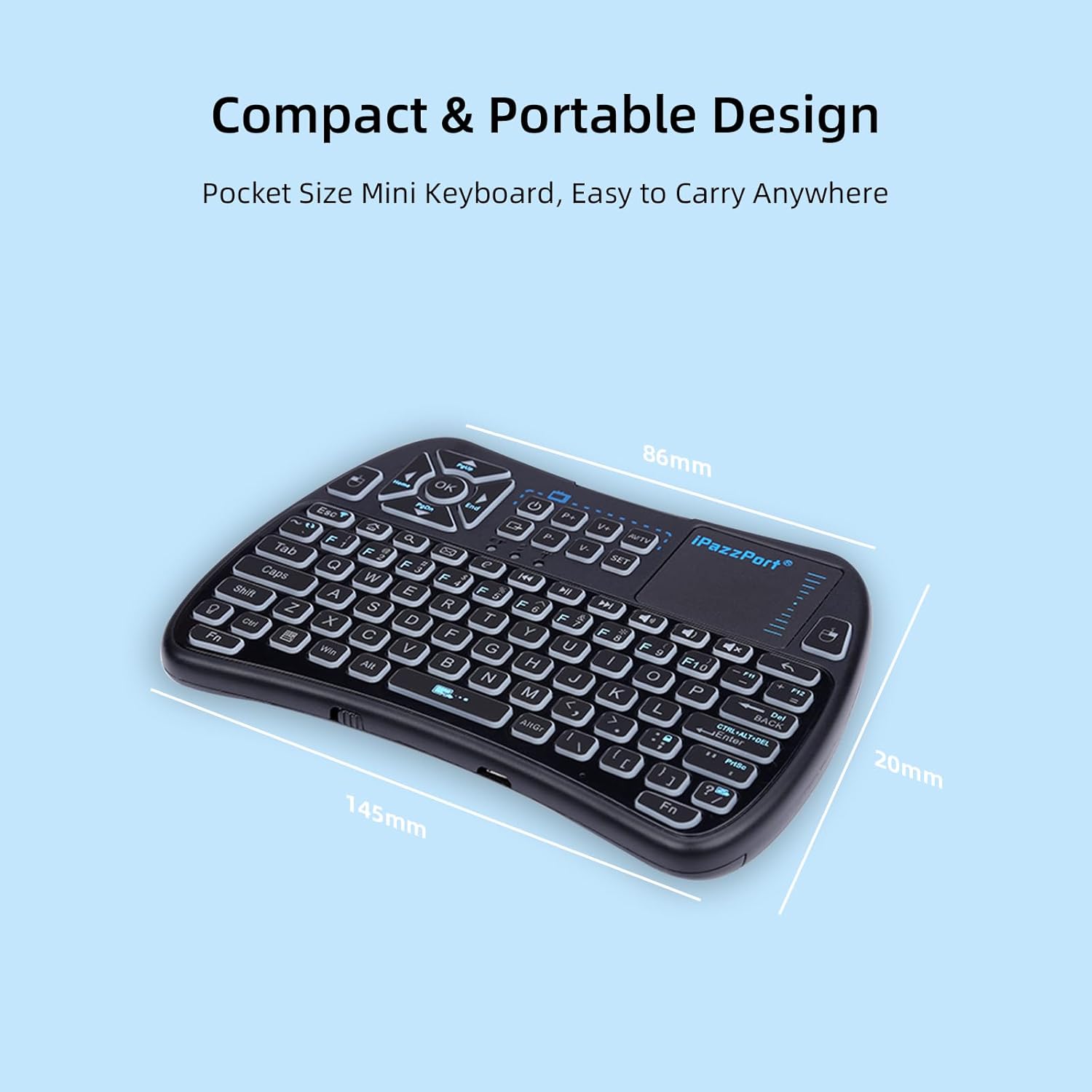
Image: The iPazzPort keyboard with dimensions (145mm x 86mm x 20mm) highlighting its compact and portable design.
9. Información da garantía
This iPazzPort product comes with a 1 anos de garantía do fabricante from the date of purchase. The warranty covers defects in materials and workmanship under normal use. It does not cover damage caused by misuse, accidents, unauthorized modifications, or external causes. Please retain your proof of purchase for warranty claims.
10. Apoio
For technical support, warranty claims, or further assistance, please contact iPazzPort customer service through the retailer's platform or visit the official iPazzPort website. Please have your model number (61SM) and purchase details ready when contacting support.