
1. Introdución
Thank you for choosing the JOMAA Wireless Folding Keyboard. This compact and versatile keyboard is designed for enhanced productivity across multiple devices, featuring both Bluetooth and 2.4G connectivity, a built-in trackpad, and customizable RGB backlighting. This manual provides essential information for setup, operation, and maintenance to ensure optimal performance.
2. Contido do paquete
- JOMAA Wireless Folding Keyboard
- Cable de carga USB (tipo C)
- 2.4G USB Receiver (stored magnetically within the keyboard)
- Manual de usuario
3. Características do produto
- Conectividade multidispositivo: Supports 2 Bluetooth channels and 1 x 2.4G USB receiver connection, allowing seamless switching between up to three devices.
- Deseño de tamaño completo: Despite its foldable design, it offers a full-size keyboard layout including a numeric keypad for comprehensive input.
- Panel táctil integrado: A foldable trackpad provides mouse-like control, eliminating the need for an external mouse.
- Retroiluminación RGB personalizable: Features vibrant RGB backlighting with multiple colors and brightness levels for use in various lighting conditions.
- Deseño ultraportátil: Folds compactly for easy storage and transport, ideal for travel and remote work.
- Batería recargable: Equipped with a 1200mAh high-capacity battery, offering up to 150 hours of uninterrupted work (without backlight).
- Peche magnético: Ensures the keyboard remains securely folded when not in use.
- Chaves de interruptor de tesoira: Ofrece unha experiencia de escritura cómoda e con boa resposta.
4. Configuración
4.1. Cargar o teclado
Before first use, fully charge the keyboard using the provided USB Type-C cable. The charging port is located on the side of the keyboard. A full charge typically takes 2-3 hours.
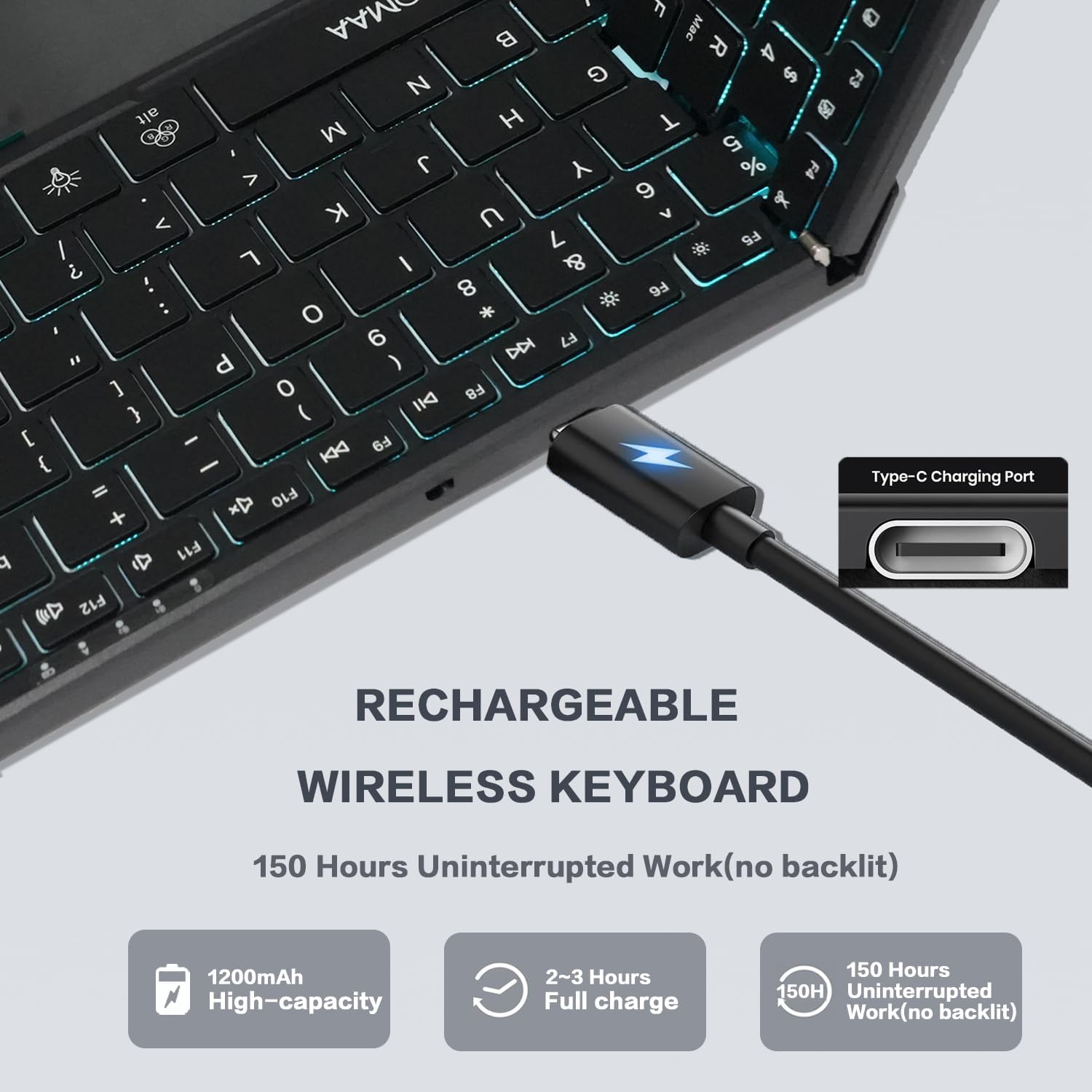
Image: The JOMAA Wireless Folding Keyboard showing its Type-C charging port and battery life indicators.
4.2. Despregando o teclado
Gently unfold the keyboard until it lies flat. The magnetic closure will release, and the keyboard will automatically power on. The trackpad will also extend from its storage position.
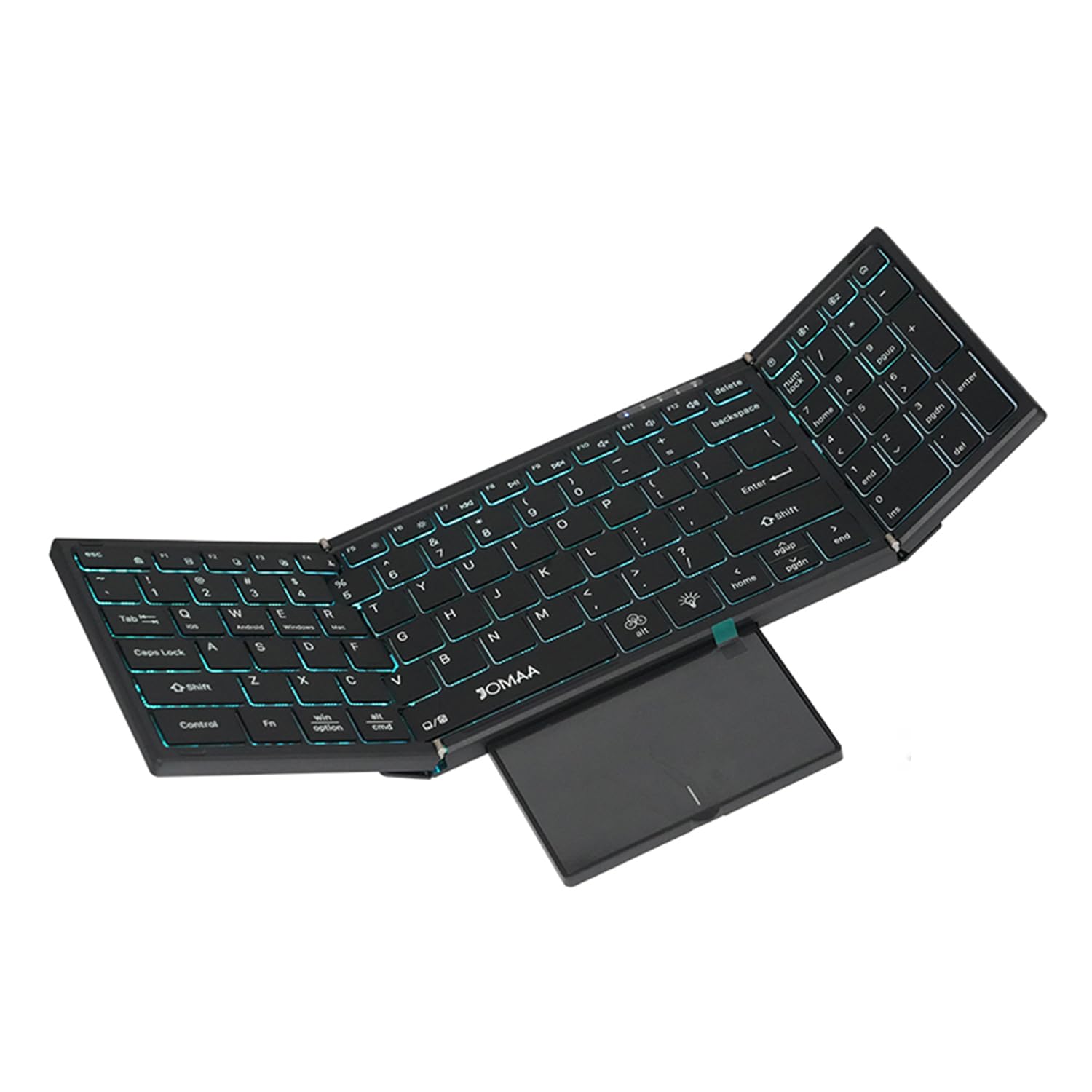
Image: The JOMAA Wireless Folding Keyboard fully unfolded, showcasing its full-size layout, RGB backlighting, and extended trackpad.
4.3. Conexión a dispositivos
The keyboard supports both 2.4G wireless and Bluetooth connectivity.
4.3.1. Conexión sen fíos 2.4G
- Locate the 2.4G USB receiver, which is magnetically stored within the keyboard's trackpad compartment.
- Conecta o receptor USB a un porto USB-A dispoñible no teu ordenador ou dispositivo.
- Preme Fn + 2.4G (usually the key above the numeric keypad) to switch to 2.4G mode. The indicator light will confirm the connection.
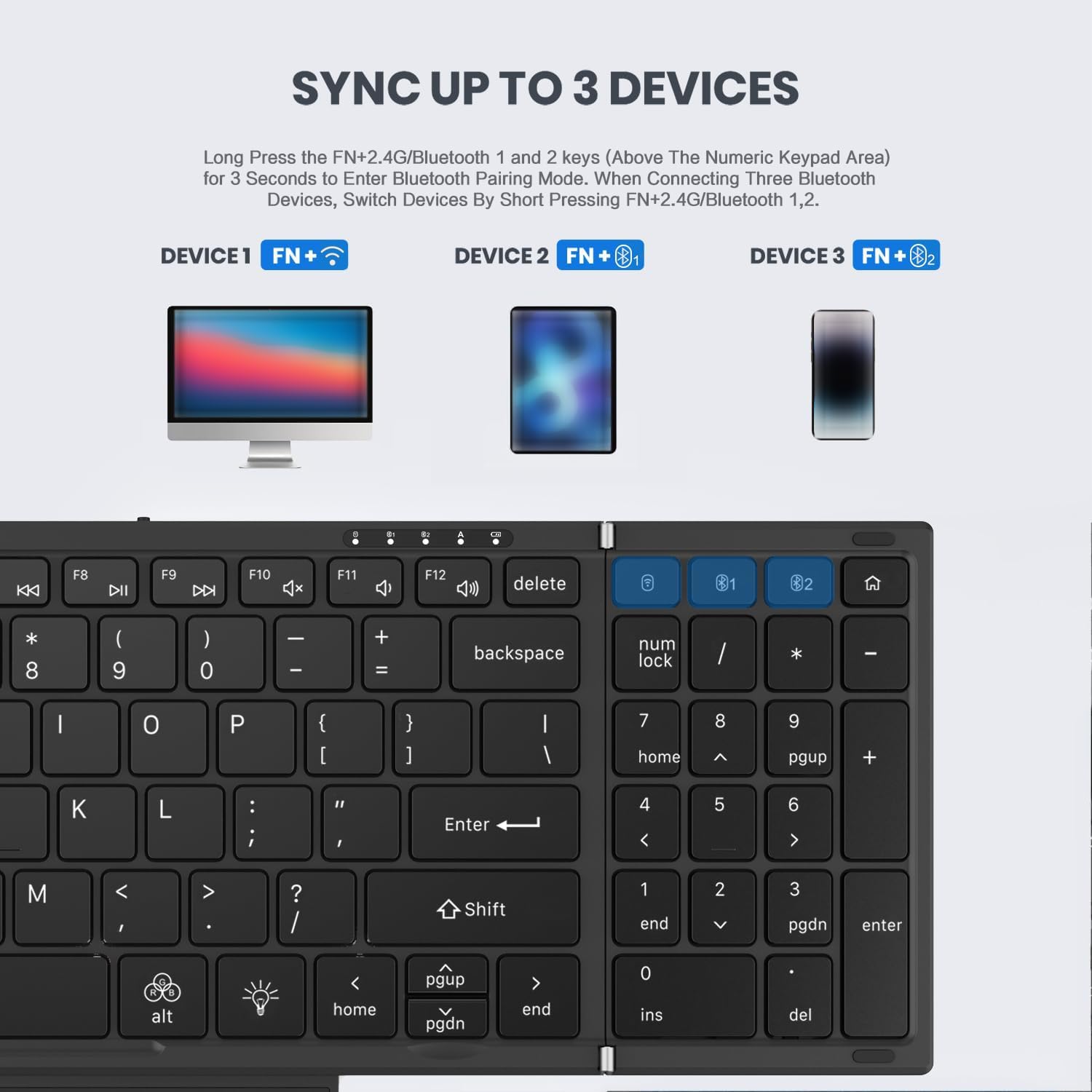
Image: Instructions for syncing the keyboard to multiple devices, highlighting the 2.4G and Bluetooth pairing keys.
4.3.2. Conexión Bluetooth (BT1 / BT2)
- Mantén premido Fn + B1 or Fn + B2 for 3 seconds to enter Bluetooth pairing mode. The corresponding indicator light will flash rapidly.
- On your device (laptop, tablet, phone), go to Bluetooth settings and search for 'JOMAA Keyboard'.
- Select the keyboard to pair. The indicator light on the keyboard will stop flashing once connected.
- Para cambiar entre dispositivos Bluetooth emparellados, prema brevemente Fn + B1 or Fn + B2.
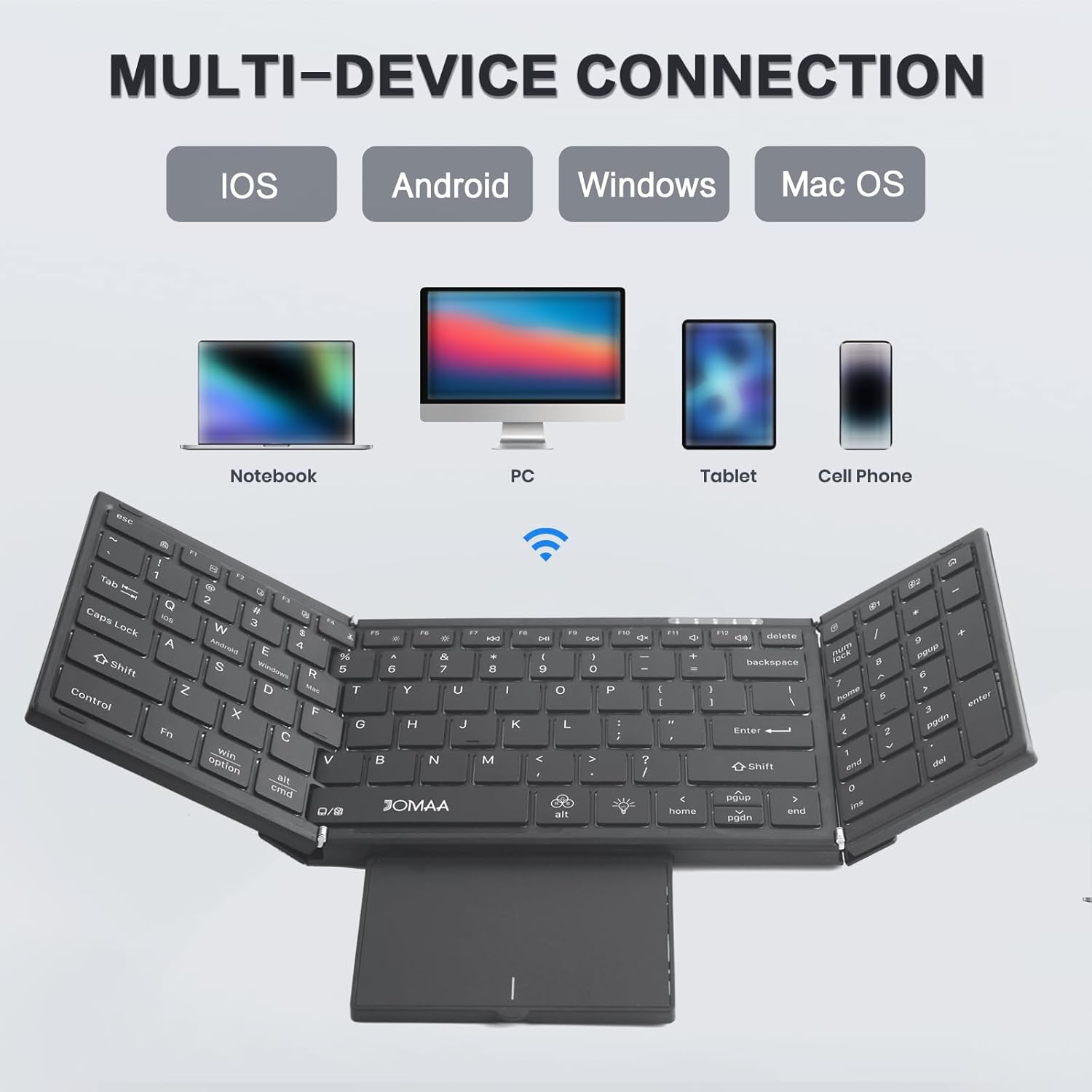
Image: The JOMAA keyboard demonstrating its multi-device connection capabilities with iOS, Android, Windows, and Mac OS devices.
5. Instrucións de funcionamento
5.1. Mecanografía
The keyboard features a full-size QWERTY layout with scissor switch keys for a comfortable and quiet typing experience.
5.2. Using the Trackpad
The integrated trackpad supports multi-gesture controls. To activate or deactivate the trackpad, use the dedicated function key combination. The trackpad is designed to provide laptop-like control.

Image: The foldable trackpad of the JOMAA keyboard, highlighting its larger size and mouse-like functionality.
5.2.1. Trackpad Mode Switching
To optimize trackpad gestures for different operating systems, use the following key combinations:
- Fn + Q: Para dispositivos iOS
- Fn + W: Para dispositivos Android
- Fn + E: Para dispositivos Windows
5.3. Retroiluminación RGB
The keyboard features customizable RGB backlighting. Use the dedicated backlight control keys to adjust brightness and change colors.

Image: The JOMAA keyboard displaying its RGB backlighting, illustrating how it can be used day or night with adjustable brightness and multiple colors.
5.3.1. Control de contraluz
- Preme Fn + Alt (light bulb icon) to cycle through 7 available backlight colors.
- Preme Fn + Light Brightness Icon to adjust between 4 levels of backlight brightness (High-Medium-Low-Off).
5.4. Modo de aforro de enerxía
The keyboard is designed to enter an auto-sleep mode after 10 minutes of inactivity to conserve battery life. Press any key to reactivate it.
6. Mantemento
- Manteña o teclado limpo limpándoo cun pano suave e seco.
- Evite expoñer o teclado a temperaturas extremas, humidade ou luz solar directa.
- Do not attempt to disassemble the keyboard, as this may void the warranty.
7 Solución de problemas
7.1. O teclado non se conecta
- Asegúrate de que o teclado estea cargado e acendido.
- Verify the correct connection mode (2.4G or Bluetooth) is selected using the Fn key combinations.
- Para o Bluetooth, asegúrate de que o Bluetooth do teu dispositivo estea activado e de que o teclado estea en modo de emparellamento.
- Para 2.4G, asegúrate de que o receptor USB estea conectado correctamente.
- Tenta reiniciar tanto o teclado como o dispositivo.
7.2. Trackpad Issues
- Ensure the trackpad is extended and not covered.
- Verify the trackpad mode is correctly set for your operating system (Fn + Q/W/R).
- If the cursor jumps erratically, ensure your palm is not accidentally touching the trackpad while typing. Consider temporarily disabling the trackpad if not needed.
7.3. A luz de fondo non funciona
- Asegúrate de que o teclado teña a batería suficiente.
- Preme Fn + Light Brightness Icon to cycle through brightness levels, ensuring it's not set to 'Off'.
8. Especificacións
| Marca | XOMAA |
| Modelo | DF006T |
| Tecnoloxía de conectividade | Bluetooth, sen fíos 2.4G |
| Dispositivos compatibles | Windows, Mac, iOS, Android devices (Laptop, PC, Tablet, Cell Phone) |
| Característica especial | Foldable, RGB Backlight, Built-in Trackpad, Rechargeable |
| Número de chaves | 64 |
| Capacidade da batería | 1200 mAh |
| Battery Life (no backlight) | Ata 150 horas |
| Tempo de carga | 2-3 horas |
| Material | Plástico |
9. Garantía e soporte
This product comes with a three-month manufacturer's warranty. For technical support, troubleshooting assistance, or warranty claims, please contact JOMAA customer service through the retailer where the product was purchased.
10. Produto rematadoview Vídeo
Video: A brief demonstration of the JOMAA Wireless Folding Keyboard, showcasing its foldable design, RGB backlighting, and multi-functional trackpad.