1. Introdución
The ATK VXE Dragonfly R1 Pro Max is a high-performance wireless gaming mouse engineered for precision, speed, and comfort. Featuring an ultra-lightweight design, a PixArt PAW3395 sensor, and dual-mode 2.4G wireless/wired connectivity, it offers an exceptional gaming experience. This manual provides detailed instructions for setting up, operating, and maintaining your mouse to ensure optimal performance.
2. Contido do paquete
Verifica que todos os elementos estean presentes no teu paquete:
- ATK VXE Dragonfly R1 Pro Max Wireless Gaming Mouse
- Receptor sen fíos USB de 2.4 G
- Cable de carga/datos de USB-C a USB-A
- Manual de usuario e tarxeta de garantía
- Grip Tapes
- Extra PTFE Mouse Feet

Image: ATK VXE Dragonfly R1 Pro Max mouse, USB-C cable, and 2.4G wireless receiver.
Video: Unboxing the ATK R1 Gaming Mouse, showing the mouse and included accessories.
3. Configuración
3.1 Cargar o rato
Before first use, it is recommended to fully charge the mouse. Connect the supplied USB-C cable to the mouse's front port and the USB-A end to a powered USB port on your computer or a USB charger. The mouse's indicator light will show charging status.
3.2 Conexión mediante rede sen fíos 2.4G
- Locate the 2.4G USB wireless receiver. It may be stored in a compartment on the underside of the mouse.
- Plug the 2.4G USB receiver into an available USB-A port on your computer.
- Turn on the mouse using the power switch located on the underside. The mouse will automatically connect to the receiver.

Image: The ATK VXE Dragonfly R1 Pro Max mouse connected wirelessly via its 2.4G USB receiver.
3.3 Connecting via Wired Mode
To use the mouse in wired mode, simply connect the USB-C cable from the mouse to a USB-A port on your computer. The mouse will function immediately and charge simultaneously.

Image: The ATK VXE Dragonfly R1 Pro Max mouse connected via its USB-C cable for wired use and charging.
3.4 Applying Grip Tapes (Optional)
For enhanced grip and control, you may apply the included grip tapes to the sides and main buttons of the mouse. Ensure the mouse surface is clean and dry before application.
4. Instrucións de funcionamento
4.1 Axuste de DPI
The DPI (Dots Per Inch) setting controls the mouse cursor's sensitivity. The R1 Pro Max features a dedicated DPI switch button on the underside of the mouse. Press this button to cycle through pre-set DPI levels. The default DPI settings are typically 400 (Red), 800 (Green - Default), 1600 (Blue), and 3200 (Purple). These can be customized via the ATK Hub software.
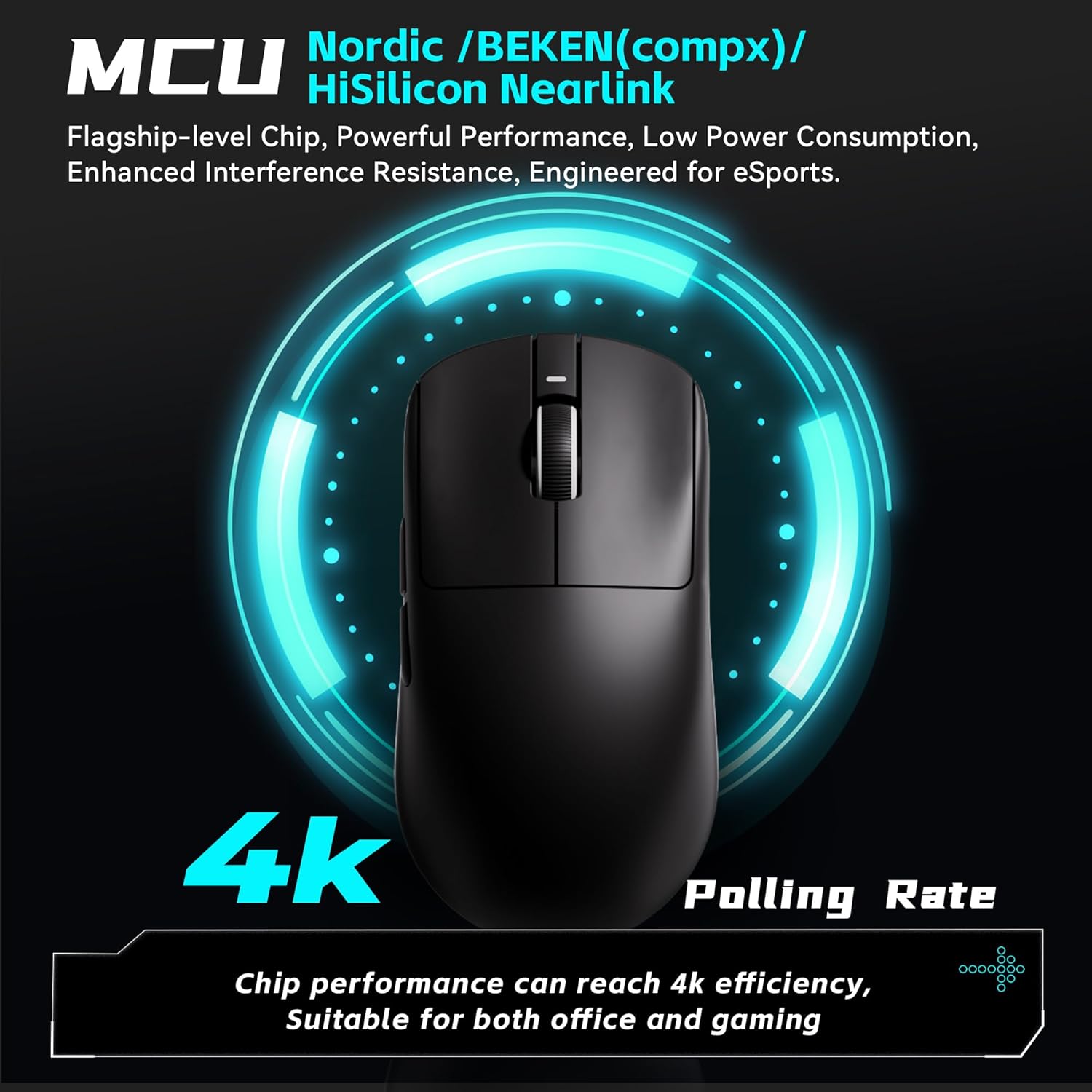
Image: The underside of the mouse, highlighting the DPI switch button and power switch.
4.2 Taxa de sondaxe
The polling rate determines how often the mouse reports its position to the computer. The R1 Pro Max supports polling rates from 125Hz to 4000Hz. To achieve 4K (4000Hz) polling, a separate 4K compatible receiver may be required, which is not included with the standard package. The default receiver supports up to 1000Hz.

Image: Diagram showing the mouse's MCU and 4K polling rate capability.
4.3 Programmable Buttons and Software
The ATK VXE Dragonfly R1 Pro Max features programmable buttons. To customize button functions, macros, DPI settings, and other parameters, use the ATK Hub web-based software. This software is accessible via ATK's official website and does not require installation.
5. Mantemento
5.1 Limpeza
To maintain optimal performance and appearance, regularly clean your mouse. Use a soft, dry, lint-free cloth to wipe the surface. For stubborn dirt, a slightly damp cloth with mild soap can be used, ensuring no liquid enters the mouse. Avoid harsh chemicals or abrasive materials.
5.2 Coidado coa batería
To prolong battery life, avoid fully discharging the mouse frequently. Charge the mouse when the low battery indicator appears. Store the mouse in a cool, dry place when not in use for extended periods.
6 Solución de problemas
- O rato non responde: Ensure the mouse is powered on and fully charged. Check the 2.4G USB receiver connection to your computer. Try a different USB port.
- Movemento errático do cursor: Clean the mouse sensor on the underside. Ensure your mouse pad or surface is clean and free of debris. Check for strong wireless interference from other devices.
- Problemas de conectividade: If using 2.4G wireless, ensure the receiver is close to the mouse. If issues persist, try re-pairing the mouse with the receiver (refer to ATK Hub software for specific instructions).
- Os botóns non funcionan: Check if button assignments have been changed in the ATK Hub software.
- Duración da batería baixa: Ensure the mouse is fully charged. Reduce polling rate if not needed for specific tasks, as higher polling rates consume more power.
If you encounter issues not covered here, please refer to the ATK support websitio ou póñase en contacto co servizo de atención ao cliente.
7. Especificacións

Image: Detailed specifications table for the VEX Dragonfly R1 Series, including the R1 Pro Max.
| Característica | Specification (R1 Pro Max) |
|---|---|
| Modelo | R1 Pro Max |
| Peso | 54 g |
| Sensor | PixArt PAW3395 |
| Rango de DPI | 100 - 26,000 ppp |
| Taxa de votación | 125 - 4,000Hz (4K requires separate receiver) |
| Conectividade | 2.4G Wireless, Wired (USB-C) |
| Duración da batería | Up to 150 hours (at 1000Hz) |
| Dimensións | 120.6 x 64.0 x 37.8 mm |
| Interruptores | Kailh White Blade (100 Million Clicks) |
| Revestimento | Smooth ice-feeling coating |

Imaxe: Explosión view of the ATK VXE Dragonfly R1 Series mouse, showing internal components like the sensor and switches.
8. Garantía e soporte
Your ATK VXE Dragonfly R1 Pro Max Wireless Gaming Mouse comes with a product warranty. Please refer to the included warranty card for specific terms and conditions. For technical support, troubleshooting assistance, or warranty claims, please visit the official ATK website or contact ATK customer service.
ATK Official Store: https://www.amazon.com/stores/ATK/page/224A09D5-D385-495A-9961-B8A6C4A3EEA6