
1. Introdución
Thank you for choosing the Pisichen 24 inch Touch Screen Gaming Monitor. This manual provides essential information for setting up, operating, and maintaining your monitor. Please read it thoroughly before use to ensure optimal performance and safety.
This monitor features a 24-inch QHD (2560x1440P) display with a 165Hz refresh rate, 2ms response time, and 10-point projected capacitive touchscreen functionality. It supports FreeSync and HDR, offering a vibrant and responsive visual experience for both gaming and professional applications.

Image: The Pisichen 24-inch 2K 165Hz Touch Screen Monitor highlighting its key features like HDR, IPS Panel, and 10-point Touch.
2. Contido do paquete
Antes de continuar coa configuración, comproba que todos os compoñentes estean presentes no paquete:
- Pisichen 24 inch Touch Screen Monitor
- Soporte para monitor (base e pescozo)
- Cable DP
- Cable HDMI
- USB B Touch Cable
- Cable USB CC
- Adaptador de corrente continua
- Manual de usuario (este documento)
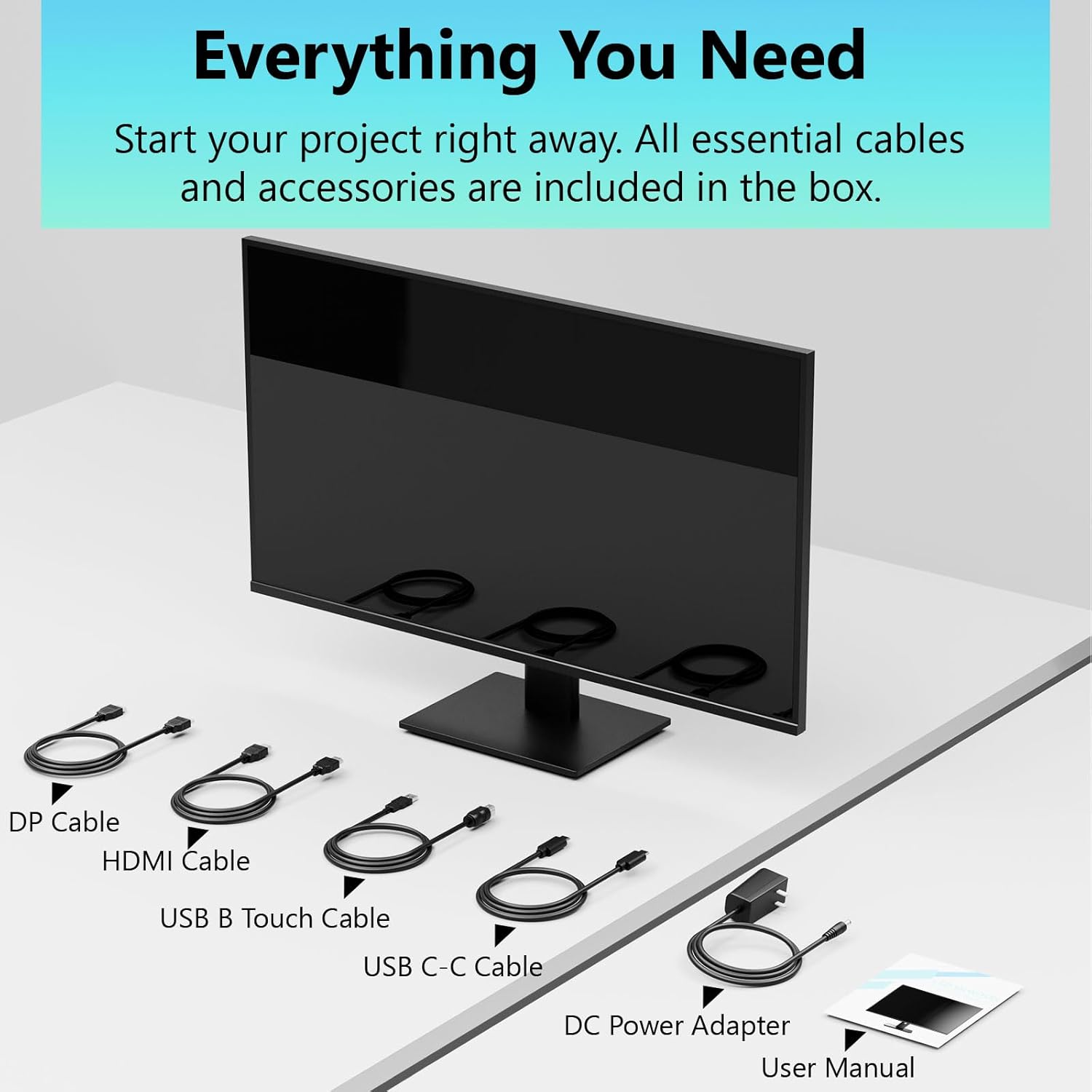
Image: All essential cables and accessories included in the box for the monitor setup.
3. Instrucións de configuración
3.1 Montaxe do soporte
- Retire con coidado o monitor da súa embalaxe, colocándoo boca abaixo sobre unha superficie suave e limpa para evitar rabuñaduras.
- Fixe o colo do soporte ao panel traseiro do monitor.
- Fixe a base do soporte ao pescozo do soporte usando os parafusos proporcionados.
- Asegúrese de que todas as conexións estean firmes antes de colocar o monitor en posición vertical.
3.2 VESA Mount Installation (Optional)
This monitor supports VESA mounting. If you plan to use a VESA-compatible arm or wall mount, remove the stand and attach the VESA mount according to the mount's instructions. The VESA pattern is typically 75x75mm or 100x100mm (refer to specifications for exact details).
3.3 Conectarse a un dispositivo
O monitor ofrece varias opcións de conectividade:
- HDMI: Conecta un extremo do cable HDMI ao porto HDMI do monitor e o outro extremo á saída HDMI do teu ordenador.
- DisplayPort (DP): Connect one end of the DP cable to the monitor's DP port and the other end to your computer's DP output.
- USB tipo C: For compatible devices, connect the USB C-C cable to the monitor's USB Type-C port and your device's USB Type-C port. This single cable can transmit video, data, and power (charging).
- USB Type-B (for Touch Functionality): To enable the touch screen feature, connect the USB B Touch Cable from the monitor's USB Type-B port to an available USB Type-A port on your computer.

Image: The monitor's rear panel with various connectivity options, including HDMI, DisplayPort, and USB-C ports.
3.4 Conexión de alimentación
Connect the DC Power Adapter to the monitor's power input port, then plug the adapter into a power outlet.
3.5 Initial Power On and Touch Compatibility
Press the power button on the monitor. The display should light up. If no image appears, ensure all cables are securely connected and the correct input source is selected on the monitor (via the OSD menu).
For touch functionality, ensure the USB B Touch Cable is connected to your computer. Touch compatibility may vary by operating system and device. Most Windows PCs support multi-touch. For Mac devices, single-touch click is generally supported, but multi-touch may require specific drivers or configurations. Game consoles (PS3/4/5, Xbox, Steam Deck) and some other devices (Fire TV, Apple products like iPhone/iPad) typically do not support touch functionality.

Image: A compatibility chart illustrating which devices support multi-touch or single-touch, and which devices do not support touch functionality with the monitor.
4. Instrucións de funcionamento
4.1 Encendido/apagado
Press the power button located on the monitor to turn it on or off. The power indicator light will show the monitor's status.
4.2 Menú de visualización en pantalla (OSD).
The OSD menu allows you to adjust various monitor settings. Use the control buttons (usually located on the back or bottom of the monitor) to navigate the menu. Common menu options include:
- Configuración da imaxe: Brightness, Contrast, Sharpness, Color Temperature, HDR mode.
- Configuración da pantalla: Aspect Ratio, Input Source selection (HDMI, DP, USB-C).
- Configuración de xogos: FreeSync, Response Time (Overdrive), Crosshair.
- Configuración de audio: Volume (if internal speakers or audio output are present).
- Configuración do sistema: Idioma, Transparencia OSD, Restablecer valores predeterminados de fábrica.
4.3 Funcionalidade da pantalla táctil
The monitor supports 10-point multi-touch, allowing for intuitive interaction directly on the screen. Ensure the USB B Touch Cable is connected to your computer for this feature to work.
- Toca simple: Equivalent to a left-click.
- Mantén premido: Equivalente a un clic co botón dereito.
- Pinch-to-Zoom: Usa dous dedos para ampliar ou reducir a imaxe.
- Pasar o dedo: Navigate through content or scroll.

Image: A user interacting with the monitor's touch screen, highlighting its precision and responsiveness for creative tasks.
4.4 Axustes ergonómicos
The monitor stand allows for tilt adjustments to achieve the most comfortable viewing and touch angle. Gently adjust the screen to your preferred position.
4.5 Características do coidado dos ollos
The monitor includes advanced eye-comfort features such as Flicker-Free technology and Low Bluelight mode to reduce eye strain during prolonged use. These settings can typically be adjusted within the OSD menu.

Image: Visual representation of the monitor's advanced eye-comfort features, including Flicker-Free and Low Bluelight technologies.
5. Mantemento
5.1 Limpeza do monitor
- Apague sempre o monitor e desconecte o cable de alimentación antes de limpalo.
- Use un pano suave e sen pelusa damplimpas con auga ou cun limpador de pantallas suave e non abrasivo.
- Non pulverices o limpador directamente sobre a pantalla. Aplícao primeiro sobre o pano.
- Evite usar benceno, disolventes, produtos de limpeza con base de amoníaco ou materiais abrasivos, xa que poden danar a superficie da pantalla.
5.2 Almacenamento
When storing the monitor for an extended period, ensure it is powered off, unplugged, and stored in a cool, dry place away from direct sunlight and extreme temperatures. Use the original packaging if available for best protection.
6 Solución de problemas
Se tes problemas co monitor, consulta os seguintes pasos habituais para a resolución de problemas:
- Sen enerxía: Asegúrate de que o adaptador de corrente estea conectado correctamente tanto ao monitor como a unha toma de corrente que funcione. Comproba se o indicador luminoso de alimentación está aceso.
- Sen imaxe/sinal:
- Verify that the video cable (HDMI, DP, or USB-C) is securely connected to both the monitor and your computer.
- Asegúrate de que estea seleccionada a fonte de entrada correcta no menú OSD do monitor.
- Check your computer's display settings to ensure the monitor is detected and enabled.
- Funcionalidade sen contacto:
- Confirm the USB B Touch Cable is connected from the monitor to your computer.
- Check your computer's device manager to see if the touch screen driver is installed and functioning correctly.
- Refer to the "Initial Power On and Touch Compatibility" section for device-specific limitations.
- Imaxe parpadeante ou distorsionada:
- Comprobe se o cable de vídeo está danado ou conexións soltas.
- Proba cun cable ou porto de vídeo diferente.
- Axusta a taxa de actualización na configuración da pantalla do teu ordenador.
- Píxeles mortos: A small number of bright or dark pixels are common in LCD/LED technology and are not considered a defect unless they exceed manufacturer specifications.
Se o problema persiste despois de probar estes pasos, ponte en contacto co servizo de atención ao cliente.
7. Especificacións
| Característica | Especificación |
|---|---|
| Marca | Pisichen |
| Número de modelo | 24IN165HZ-QHD |
| Tamaño da pantalla | 23.8 polgadas |
| Resolución | QHD Wide 1440p (2560 x 1440) |
| Relación de aspecto | 16:9 |
| Taxa de actualización | 165 Hz |
| Tempo de resposta | 2 milisegundos |
| Tipo de visualización | LED IPS |
| Brillo | 400 Candelas (cd/m²) |
| Relación de contraste | 3000:1 |
| Viewángulo ing | 178 graos |
| Gama de cores | 99 % |
| Picture Quality Enhancement | HDR |
| Sincronización adaptativa | FreeSync |
| Tecnoloxía de conectividade | DisplayPort, HDMI, USB Type-C, USB Type-B |
| Características adicionais | Tilt Adjustment, 10-Point Touchscreen |
| Dimensións do artigo (D x W x H) | 0.75" D x 21.5" W x 12.7" H |
| Peso do elemento | 5.38 quilogramos |
| Cor | Negro |
8. Información da garantía
This product comes with a 1-year limited warranty from the date of purchase. The warranty covers manufacturing defects and workmanship under normal use. It does not cover damage caused by misuse, accidents, unauthorized modifications, or external factors. Please retain your proof of purchase for warranty claims.
9. Atención ao cliente
For technical assistance, warranty claims, or further inquiries, please contact Pisichen customer support. You may find contact information on the official Pisichen websitio web ou a través do seu vendedor.
Para obter recursos adicionais e información sobre o produto, visite a Pisichen Store on Amazon.