
1. Introdución
This manual provides essential information for setting up, operating, maintaining, and troubleshooting your GIGABYTE AORUS Prime 5 AP5A7N7T-5000 Gaming Desktop PC. Please read this manual thoroughly before using your new system to ensure proper functionality and longevity.
The AORUS Prime 5 is a high-performance gaming desktop featuring an AMD Ryzen 7 9700X Processor, NVIDIA GeForce RTX 5070 Ti Graphics Card, 32GB DDR5 RAM, and a 2TB PCIe Gen4 NVMe M.2 SSD. It operates on Windows 11 and includes a 360mm liquid cooler for optimal thermal management.
Figure 1: GIGABYTE AORUS Prime 5 Gaming Desktop PC overview.
2. Que hai na caixa
Comprobe que todos os elementos estean presentes na embalaxe:
- GIGABYTE AORUS Prime 5 Gaming Desktop PC
- Cable de alimentación
- Manual de usuario (este documento)
- Tarxeta de garantía
- Accessory Kit (may include SATA cables, screws, etc.)
3. Configuración
Follow these steps to set up your GIGABYTE AORUS Prime 5 Gaming Desktop PC.
3.1 Desembalaxe e colocación
- Retire con coidado o PC da súa embalaxe. Garde todos os materiais de embalaxe para futuros transportes ou mantemento.
- Place the PC on a stable, flat surface with adequate ventilation. Ensure there is clear space around the air intakes and exhausts.
- Remove any protective films or internal packaging materials from the PC, especially from the tempered glass side panel.

Figura 2: Fronte view of the AORUS Prime 5 PC.
3.2 Conexión de periféricos
Connect your monitor, keyboard, mouse, and other peripherals to the appropriate ports on the rear and front of the PC.
- Monitor: Connect your monitor(s) to the graphics card's DisplayPort or HDMI outputs. Ensure the cable is securely fastened.
- Teclado e rato: Connect your keyboard and mouse to any available USB ports. For optimal performance, use USB 3.0 or higher ports.
- Rede: Conecta un cable Ethernet ao porto LAN para unha conexión a internet por cable ou asegúrate de que a antena Wi-Fi estea conectada para a conectividade sen fíos.
- Audio: Conecte altofalantes ou auriculares ás tomas de son.
- Potencia: Connect the power cable to the PC's power supply unit (PSU) and then to a wall outlet.
Figure 3: Rear I/O and Front Panel Ports.
3.3 Primeiro arranque e configuración de Windows
- Prema o botón de acendido e apagado situado no panel frontal do PC.
- Follow the on-screen instructions to complete the Windows 11 setup process. This typically involves selecting your region, language, creating a user account, and accepting the license agreement.
- After Windows is set up, it is recommended to install the GIGABYTE Control Center (GCC) software. This application helps manage drivers, BIOS updates, and RGB lighting.
- Ensure all drivers are up-to-date. While GCC assists, also check Windows Update and the official GIGABYTE website for the latest drivers for your specific model.
4. En funcionamento
This section covers general operation and key features of your AORUS Prime 5 PC.
4.1 Rendemento do sistema
Your AORUS Prime 5 is equipped with an AMD Ryzen 7 9700X processor and an NVIDIA GeForce RTX 5070 Ti graphics card, providing robust performance for gaming, content creation, and demanding applications.

Figure 4: AMD Ryzen 7 9700X Processor.
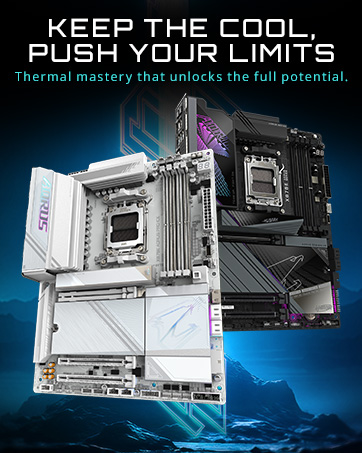
Figure 5: NVIDIA GeForce RTX 5070 Ti Graphics Card.
4.2 Sistema de refrixeración
The system features a 360mm liquid cooler and WINDFORCE cooling technology with Hawk Fans to maintain optimal temperatures during intensive use. This design ensures efficient heat dissipation and sustained performance.

Figure 6: All-Round Cooling Airflow.
4.3 Fusión RGB 2.0
Customize the 16.7 million ARGB lighting effects using the GIGABYTE Control Center (GCC) software. You can synchronize lighting across compatible components to personalize your system's aesthetic.
5. Mantemento
Un mantemento regular axuda a garantir a lonxevidade e o rendemento óptimo do teu PC.
5.1 Limpeza xeral
- Exterior: Use un suave, damp pano para limpar as superficies exteriores. Evite produtos químicos agresivos.
- Filtros de po: Periodically clean the dust filters (if present) to maintain optimal airflow.
- Interior: Every 6-12 months, carefully open the side panel and use compressed air to remove dust from internal components, especially fans and heatsinks. Ensure the PC is powered off and unplugged before opening.
5.2 Actualizacións de software
- Actualizacións de Windows: Comprobe e instale regularmente actualizacións de Windows para garantir a estabilidade e a seguridade do sistema.
- Actualizacións de controladores: Use the GIGABYTE Control Center (GCC) or visit the official GIGABYTE website to download and install the latest drivers for your motherboard, graphics card, and other components.
5.3 Sistema de refrixeración líquida
The 360mm liquid cooler is a closed-loop system and generally requires minimal maintenance. However, ensure the radiator fins are free of dust and the fans are spinning correctly. Do not attempt to open or refill the liquid cooler.
6 Solución de problemas
Esta sección aborda problemas comúns cos que podes atoparte.
6.1 Sen alimentación / O sistema non arranca
- Asegúrate de que o cable de alimentación estea conectado correctamente tanto ao PC como á toma de corrente.
- Check the power switch on the back of the power supply unit (PSU) is in the 'ON' position.
- Try a different power outlet or power cable.
6.2 Sen visualización no monitor
- Verify that the monitor is powered on and the video cable is securely connected to the graphics card's output ports (DisplayPort or HDMI), not the motherboard's integrated video ports.
- Proba cun cable de vídeo ou monitor diferente se estás dispoñible.
6.3 Velocidade lenta de Internet
- If experiencing slow internet speeds, particularly with a wired connection, check for pre-installed network optimization software such as cFosSpeed (sometimes bundled with GIGABYTE software). Uninstalling this program has resolved network performance issues for some users.
- Ensure your network drivers are up-to-date.
- Verify your router and internet service provider connection.
6.4 High CPU Temperatures / System Instability
- Ensure the PC has adequate airflow and is not placed in an enclosed space.
- Check that the liquid cooler's pump and fans are operating correctly. You should hear the pump running and see the fans spinning.
- If temperatures remain high, it may indicate an issue with the liquid cooler's contact with the CPU. This typically requires professional inspection.
6.5 GPU Fan Noise / System Lock-ups
- Excessive GPU fan noise or system lock-ups during heavy load can indicate thermal issues or driver problems.
- Asegúrate de que os controladores gráficos estean actualizados á última versión.
- Monitor GPU temperatures using monitoring software. If temperatures are consistently high, ensure the PC has good airflow.
- If issues persist, contact GIGABYTE support.
7. Especificacións
Detailed technical specifications for the GIGABYTE AORUS Prime 5 AP5A7N7T-5000 Gaming Desktop PC.
| Característica | Especificación |
|---|---|
| Marca | GIGABYTE |
| Nome do modelo | AORUS PRIME 5 AP5A7N7T-5000 |
| Sistema Operativo | Windows 11 Home |
| Modelo CPU | AMD Ryzen 7 9700X |
| Velocidade da CPU | 3.8 GHz |
| Coprocesador gráfico | GeForce RTX™ 5070Ti WINDFORCE OC |
| Graphics Card RAM | 16 GB GDDR7 |
| Tamaño da memoria RAM instalada | 32 GB DDR5 |
| Tamaño máximo da memoria RAM | 256 GB |
| Velocidade da memoria | 5600 MHz |
| Descrición do disco duro | 2TB SSD (PCIe Gen4 NVMe M.2) |
| Consumo de enerxía | 850 vatios |
| Dimensións do artigo (LxWxH) | 12.6 x 21.5 x 23.8 polgadas |
| Tecnoloxía de conectividade | Bluetooth, Ethernet, Wi-Fi (Wi-Fi 6) |
| Saída de vídeo | DisplayPort, HDMI |
| Total de portos USB | 9 |
| Características adicionais | DLSS 4.0 Technology, Liquid Cooling System, RGB Lighting, Tempered Glass |
8. Garantía e soporte
Your GIGABYTE AORUS Prime 5 AP5A7N7T-5000 Gaming Desktop PC comes with a 1 anos de garantía do fabricante.
For technical support, warranty claims, or further assistance, please visit the official GIGABYTE support website or contact their customer service. Keep your purchase receipt and product serial number handy when contacting support.
- Soporte GIGABYTE Websitio: www.gigabyte.com/soporte