
1. Produto rematadoview
The ASUS ROG Swift PG32UCDMR is a 32-inch 4K (3840 x 2160) QD-OLED gaming monitor designed for high-performance visual experiences. It features a 240 Hz refresh rate and an ultra-fast 0.03 ms (GTG) response time, ensuring smooth and blur-free action. This monitor incorporates third-generation QD-OLED technology for vibrant colors, deep blacks, and bright highlights. Advanced cooling is provided by a custom heatsink, which also helps to mitigate burn-in risk and extend the panel's lifespan. The monitor is G-SYNC Compatible and offers extensive connectivity options.
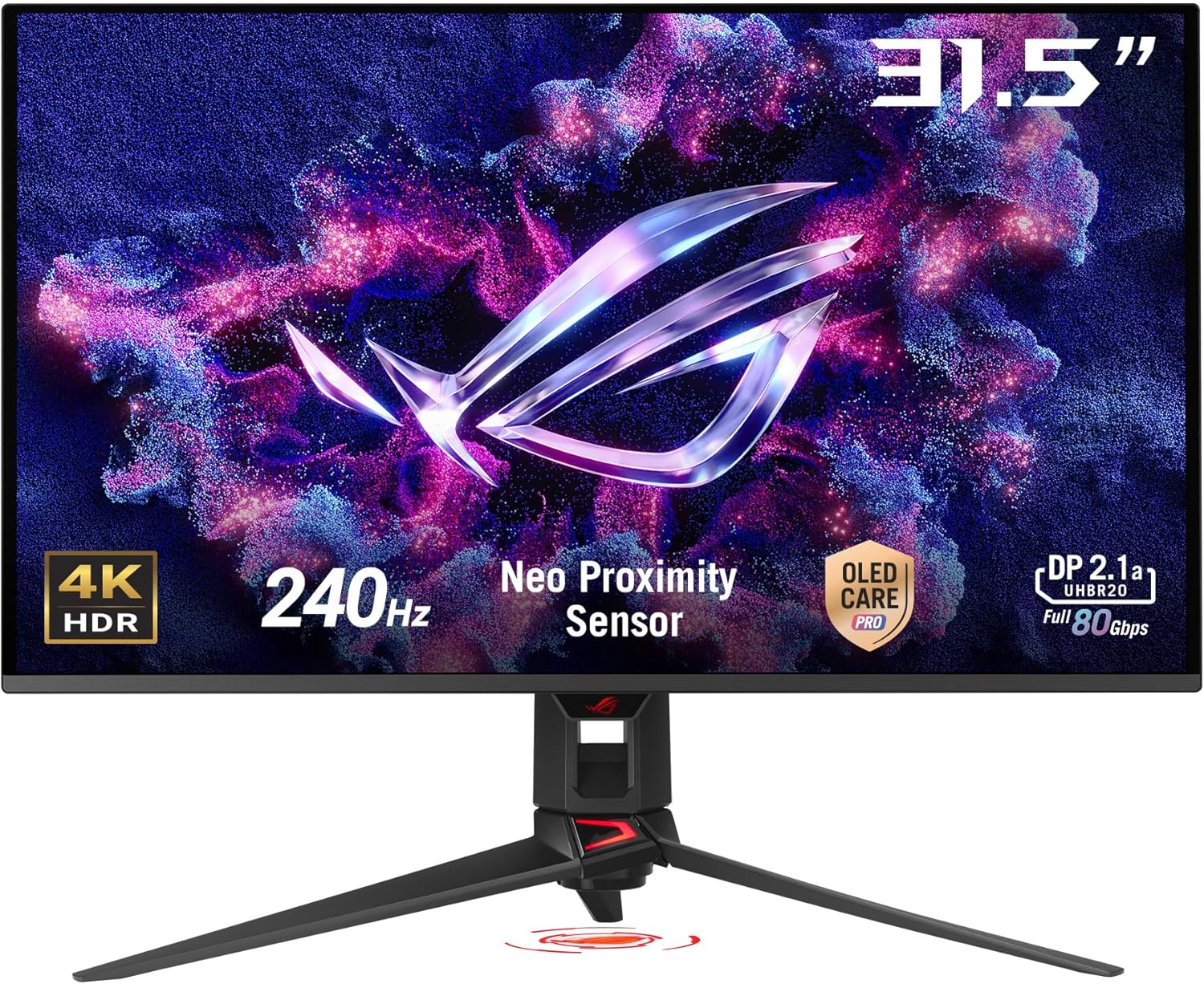
Imaxe 1.1: Fronte view of the ASUS ROG Swift PG32UCDMR monitor, showcasing its 31.5-inch 4K HDR display, 240Hz refresh rate, Neo Proximity Sensor, OLED Care Pro, and DisplayPort 2.1a capabilities.
2. Información importante de seguridade
- Desconecte sempre o cable de alimentación da toma de corrente antes de limpar o monitor.
- Non expoña o monitor á choiva nin á humidade para evitar riscos de incendio ou descargas eléctricas.
- Never open the monitor casing. Alto volumetage inside can cause serious injury.
- Use only the power adapter and cables provided with your monitor.
- Asegúrate de que haxa unha ventilación axeitada arredor do monitor. Non bloquees as aberturas de ventilación.
- Position the monitor on a stable, flat surface to prevent it from falling.
- Evite colocar obxectos pesados sobre o cable de alimentación ou outros cables.
3. Contido do paquete
Verify that all items listed below are present in your product package. If any item is missing or damaged, contact your retailer immediately.
- ASUS ROG Swift PG32UCDMR Gaming Monitor
- Cable DisplayPort 2.1 (DP80)
- Cable HDMI de ultra alta velocidade
- Cable USB 3.2
- Cable USB-C
- Cable de alimentación
- Bolsa ROG
- Adhesivo ROG
- Kit de montaxe VESA
- Guía de inicio rápido
- Tarxeta de garantía

Image 3.1: Illustration of the items included in the ASUS ROG Swift PG32UCDMR product package.
4. Configuración
4.1 Montaxe do soporte do monitor
- Coloque o panel do monitor cara abaixo sobre un pano suave e limpo para evitar rabuñaduras.
- Fixe a base do soporte ao pescozo do soporte, asegurándote de que encaixe firmemente no seu lugar.
- Aliñe o soporte montado cos orificios de montaxe na parte traseira do panel do monitor.
- Secure the stand to the monitor panel using the provided screws.
4.2 Conectando a un ordenador
The monitor supports DisplayPort 2.1, HDMI 2.1, and USB-C connections. Choose the appropriate cable for your system.
- Conexión DisplayPort: Connect one end of the DisplayPort 2.1 (DP80) cable to the monitor's DisplayPort input and the other end to your computer's DisplayPort output.
- Conexión HDMI: Connect one end of the HDMI Ultra High Speed Cable to the monitor's HDMI input and the other end to your computer's HDMI output.
- Conexión USB-C: Connect one end of the USB-C cable to the monitor's USB-C input and the other end to your computer's USB-C port. This connection also supports 90W Power Delivery.
- Conexión do concentrador USB: Connect the USB 3.2 cable from your computer to the monitor's USB upstream port to enable the monitor's USB hub functionality.
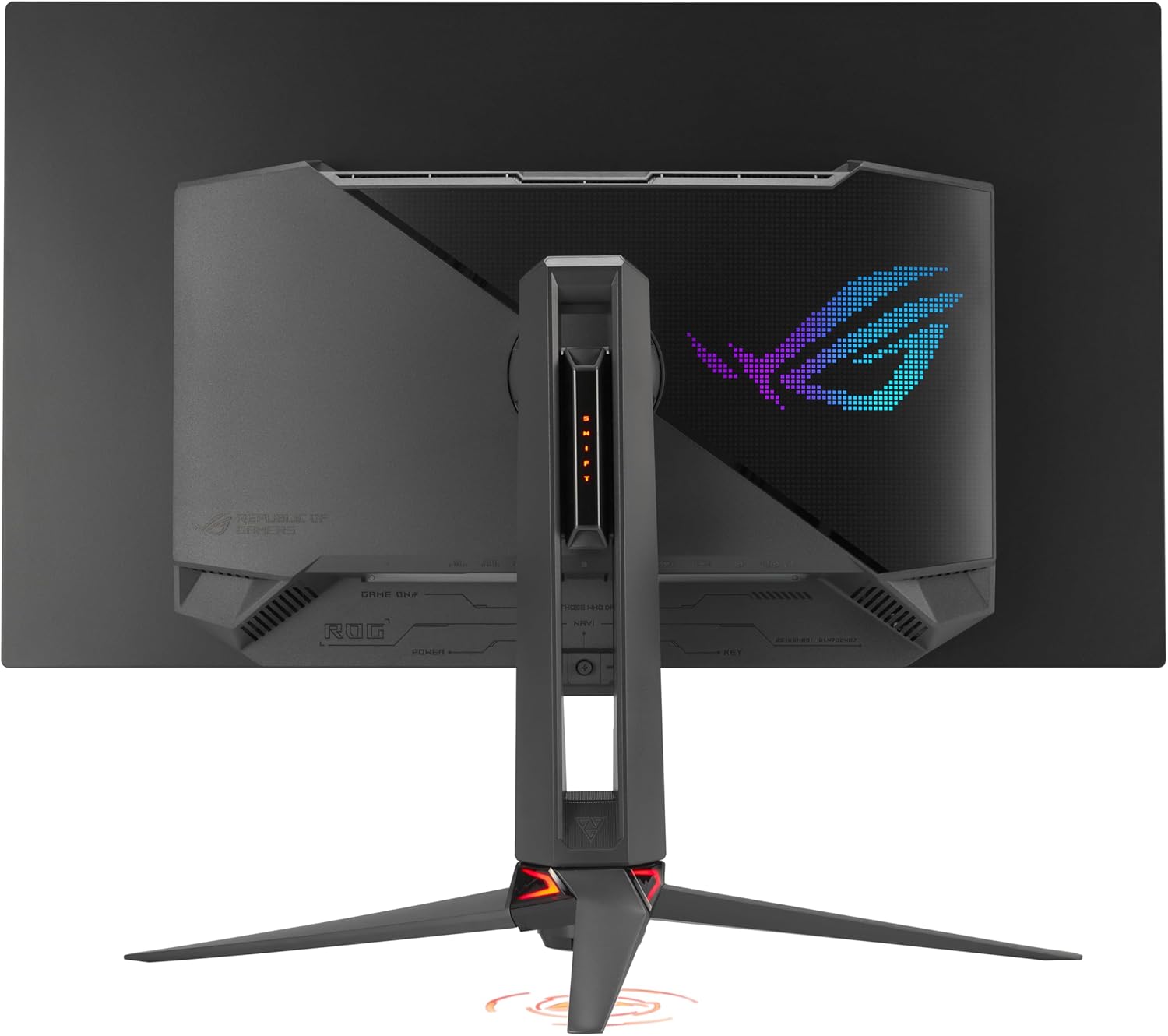
Image 4.1: Rear panel of the monitor displaying available connectivity ports.
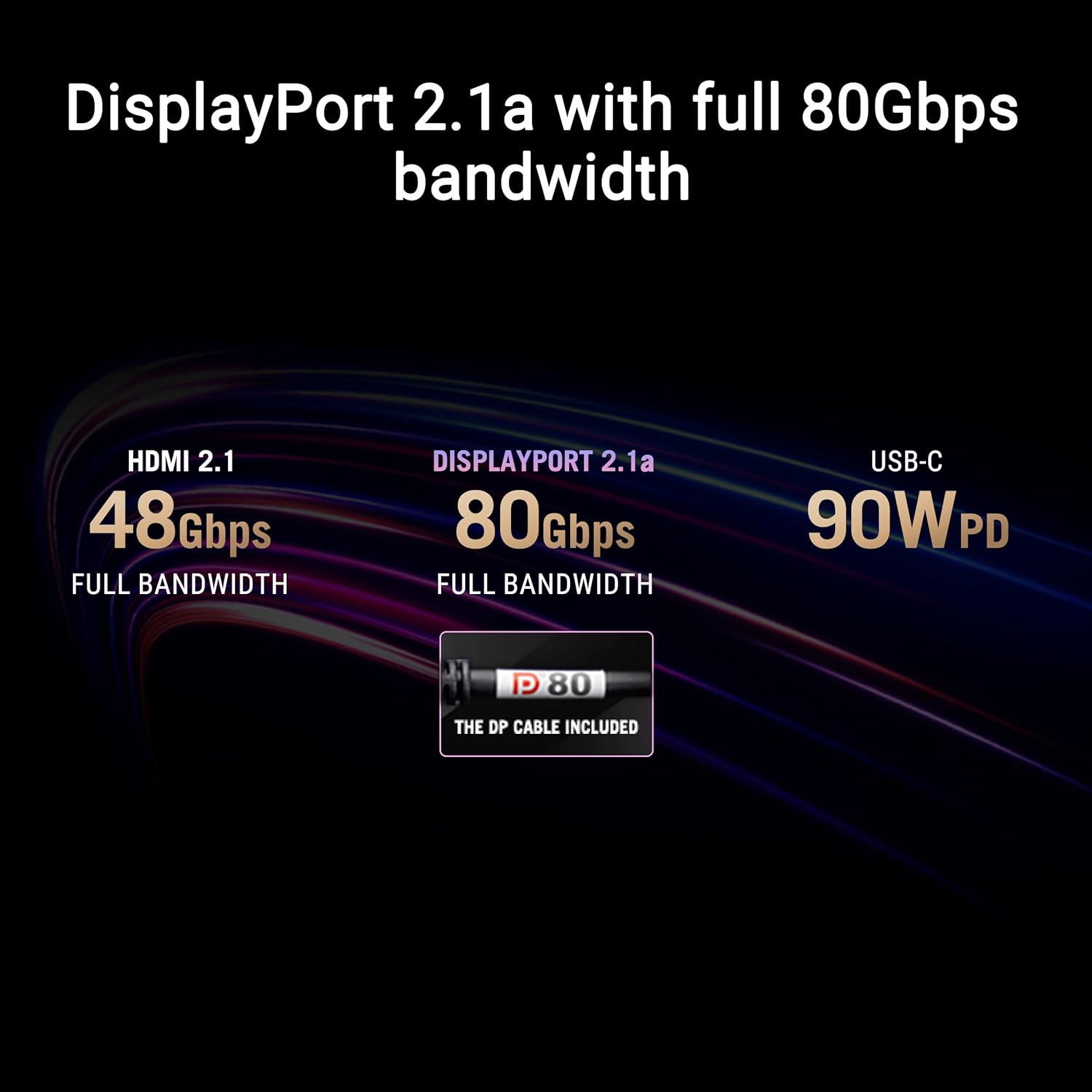
Image 4.2: Connectivity options and their respective bandwidths: HDMI 2.1 (48Gbps), DisplayPort 2.1a (80Gbps), and USB-C (90W PD).
4.3 Conexión de alimentación
Conecte o cable de alimentación á entrada de alimentación do monitor e, a seguir, conecte o outro extremo a unha toma de corrente con conexión a terra.
5. Funcionamento do monitor
5.1 Navegación en pantalla (OSD)
The monitor features an intuitive OSD joystick and buttons, typically located on the rear or bottom right of the panel, to navigate and adjust settings. Press the joystick to access the main OSD menu, then use it to move through options and confirm selections.
5.2 DisplayWidget Center Software
The DisplayWidget Center software provides a convenient way to adjust monitor settings directly from your computer. This includes access to OLED Care functions, customizable monitor settings, auto firmware update notifications, and multiscreen control.

Image 5.1: DisplayWidget Center software interface for easy adjustment of monitor settings.
5.3 Key Display Features
- Tecnoloxía QD-OLED: Delivers superior color accuracy, contrast, and brightness compared to traditional OLED panels.
- Frecuencia de actualización de 240 Hz: Provides extremely fluid motion for competitive gaming.
- 0.03 ms (GTG) Response Time: Minimiza o efecto pantasma e o desenfoque de movemento.
- Compatible con G-SYNC: Ensures tear-free and stutter-free gaming experiences with compatible NVIDIA graphics cards.
- VESA DisplayHDR 400 True Black: Offers exceptional HDR performance with deep blacks and bright highlights.
- 99% DCI-P3 Gamut & 10-bit Color: Provides a wide color spectrum and accurate color reproduction.
- Optional Uniform Brightness: Maintains consistent luminance levels across the screen.
6. Mantemento
6.1 ASUS OLED Care Pro
ASUS OLED Care Pro is a suite of features designed to protect the OLED panel from burn-in and extend its lifespan. These functions can be accessed via the OSD or DisplayWidget Center software.
- Neo Proximity Sensor: Automatically detects when the user is away and switches to a black screen to reduce burn-in risk.
- Limpeza de píxeles: A maintenance process that refreshes the pixels to prevent image retention.
- Gardar pantalla: Activates a screen saver after a period of inactivity.
- Pixel Move: Shifts the image slightly to prevent static elements from causing burn-in.
- Boundary Detection: Identifies and mitigates potential burn-in from static UI elements.
- Logo Brightness Adjustment: Reduces the brightness of static logos to prevent burn-in.
- Taskbar Detection: Automatically dims the Windows taskbar to protect the OLED panel.
- Outer Dimming Detection: Dims static elements on the edges of the screen.
- Global Dimming Detection: Dims the entire screen when static content is detected.
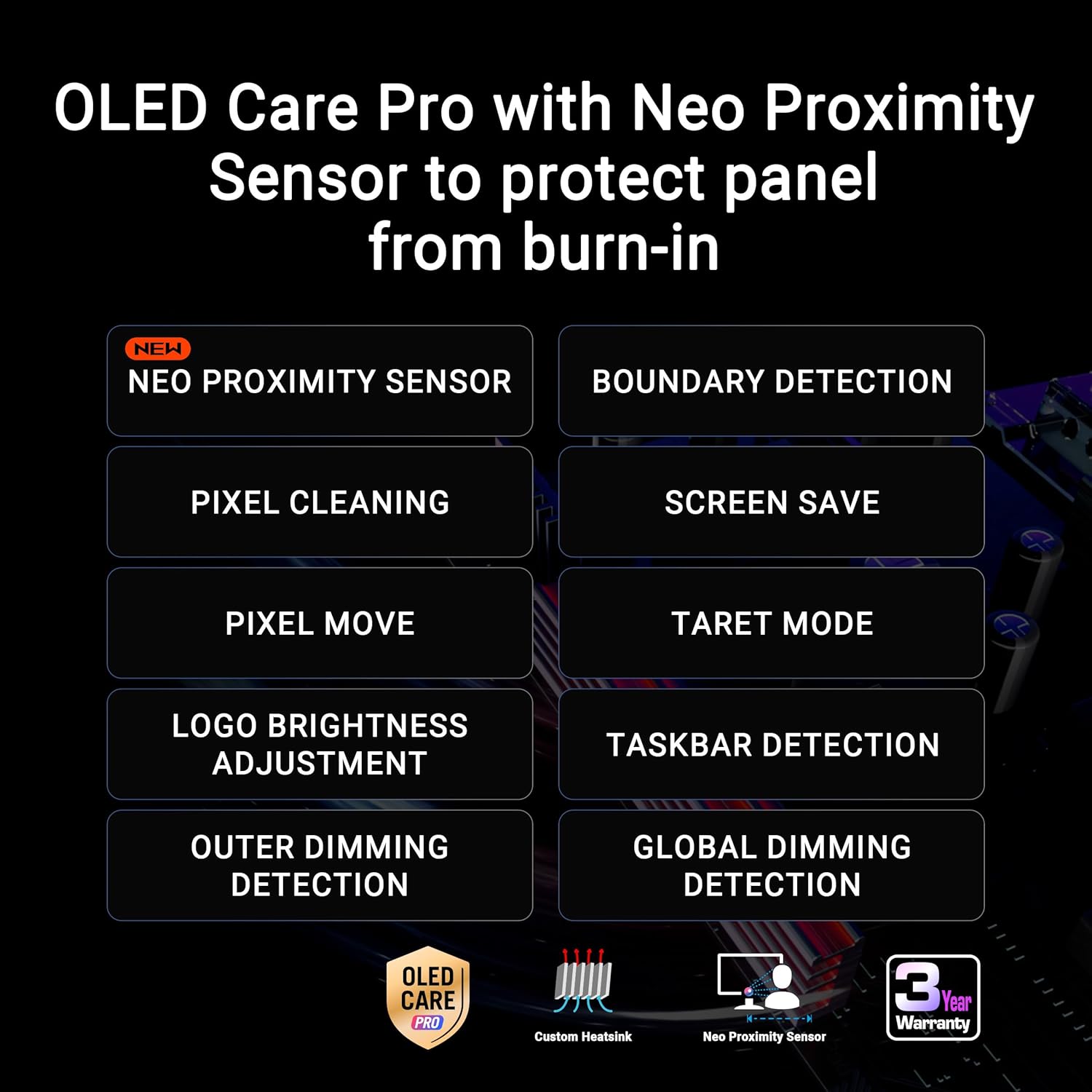
Imaxe 6.1: Acabadoview of OLED Care Pro functions with Neo Proximity Sensor for panel protection.
6.2 Limpeza do monitor
- Apague sempre o monitor e desconecte o cable de alimentación antes de limpalo.
- Use a soft, lint-free cloth (such as the provided microfiber cloth) to gently wipe the screen and casing.
- Para marcas difíciles, espolvoree lixeiramenteampEnxágüe o pano con auga ou cun limpador de pantallas suave e non abrasivo. Non pulverice líquido directamente sobre a pantalla.
- Avoid using alcohol-based cleaners, ammonia, or abrasive materials, as these can damage the screen surface.
7 Solución de problemas
7.1 Sen enerxía
- Asegúrate de que o cable de alimentación estea conectado correctamente tanto ao monitor como a unha toma de corrente que funcione.
- Check if the power indicator light on the monitor is on.
- Test the electrical outlet with another device to confirm it is functioning.
7.2 Sen sinal
- Verify that the video cable (DisplayPort, HDMI, or USB-C) is securely connected to both the monitor and your computer.
- Asegúrate de que estea seleccionada a fonte de entrada correcta no monitor a través do menú OSD.
- Check your computer's display settings to ensure the monitor is detected and enabled.
- Proba cun cable ou porto de vídeo diferente se está dispoñible.
7.3 Display Issues (e.g., Flickering, Incorrect Colors)
- Adjust the monitor's refresh rate and resolution in your computer's display settings to match the monitor's capabilities.
- Actualiza os controladores da túa tarxeta gráfica á versión máis recente.
- Perform a factory reset of the monitor settings via the OSD menu.
- Asegúrese de que non haxa fontes de interferencia electromagnética fortes preto do monitor.
8. Especificacións
| Característica | Especificación |
|---|---|
| Tamaño da pantalla | 31.5 polgadas |
| Tipo de panel | QD-OLED |
| Resolución | 3840 x 2160 (4K) |
| Taxa de actualización | 240 Hz |
| Tempo de resposta | 0.03 ms (GTG) |
| Soporte HDR | VESA DisplayHDR 400 True Black, Dolby Vision |
| Gama de cores | 99% DCI-P3 |
| Profundidade de cor | 10 bits verdadeiros |
| Conectividade | DisplayPort 2.1, HDMI 2.1, USB-C (90W PD), USB 3.0 Hub |
| Peso | 19.2 libras |
| Dimensións (LxWxH) | 10.9 x 28.3 x 20.9 polgadas |
| Cor | NEGRO |
9. Garantía e soporte
9.1 Información da garantía
This ASUS ROG Swift PG32UCDMR monitor comes with a 3-year limited warranty. Please refer to the included Warranty Card for detailed terms and conditions, including coverage specifics and regional variations. Keep your proof of purchase for warranty claims.
9.2 Atención ao cliente
For technical assistance, troubleshooting, or warranty inquiries, please visit the official ASUS support website or contact ASUS customer service in your region. The Quick Start Guide included in your package also contains initial support contact information.
Additionally, this product includes complimentary access to Adobe Creative Cloud for 3 months (valid until August 31, 2026). Refer to the documentation provided with your monitor for activation instructions.