
Introdución
This manual provides essential information for the safe and efficient use of your Google Pixel 9 Pro 5G smartphone. Please read these instructions carefully before operating your device.

Figura 1: Fronte view of the Google Pixel 9 Pro 5G.
O que hai na caixa
Comprobe que todos os elementos estean presentes na embalaxe:
- Google Pixel 9 Pro Smartphone
- USB-C to USB-C Cable (1m, USB 2.0)
- Ferramenta de expulsión da bandexa da SIM
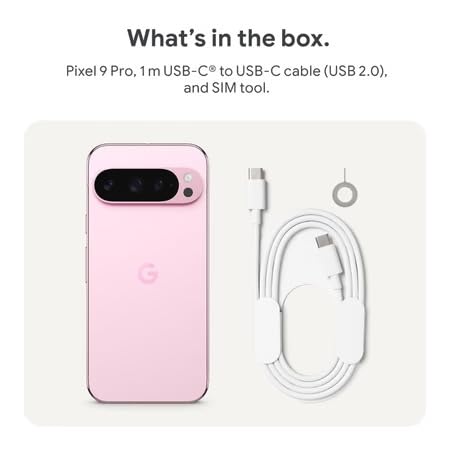
Figure 2: Included items in the Pixel 9 Pro packaging.
Configuración
1. Inserción da tarxeta SIM
- Locate the SIM tray on the side of your Pixel 9 Pro.
- Insira a ferramenta de expulsión da tarxeta SIM fornecida no pequeno orificio da bandexa da tarxeta SIM e prema suavemente ata que a bandexa saia.
- Coloca a tarxeta Nano-SIM na bandexa cos contactos dourados cara abaixo. Asegúrate de que estea correctamente asentada.
- Carefully push the SIM tray back into the device until it is flush.
2. Carga inicial
Antes do primeiro uso, recoméndase cargar completamente o dispositivo.
- Conecta o cable USB-C ao porto de carga que se atopa na parte inferior do teléfono.
- Connect the other end of the cable to a compatible USB power adapter (sold separately) and plug it into a power outlet.
- A icona da batería na pantalla indicará o estado de carga.
3. Acendido/apagado
- Para acender: Press and hold the Power button (located on the right side) until the Google logo appears on the screen.
- Para apagar: Mantén premido o botón de acendido e despois toca en "Apagar" na pantalla.
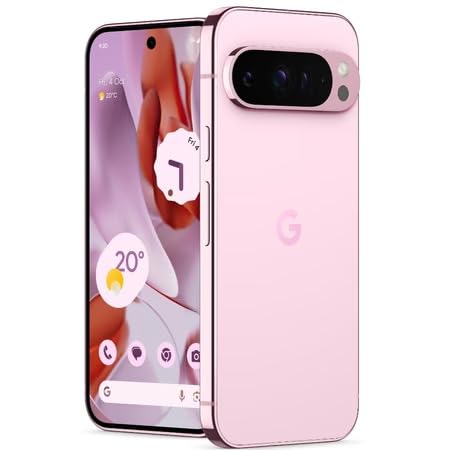
Figure 3: Power and volume buttons on the side of the device.
4. Asistente de configuración inicial
Upon powering on for the first time, follow the on-screen instructions to:
- Seleccione o seu idioma e rexión.
- Conéctate a unha rede wifi.
- Inicia sesión coa túa conta de Google ou crea unha nova.
- Set up security features such as fingerprint unlock, face unlock, PIN, pattern, or password.
- Transferir datos desde un dispositivo antigo (opcional).
Instrucións de funcionamento
Navegación básica
- Xestos na pantalla táctil: Interact with the device using taps, swipes, pinches (for zoom), and long presses.
- Pantalla de inicio: Access your applications, widgets, and customize your layout.
- Notificacións: Pasa o dedo cara abaixo desde a parte superior da pantalla ata view notificacións.
- Configuración rápida: Swipe down twice from the top of the screen to access quick settings toggles (Wi-Fi, Bluetooth, etc.).
Funcionamento da cámara
The Pixel 9 Pro features a powerful triple rear camera system.

Figure 4: Rear camera system of the Pixel 9 Pro.
- Abrindo a cámara: Tap the Camera app icon on your home screen or lock screen.
- Cambio de lentes: Tap the icons on the viewfinder to switch between wide, ultrawide, and 5x telephoto lenses.
- Modos de disparo: Select from various modes such as Night Sight for low-light conditions, Astrofotografía for capturing stars, Macro for close-up shots, Exposición longa for creative effects, and Retrato for depth-of-field effects.
- Super Res Zoom: Pinch the screen to digitally zoom up to 30x. For video, Super Res Zoom supports up to 20x.
- Pro Controls: Access advanced camera settings like shutter speed and manual focus for greater creative control.
Xestión da batería
- Comprobando o nivel da batería: View o porcentaxe da bateríatage in the status bar or in Settings > Battery.
- Extreme Battery Saver: Enable this mode in Settings > Battery > Extreme Battery Saver to significantly extend battery life.
- Cargando: Use the provided USB-C cable and a compatible power adapter for optimal charging speed.
Características de seguridade
Your Pixel 9 Pro incorporates multiple hardware security layers to protect your data.
- Desbloqueo de impresión dixital: Register your fingerprints in Settings > Security & privacy > Device unlock.
- Desbloqueo facial: Set up facial recognition for convenient unlocking.
- PIN/Patrón/Contrasinal: Always set a strong screen lock method.
- Actualizacións de software: Regularly install system updates to ensure your device has the latest security patches.
Sensor de temperatura
The Pixel 9 Pro includes a thermometer for measuring temperature.
- Open the dedicated Thermometer app.
- Follow the on-screen instructions to measure body temperature or the temperature of objects.
- Temperature data can be saved and tracked within the Fitbit application.
Mantemento
Limpeza do dispositivo
- Usa un pano suave e sen fiapos para limpar a pantalla e a carcasa do teléfono.
- Avoid using abrasive materials, harsh chemicals, or aerosol sprays.
- Do not submerge the device in water, despite its water-resistant rating.
Actualizacións de software
Google regularly releases software updates to improve performance, add features, and enhance security.
- To check for updates, go to Settings > System > System update.
- Ensure your device is connected to Wi-Fi and has sufficient battery charge before installing updates.
Coidados Físicos
The Pixel 9 Pro is built with Corning Gorilla Glass Victus 2 and is water-resistant, offering durability against everyday drops and spills.
- While durable, avoid excessive impacts or drops to prevent damage.
- Consider using a screen protector and a protective case for additional safeguarding.
Resolución de problemas
O dispositivo non responde
If your phone becomes unresponsive, perform a force restart:
- Press and hold the Power button for approximately 10-15 seconds until the device restarts.
As aplicacións fallan ou conxélanse
- Pecha a aplicación problemática e ábrea de novo.
- Clear the app's cache: Go to Settings > Apps > See all apps > [App Name] > Storage & cache > Clear cache.
- Asegúrate de que a aplicación estea actualizada á súa última versión desde Google Play Store.
- Reinicia o teu teléfono.
Network Connectivity Issues (Wi-Fi/Cellular)
- Toggle Wi-Fi or cellular data off and then back on.
- Reinicia o teu teléfono.
- Comprobe que a súa tarxeta SIM estea inserida correctamente.
- Reset network settings: Go to Settings > System > Reset options > Reset Wi-Fi, mobile & Bluetooth.
A batería esgotando rapidamente
- Comproba o uso da batería en Axustes > Batería para identificar as aplicacións que consumen enerxía.
- Reducir o brillo da pantalla e o tempo de espera da pantalla.
- Disable unnecessary features like GPS, Bluetooth, and Wi-Fi when not in use.
- Enable Extreme Battery Saver mode.
Restablecemento de fábrica (último recurso)
Warning: A factory reset will erase all data from your phone. Back up all important data before proceeding.
- Vaia a Configuración > Sistema > Opcións de restablecemento > Borrar todos os datos (restablecemento de fábrica).
- Confirm your decision when prompted.
Especificacións
| Característica | Detalle |
|---|---|
| Marca | |
| Modelo | Pixel 9 Pro |
| Sistema Operativo | Android 15 |
| Procesador | Google Tensor G4 (3.1 GHz) |
| RAM | 16 GB |
| Almacenamento interno | 256 GB |
| Mostrar | 6.3 Inches LTPO OLED (Actua), 1280 x 2856 Pixels, 120 Hz Refresh Rate |
| Cámara traseira | 50 MP wide + 48 MP ultrawide (Macro) + 48 MP 5x telephoto |
| Cámara frontal | 42 MP |
| Capacidade da batería | 4700 millónsamp Hours (up to 24 hours average life) |
| Conectividade | 5G, Wi-Fi 7, Bluetooth 5.3, NFC, UWB, USB-C |
| Tarxeta SIM | Single Nano SIM |
| Resistencia á auga | Resistente á auga |
| Dimensións | 8 x 72 x 153 milímetros |
| Peso | 198 gramos |
Garantía e Soporte
Información da garantía
Your Google Pixel 9 Pro 5G comes with a 1 anos de garantía do fabricante desde a data de compra. Esta garantía cobre defectos de fabricación en condicións de uso normal. Conserve o comprobante de compra para reclamacións de garantía.
Atención ao cliente
For technical assistance, warranty claims, or other support inquiries, please contact Google customer service:
- Fabricante: Google LLC, 1600 Amphitheatre Parkway, Montaña View, CA 94043, EUA
- Phone Support (India): +91 7718892303
- Contacto do importador (India): Nexora Axis Private Limited (+91 7718892303)
For the most up-to-date support information, please visit the official Google Pixel support websitio.