
1. Introdución
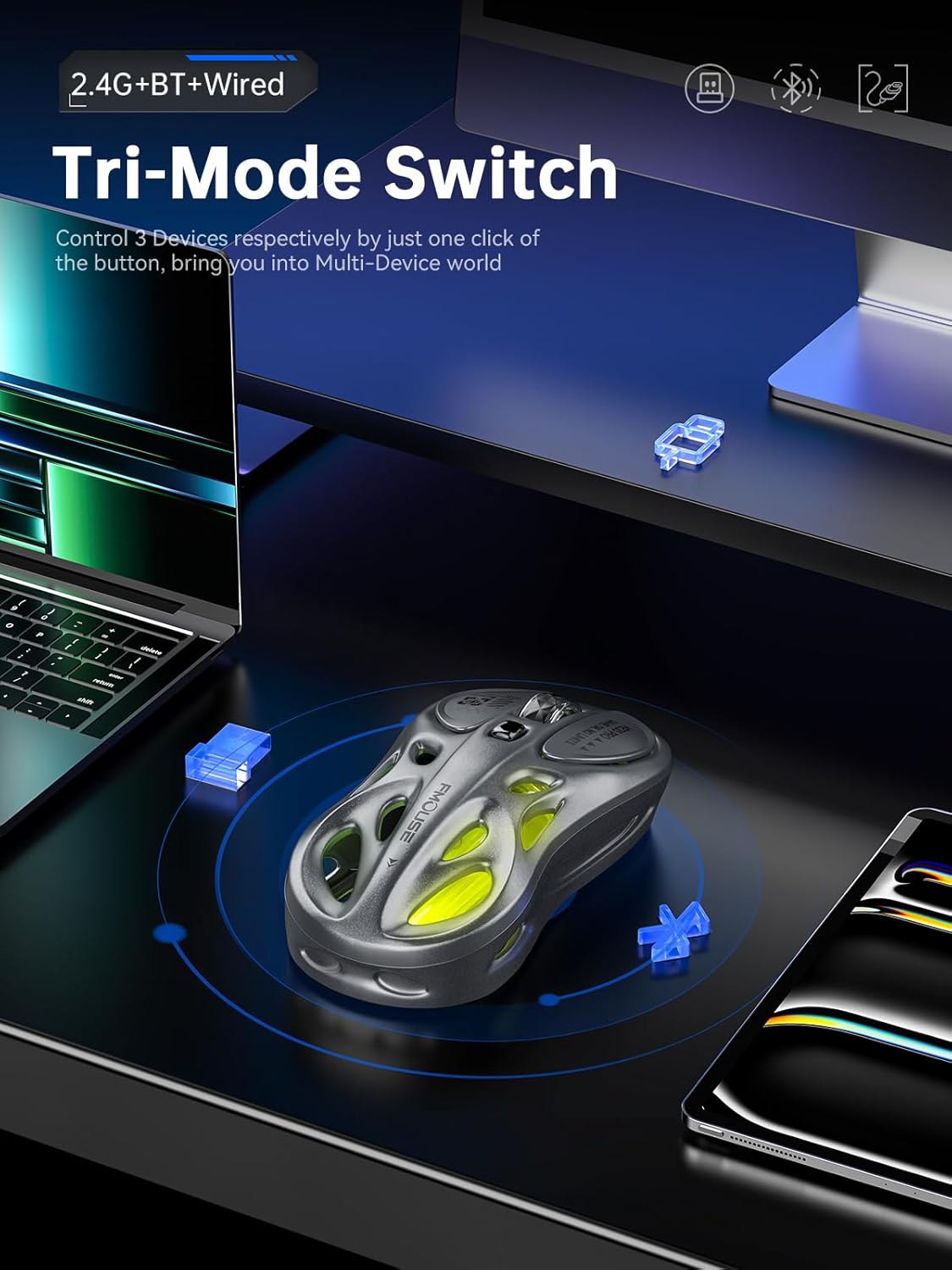
Thank you for choosing the FMOUSE M235 PRO Gaming Wireless Mouse. This tri-mode mouse offers versatile connectivity options (2.4G wireless, Bluetooth, and wired Type-C), high-performance features like 4800 DPI and 1000Hz polling rate, and customizable RGB lighting. This manual provides detailed instructions for setup, operation, and maintenance to ensure optimal performance.
2. Contido do paquete
- FMOUSE M235 PRO Gaming Wireless Mouse
- Receptor USB 2.4G
- Type-C Charging/Data Cable
- Manual de usuario
- Bolsa de almacenamento
3. Produto rematadoview
The FMOUSE M235 PRO features an ergonomic hollow design for reduced hand fatigue and a lightweight build (approximately 65g). It includes multiple buttons for enhanced functionality and customizable RGB lighting.
Imaxe: Arriba view of the FMOUSE M235 PRO Gaming Wireless Mouse.

Image: Lightweight design of the FMOUSE M235 PRO mouse.
Funcións do botón:
- Botón esquerdo: Función de clic estándar.
- Botón dereito: Función estándar do clic dereito.
- Roda de desprazamento: Desprazarse cara arriba/abaixo, premer co botón central.
- Botón DPI: Cycles through DPI levels.
- Botón de avance: Navega cara adiante en navegadores/aplicacións.
- Botón de retroceso: Navega cara atrás en navegadores/aplicacións.
- Mode Switch (Bottom): Switches between 2.4G, Bluetooth, and Wired modes.
- ON/OFF Switch (Bottom): Acende ou apaga o rato.

Imaxe: Parte inferior view of the FMOUSE M235 PRO mouse with labeled components.
4. Configuración
The FMOUSE M235 PRO supports three connection modes: Wired, 2.4G Wireless, and Bluetooth. You can seamlessly switch between up to 3 devices.
4.1 conexión por cable
- Connect the Type-C end of the charging/data cable to the mouse.
- Conecta o extremo USB-A do cable ao porto USB do teu ordenador.
- Ensure the mouse's ON/OFF switch is in the 'ON' position. The mouse will automatically switch to wired mode.
4.2 Conexión sen fíos 2.4G
- Locate the 2.4G USB receiver in the package.
- Conecta o receptor USB de 2.4 G a un porto USB dispoñible do teu ordenador.
- Flip the mouse's ON/OFF switch to 'ON'.
- Press the 'MODE' switch button on the bottom of the mouse until the indicator light turns verde. This indicates 2.4G mode.
- The mouse should now be connected.
4.3 Conexión Bluetooth
- Flip the mouse's ON/OFF switch to 'ON'.
- Press the 'MODE' switch button on the bottom of the mouse until the indicator light turns azul (for Bluetooth 1) or vermello (for Bluetooth 2).
- On your device (computer, laptop, iPad, etc.), go to Bluetooth settings and enable Bluetooth.
- Busca new devices. The mouse should appear as "BT Mouse" or similar.
- Select the mouse to pair. The indicator light will stop flashing once successfully paired.
- To switch between two paired Bluetooth devices, press the 'MODE' switch button to toggle between blue and red indicator lights.
Video: Demonstrates the tri-mode connection process (wired, 2.4G, Bluetooth) for the FMOUSE M235 PRO Gaming Wireless Mouse. Shows how to plug in the data cable, insert the 2.4G USB receiver, and pair via Bluetooth with different devices.
5. Instrucións de funcionamento
5.1 Axuste de DPI
The mouse features 5 adjustable DPI levels (800-4800) for precise control. Press the DPI button located on the top of the mouse to cycle through the available DPI settings. Each DPI level may correspond to a different RGB color indicator for easy identification.

Image: Illustration of 5-level adjustable DPI settings.
5.2 Control de iluminación RGB
The mouse features customizable RGB backlighting. Long press the DPI button to switch between multiple lighting modes and effects. Experience dynamic RGB track synchronization.
5.3 Customization and Macro Programming
For advanced customization, including button remapping, macro programming, and detailed lighting effects, download the official FMOUSE software (FMOUSE Futura) from the official website. The software allows you to adjust various parameters to personalize your mouse for specific tasks or games.

Image: Screenshot of the FMOUSE software for macro programming and customization.
6. Cargando
The FMOUSE M235 PRO is equipped with a 500mAh rechargeable lithium-ion battery. Use the provided Type-C cable to charge the mouse.
- Connect the Type-C end of the cable to the mouse's charging port.
- Conecta o extremo USB-A a unha fonte de alimentación (por exemplo, un porto USB do ordenador ou un adaptador de parede USB).
- The mouse's indicator light will typically show charging status (e.g., pulsing green).
- Unha carga completa leva aproximadamente 2 horas.

Image: Type-C charging illustration.
7. Mantemento
- Limpeza: Usa un pano suave e seco para limpar o rato. Evita o uso de produtos químicos agresivos ou materiais abrasivos.
- Almacenamento: Garda o rato nun lugar fresco e seco, lonxe da luz solar directa e de temperaturas extremas.
- Coidado da batería: Para prolongar a duración da batería, evite descargar completamente o rato con frecuencia. Cárgueo regularmente.
- Almacenamento do receptor: When not in use, store the 2.4G USB receiver in a safe place to prevent loss. Note that there is no dedicated storage slot on the mouse itself.
8 Solución de problemas
| Problema | Posible Solución |
|---|---|
| Mouse not responding in 2.4G mode | Ensure the 2.4G USB receiver is securely plugged in. Check if the mouse is switched to 2.4G mode (green indicator light). Try plugging the receiver into a different USB port. |
| Mouse not pairing via Bluetooth | Ensure the mouse is in Bluetooth pairing mode (blue or red indicator light flashing). Make sure Bluetooth is enabled on your device and it's discoverable. Try restarting both the mouse and your device. |
| Conexión intermitente ou con atraso | Reduce distance between mouse and receiver/device. Avoid interference from other wireless devices. Ensure the mouse is fully charged. |
| A iluminación RGB non funciona | Ensure the mouse is powered on. Long press the DPI button to cycle through lighting modes. Check software settings if applicable. |
| Os DPI non cambian | Press the DPI button firmly. If using custom software, ensure DPI settings are correctly configured and applied. |
| O rato non carga | Verify the Type-C cable is properly connected to both the mouse and the power source. Try a different cable or USB port/charger. |
9. Especificacións
| Característica | Detalle |
|---|---|
| Número de modelo | M235 PRO |
| Tecnoloxía de conectividade | 2.4GHz USB / Dual Bluetooth / Wired (Type-C) |
| Tecnoloxía de detección de movemento | Optical (PixArt PAW3212DB-TJDT chip) |
| Niveis de DPI | 5 adjustable levels, up to 4800 DPI |
| Taxa de votación | 1000 Hz |
| Batería | Ión de litio de 500 mAh (recargable) |
| Peso do elemento | 6.7 onzas (aproximadamente 65 g) |
| Dimensións | 4.7 x 2.4 x 1.3 polgadas (119 x 62 x 33 mm) |
| Características especiais | RGB backlight, Customizable buttons, Macro programming, Ergonomic hollow design |
| Compatibilidade | Windows, Mac, Android (Laptops, iPads, MacBooks) |
10. Garantía e soporte
For warranty information and technical support, please refer to the documentation included with your purchase or visit the official FMOUSE websitio. Normalmente podes atopar controladores, preguntas frecuentes e información de contacto do servizo de atención ao cliente alí.
Official FMOUSE Websitio: www.fmouse.com