
1. Introdución
Thank you for choosing the MERCUSYS MC510 2K 3MP Outdoor WiFi Camera. This manual provides detailed instructions for the installation, operation, and maintenance of your security camera. Please read this manual carefully before use to ensure proper functionality and safety. The MC510 offers 2K 3MP resolution, 360-degree panoramic view, color night vision, two-way audio, smart motion detection, and IP65 weather resistance for reliable outdoor surveillance.

Image: MERCUSYS MC510 2K Pan/Tilt Wi-Fi Camera mounted on a wall, highlighting its 2K resolution and IP65 weather resistance.
2. Información de seguridade
- Asegúrate de que o adaptador de corrente sexa axeitado para a túa fonte de alimentación local.
- Non expoña a cámara a temperaturas extremas, humidade nin ambientes corrosivos.
- Evite colocar a cámara preto de campos electromagnéticos fortes.
- Manteña a cámara e os seus accesorios fóra do alcance dos nenos.
- Use só accesorios especificados polo fabricante.
- Desconecte a alimentación antes de limpar ou realizar mantemento.
- The camera is IP65 rated for outdoor use, but avoid submerging it in water.
3. Contido do paquete
Verifica que todos os elementos estean presentes no teu paquete:
- MC510 Camera × 1
- Adaptador de alimentación × 1
- Mounting Sticker × 1
- Soporte de montaxe × 1
- Mounting Screws × 4 + Bracket Screws × 2
- Anclas de montaxe × 4
- Waterproof Gasket × 1
- Guía de inicio rápido
4. Produto rematadoview
The MERCUSYS MC510 is a versatile outdoor security camera designed to provide comprehensive surveillance with advanced features.
Características principais:
- 2K QHD with 360° View: Provides clear 2K 3MP video and full 360° horizontal coverage to see every corner and detail.
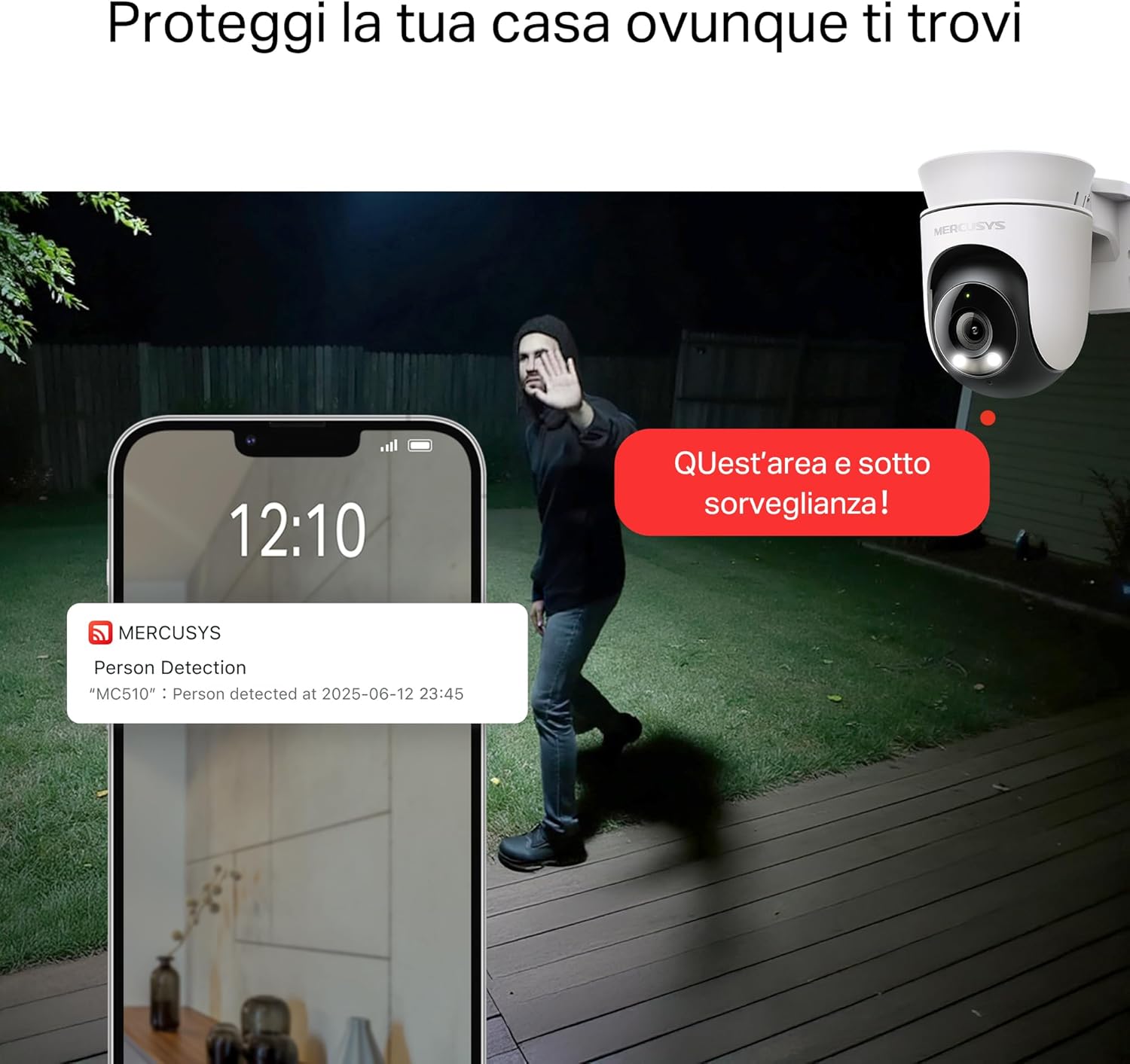
- Smart Motion Detection and Person Tracking: Automatically detects and tracks motion or people, ensuring key activities remain in focus.
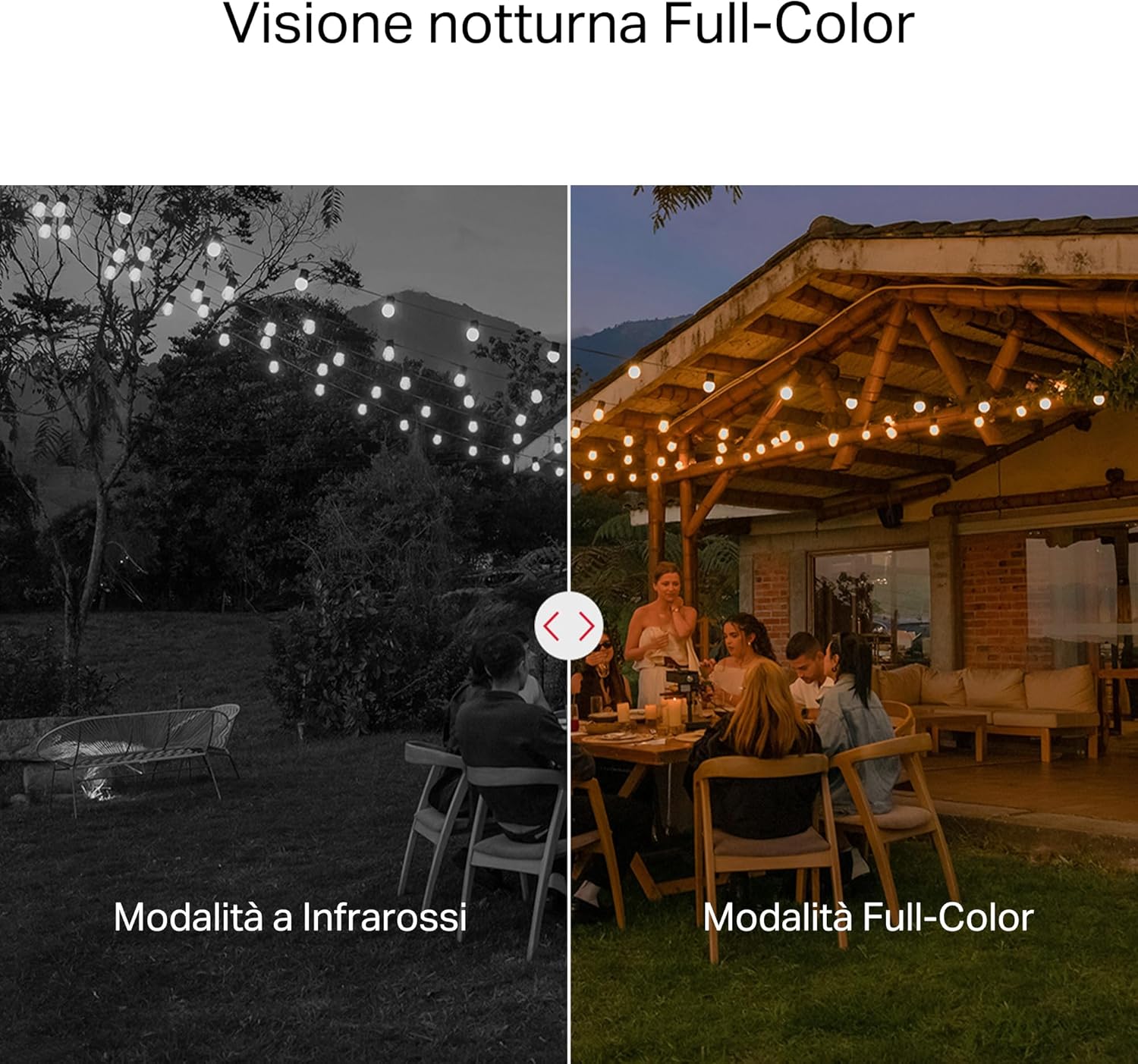
- Visión nocturna en cor: Provides vivid and detailed images even at night for 24/7 protection.
- Zonas de actividade personalizables: Helps filter out irrelevant events and sends alerts only when necessary.
- Almacenamento local e na nube: Supports microSD cards up to 512GB and cloud storage for secure and flexible video backup.
- Resistente ás inclemencias meteorolóxicas para uso no exterior: IP65 certified for reliable performance in rain, dust, or snow. Easily mounts on walls, ceilings, or poles.
- Privacy Protection with Lens Shield: Activate the physical lens cover when surveillance is not needed for greater peace of mind at home.
- Audio bidireccional: Comunicarse directamente a través da cámara.
Características visuais:

High-resolution 2K 3MP video capture.
360-degree panoramic rotation for full coverage.
Full-Color Night Vision for clear images in low light.

Physical lens shield for enhanced privacy.
5. Configuración
5.1 Instalación física
The MC510 camera is designed for outdoor use and can be mounted on walls, ceilings, or poles. Its IP65 rating ensures protection against dust and water jets.
- Escolle unha localización: Escolle un lugar axeitado ao aire libre que che proporcione o resultado desexado viewing angle and has a stable Wi-Fi signal.
- Montaxe: Use the provided mounting sticker to mark drill holes. Drill holes, insert anchors, and secure the mounting bracket with screws. Attach the camera to the bracket.
- Conexión de alimentación: Connect the power adapter to the camera and plug it into a power outlet. Ensure the waterproof gasket is properly installed for outdoor power connections.

Image: The camera is shown mounted outdoors, demonstrating its weather-resistant design.
5.2 App Installation & Connection
The MC510 connects exclusively via Wi-Fi. An Ethernet port is not available.
- Descarga a aplicación: Download the official MERCUSYS app from your smartphone's app store (iOS or Android).
- Crear conta: Abre a aplicación e crea unha nova conta ou inicia sesión se xa tes unha.
- Engadir cámara: Follow the in-app instructions to add your MC510 camera. This typically involves scanning a QR code on the camera and connecting it to your home Wi-Fi network.
5.3 Instalación da tarxeta MicroSD
For local storage, install a microSD card (up to 512GB, not included).
- Apagado: Disconnect the camera from power before inserting or removing the microSD card.
- Localizar a ranura: Refer to the camera's physical design to locate the microSD card slot, often protected by a cover.
- Inserir tarxeta: Insira suavemente a tarxeta microSD na ranura ata que faga clic.
- Formato da tarxeta: After powering on the camera and connecting it to the app, navigate to the camera settings to format the microSD card.

Image: Close-up of the camera showing the microSD card slot, indicating flexible storage options.
6. Instrucións de funcionamento
6.1 En directo View & Reprodución
- En directo View: Open the MERCUSYS app and select your MC510 camera to view a transmisión en directo.
- Control de panorámica/inclinación: Use the controls in the app to remotely rotate the camera horizontally (pan) and vertically (tilt) to adjust the viewángulo de ing.
- Reprodución: Acceso gravado footage from the app's playback section. You can filter by date and event.

Image: Illustration of 360-degree rotation with motion tracking.
6.2 Detección e seguimento de movemento
- Activar a detección: In the app settings, enable motion detection and person tracking.
- Customize Activity Zones: Define áreas específicas dentro da cámara view where you want motion to be detected. This helps reduce false alarms.
- Recibir alertas: The camera will send notifications to your smartphone when motion or a person is detected in the monitored zones.

Image: A person running in a yard, with detection boxes, demonstrating motion detection and tracking.
6.3 Audio bidireccional
O micrófono e o altofalante incorporados permiten a comunicación bidireccional.
- Activar o audio: No directo view interface of the app, tap the microphone icon to speak through the camera.
- Escoitar: The speaker icon allows you to hear audio from the camera's vicinity.

Image: A person detected by the camera, with a phone notification and an on-screen alert, demonstrating customizable alarms and two-way audio.
Visión nocturna a cor 6.4
The MC510 provides full-color night vision for enhanced clarity in low-light conditions.
- Activación automática: Color night vision activates automatically in low-light conditions.
- Modo infravermello: The camera also supports traditional infrared night vision (black and white) if preferred or in extremely dark environments.

Image: Comparison of infrared (monochrome) and full-color night vision modes.
6.5 Privacy Zone & Lens Shield
Protect your privacy by defining privacy zones or activating the physical lens shield.
- Zonas de privacidade: In the app, you can set up specific areas within the camera's view to be excluded from recording.
- Lens Shield: For complete privacy, use the app to activate the physical lens shield, which covers the camera lens.
7. Mantemento
7.1 Limpeza
- Asegúrate de que a cámara estea apagada antes de limpala.
- Use un pano suave e seco para limpar o corpo da cámara.
- For the lens, use a lens cleaning cloth to avoid scratches. Do not use harsh chemicals or abrasive cleaners.
7.2 Actualizacións de firmware
Regularly check for firmware updates through the MERCUSYS app. Updates provide new features, performance improvements, and security enhancements. Follow the in-app instructions to perform updates.
8 Solución de problemas
If you encounter issues with your MERCUSYS MC510 camera, refer to the following common problems and solutions:
| Problema | Posible Solución |
|---|---|
| A cámara non se conecta á wifi | Ensure the camera is within range of your Wi-Fi router. Check Wi-Fi password. Restart the camera and router. The MC510 only supports Wi-Fi connection, no Ethernet. |
| Poca calidade de vídeo | Check your Wi-Fi signal strength. Ensure the camera lens is clean. Adjust camera placement to avoid glare or obstructions. |
| Motion detection issues | Verify motion detection is enabled in the app. Adjust sensitivity settings. Ensure activity zones are correctly configured. |
| MicroSD card not working | Ensure the card is inserted correctly. Format the microSD card via the app. Try a different compatible microSD card. Power cycle the camera after inserting the card. |
| No two-way audio | Check microphone and speaker settings in the app. Ensure your phone's volume is up. |
9. Especificacións
| Característica | Detalle |
|---|---|
| Marca | MERCUSIÓN |
| Nome do modelo | MC510 |
| Uso interior/exterior | Ao aire libre |
| Protocolo de conexión | Wi-Fi |
| Tipo de montaxe | Teito, poste, parede |
| Resolución de imaxe fixa | 3 MP |
| Clasificación de protección internacional | IP65 |
| Tecnoloxía sen fíos | Wi-Fi |
| Pilas necesarias | Non |
| Resolución de captura de vídeo | 2K 3MP |
| Formato de captura de vídeo | MPEG-4 |
| Número de elementos | 1 |
| Compoñentes incluídos | MC510 Camera, Power Adapter, Mounting Sticker, Mounting Bracket, Mounting Screws, Mounting Anchors, Waterproof Gasket, Quick Start Guide |
| País de Orixe | China |
| Fabricante | TP-Link |
| Dimensións do elemento | 14.1 x 9.3 x 12.2 cm |
10. Garantía e soporte
For warranty information and technical support, please refer to the official MERCUSYS website or contact their customer service. Details can typically be found in the Quick Start Guide included with your product or on the manufacturer's websitio.
Soporte en liña: Visita www.mercusys.com for FAQs, user manuals, and support resources.


