
Introdución
This manual provides detailed instructions for the setup, operation, maintenance, and troubleshooting of your beyerdynamic MMX 150 Wireless Over-Ear Gaming Headset. Designed for versatile connectivity and comfort, this headset offers a premium audio experience for gaming and music.
The MMX 150 Wireless features Bluetooth 5.3, a low-latency wireless dongle, USB-C, and 3.5 mm wired connectivity. Enjoy up to 50 hours of battery life, personalized sound via the beyerdynamic app, and crystal-clear communication with the detachable META VOICE microphone.
O que hai na caixa
Upon unboxing your beyerdynamic MMX 150 Wireless headset, please verify that all components are present:
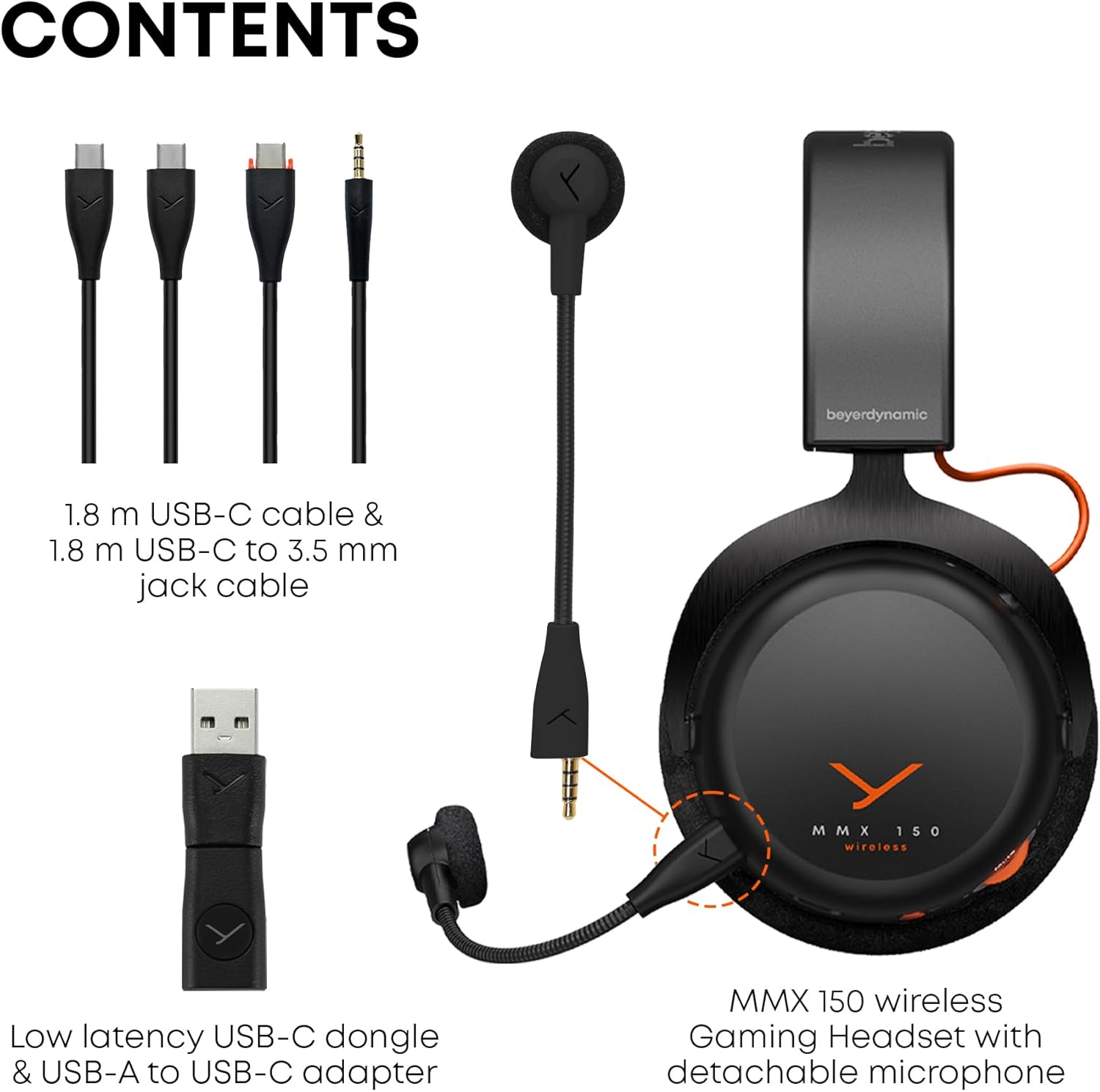
Image: The contents of the MMX 150 Wireless headset package, including the headset, a 1.8m USB-C cable, a 1.8m USB-C to 3.5mm jack cable, a low-latency USB-C dongle, a USB-A to USB-C adapter, and the detachable META VOICE microphone.
- beyerdynamic MMX 150 Wireless Gaming Headset
- Detachable META VOICE Microphone
- Cable USB-C a USB-C de 1.8 m
- 1.8 m USB-C to 3.5 mm Jack Cable
- Low-latency USB-C Dongle
- Adaptador USB-A a USB-C
Configuración
1. Cargando os auriculares
Before initial use, fully charge your MMX 150 Wireless headset. Connect the supplied USB-C to USB-C cable to the headset's USB-C port and a compatible USB power source. A full charge provides up to 50 hours of playtime.
2. Conexión do micrófono
The META VOICE microphone is detachable. Align the microphone's connector with the port on the left earcup and gently push until it clicks into place. Ensure it is securely connected for optimal voice clarity.

Image: The MMX 150 Wireless headset in Arctic White, with the detachable META VOICE microphone connected to the left earcup.
3. Conexión a dispositivos
- Wireless Dongle (Low-Latency): For PC and gaming consoles, insert the USB-C dongle directly into a USB-C port. If your device only has USB-A, use the provided USB-A to USB-C adapter. The headset will automatically connect to the dongle when powered on.
- Bluetooth 5.3: To pair via Bluetooth, power on the headset and press and hold the multi-function button until the LED indicator flashes blue and red, indicating pairing mode. Select "MMX 150 Wireless" from your device's Bluetooth settings.
- Conexión con cable de 3.5 mm: For devices with a 3.5 mm audio jack, connect the supplied USB-C to 3.5 mm jack cable to the headset and your audio source. This mode operates passively and does not require headset power.
4. beyerdynamic App Installation
Download the beyerdynamic app from your device's app store. This app allows for personalized sound adjustments, EQ settings, sidetone control, and firmware updates. Ensure your headset is connected via Bluetooth or the wireless dongle for app functionality.

Image: A smartphone displaying the beyerdynamic app interface, which allows users to customize sound profiles, adjust EQ, and control sidetone for the MMX 150 Wireless headset.
Instrucións de funcionamento
1. Acendido/apagado
Press and hold the power button on the headset for approximately 3 seconds to power on or off. An audible prompt and LED indicator will confirm the status.
2. Control de volume
Adjust the audio volume using the rotary wheel located on the earcup. Rotate clockwise to increase volume and counter-clockwise to decrease.
3. Microphone Usage and Sidetone
The detachable META VOICE microphone provides clear voice capture. To mute the microphone, press the dedicated microphone mute button. The built-in sidetone control allows you to hear your own voice naturally, preventing shouting during communication. Sidetone levels can be adjusted via the beyerdynamic app.

Image: A user wearing the MMX 150 Wireless headset with the META VOICE microphone positioned for clear communication, while holding a game controller.
4. Sound Personalization
Utilize the beyerdynamic app to tailor your audio experience. Adjust equalizer settings, activate or deactivate specific sound profiles, and fine-tune the sidetone for your microphone. These settings are saved to the headset for consistent performance across devices.

Image: A user wearing the MMX 150 Wireless headset, demonstrating its use with a mobile device, highlighting its versatility for both gaming and media consumption.
Mantemento
1. Limpeza
- Almofadas para orellas: The velour ear pads can be gently wiped with a damp cloth. For deeper cleaning, they may be removable (refer to product specifics or support for removal instructions). Allow to air dry completely before reattaching.
- Headset Body: Use a soft, dry, lint-free cloth to wipe the surfaces of the headset. Avoid using harsh chemicals or abrasive materials.
- Micrófono: Gently clean the microphone windscreen with a dry cloth.
2. Almacenamento
When not in use, store the headset in a cool, dry place away from direct sunlight and extreme temperatures. Avoid placing heavy objects on the headset to prevent damage to the headband or earcups.
3. Coidado da batería
To prolong battery life, avoid fully discharging the headset frequently. If storing for an extended period, charge the battery to approximately 50% before storage and recharge every few months.
Resolución de problemas
- Sen son:
- Asegúrate de que os auriculares estean acendidos e cargados.
- Comprobe o nivel de volume tanto nos auriculares como no dispositivo conectado.
- Verify the correct audio output device is selected on your computer or console.
- If using the wireless dongle, ensure it is securely plugged in and recognized by the device.
- If using Bluetooth, ensure the headset is paired and connected. Try re-pairing.
- If using the 3.5mm cable, ensure it is fully inserted into both the headset and the audio source.
- O micrófono non funciona:
- Asegúrate de que o micrófono estea ben conectado aos auriculares.
- Check if the microphone is muted (dedicated mute button or software settings).
- Verify the correct microphone input device is selected in your device's audio settings.
- Ensure the microphone is not damaged.
- Connectivity Issues (Wireless/Bluetooth):
- Move closer to your connected device to rule out range issues.
- Evitar fontes de interferencias (por exemplo, enrutadores Wi-Fi, outros dispositivos sen fíos).
- Tenta reiniciar tanto os auriculares como o dispositivo conectado.
- For Bluetooth, unpair and re-pair the headset.
- For the wireless dongle, try plugging it into a different USB port.
- App Not Connecting/Functioning:
- Ensure your headset is connected to your mobile device via Bluetooth.
- Busca actualizacións da aplicación na tenda de aplicacións do teu dispositivo.
- Restart the app and your mobile device.
- Ensure the headset firmware is up to date via the app.
Especificacións
| Marca | beyerdynamic |
| Número de modelo | MMX 150 sen fíos |
| Cor | Branco Ártico |
| Control de ruído | Illamento acústico |
| Tecnoloxía de comunicación sen fíos | Bluetooth 5.3 |
| Duración media da batería | 50 horas |
| Tipo de controlador de audio | Driver dinámico |
| Rango de frecuencias | 20 Hz - 20,000 Hz |
| Forma do auricular | Sobre orella |
| Peso do elemento | 0.97 quilogramos |
| Características adicionais | Sound Personalisation via App, Immersive Sound, Detachable Microphone with Sidetone |
| Dispositivos compatibles | Laptops, Desktops, Gaming Consoles, Tablets, Telephones, Smart Speakers, Televisions, Cellphones |
Información da garantía
Your beyerdynamic MMX 150 Wireless headset is covered by a manufacturer's warranty. Please refer to the warranty card included in your product packaging or visit the official beyerdynamic websitio web para obter termos e condicións detallados relativos á cobertura da garantía, a duración e o proceso de reclamacións.
Apoio
For further assistance, technical support, or to access frequently asked questions, please visit the official beyerdynamic support page:
beyerdynamic Official Store on Amazon
You may also find contact information for customer service on the beyerdynamic official websitio.