
1. Introdución
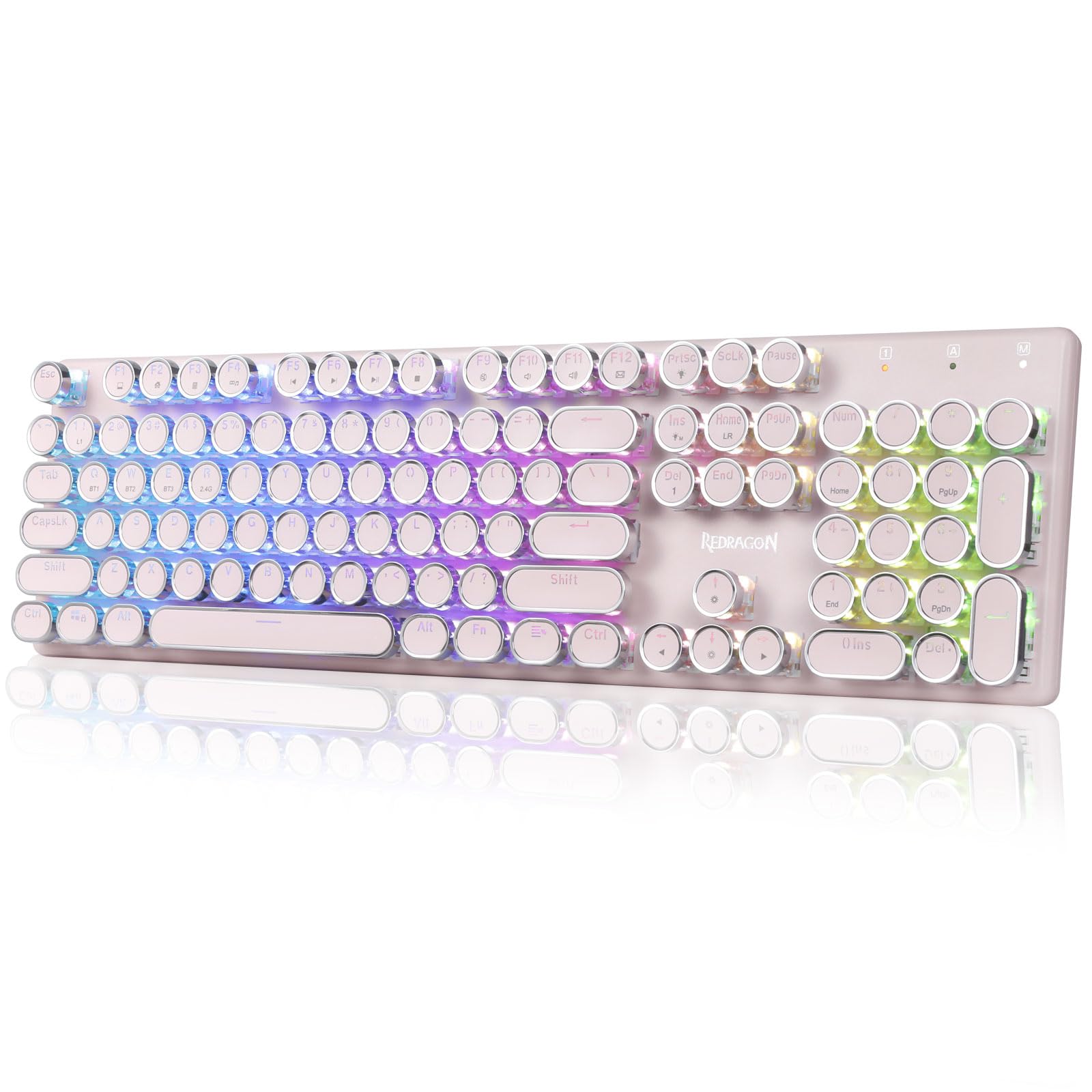
The Redragon K710 is a versatile mechanical gaming keyboard designed for a superior typing and gaming experience. It features a retro typewriter style with round keycaps and offers multiple connectivity options, vibrant RGB backlighting, and durable construction. This manual provides detailed instructions for setup, operation, maintenance, and troubleshooting.

2. Configuración
2.1 Contido do paquete
Antes de comezar, asegúrate de que todos os elementos estean presentes no paquete:
- Teclado mecánico inalámbrico para xogos Redragon K710
- Cable USB-C
- 2.4Ghz Wireless Dongle
- Extractor de teclas (se está incluído)
- Manual de usuario
2.2 Carga inicial
For optimal performance, fully charge the keyboard before first use. Connect the provided USB-C cable to the keyboard's port and to a USB power source (e.g., computer, wall adapter). The LED indicator will show charging status.
2.3 Modos de conectividade
The Redragon K710 supports three connection modes: 2.4Ghz Wireless, Bluetooth 3.0/5.0, and USB-C Wired.


2.3.1 2.4Ghz Wireless Mode
- Locate the 2.4Ghz wireless dongle, usually stored in a compartment on the back of the keyboard.
- Conecte o dongle a un porto USB dispoñible no seu ordenador.
- Switch the mode selector on the back of the keyboard to "2.4G".
- Mantén premido FN + R on the keyboard to enter 2.4G pairing mode. The indicator light will flash.
- O teclado debería conectarse automaticamente.
2.3.2 Modo Bluetooth
- Switch the mode selector on the back of the keyboard to "BT".
- Mantén premido FN + Q, FN + W, ou FN + E for 3 seconds to select a Bluetooth channel (BT1, BT2, or BT3). The indicator light for the selected channel will flash rapidly, indicating pairing mode.
- On your device (PC, laptop, tablet, phone), open Bluetooth settings and search for new devices.
- Selecciona "Redragon K710" da lista de dispositivos dispoñibles para emparellar.
- Unha vez conectado, o indicador luminoso deixará de parpadear.
2.3.3 Modo con cable USB-C
- Connect the provided USB-C cable to the keyboard and to a USB port on your computer.
- O teclado cambiará automaticamente ao modo con fíos e comezará a cargar.
3. Instrucións de funcionamento
3.1 Control da retroiluminación RGB
The K710 keyboard features 16.8 million RGB backlighting with various modes and customization options.

- FN + INS: Switch between 16 different RGB lighting modes and effects.
- FN + ↑ / ↓: Adjust backlight brightness (5 levels).
- FN + DEL: Cycle through 7 solid colors (Red, Green, Blue, Yellow, Purple, Cyan, White).
- FN + PrtSc: Toggle backlight on/off.
3.2 Custom Backlighting
You can customize individual key backlighting:
- Preme FN + 1 to enter game mode.
- Preme FN + Inicio to enter custom recording state.
- Press desired keys continuously to set their color.
- Preme FN + Inicio again to save the custom lighting.
3.3 Atallos multimedia
Access various functions using FN key combinations:

- FN + F1: O meu ordenador
- FN + F2: Páxina de inicio
- FN + F3: Calculadora
- FN + F4: Xogador
- FN + F5: Pista anterior
- FN + F6: Próxima pista
- FN + F7: Reproducir/Pausa
- FN + F8: Pare
- FN + F9: Mudo
- FN + F10: Volume -
- FN + F11: Volume +
- FN + F12Correo
- FN + GAÑARBloquear/Desbloquear a tecla de Windows
- FN + ESC (manteña 5 segundos): restaurar a configuración de fábrica
3.4 Xestión da batería
The keyboard is equipped with a durable 4000mAh battery.

- Duración da batería: Up to 70 hours with RGB lights on, and over 300 hours with lights off.
- Cargando: A fast charge can provide enough power for a full day's use.
- Verifique o nivel da batería: Prema FN + Intro to check the current battery level via the LED indicators.

3.5 Auto Power Saving
To conserve battery, the keyboard's backlight will automatically turn off after 3 minutes of inactivity in wireless mode. Press any key to wake up the keyboard.
3.6 Soporte de software
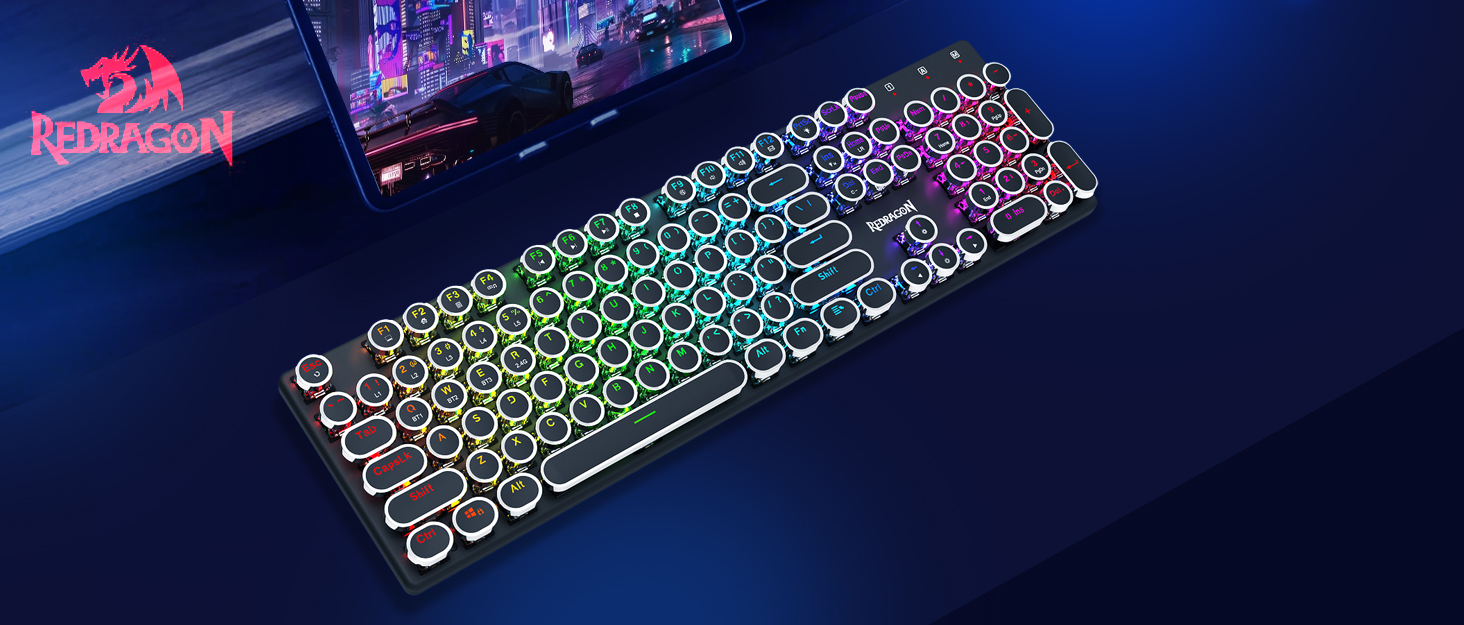
The Redragon K710 is compatible with dedicated software for advanced customization, including macro recording, key remapping, and detailed lighting effects.

To download the driver software, visit the official Redragon websitio: redragonzone.com/software.html. Navigate to "KEYBOARDS", search for model "K710", and download the appropriate software.
4. Mantemento
4.1 Limpeza
- Desconecte o teclado de todas as fontes de alimentación antes de limpalo.
- Use un pano suave e seco para limpar a superficie do teclado.
- Para o po e os residuos entre as tapas das teclas, use aire comprimido.
- The included keycap puller can be used to carefully remove keycaps for deeper cleaning of the switches.
4.2 Almacenamento
Store the keyboard in a cool, dry place away from direct sunlight and extreme temperatures. Avoid placing heavy objects on the keyboard.
5 Solución de problemas
- O teclado non responde: Ensure the keyboard is charged. Check the connection mode (wired, 2.4G, Bluetooth) and ensure it matches your device. Try reconnecting the USB cable or re-pairing the wireless connection.
- As chaves non se rexistran ou se escriben dúas veces: Clean under the keycaps. If using wireless, ensure the dongle is securely plugged in or Bluetooth connection is stable. Try updating the keyboard firmware via the Redragon software.
- As luces RGB non funcionan: Check if the backlight is turned off (FN + PrtSc). Adjust brightness (FN + ↑/↓). If issues persist, perform a factory reset (FN + ESC for 5 seconds).
- Problemas de conexión Bluetooth: Ensure your device's Bluetooth is enabled. Remove the keyboard from your device's paired list and re-pair it. Try a different Bluetooth channel (FN + Q/W/E).
- Software download link not working: Ensure you are visiting the official Redragon websitio (redragonzone.com/software.html) and searching for the correct model (K710).
6. Especificacións
| Característica | Detalle |
|---|---|
| Marca | Redragon |
| Número de modelo | K710P-RGB |
| Conectividade | 2.4Ghz Wireless, Bluetooth 3.0/5.0, USB-C Wired |
| Tipo de teclado | Mecánica |
| Tipo de cambio | Blue Switch (Clicky, Tactile) |
| Chaves | Round, Electroplated, Double Shot |
| Retroiluminación | RGB (16.8 Million Colors, 16+ Modes) |
| Anti-Ghosting | Antighosting de 104 teclas |
| Capacidade da batería | 4000 mAh |
| Material | Metal (Panel), Plastic |
| Peso do elemento | 950 gramos |
| Dispositivos compatibles | Consola de xogos, portátil, PC, tableta |


7. Garantía e soporte
Para obter información sobre a garantía, asistencia técnica ou máis axuda, visite o sitio web oficial de Redragon. website or contact their customer service. The latest drivers and software can be found at redragonzone.com/software.html.