
1. Introdución
Thank you for choosing the OMOTON WK209 Wireless Keyboard and Mouse Set. This manual provides detailed instructions for setting up, operating, and maintaining your new wireless peripheral set. Please read this manual carefully before use to ensure optimal performance and longevity of your product.
2. Contido do paquete
The OMOTON WK209 Wireless Keyboard and Mouse Set package includes the following items:
- 1 x OMOTON WK209 Wireless Keyboard
- 1 x OMOTON Wireless Mouse
- 1 x USB 2.4 GHz Receiver
Note: AAA batteries are required for operation but are not included in the package.
3. Guía de configuración
3.1. Instalación de baterías
Before using the keyboard and mouse, you need to install batteries.
- Localiza o compartimento da batería na parte inferior do teclado e do rato.
- Abra as tapas das baterías.
- Insert two AAA batteries into the keyboard and one AAA battery into the mouse, ensuring correct polarity (+/-).
- Peche as tapas das baterías con seguridade.

This image displays the battery compartments for the OMOTON WK209 keyboard and mouse. The keyboard requires two AAA batteries, and the mouse requires one AAA battery. Please note that batteries are not included with the product.
3.2. Conexión do receptor USB
The OMOTON WK209 set uses a single USB receiver for both the keyboard and mouse.
- Locate the USB 2.4 GHz receiver, usually stored in the mouse's battery compartment or packaging.
- Plug the USB receiver into an available USB port on your computer (laptop or desktop PC).
- The system will automatically detect and install the necessary drivers. This is a Plug & Play process and typically requires no manual installation.
- Turn on the mouse using the ON/OFF switch located on its underside. The keyboard does not have a separate power switch; it activates when keys are pressed.

This image illustrates the 2.4 GHz wireless connection of the OMOTON WK209 keyboard and mouse set. It highlights features such as Plug & Play functionality, a stable 2.4G connection, and a wireless range of up to 10 meters (33 feet).
3.3. Compatibilidade
The OMOTON WK209 set is compatible with a wide range of Windows operating systems.
- Sistemas operativos: Windows 11, Windows 10, Windows 8, Windows 7, Windows XP.
- Dispositivos: Laptop, Desktop PC.

This image demonstrates the broad compatibility of the OMOTON WK209 set with different Windows operating systems, including Windows 7, 8, 10, and 11, across desktop PCs and laptops.
4. Instrucións de funcionamento
4.1. Uso do teclado
The WK209 keyboard features a full-size QWERTZ layout with multimedia keys for enhanced productivity. Simply begin typing after successful connection.
- Teclas multimedia: Access functions like volume control, play/pause, and more directly from the keyboard.
- QWERTZ Layout: Standard German keyboard layout for familiar typing experience.
- Inclinación de 8°: The keyboard is designed with a natural 8-degree tilt for ergonomic comfort during extended use.

This image provides the physical dimensions of the OMOTON WK209 full-size QWERTZ keyboard (43.8 cm x 12.4 cm) and mouse (10.3 cm x 6.6 cm x 3.6 cm). It also notes the keyboard's natural 8-degree tilt for comfortable typing.
4.2. Uso do rato
The WK209 mouse offers precise control and several functional buttons.
- Clic esquerdo: Selección e activación estándar.
- Clic dereito: Accesses context menus.
- Roda de desprazamento: Para a funcionalidade de desprazamento vertical e clic co botón central.
- Botón Atrás: Navigates back in web navegadores ou file exploradores.
- Botón de avance: Navega cara adiante web navegadores ou file exploradores.
- Desktop Show/Hide Button: Quickly minimizes all open windows to show the desktop, and restores them with another press.

This image highlights the features of the OMOTON WK209 wireless mouse, including the scroll wheel, left-click button, right-click button, back button, forward button, and a button for showing/hiding the desktop. It also emphasizes its ergonomic design and quiet click functionality.
5. Características
- Conexión sen fíos de 2.4 GHz: Provides a stable and reliable connection with a range of up to 10 meters (33 feet).
- Plug & Play: Easy setup without the need for additional software or drivers.
- Full-size QWERTZ Layout: Comfortable and familiar typing experience.
- Teclas multimedia: Convenient access to media controls.
- Deseño ergonómico: The mouse is shaped for comfortable use, and the keyboard features a natural 8-degree tilt.
- Funcionamento silencioso: Both the keyboard and mouse are designed for silent clicks and keystrokes, ideal for quiet environments.
- Indicador de batería baixa: The keyboard features an indicator light to alert you when batteries are running low.

This image illustrates the quiet operation of the OMOTON WK209 keyboard and mouse, highlighting its silent keys and noiseless mouse clicks, suitable for quiet environments.
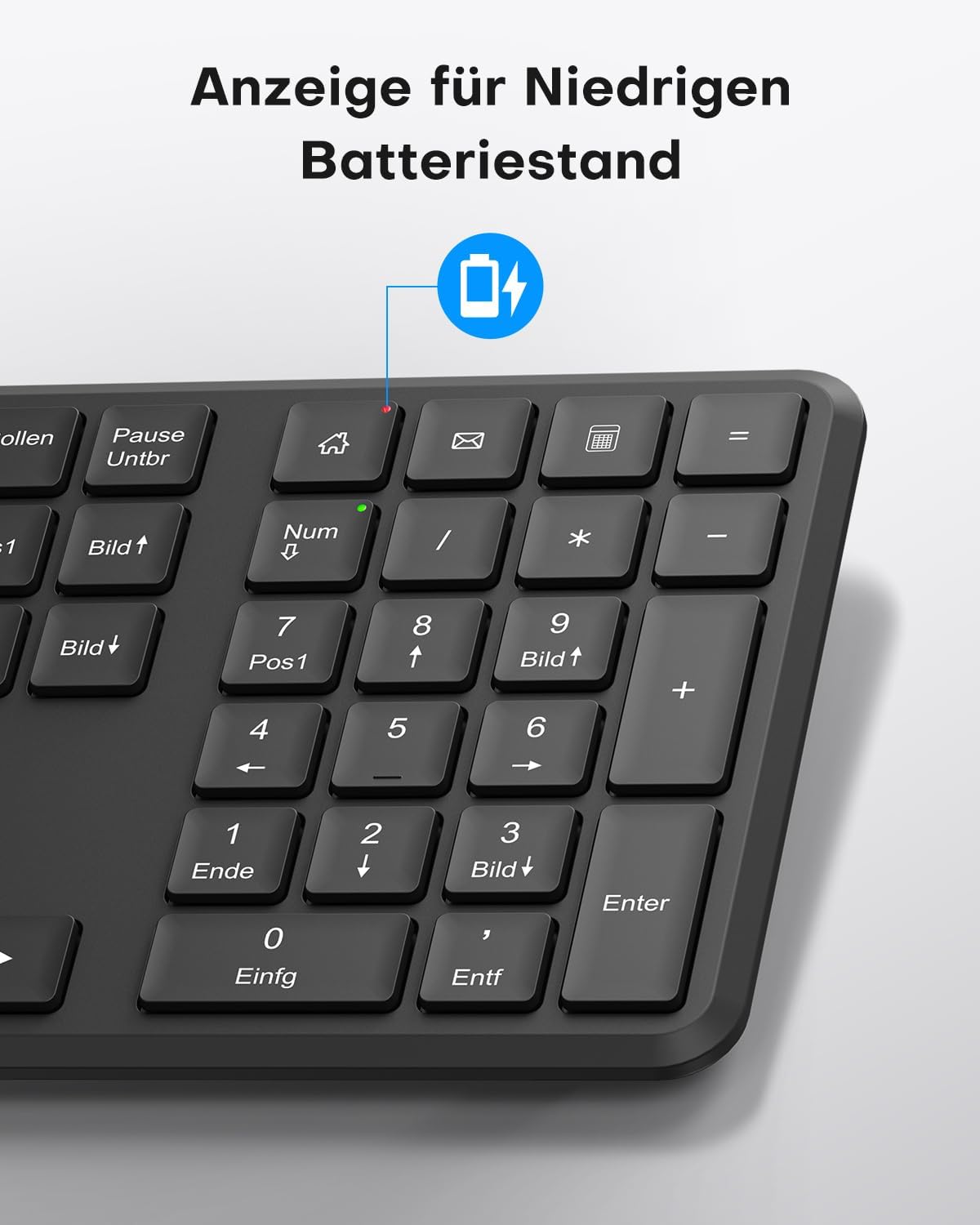
This image points out the low battery indicator on the OMOTON WK209 keyboard, which illuminates to alert the user when batteries need to be replaced.
6. Mantemento
To ensure the longevity and optimal performance of your OMOTON WK209 set, follow these maintenance guidelines:
- Limpeza: Usa un pano suave e seco para limpar as superficies do teclado e do rato. Para a sucidade persistente, usa un pano lixeiramente seco.amp Pódese usar un pano, pero asegúrese de que non entre humidade nos dispositivos.
- Substitución da batería: Replace batteries promptly when the low battery indicator appears or when performance degrades. Always use fresh, high-quality AAA batteries.
- Almacenamento: When not in use for extended periods, remove the batteries to prevent leakage. Store the devices in a cool, dry place.
- Evitar líquidos: Manteña o teclado e o rato lonxe de líquidos para evitar danos.
7 Solución de problemas
If you encounter issues with your OMOTON WK209 set, try the following troubleshooting steps:
- Sen resposta do teclado/rato:
- Ensure batteries are correctly installed and not depleted. Replace them if necessary.
- Make sure the mouse's ON/OFF switch is in the 'ON' position.
- Verifica que o receptor USB estea conectado correctamente a un porto USB que funcione no teu ordenador. Proba cun porto USB diferente.
- Reinicia o teu ordenador.
- Conexión intermitente ou con atraso:
- Achegue o teclado e o rato ao receptor USB.
- Ensure there are no large metal objects or other wireless devices (e.g., Wi-Fi routers, cordless phones) interfering with the 2.4 GHz signal.
- Try plugging the USB receiver into a front USB port or using a USB extension cable to bring it closer to the devices.
- As teclas non funcionan correctamente:
- Check for any debris under the keys.
- Ensure the keyboard layout setting on your computer matches the QWERTZ layout.
- O cursor do rato salta ou é inexacto:
- Limpa o sensor óptico da parte inferior do rato.
- Use o rato sobre unha superficie limpa e non reflectante ou sobre unha alfombrilla de rato.
8. Especificacións
| Característica | Detalle |
|---|---|
| Marca | OMOTON |
| Modelo | WK209 |
| Cor | Negro |
| Tecnoloxía de conectividade | Sen fíos a 2.4 GHz |
| Disposición do teclado | Full-size QWERTZ (German Layout) |
| Características especiais | 2.4 GHz, Full-size, QWERTZ-layout, Battery-operated, Multimedia keys |
| Dispositivos compatibles | Portátil, PC |
| Sistemas operativos compatibles | Windows 11/10/8/7/XP |
| Fonte de enerxía | Battery-Powered (2x AAA for keyboard, 1x AAA for mouse - not included) |
| Peso do artigo (aprox.) | 514 Grams (total set, including packaging) |
| Dimensións do paquete | 44.79 x 13.9 x 5.3 cm |
| ASIN | B0FQNS3FFB |
9. Garantía e soporte
OMOTON products are designed for reliability and performance. For warranty information and customer support, please refer to the warranty card included with your purchase or visit the official OMOTON website. If you experience any issues that cannot be resolved using the troubleshooting guide, please contact OMOTON customer service for assistance.