
1. Introdución
This manual provides detailed instructions for setting up, operating, and maintaining your TESmart HKS201-M24 8K HDMI KVM Switch. This device allows you to control two computers using a single keyboard, mouse, and monitor, supporting high-resolution displays up to 8K@60Hz and 4K@144Hz. Please read this manual thoroughly before use to ensure optimal performance and safety.
2. Contido do paquete
Verifica que todos os elementos estean presentes no teu paquete:
- 1 x TESmart HKS201-M24 2x1 HDMI 2.1 KVM Switch
- 2 x KVM Cables (HDMI + USB)
- 1 x IR Remote Control (pilas non incluídas)
- 1 x adaptador de alimentación DC 12 V
- 1 x Manual de usuario
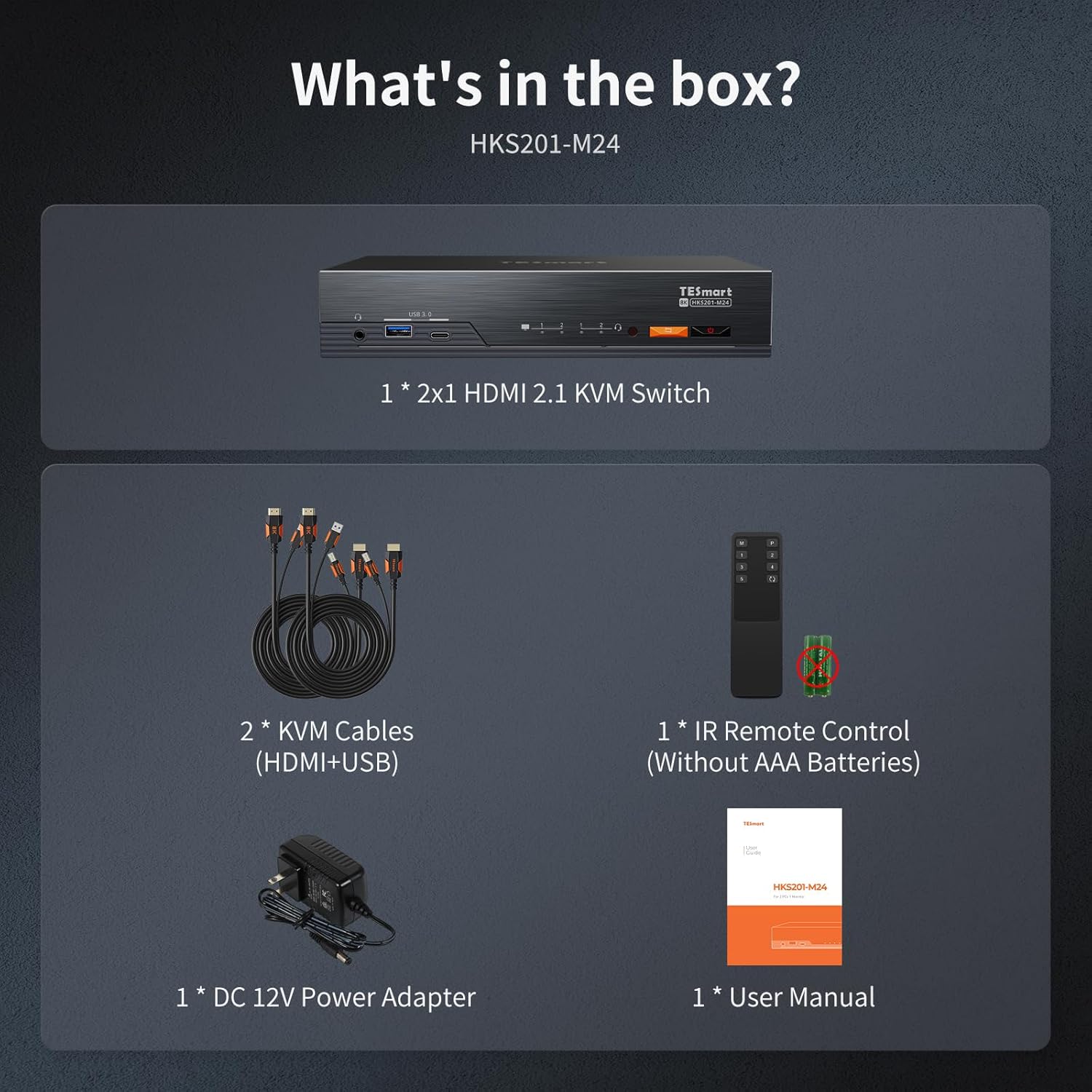
Image: The TESmart HKS201-M24 KVM Switch with its included accessories: two KVM cables, an IR remote, a DC 12V power adapter, and the user manual.
3. Produto rematadoview
3.1 Panel frontal

Image: Front panel of the TESmart HKS201-M24 KVM Switch, showing USB 3.0 ports, audio jacks, and control buttons.
- Portos USB 3.0: Two USB 3.0 ports for high-speed data transfer and device charging.
- Conectores de audio de 3.5 mm: Para conectar auriculares e micrófonos.
- Teclado: Buttons for manual switching between connected computers.
- Interruptor de alimentación: On/Off button for the device.
3.2 Panel posterior

Image: Rear panel of the TESmart HKS201-M24 KVM Switch, displaying input/output ports for PCs, monitor, and peripherals.
- DC 12 V: Porto de entrada de enerxía.
- Porto de servizo: For firmware updates and maintenance.
- LAN Port (1000 Mbps): Gigabit Ethernet port for network connectivity.
- K&M Ports: Dedicated USB ports for keyboard and mouse.
- Input Ports (PC1 & PC2): HDMI and USB 3.0 ports for connecting two computers.
- Porto de saída: HDMI port for connecting a single monitor.
4. Instrucións de configuración
Siga estes pasos para configurar o seu conmutador KVM:
- Conexión de alimentación: Connect the DC 12V power adapter to the KVM switch and then plug it into a power outlet.
- Conexión de rede (opcional): Insert an Ethernet cable into the LAN port on the KVM switch.
- Teclado e rato: Connect your keyboard and mouse to the dedicated K&M USB ports on the rear panel of the KVM switch.
- Connect PC1: Use one of the included KVM (HDMI+USB) cables to connect your first computer (PC1) to the Input 1 HDMI and USB 3.0 ports on the KVM switch.
- Connect PC2: Use the second included KVM (HDMI+USB) cable to connect your second computer (PC2) to the Input 2 HDMI and USB 3.0 ports on the KVM switch.
- Conexión de monitor: Connect your monitor to the HDMI output port on the KVM switch. Note: An HDMI output cable is not included.
- Audio Devices (Optional): Connect your headphones or speakers to the 3.5mm audio output jack on the front panel. Connect your microphone to the 3.5mm microphone input jack.
- USB Peripherals (Optional): Plug any additional USB devices (e.g., USB flash drive, printer) into the USB 3.0 ports on the front or rear panel.
Video: A detailed guide on setting up the TESmart 8K HDMI 2.1 KVM Switch, demonstrating cable connections for power, computers, monitor, and peripherals.
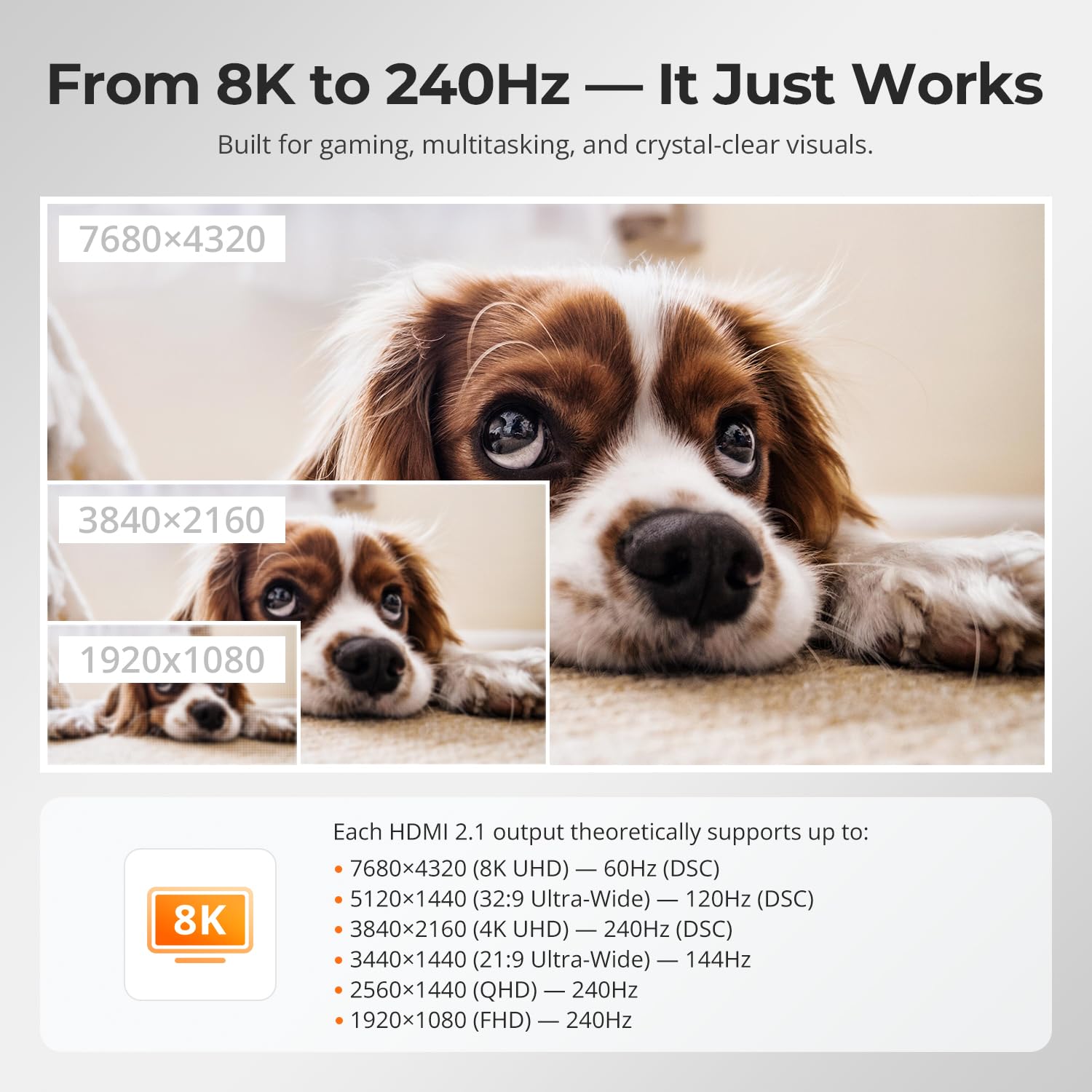
Image: Connection diagram illustrating how to link two PCs to the KVM switch and a single 8K monitor.
5. Instrucións de funcionamento
5.1 Cambiar entre ordenadores
The KVM switch offers multiple methods for switching between connected computers:
- Cambio de teclas de atallo: Use custom hotkeys on your keyboard (e.g., Right Ctrl + Right Ctrl + 1 for PC1, Right Ctrl + Right Ctrl + 2 for PC2).
- Botón do panel frontal: Press the dedicated button on the front panel of the KVM switch to cycle between inputs.
- Control remoto IR: Use the included IR remote to select the desired PC input.
- Mouse Wheel Switching: This feature is typically off by default. It can be enabled via keyboard hotkey commands. Once enabled, double-click the mouse wheel to switch inputs.

Image: Visual representation of the four switching methods: hotkeys, front panel button, IR remote, and mouse wheel.
Video: Demonstration of the KVM switch's one-click switching functionality between connected computers.
5.2 Independent USB & Audio Focus Lock
This feature allows you to maintain USB and audio connections to one computer while switching the display to another. This is useful for tasks like listening to audio from one PC during a meeting while working on another. Use specific hotkeys (e.g., Scroll Lock + Scroll Lock + 0) to disable/enable follow mode and switch USB 3.0 and audio channels independently.

Image: Illustration of the Independent USB & Audio Focus Lock feature, showing how USB and audio can remain connected to one PC while the display switches to another.
5.3 Auto Detect Mode
The KVM switch can automatically detect an active signal and switch to that device. For example, if PC1 is active and PC2 is turned on, the display will automatically switch to PC2 without manual intervention.

Image: Visual explanation of the Auto Detect Mode, showing automatic switching to an active PC.
6. Características clave
- Dual PC Control: Manage two computers with a single keyboard, mouse, and monitor.
- 8K Visuals & HDMI 2.1: Supports 8K@60Hz 4:4:4 and 4K@120Hz/144Hz resolutions with HDMI 2.1 (48Gbps). Compatible with VRR, FVA, ALLM for high-performance displays.
- EDID Emulators: Maintains display resolution and screen settings when switching, preventing screen flicker or layout resets.
- Múltiples métodos de conmutación: Switch inputs via hotkeys, front panel button, IR remote, or mouse wheel.
- Shared Gigabit LAN: Both connected PCs can access a wired 1000 Mbps Ethernet connection through the KVM switch.
- USB 3.2 Gen 1 SuperSpeed: Offers ultra-fast data transfer and front-panel charging for mobile devices.
- Audio integrado: Includes microphone and L/R audio output for comprehensive audio management.

Image: Visual detailing the KVM switch's support for 8K@60Hz and 4K@144Hz resolutions, ideal for gaming and high-resolution tasks.

Image: Explanation of EDID emulation, which prevents desktop icon rearrangement and screen flicker when switching inputs.

Image: The KVM switch functioning as a shared docking station with USB 3.0 ports and Gigabit LAN connectivity.
7. Especificacións
| Atributo | Valor |
|---|---|
| Marca | TESmart |
| Modelo | HKS201-M24-USBK |
| Dimensións do artigo (L x W x H) | 9 x 5 x 2 polgadas |
| Cor | Negro |
| Material | Metal |
| Protocolo de conectividade | Ethernet |
| Wattage | 36 vatios |
| Vol. Operativotage | 12 voltios |
| Clasificación de temperatura superior | 50 graos centígrados |
| Clasificación de protección internacional | IP41 |
| Especificación Met | FCC |
8 Solución de problemas
- No Display/Screen Flicker: Ensure all HDMI cables are securely connected. The built-in EDID emulators should prevent most display issues; however, if problems persist, try restarting the KVM switch and connected computers.
- O teclado/rato non responde: Verify that the keyboard and mouse are connected to the dedicated K&M USB ports. If using a wireless keyboard/mouse, ensure the receiver is connected to a K&M port. Try connecting them directly to the computer to rule out device issues.
- Retrasos de conmutación: While the KVM switch is designed for quick switching, some monitors or systems may experience slight delays. Ensure all cables are high-quality and meet HDMI 2.1 specifications for optimal performance.
- Sen audio: Check audio cable connections to the KVM switch and your audio devices. Ensure the correct audio output is selected on your computer.
- Dispositivos USB non detectados: Ensure USB devices are properly connected to the USB 3.0 ports. If using a high-power device, ensure it has its own power supply if needed.
- Problemas de conectividade de rede: Verify the Ethernet cable is securely connected to the KVM switch and your network source. Check network settings on both connected PCs.
9. Garantía e soporte
TESmart offers a comprehensive warranty and support for this product:
- Garantía: The product includes a standard 1-year warranty, extendable by an additional 2 years with TESmart+ Extended Protection, totaling 3 years.
- Soporte técnico: 24/7 technical support is available for assistance with setup, operation, and troubleshooting.
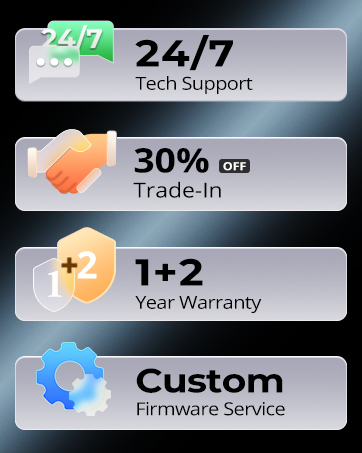
Image: TESmart support offerings, including 24/7 technical support and extended warranty options.