
1. Introdución
Thank you for choosing the INFIYA K1 2K Window Camera. This manual provides detailed instructions for setting up, operating, and maintaining your camera to ensure optimal performance and home security. Please read this manual thoroughly before use and retain it for future reference.
2. Que hai na caixa
Verifica que todos os compoñentes estean presentes no teu paquete:
- 1 x INFIYA K1 Camera
- 1 x adaptador de alimentación
- 1 x cable de alimentación tipo C
- Magnetic Stickers
- Clips para cables
- 1 x Guía de inicio rápido

Image: Contents of the INFIYA K1 camera box.
3. Produto rematadoview
Familiarize yourself with the main components of your INFIYA K1 camera:

Image: Labeled diagram of the INFIYA K1 camera components.
- Luz indicadora: Mostra o estado da cámara.
- Lente: Captura vídeo con resolución 2K.
- Magnetic Part: For easy window mounting.
- Botón de reinicio: Used for factory reset or pairing.
- Ranura para tarxetas TF: Para almacenamento local (admite ata 128 GB, tarxeta non incluída).
- Relator: Para comunicación de audio bidireccional.
- Type-C Power Cable: Conecta a cámara ao adaptador de corrente.
4. Guía de configuración
4.1 Physical Installation (Drill-Free)
The INFIYA K1 camera features a magnetic design for easy, drill-free installation on any interior window.
- Clean the Window: Ensure the glass surface is clean and dry to prevent condensation issues.
- Apply Magnetic Sticker: Peel off the protective film from the magnetic sticker and firmly attach it to the desired location on your window.
- Conectar cámara: Align the camera with the magnetic sticker and attach it. The magnetic connection will hold it securely.
- Encendido: Connect the Type-C power cable to the camera and plug the power adapter into an electrical outlet.

Image: Step-by-step physical installation of the camera.
4.2 App Connection and Wi-Fi Configuration
To access your camera's features, you need to connect it to the Wansview Aplicación Cloud.
- Descarga a aplicación: Download the Wansview Cloud App from your smartphone's app store (available for Android and iOS).
- Rexistrar conta: Abre a aplicación e rexistra unha nova conta ou inicia sesión se xa tes unha.
- Engadir dispositivo: Follow the in-app instructions to add a new device. Select the INFIYA K1 model.
- Conectar a wifi: Ensure your camera is powered on and near your Wi-Fi router (within 3 feet for initial setup). The K1 camera supports dual-band Wi-Fi (2.4Ghz & 5Ghz). Follow the app prompts to connect the camera to your home Wi-Fi network.

Image: App connection and Wi-Fi configuration steps.
5. Funcionamento
5.1 En directo View e resolución de 2K
Once connected, access the live feed through the Wansview Cloud App. The INFIYA K1 provides sharp 2K resolution video, capturing clear details of your outdoor environment through the window, optimized to reduce glare and reflection.
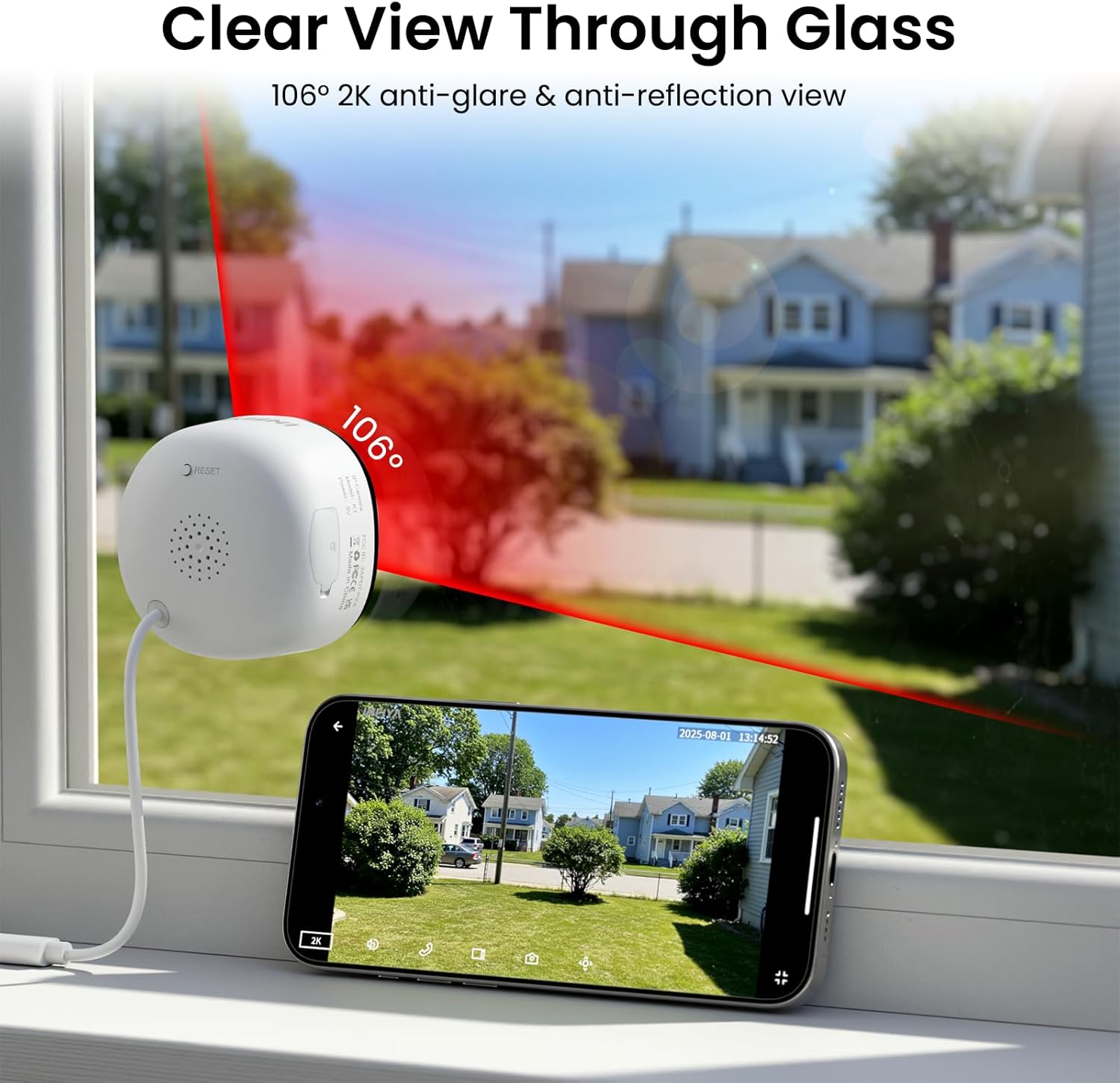
Image: Clear 2K view through glass from the camera.
Visión nocturna a toda cor 5.2
The camera features advanced Black Light Color Technology, enabling vivid full-color footage even in low-light conditions (e.g., starlight/moonlight). This allows for better identification of details at night compared to traditional infrared black and white night vision.

Image: Comparison of night vision capabilities.
5.3 Motion & Human Detection with Alerts
The INFIYA K1 camera utilizes AI-powered human detection to minimize false alarms. When human activity is detected, the camera activates a three-layer alert system:
- Immediate app notifications to your phone.
- An optional siren (can be configured in the app).
- Automatic video clip recording of the event.
You can customize detection zones and sensitivity levels within the app.
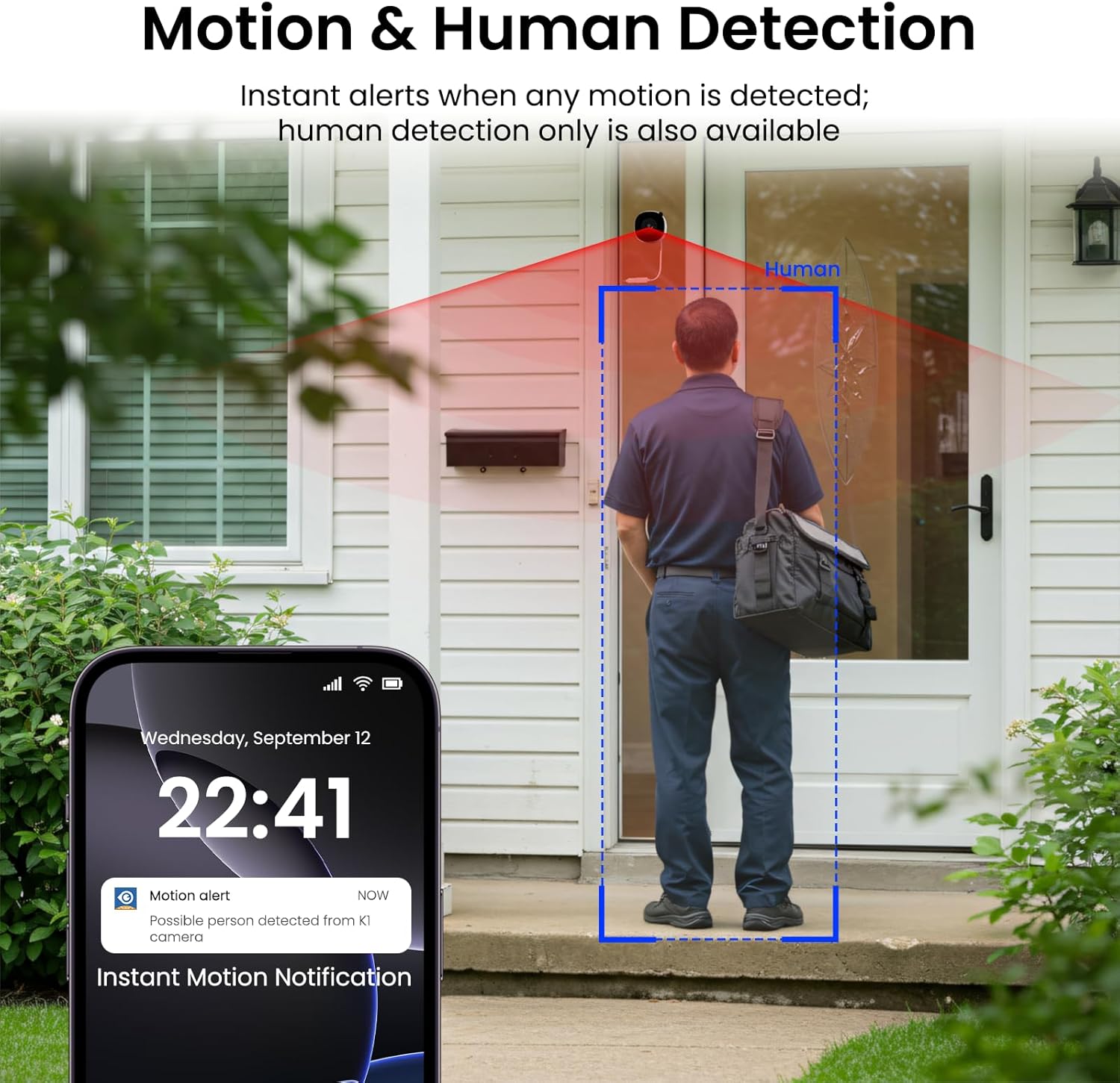
Image: Motion and human detection in action.
5.4 Audio bidireccional
The integrated speaker and microphone allow for two-way communication. You can speak through the camera to visitors or deter intruders directly from your smartphone app.
5.5 Multi-User Sharing & Multi-Device Support
Share camera access with family members through the app. The camera also supports integration with multiple devices and smart home platforms like Alexa and Google Assistant for convenient voice control and viewing.

Image: Multi-user sharing feature.

Image: Multi-device support with smart assistants.
6. Opcións de almacenamento
The INFIYA K1 camera offers flexible recording and storage solutions:
6.1 Local Storage (TF Card)
Insert a TF (microSD) card (up to 128GB, not included) into the camera's slot for continuous 24/7 recording. The camera features a smart overwrite function that automatically manages storage space by cycling old footage.
6.2 Cloud Storage (Optional)
For enhanced security and accessibility, you can opt for cloud storage. All videos uploaded to the cloud are encrypted. Cloud plans offer various features and storage durations, as detailed in the app.

Image: Local and cloud storage options.
6.3 Recording Modes Comparison

Image: Comparison table of recording modes.
7. Especificacións
Detailed technical specifications for the INFIYA K1 camera:
| Característica | Detalle |
|---|---|
| Nome do modelo | K1 |
| Marca | INFIIA |
| Tecnoloxía de conectividade | Sen fíos (Wi-Fi) |
| Frecuencia Wi-Fi | 5 Ghz e 2.4 Ghz |
| Resolución de captura de vídeo | 3 MP (2 K) |
| Viewángulo ing | 105 graos |
| Visión Nocturna | Color Night Vision (Black Light Color Technology) |
| Range de visión nocturna | 29.5 pés |
| Funcións de detección | Movemento e detección humana |
| Tipo de alerta | Motion Only (Configurable) |
| Audio | Conversa bidireccional |
| Opcións de almacenamento | TF Card (up to 128GB), Cloud Storage (Optional) |
| Fonte de enerxía | Corded Electric (5V, 5 Watt-hours) |
| Tipo de montaxe | Window Mount (Magnetic) |
| Dispositivos compatibles | Asistente de Alexa/Google |
| Dimensións do elemento | 2.41 x 1.57 x 2.41 polgadas |
| Uso en interiores e exteriores | Indoor (for window monitoring) |
8 Solución de problemas
If you encounter issues with your INFIYA K1 camera, refer to the following common problems and solutions:
- A cámara non se conecta á wifi:
- Ensure the camera is within range of your router.
- Verifica que o contrasinal da túa wifi sexa correcto.
- Check if your router supports 2.4Ghz or 5Ghz, and ensure the camera is attempting to connect to a compatible band.
- Try resetting the camera using the reset button and re-attempting the setup process.
- Baixa calidade do vídeo:
- Asegúrese de que a lente da cámara estea limpa.
- Check your internet connection speed; a stable connection is crucial for 2K streaming.
- Verify the camera is positioned correctly on the window to minimize glare or reflections.
- As alertas de movemento non funcionan:
- Confirm motion detection is enabled in the app settings.
- Adjust the detection sensitivity and detection zones.
- Ensure app notifications are enabled on your smartphone.
- Sen gravación na tarxeta TF:
- Ensure a TF card is properly inserted into the slot.
- Check if the TF card is formatted correctly (usually FAT32). Format it via the app if necessary.
- Verify that continuous recording or event recording to TF card is enabled in the app settings.
For further assistance, please refer to the in-app help section or contact INFIYA customer support.
9. Información de seguridade
Please observe the following safety guidelines to ensure safe operation and prevent damage to your device:
- Use só o adaptador de corrente e o cable fornecidos.
- Non expoñas a cámara a temperaturas extremas, humidade nin á auga directa.
- Avoid placing the camera near strong magnetic fields.
- Keep the camera out of reach of children and pets.
- Do not attempt to disassemble or repair the camera yourself. Contact qualified personnel for service.
- Ensure the camera is securely mounted to prevent it from falling.
10. Garantía e soporte
Your INFIYA K1 camera comes with a standard manufacturer's warranty. Please refer to the warranty card included in your package or visit the official INFIYA websitio web para obter información detallada sobre os termos e condicións da garantía.
For technical support, product inquiries, or warranty claims, please contact INFIYA customer service through the contact information provided in the app or on the official websitio.