
Introdución
This manual provides detailed instructions for the installation, operation, and maintenance of your Leadfan 10.1" Car Play Radio, designed specifically for Honda Odyssey models from 2005 to 2010. This unit features a 10.1-inch touchscreen, wireless Apple CarPlay and Android Auto, GPS navigation, Bluetooth, FM/RDS radio, and supports a rear camera input. Please read this manual thoroughly before installation and use to ensure proper functionality and safety.
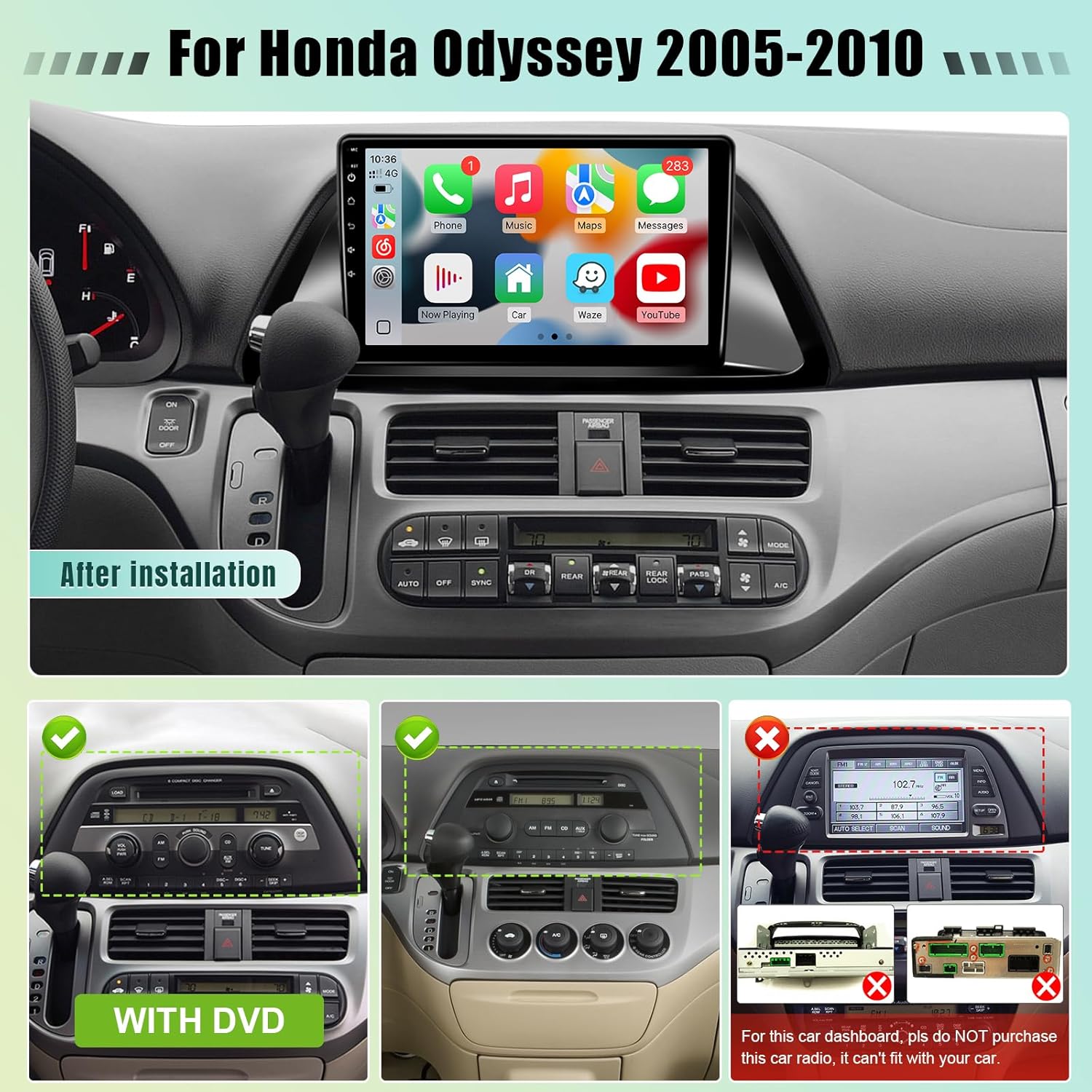
Image: Leadfan 10.1-inch Car Play Radio after installation in a Honda Odyssey dashboard, showing the main interface with various app icons.
Aviso de compatibilidade
This car stereo is compatible with Honda Odyssey models from 2005 to 2010. Importante: If your vehicle is equipped with a premium sound system (e.g., J.B.L or B.O.S.E) or a large factory navigation screen, this unit may not be compatible. Please verify your vehicle's dashboard configuration before proceeding with installation.

Image: A diagram illustrating compatible and incompatible dashboard configurations for the Honda Odyssey (2005-2010) with the Leadfan car stereo. It shows examples of dashboards with and without DVD players, and a specific incompatible dashboard with a large factory screen.
Configuración e instalación
The Leadfan Car Play Radio is designed for plug-and-play installation, minimizing complex wiring. However, professional installation is recommended if you are unfamiliar with car audio systems.
Contido do paquete
Antes de comezar, asegúrate de que estean presentes todos os compoñentes:
- Leadfan 10.1" Car Play Radio Unit
- Cámara de marcha atrás
- Reversing Camera Input Cable
- Antena GPS
- Plug and Play Power Harness
- Cabo RCA
- Kit de radio
- Manual de usuario (este documento)
- Micrófono (externo)
- Cables USB (x2)

Image: An illustration of the complete package contents, including the main unit, cables, GPS antenna, backup camera, and microphone.
Pasos de instalación (guía xeral)
- Preparación: Desconecte a batería do vehículo para evitar curtocircuítos.
- Eliminar a radio de fábrica: Carefully remove the existing factory radio and trim panels. Refer to your vehicle's service manual for specific instructions.
- Conectar o arnés de cableado: Connect the provided plug-and-play power harness to the vehicle's wiring and the new head unit. Ensure all connections are secure.
- Antena GPS: Monte a antena GPS nun lugar con luz despexada view do ceo, normalmente no taboleiro ou debaixo do parabrisas.
- Rear Camera (Optional):
- Connect the camera's video output to the "Reverse Input" on the head unit using the RCA cable.
- Connect the camera's power cable to the vehicle's reverse light positive (+) and negative (-) wires.
- Connect the reversing trigger cable from the head unit to the vehicle's reverse light positive (+) wire.

Image: A detailed wiring diagram showing how to connect the backup camera, including video and power connections to the head unit and vehicle's reverse lights.
- Micrófono: Connect the external microphone for improved call quality and voice commands. Position it optimally for clear audio capture.
- Conexións USB: Connect any desired USB devices or cables.
- Proba de conexións: Before fully reassembling, reconnect the battery and perform a basic power-on test to ensure the unit powers up.
- Unidade segura: Mount the new head unit securely into the dashboard opening.
- Remontar: Volva instalar todos os paneis de moldura.
Instrucións de funcionamento
Encendido/apagado e navegación básica
Press the power button (usually located on the front panel or screen) to turn the unit on or off. The touchscreen interface allows for intuitive navigation through menus and applications. Swipe, tap, and drag gestures are supported.
Apple CarPlay sen fíos e Android Auto
This unit supports both wireless Apple CarPlay and Android Auto. This allows seamless integration of your smartphone for navigation, music, calls, and messaging.
- Asegúrate de que o Bluetooth e o Wi-Fi do teu teléfono estean activados.
- On the car stereo, go to the CarPlay/Android Auto application.
- Siga as instrucións na pantalla para emparellar o teléfono mediante Bluetooth.
- Once paired, the system will automatically establish a Wi-Fi connection for CarPlay/Android Auto functionality.

Image: The car stereo display showing the Apple CarPlay interface on the left and the Android Auto interface on the right, demonstrating phone integration.
GPS Navigation & Wi-Fi Connection
The unit comes with built-in GPS and supports online/offline navigation. Connect to Wi-Fi via your phone's hotspot or a dedicated Wi-Fi network to access online maps and download apps.
- Mapas en liña: Connect to Wi-Fi, then use pre-installed navigation apps or download your preferred ones from the app store.
- Mapas sen conexión: Download map data for your region in advance through a navigation app while connected to Wi-Fi.
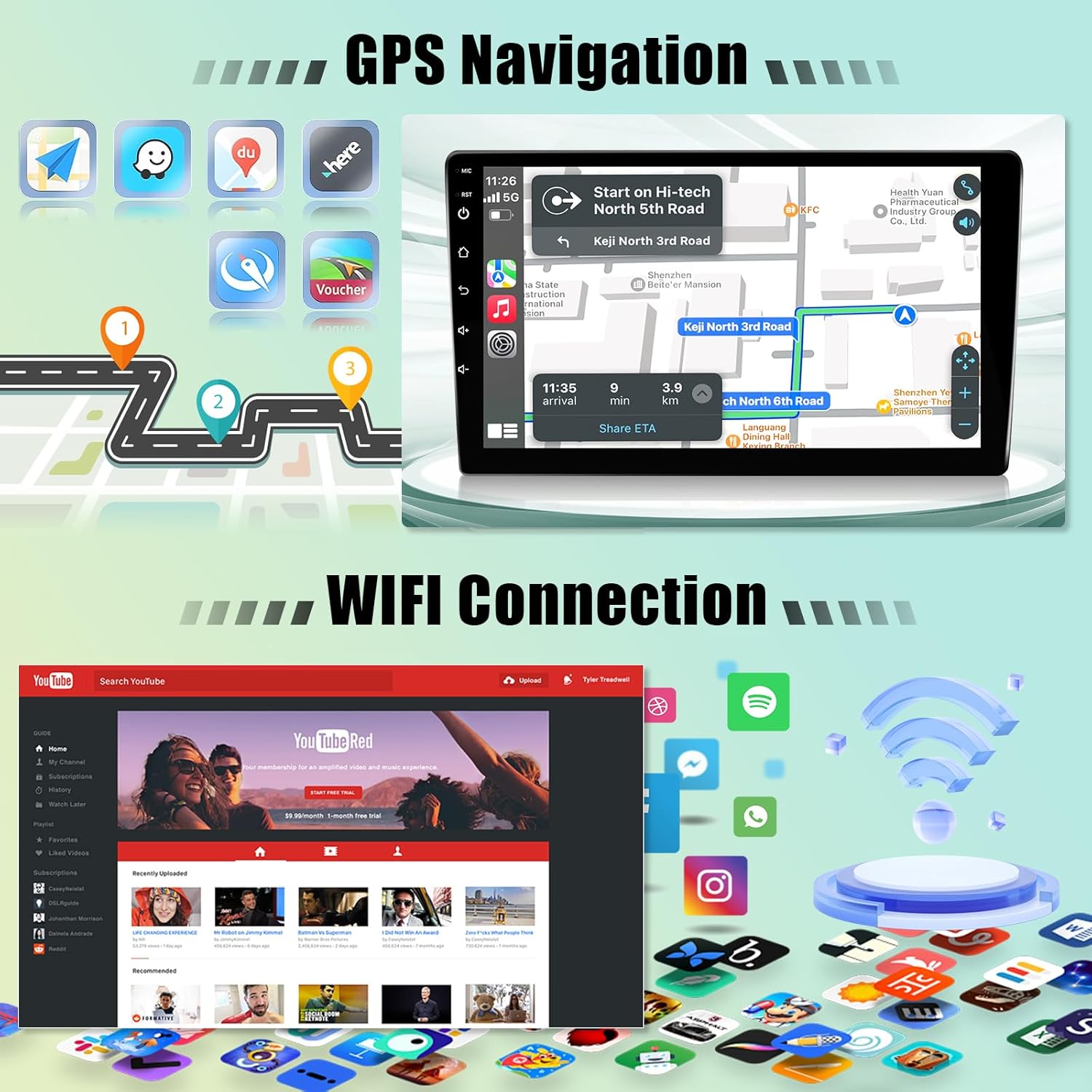
Image: The car stereo screen showing a GPS navigation map on one side and various app icons, including a Wi-Fi symbol, on the other, indicating connectivity and navigation features.
Bluetooth 5.0
Conecta o teu teléfono intelixente mediante Bluetooth para facer chamadas mans libres e reproducir audio en streaming.
- Go to the Bluetooth settings on the car stereo.
- Activa o Bluetooth no teu teléfono e busca os dispositivos dispoñibles.
- Select the car stereo's Bluetooth name (e.g., "Leadfan Car Play") from your phone's list and pair.
- Once connected, you can make/receive calls and play music wirelessly.

Image: The car stereo displaying Bluetooth features for hands-free calling and music playback, with a separate section illustrating the split-screen functionality.
FM/RDS Radio & EQ Settings
Access the FM radio tuner to listen to local stations. The RDS (Radio Data System) feature displays station information where available. Customize your audio experience with the built-in 10-band equalizer (EQ).
- Radio FM: Select the "Radio" app, then use the on-screen controls to scan for stations or manually tune.
- Configuración de ecualización: Navigate to the "Sound" or "EQ" settings to adjust audio frequencies, balance, fader, and select preset sound modes (e.g., Pop, Rock, Jazz).

Image: The car stereo display showing the FM radio tuner interface with frequency display, and a separate screen illustrating the graphic equalizer (EQ) settings for audio customization.
Funcionalidade de pantalla dividida
The split-screen feature allows you to run two applications simultaneously on the 10.1-inch display, such as navigation and music playback.
- Abre a primeira aplicación que queiras usar.
- Press and hold the recent apps button (or swipe from the side, depending on UI) to activate split-screen mode.
- Select the second application from the list to display it alongside the first.

Image: The car stereo screen in split-screen mode, showing a navigation map on one side and a video playback application on the other, demonstrating simultaneous app usage.
Control do volante (SWC)
The unit supports learning steering wheel controls, allowing you to map your vehicle's existing steering wheel buttons to control the stereo functions (e.g., volume, track skip, call answer).
- Go to the "Steering Wheel Control" settings in the system menu.
- Follow the on-screen instructions to program each button by pressing the physical button on your steering wheel and then selecting the corresponding function on the stereo's screen.

Image: The car stereo display showing the reverse camera view at the top, and the steering wheel control learning interface at the bottom, with an illustration of steering wheel buttons.
Pantalla da cámara traseira
When a compatible rear camera is connected and properly installed, the display will automatically switch to the camera view when the vehicle is put into reverse gear, aiding in safe parking and maneuvering.
Mantemento
- Limpeza da pantalla: Usa un pano suave e sen pelusa para limpar con suavidade a pantalla táctil. Para manchas difíciles, limpa lixeiramenteampLimpe o pano con auga ou cun limpador de pantallas. Evite materiais abrasivos ou produtos químicos agresivos.
- Actualizacións de software: Periodically check for available software updates through the system settings or the manufacturer's websitio para garantir un rendemento óptimo e o acceso a novas funcións.
- Coidado xeral: Evite expoñer a unidade a temperaturas extremas, á luz solar directa durante períodos prolongados ou a humidade excesiva.
Resolución de problemas
| Problema | Causa posible | Solución |
|---|---|---|
| A unidade non se acende. | Conexión eléctrica solta, fusible fundido, cableado incorrecto. | Check power harness connections. Inspect vehicle's fuse box and the unit's inline fuse. Verify wiring according to the installation guide. |
| Sen son. | Volume too low, mute activated, speaker wiring issue, incorrect audio source. | Increase volume. Check if mute is active. Verify speaker connections. Ensure correct audio source is selected. |
| CarPlay/Android Auto non se conecta sen fíos. | Bluetooth/Wi-Fi off on phone, incorrect pairing, interference. | Ensure phone's Bluetooth and Wi-Fi are on. Re-pair the phone. Try connecting with a USB cable first to establish initial connection. |
| Sinal GPS débil ou impreciso. | GPS antenna placement, environmental interference. | Asegúrate de que a antena GPS teña unha visión clara view of the sky. Avoid placing near metal objects. |
| A cámara traseira non se mostra. | Incorrect camera wiring, faulty camera, trigger wire issue. | Verify all camera connections (video, power, trigger). Ensure the vehicle is in reverse. Test camera functionality if possible. |
| System freezes or lags. | Too many apps running, low memory, software issue. | Close unnecessary applications. Restart the unit. Consider a factory reset if persistent (backup data first). Avoid downloading too many apps. |
Especificacións
| Marca | Leadfan |
| Nome do modelo | Car Play Radio for Honda Odyssey 2005-2010 |
| Número de modelo | US02-SW300-3 |
| Tamaño da pantalla | 10.1 polgadas |
| Sistema Operativo | Android 12 |
| Procesador | 4 núcleos |
| RAM | 2 GB |
| ROM (almacenamento interno) | 32 GB |
| Tecnoloxía de conectividade | Bluetooth (5.0), USB, Wi-Fi |
| Entrada de interface humana | Pantalla táctil |
| Tipo de mapa | North America, Street, Worldwide (supports online/offline) |
| Modo de saída de audio | Stereo (10 adjustable EQ levels) |
| Características especiais | Wireless Apple CarPlay & Android Auto, Mirrorlink, GPS Navigation, FM/RDS, AHD Backup Camera support, Steering Wheel Control (SWC), Split Screen, Dual USB ports. |
| Dimensións do artigo (L x W x H) | 16.9 cm de longo x 12.2 cm de ancho x 4.4 cm de alto |
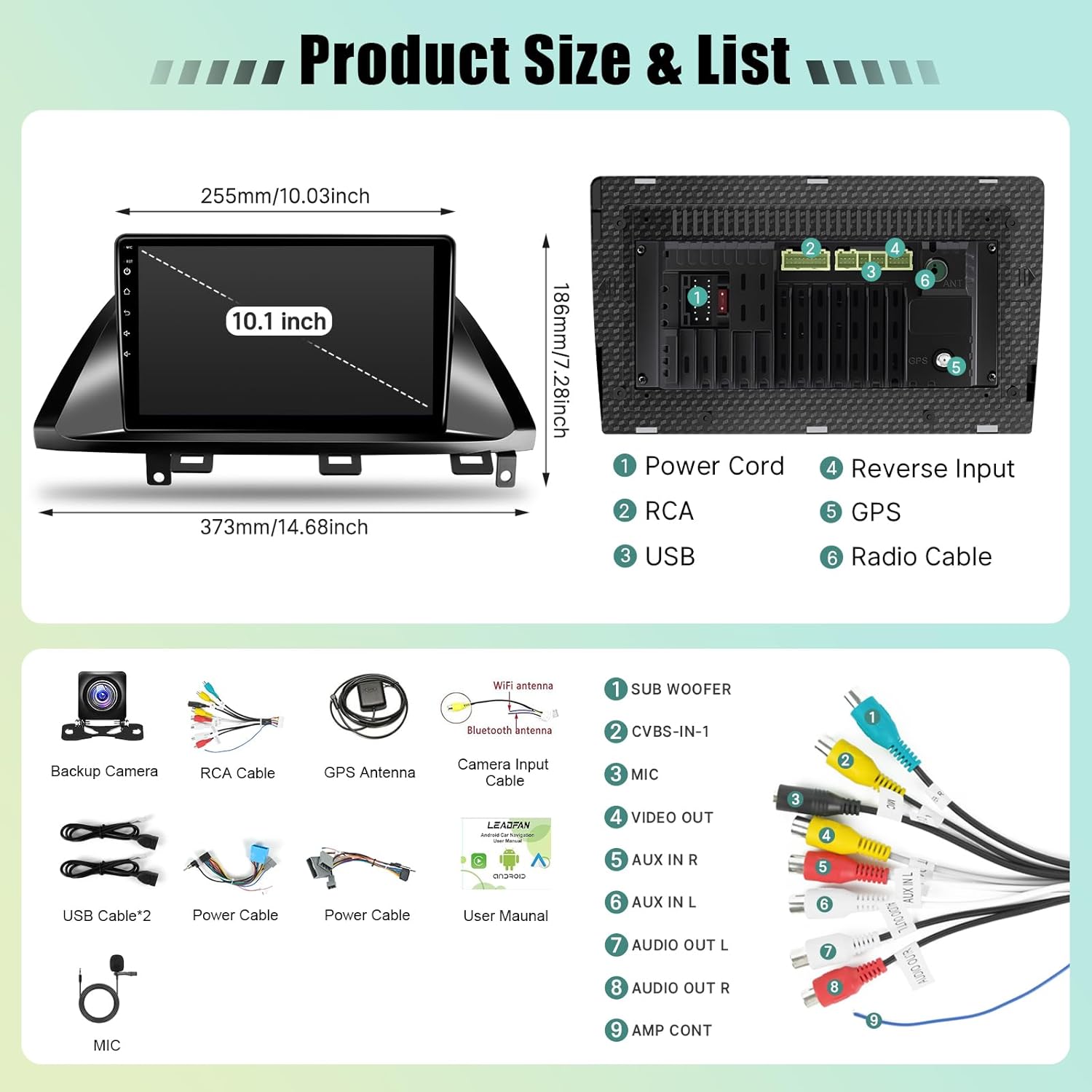
Image: A technical diagram illustrating the physical dimensions of the 10.1-inch car stereo unit and a detailed view of its rear connection ports, including power, RCA, USB, reverse input, GPS, and radio cable connections.
Información da garantía
This Leadfan Car Play Radio comes with a 1 ano de garantía desde a data de compra. Esta garantía cobre defectos de fabricación e avarías en condicións de uso normal. Non cobre danos causados por unha instalación incorrecta, mal uso, accidentes ou modificacións non autorizadas. Conserve o comprobante de compra para reclamacións de garantía.
Atención ao cliente
For technical assistance, troubleshooting, or warranty inquiries, please contact Leadfan customer support. Refer to the contact information provided on the product packaging or the official Leadfan website. Online assistance is also available to enhance your shopping experience and address any questions.
Recursos en liña: Visita o Leadfan Store on Amazon para obter información adicional sobre o produto e asistencia.