
1. Introdución
The SofaBaton X2 is a universal remote control designed to consolidate control of your home entertainment and smart home devices. It features a 2.4-inch HD touchscreen, a comprehensive cloud-based code library, and supports various connectivity technologies including Infrared (IR), Bluetooth, RF, and Wi-Fi. This manual provides detailed instructions for setting up, operating, and maintaining your SofaBaton X2.
2. Contido do paquete
Asegúrate de que todos os elementos estean presentes no paquete:
- SofaBaton X2 Universal Remote Control
- SofaBaton Hub
- Base de carga
- Cable de carga USB tipo C
- IR Extension Cable (optional)
- Manual de usuario

Image: SofaBaton X2 remote, hub, charging base, and infrared transponder.
3. Produto rematadoview
The SofaBaton X2 system consists of the remote control, a central hub, and a charging dock. The remote features a touchscreen for intuitive navigation and control, while the hub provides 360-degree IR transmission and extends connectivity options.
Características principais:
- Pantalla táctil HD de 2.4 polgadas: For intuitive control and digital keypads.
- Conectividade multidispositivo: Supports IR, Bluetooth, RF, and Wi-Fi 2.4GHz.
- Ampla compatibilidade de dispositivos: Cloud-based library with over 500,000 devices from 6,000+ brands.
- Customizable Activities: Execute multi-device commands with a single press.
- Integración do fogar intelixente: Compatible with Home Assistant, Alexa, and Google Home.
- SofaBaton Hub: Provides 360-degree IR transmission with a range of up to 40 feet.
- Base de carga: Convenient Type-C charging dock for the remote.
- Batería de longa duración: 1200mAh battery provides 3-4 weeks of working time.
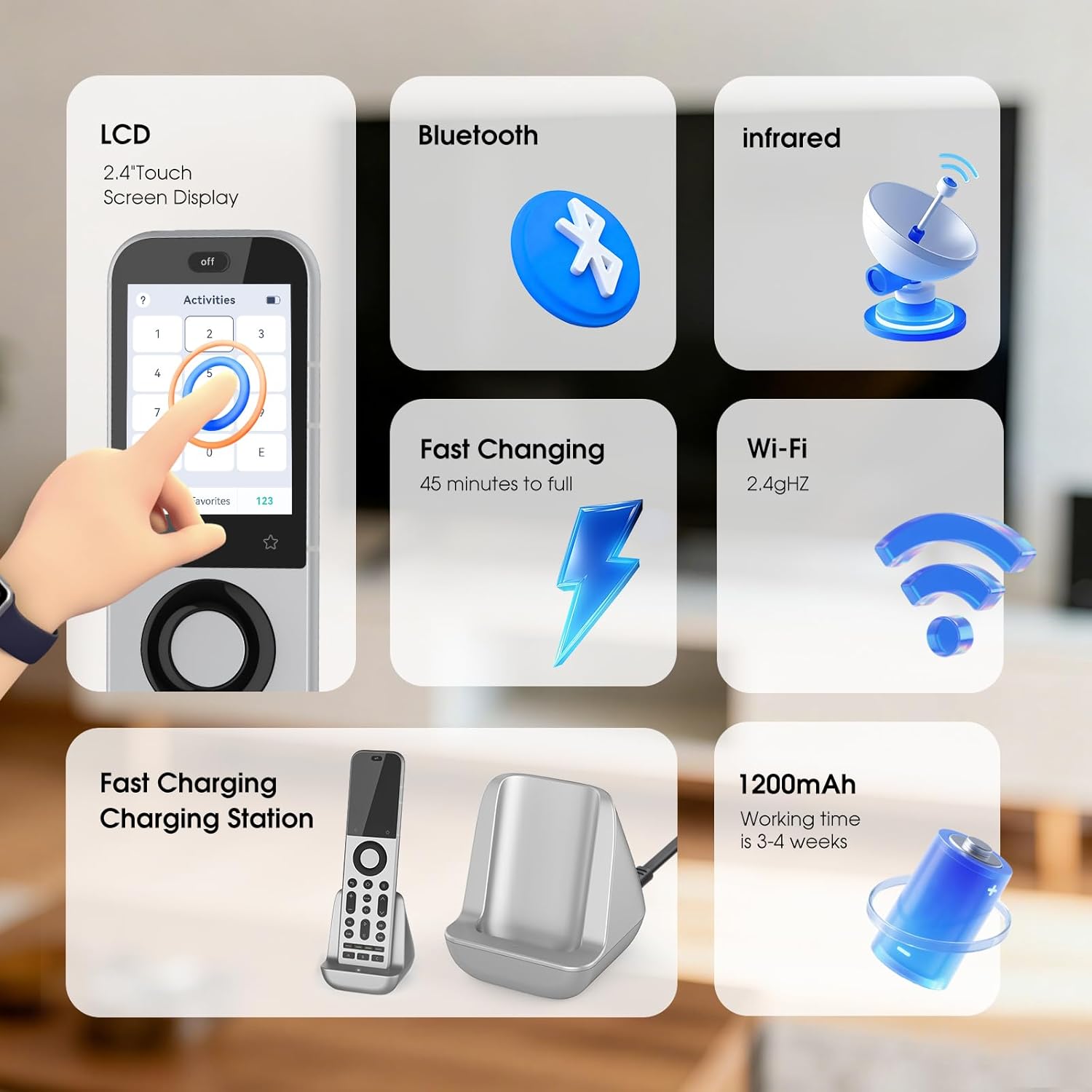
Image: SofaBaton X2 remote control highlighting its LCD touchscreen, Bluetooth, Infrared, Fast Charging capability, Wi-Fi 2.4GHz connectivity, and 1200mAh battery.
4. Configuración
4.1 Carga do mando a distancia
- Place the SofaBaton X2 remote into the charging dock.
- Connect the Type-C charging cable to the dock and a power source.
- The remote's screen will indicate charging status. A full charge takes approximately 45 minutes.
4.2 Conexión do concentrador
- Position the SofaBaton Hub in a central location within your entertainment area, ensuring it has a clear line of sight to the devices you wish to control via IR.
- Connect the hub to power using the provided adapter.
- If devices are obstructed or out of direct line of sight, use the optional IR extension cable by plugging it into the hub and positioning its emitter near the target device's IR receiver.
4.3 Descarga e instalación da aplicación
The SofaBaton app is essential for configuring your remote and hub.
- Scan the QR code in the quick start guide or search for "SofaBaton" in your mobile device's app store (Google Play Store for Android, Apple App Store for iOS).
- Download and install the SofaBaton application.
- Abre a aplicación e sigue as instrucións en pantalla para crear unha conta ou iniciar sesión.

Image: SofaBaton app download screen on a smartphone, showing options for Google Play and Apple App Store.
4.4 Emparellar dispositivos
Use the SofaBaton app to add and pair your devices with the remote and hub.
- In the SofaBaton app, navigate to the "Devices" section.
- Select "Add Device" and choose the type of device you want to add (e.g., TV, Soundbar, Streaming Device).
- Follow the app's instructions to search for your device by brand and model. The app will guide you through the pairing process, which may involve IR, Bluetooth, or Wi-Fi connectivity depending on the device.
- Test the controls to ensure proper functionality after pairing.

Image: Diagram illustrating Bluetooth connectivity between the SofaBaton X2 remote, hub, and various devices throughout a home, emphasizing multi-room control.
5. Instrucións de funcionamento
5.1 Uso da interface de pantalla táctil
The 2.4-inch HD touchscreen provides access to devices, activities, settings, and digital keypads.
- Navegación: Swipe left/right or up/down to navigate through menus and options.
- Selección: Toca nunha icona ou opción para seleccionala.
- Digital Keypads: Access digital keypads (e.g., number pad) for specific devices or functions.

Image: SofaBaton X2 touchscreen displaying a digital keypad for number input, with IR transmitters indicated at the top.
5.2 Creating and Using Activities
Activities allow you to control multiple devices with a single command, such as turning on your TV, soundbar, and streaming device simultaneously for "Movie Night."
- Create Activity: In the SofaBaton app, go to the "Activities" section and select "Add Activity." Follow the prompts to select devices and define the sequence of commands.
- Launch Activity: On the remote's touchscreen, navigate to the "Activities" menu. To launch an activity, slide or swipe the activity icon to the right. This prevents accidental activation.
- Deactivate Activity: To turn off all devices associated with an activity, press the "Off" button located at the top of the remote. This action shuts down all active devices and ends the current mode.

Image: SofaBaton X2 touchscreen showing instructions for launching and deactivating activities by swiping the activity icon and pressing the 'Off' button.
5.3 App-Based Personalization
The SofaBaton app provides extensive customization options:
- Disposición dos botóns: Customize the function of physical buttons on the remote.
- Programación de macros: Create complex sequences of commands (macros) for specific tasks.
- Reassignments: Reassign functions to different buttons or touchscreen areas.
- Almacenamento na nube: Your preferences and configurations are stored in the cloud for easy backup and restoration.

Image: SofaBaton app interface on a smartphone showing device control methods like Infrared, Bluetooth, Wi-Fi, and RF, emphasizing customization.
5.4 Integración de fogares intelixentes
The SofaBaton X2 can integrate with various smart home platforms:
- Asistente de fogar: Connect the X2 to Home Assistant for automated activities and cross-platform synchronization via MQTT. This allows direct command subscriptions to automate audio-video gear, lighting, and other smart devices.
- Asistentes de voz: Compatible with Alexa and Google Home for voice control of your entertainment system.
5.5 Temporizador de sono
Set a one-time timer for the current activity:
- On the remote's touchscreen, navigate to the "Sleep Timer" option.
- Select the desired duration (e.g., 0.5 hours, 1 hour, 2 hours, 3 hours).
- The remote will automatically turn off the current activity after the selected time.
5.6 Sincronización
To ensure your remote has the latest configurations from the app:
- On the remote's touchscreen, navigate to the "Sync" option.
- Tap "Sync Now." The remote will be unavailable during the synchronization process, which typically takes a few minutes.
6. Mantemento
6.1 Limpeza
- Wipe the remote and hub with a soft, dry cloth.
- Non empregue produtos de limpeza abrasivos, solventes nin produtos químicos agresivos.
6.2 Coidado coa batería
- Charge the remote regularly using the provided charging dock.
- Avoid exposing the remote to extreme temperatures.
- The remote uses a nonstandard, non-replaceable battery. When the battery reaches the end of its life, the unit will cease to function.
7 Solución de problemas
| Problema | Posible Solución |
|---|---|
| O control remoto non responde | Ensure the remote is charged. Check if the hub is powered on and connected. Try syncing the remote via the app. |
| O dispositivo non responde aos comandos | Verify the device is correctly paired in the SofaBaton app. Ensure the hub has a clear line of sight to IR devices. For Bluetooth/Wi-Fi devices, check their network connection. Re-learn IR commands if necessary. |
| Activities not working correctly | Review the activity sequence in the SofaBaton app. Ensure all devices within the activity are powered on and responsive individually. Adjust delays between commands if needed. |
| Problemas de conectividade da aplicación | Ensure your mobile device and the SofaBaton Hub are connected to the same 2.4GHz Wi-Fi network. Restart the app and the hub. |
| Remote screen unresponsive | Perform a soft reset by pressing and holding the power button (if available) or by navigating to the "Reboot" option in the settings menu. Ensure the remote is adequately charged. |
8. Especificacións
| Característica | Detalle |
|---|---|
| Marca | SofáBaton |
| Nome do modelo | X2 |
| Tecnoloxía de conectividade | Bluetooth, Infrared, Wi-Fi |
| Tipo de controlador | Button Control, Touch Control |
| Número máximo de dispositivos compatibles | 49 |
| Dispositivos compatibles | DVD/Blu-ray Player, Home Theater, Set Top Box, Television |
| Maximum Range (Hub IR) | 40 pés |
| Tipo de batería | Nonstandard Battery (included) |
| Compatibilidade do fogar intelixente | Smart Home Compatible (Alexa, Google Home, Home Assistant) |
| Características especiais | Backlit, Digital Display, Ergonomic, Rechargeable |
| Cor | Negro/Plata |
9. Garantía e soporte
9.1 Información da garantía
The SofaBaton X2 Universal Remote Control comes with a 1 ano de garantía desde a data de compra. Esta garantía cobre defectos de fabricación e avarías en condicións de uso normal. Conserve o comprobante de compra para reclamacións de garantía.
9.2 Atención ao cliente
For technical assistance, troubleshooting, or warranty inquiries, please contact SofaBaton customer support through the dedicated SofaBaton app or visit the official SofaBaton website. All-day customer support is provided in the app.