
SOLAKAKA KI99 Pro
SOLAKAKA KI99 Pro Silent Wireless Mechanical Keyboard User Manual
Model: KI99 Pro
Introdución
This manual provides detailed instructions for the setup, operation, maintenance, and troubleshooting of your SOLAKAKA KI99 Pro Silent Wireless Mechanical Keyboard. Please read this guide thoroughly to ensure optimal performance and longevity of your device.
Produto rematadoview
The SOLAKAKA KI99 Pro is a 96% layout mechanical keyboard designed for versatility and performance. It features triple-mode connectivity, hot-swappable silent switches, customizable RGB backlighting, and a durable gasket structure.
Características principais:
- Conectividade de modo triplo: Supports Bluetooth 5.0, 2.4GHz wireless, and Type-C wired connections.
- Deseño do 96%: Compact design with 96 keys, including a numeric keypad, to save desk space.
- Silent Mechanical Switches: Equipped with pre-lubricated, hot-swappable linear switches for a quiet and smooth typing experience.
- Estrutura da xunta: Advanced five-layer noise reduction design for enhanced typing feel and reduced sound.
- Teclas PBT: Durable, wear-resistant, and fade-resistant keycaps with clear legends.
- Retroiluminación RGB personalizable: Per-key RGB lighting with side light bars, offering 16.8 million colors and various effects.
- Botón multifunción: Controls volume, media playback, and lighting brightness.
- Batería de gran capacidade: Integrated 10000mAh rechargeable battery for extended wireless use.
- Personalización de software: Dedicated software for key remapping, macro programming, and advanced RGB control.

Imaxe: Máis deview of the SOLAKAKA KI99 Pro keyboard, showcasing its main features such as connectivity options, gasket structure, silent switches, RGB lighting, battery capacity, PBT keycaps, hot-swappable design, and operating system compatibility.
Configuración
1. Cargar o teclado
Before initial use, fully charge the keyboard using the provided USB-C cable. Connect the cable to the keyboard's Type-C port and to a powered USB port on your computer or a USB wall adapter. The charging indicator will show the charging status.

Image: The keyboard's 10000mAh large capacity rechargeable battery, ensuring extended usage.
2. Conectando o teclado
The KI99 Pro supports three connection modes: Bluetooth 5.0, 2.4GHz wireless, and wired (USB-C).

Image: The keyboard supports 2.4GHz wireless, Bluetooth 5.0, and Type-C wired connections for multiple devices and systems.
2.1. Conexión sen fíos de 2.4 GHz:
- Localiza o receptor USB de 2.4 GHz, que normalmente se garda nun compartimento do teclado.
- Conecte o receptor USB a un porto USB dispoñible no seu ordenador.
- Flip the switch on the side of the keyboard to the "2.4G" position.
- O teclado debería conectarse automaticamente. Se non, preme fn+4 to enter 2.4G pairing mode. The indicator light will flash blue.
2.2. Bluetooth 5.0 Connection:
- Flip the switch on the side of the keyboard to the "BT" position.
- Mantén premido fn+1, fn+2, ou fn+3 for 3-5 seconds to enter pairing mode for the desired Bluetooth channel. The indicator light for the selected channel will flash blue rapidly.
- On your device (PC, laptop, smartphone, tablet), enable Bluetooth and search for "SOLAKAKA KI99 Pro".
- Selecciona o teclado que queres emparellar. A luz indicadora deixará de parpadear unha vez conectado.
- You can switch between paired Bluetooth devices by pressing Fn + 1/2/3.
2.3. Conexión con cable de tipo C:
- Connect the USB-C cable to the keyboard's Type-C port and the other end to your computer's USB port.
- Flip the switch on the side of the keyboard to the "Wired" position (usually indicated by a cable icon or middle position).
- The keyboard will be recognized as a wired device and is ready for use.

Image: The side operation panel with the connectivity mode switch (BT, 2.4G, Wired), the metal knob, and the side RGB light strip.
Instrucións de funcionamento
1. Funcións básicas das teclas
The KI99 Pro features a 96% layout. Standard key functions operate as expected. Some keys may have secondary functions accessed via the Fn chave.
2. Botón multifunción
The metal knob located on the top right of the keyboard provides quick control over several functions:
- Xirar: Axusta o volume do sistema (en sentido horario para aumentar, en sentido antihorario para diminuír).
- Prensa: Silencia/activa o audio.
- Fn + Rotate: Adjusts RGB lighting brightness.
- Fn + Prema: Changes RGB lighting effects/modes.
3. Control da iluminación RGB
The keyboard features extensive RGB backlighting with 16.8 million colors and various effects. You can control lighting via keyboard shortcuts or the dedicated software.
- Fn + \ (Barra invertida): Percorrer ciclicamente diferentes efectos de iluminación.
- Fn + Teclas de frecha: Adjust lighting speed and direction (specific combinations may vary, refer to software for full control).
- Fn + Knob: Axusta o brillo.
4. Personalización do software
For advanced customization, download the SOLAKAKA KI99 Pro software from the official SOLAKAKA websitio. O software permíteche:
- Remapear teclas individuais.
- Crear e asignar macros.
- Customize RGB lighting effects, colors, and patterns in detail.
- Xestionar profiles para diferentes aplicacións ou xogos.

Image: The customization software interface for the KI99 Pro, enabling users to adjust RGB lighting, assign keys, program macros, and synchronize lighting with music.
Mantemento
1. Limpeza do teclado
- Desconecte o teclado de todas as fontes de alimentación e dispositivos antes de limpalo.
- Use un pano suave e sen pelusa lixeiramente dampEnxágüe con auga ou unha solución de limpeza suave para limpar as teclas e o chasis.
- Para o po e os residuos entre as teclas, use aire comprimido.
- Evite o uso de produtos químicos agresivos, abrasivos ou solventes.
2. Substitución da tapa das teclas e do interruptor
The KI99 Pro features hot-swappable switches and PBT keycaps, allowing for easy customization and replacement.
- Teclas: Use the provided keycap puller to gently remove keycaps. Align new keycaps and press firmly until seated.
- Interruptores: Use the provided switch puller to carefully remove switches. Ensure the new switch pins are straight before aligning them with the PCB sockets and pressing down gently until they click into place. The PCB supports 3-pin and 5-pin switches.
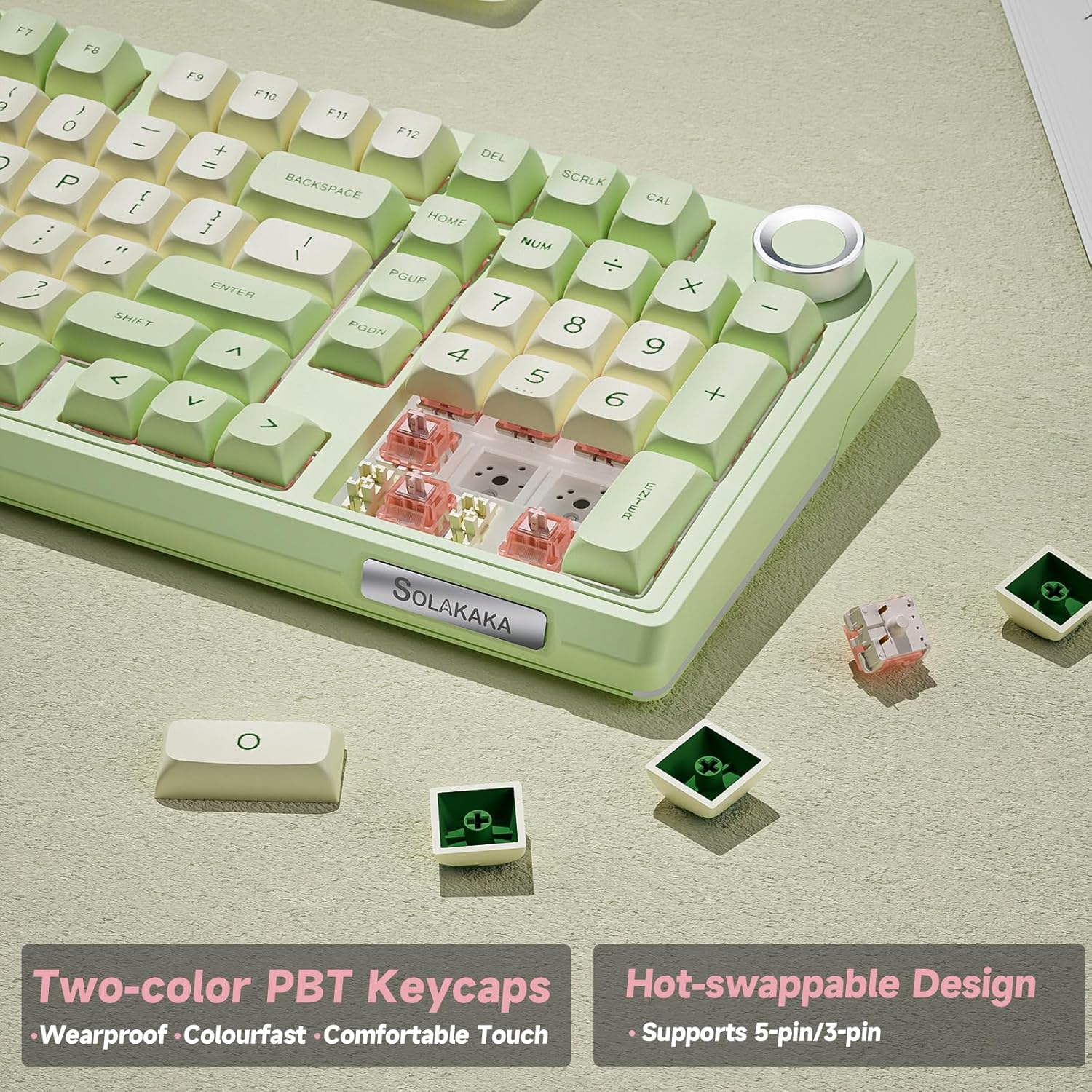
Image: The keyboard's two-color PBT keycaps and hot-swappable design, supporting both 3-pin and 5-pin switches for easy customization.

Image: Detailed specifications of the LEOBOG Silent Switch, including key stroke, pressure points, and mechanical lifespan.
Resolución de problemas
1. Keyboard Not Responding:
- Modo cableado: Ensure the USB-C cable is securely connected to both the keyboard and the computer. Check if the mode switch is set to "Wired". Try a different USB port or cable.
- Sen fíos de 2.4 GHz: Ensure the USB receiver is plugged in and the mode switch is set to "2.4G". Re-pair by pressing fn+4. Check battery level.
- Bluetooth: Ensure Bluetooth is enabled on your device and the mode switch is set to "BT". Re-pair by holding Fn + 1/2/3. Check battery level.
- Batería: Connect the keyboard to a power source to charge. A low battery can cause connectivity issues.
2. As teclas non se rexistran ou escriben dúas veces:
- Asegúrate de que os interruptores estean ben asentados. Preme suavemente cara abaixo a tapa da tecla afectada.
- Se un interruptor específico está avariado, pódese substituír debido ao deseño de intercambio en quente.
- Limpa arredor da tecla afectada para eliminar calquera residuo.
3. A iluminación RGB non funciona ou é incorrecta:
- Check lighting brightness using Fn + Botón.
- Cycle through lighting effects using Fn + \.
- Ensure the keyboard software is up-to-date and settings are correctly applied. Sometimes, software settings can override onboard controls.
- Perform a factory reset (refer to software or advanced key combinations if available, usually Fn + Esc durante 3-5 segundos).
4. Software Not Detecting Keyboard:
- Ensure the keyboard is connected via USB-C cable and the mode switch is set to "Wired". Most customization software requires a wired connection for detection and firmware updates.
- Reinicie o software e o seu ordenador.
- Reinstall the software from the official SOLAKAKA websitio.
Especificacións
| Característica | Detalle |
|---|---|
| Número de modelo | KI99PRO |
| Marca | SOLAKAKA |
| Conectividade | Bluetooth 5.0, sen fíos de 2.4 GHz, USB-C con cable |
| Disposición do teclado | 96 % QWERTY |
| Número de chaves | 96 |
| Tipo de cambio | Linear (LEOBOG Silent Switch) |
| Cambiable en quente | Yes (3-pin/5-pin switches) |
| Chaves | PBT (Two-color) |
| Retroiluminación | RGB (16.8 million colors, side light bars) |
| Capacidade da batería | 10000 mAh |
| Sistemas operativos compatibles | Windows, macOS |
| Dispositivos compatibles | PC, Laptop, Smartphone, Tablet, Game Console |
| Material | Plástico |
| Características especiais | Metal Knob, Customizable, Programmable, Gasket Structure |

Imaxe: Explosión view illustrating the internal gasket structure and various components of the KI99 Pro keyboard.
Garantía e Soporte
For warranty information, technical support, or to download the latest software and drivers, please visit the official SOLAKAKA websitio. Garde o comprobante de compra para reclamacións de garantía.
Note: Software updates are guaranteed until "Information non disponible" (Information not available) as per product specifications.
Documentos relacionadosKI99 Pro


Ask a question about this manual
Ask about setup, troubleshooting, compatibility, parts, safety, or missing instructions. Manuals+ will review the question and use this page’s manual context to help answer it.