
MEETION K9880
MEETION K9880 Foldable Bluetooth Keyboard User Manual
Modelo: K9880
Introdución
Thank you for choosing the MEETION K9880 Foldable Bluetooth Keyboard. This ultra-thin, portable keyboard is designed for business travel and compatible with iOS, Android, Windows, and macOS devices. Its ergonomic split-key layout and multi-device connectivity enhance productivity on the go. Please read this manual carefully to ensure proper use and optimal performance of your device.
O que hai na caixa
- 1 x MEETION K9880 Foldable Bluetooth Keyboard
- 1 x cable de carga USB-C
- 1 x Manual de usuario
- 1 bolsa de veludo
Produto rematadoview
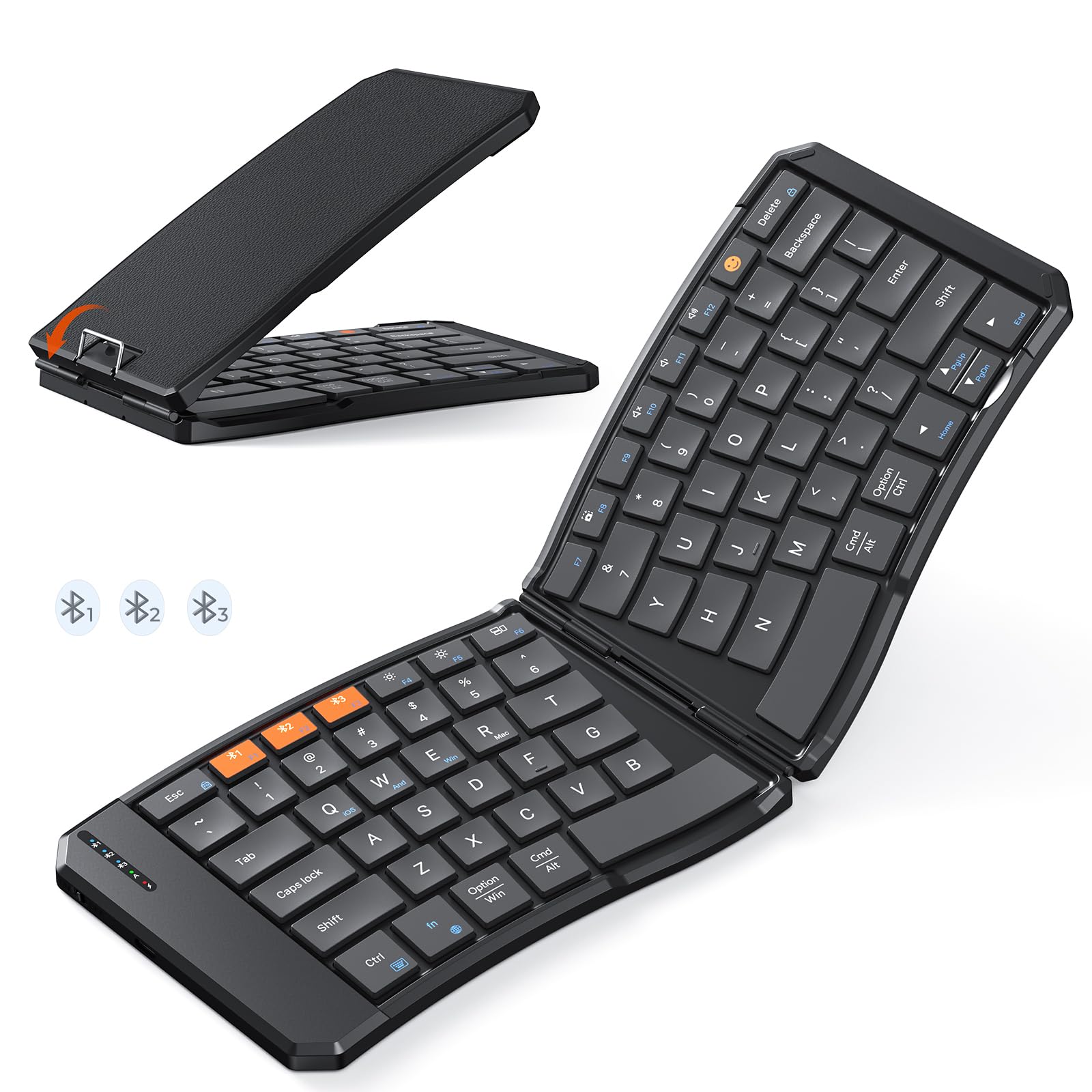
The MEETION K9880 Foldable Bluetooth Keyboard in its compact, folded state, ready for travel.

The keyboard unfolded, showcasing its ergonomic 166-degree V-shaped split-key layout for comfortable typing.

Detallado view of the scissor-switch keys, designed for quiet and responsive typing.

The keyboard being charged via its USB-C port, with indicator lights for Bluetooth, Caps Lock, and Power.
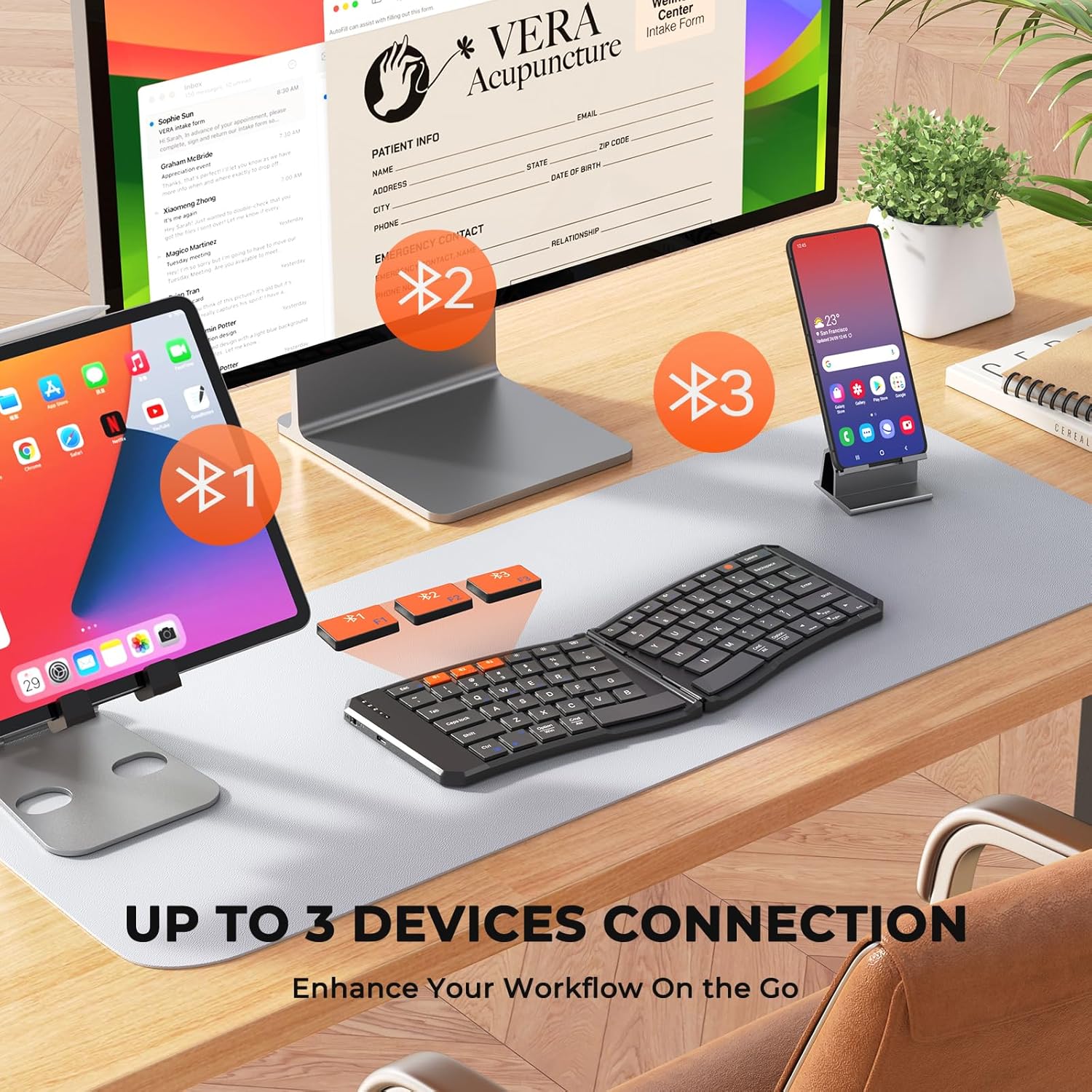
The keyboard's multi-device connectivity, allowing simultaneous connection to up to three devices.

Visual guide for establishing a Bluetooth connection with the keyboard.

Instructions for switching keyboard layouts to match iOS, Android, Windows, or macOS operating systems.
Configuración
1. Acendido/apagado
- To power on the keyboard, slide the power switch located on the side to the 'ON' position.
- Para apagar, deslice o interruptor á posición "OFF".
- The keyboard features a 20-minute auto-sleep mode to conserve power. Press any key to wake it up.
2. Cargar o teclado
- Connect the provided USB-C charging cable to the keyboard's charging port and the other end to a USB power source.
- The red light will flash rapidly when the battery is low.
- The green light will flash during charging and stay solid green when fully charged.
- A full charge provides up to 60 hours of standby time.
3. Bluetooth Pairing (Multi-Device Connection)
- Asegúrate de que o teclado estea acendido.
- Press and hold the Bluetooth button (labeled #1, #2, ou #3) for 3 seconds to enter pairing mode. The corresponding blue indicator light will blink rapidly.
- On your device (computer, phone, tablet), enable Bluetooth and search for available devices.
- Select "Meetion-KB-BT1", "Meetion-KB-BT2", or "Meetion-KB-BT3" from the list to connect.
- Once connected, the blue light will stay on for 5 seconds and then turn off.
- To switch between paired devices, simply press the corresponding Bluetooth button (#1, #2, ou #3). The blue light will stay on for 5 seconds to indicate the active connection.
4. Cambio de sistema
To optimize keyboard functionality for your specific operating system, use the following key combinations:
- Fn + Q: Switch to iOS system
- Fn + W: Switch to Android system
- Fn + E: Switch to Windows system
- Fn + R: Switch to macOS system
Operación do teclado
1. Experiencia de mecanografía
- The keyboard features X-shaped scissor-switch keys for quiet, precise input with responsive feedback.
- The V-shaped 166° angle and split-key layout promote a natural typing posture, reducing strain on hands and wrists.
- The 6-row layout provides a laptop-like typing experience.
2. Teclas de función especial
The keyboard includes several shortcut keys for enhanced productivity:
- Fn + Esc: Toggle between multimedia functions (F1-F12) and standard F-key functionality.
- Emoji Key: Access emoji input (supports Windows, MacBook (macOS), iPad (iPadOS), and Android Samsung devices; does not support iPhone (iOS)).
- Pantalla de bloqueo: Lock your device's screen.
- Teclado virtual: Enable or disable the virtual keyboard on your device.
- Brillo +/-: Axusta o brillo da pantalla.
- Cambiador de tarefas: Switch between open applications.
- busca: Open the search function.
- Captura de pantalla: Capture a screenshot.
- Play/Pause, Mute, Volume +/-: Control media playback and volume.
3. Foldable Design and Stability
- The keyboard folds compactly for easy portability. Magnetic adsorption keeps it securely closed when folded.
- A built-in rear metal support wire ensures stability when unfolded, allowing for typing on uneven surfaces like your lap.
Mantemento
1. Limpeza
- The keyboard features a scratch-resistant, easy-to-clean PU leather exterior.
- Limpe a superficie cun suave, damp pano. Evite produtos químicos agresivos ou materiais abrasivos.
- For cleaning between keys, use compressed air or a soft brush.
2. Coidado da batería
- Para prolongar a duración da batería, evite descargar completamente o teclado con frecuencia.
- Garde o teclado nun lugar fresco e seco cando non o use durante períodos prolongados.
- Utilize the auto-sleep mode by ensuring the keyboard is idle for 20 minutes to save power.
Resolución de problemas
- O teclado non se conecta por Bluetooth: Ensure the keyboard is powered on and in pairing mode (blue light blinking). Check your device's Bluetooth settings to confirm it's discoverable and try re-pairing.
- As teclas non responden: Check the battery level. If the red light is flashing, charge the keyboard. Ensure the keyboard is properly connected to your device.
- Incorrect key layout: Verify that the keyboard is set to the correct operating system mode (Fn + Q/W/E/R).
- Conexión intermitente: Ensure there are no obstructions between the keyboard and your device. Try moving closer to your device. Avoid using the keyboard near strong electromagnetic interference.
- Keyboard not folding/unfolding properly: Check for any debris or obstructions in the hinge mechanism. Do not force the keyboard.
Especificacións
| Característica | Detalle |
|---|---|
| Marca | REUNIÓN |
| Número de modelo | K9880 |
| Tecnoloxía de conectividade | Bluetooth |
| Dispositivos compatibles | PC, iOS, Android, Windows, macOS devices |
| Características especiais | Ergonomic, Foldable, Low-Profile Key, Portable, Rechargeable, Multi-device connection (up to 3) |
| Descrición do teclado | Multimedia |
| Material | Plastic (with PU leather exterior) |
| Capacidade da batería | Batería de litio de 140 mAh |
| Tempo de espera | Ata 60 horas |
| Porto de carga | USB-C |
Garantía
The MEETION K9880 Foldable Bluetooth Keyboard comes with a 1 ano de garantía do fabricante. Please retain your proof of purchase for any warranty claims. This warranty covers manufacturing defects and does not cover damage caused by misuse, accidents, or unauthorized modifications.
Apoio
For further assistance, technical support, or warranty inquiries, please contact MEETION customer service through the official brand website or your retailer's support channels. You may also refer to the included user manual for additional information.
Ask a question about this manual
Ask about setup, troubleshooting, compatibility, parts, safety, or missing instructions. Manuals+ will review the question and use this page’s manual context to help answer it.