
1. Introdución
The EPOMAKER TH87 is a versatile 87-key Tenkeyless (TKL) mechanical keyboard designed for various computing environments. It features tri-mode connectivity (Wired USB-C, 2.4GHz Wireless, and Bluetooth), hot-swappable switches, PBT keycaps, and customizable RGB backlighting. This manual provides detailed instructions for setting up, operating, maintaining, and troubleshooting your keyboard.
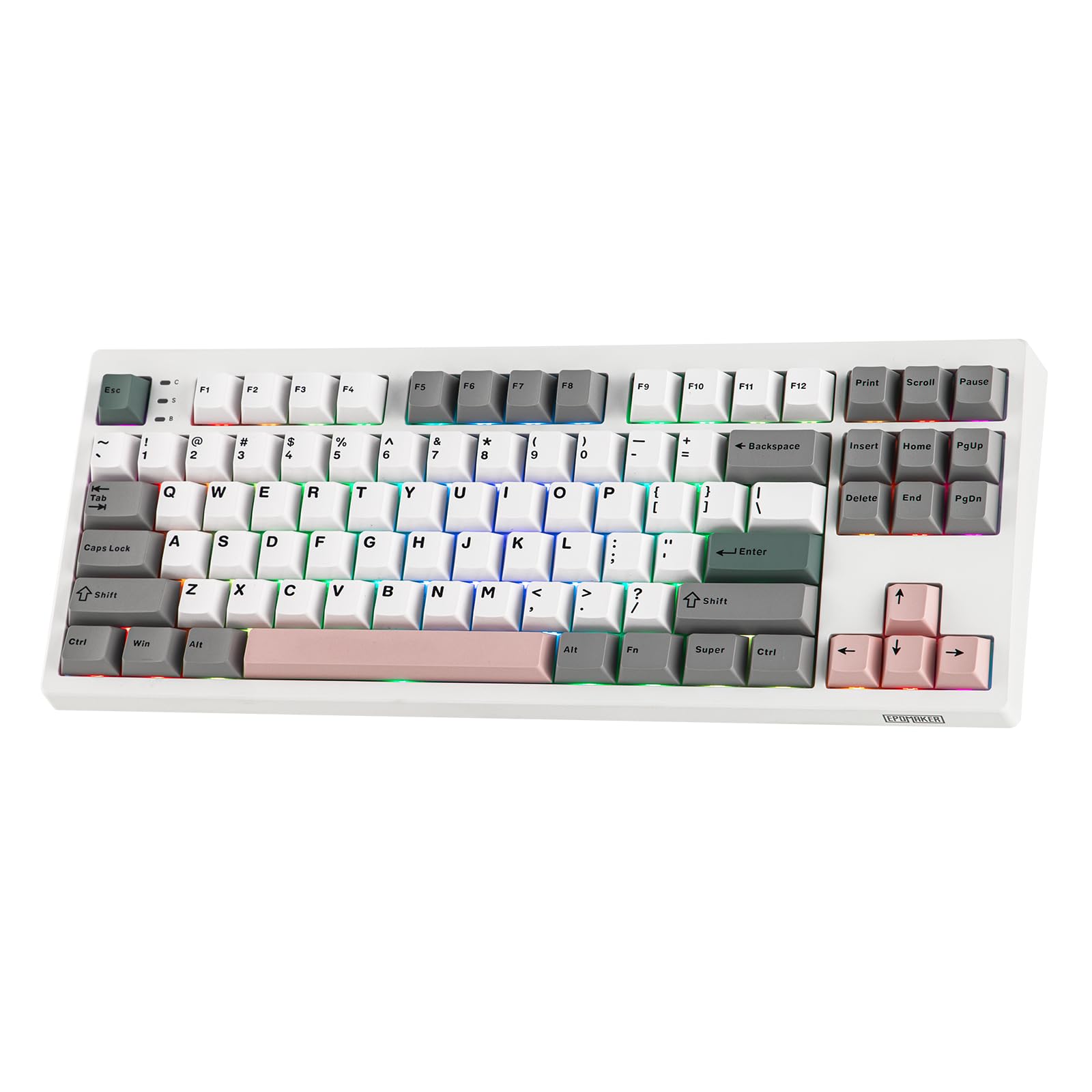
Figure 1: EPOMAKER TH87 Wireless Mechanical Keyboard
2. Contido do paquete
Asegúrate de que todos os elementos estean presentes no teu paquete:
- TH87 Wireless Gaming Keyboard
- USB A-to-C Cable
- Extra Switches (for customization)
- Wireless 2.4Ghz Receiver (stored under the side kick-stand)
- 2-in-1 Switch-and-Keycap Puller
- Manual de usuario (este documento)
Video 1: EPOMAKER TH87 Unboxing & Overview & Typing Video. This video demonstrates the unboxing process and provides a general overview of the keyboard's features and typing experience.
3. Configuración
Follow these steps to set up your EPOMAKER TH87 keyboard:
3.1. Conexión por cable
- Localiza o porto USB-C no teclado.
- Connect the provided USB A-to-C cable to the keyboard and your computer.
- Ensure the mode switch on the keyboard is set to 'USB'.
Conexión sen fíos de 3.2 GHz
- Locate the 2.4GHz wireless receiver, typically stored in a compartment under the side kick-stand of the keyboard.
- Conecte o receptor a un porto USB dispoñible no seu ordenador.
- Set the mode switch on the keyboard to '2.4G'. The keyboard should automatically connect.
3.3. Conexión Bluetooth
- Axusta o selector de modo do teclado á posición "BT".
- On your device (PC, Mac, Tablet, Phone), open Bluetooth settings.
- Busca new devices and select 'EPOMAKER TH87' to pair.
- O teclado admite varios dispositivos Bluetoothfiles; refer to the full user manual for specific pairing instructions for each profile.
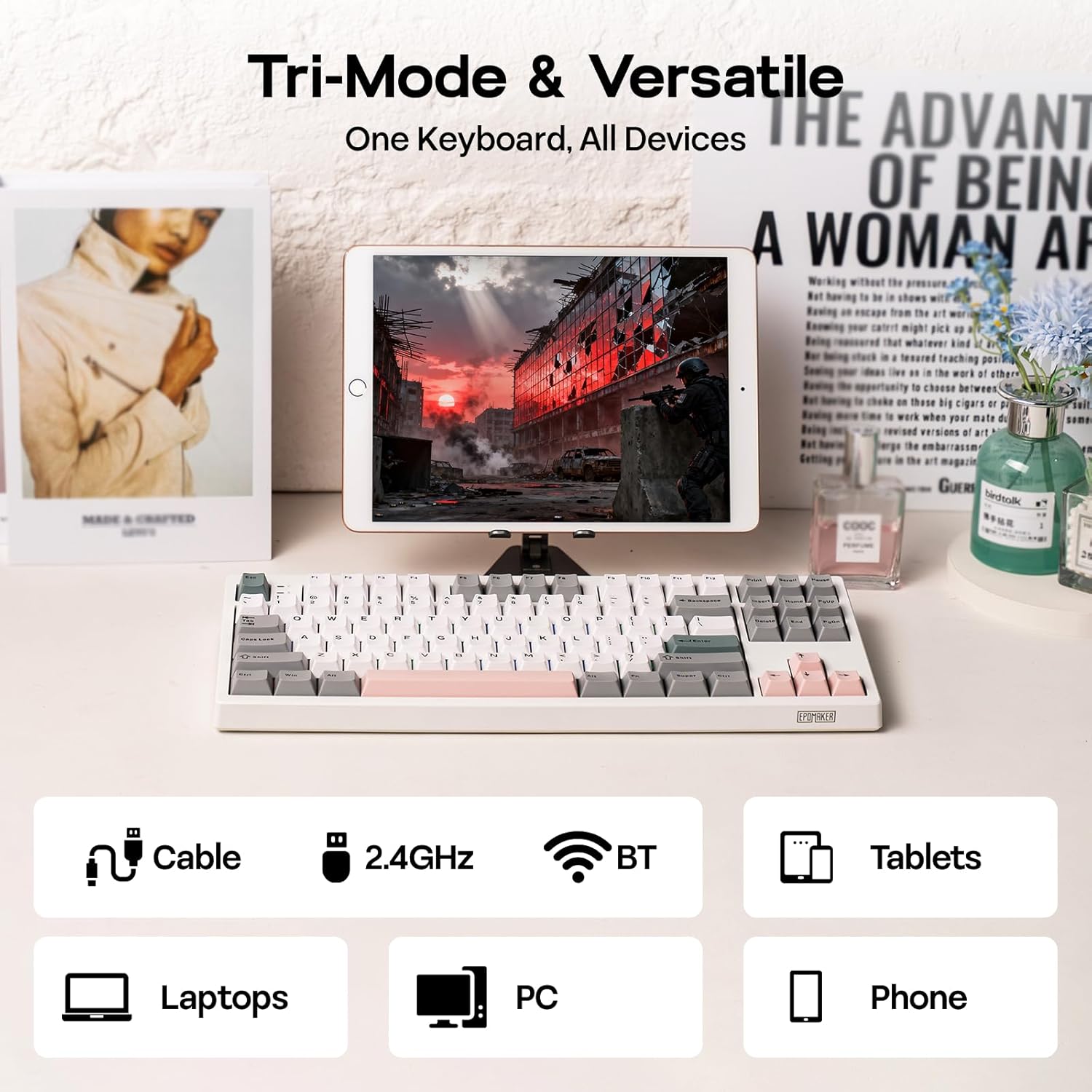
Figura 2: Opcións de conectividade trimodo
4. Instrucións de funcionamento
4.1. Funcións básicas
The TH87 features a standard 87-key TKL layout. All keys function as labeled in their default state.
4.2. Teclas de función (combinacións Fn)
The keyboard includes an 'Fn' key to access secondary functions printed on certain keycaps. Common combinations include:
- Fn + F1-F12: Multimedia controls, volume adjustment, etc.
- Fn + Teclas de frecha: Adjust RGB lighting effects (brightness, speed, direction).
- Fn + Win: Tecla de bloqueo/desbloqueo de Windows.
- Fn + Intro: Comproba o estado da batería.
4.3. OS Mode Switching
Use the dedicated switch on the keyboard to toggle between Mac and Windows compatibility modes.
5. Personalización
The EPOMAKER TH87 offers extensive customization through its web-based driver software.
5.1. Web-Based Driver
The custom driver allows you to:
- Remapear teclas individuais.
- Record and assign macros for complex key sequences.
- Adjust RGB lighting effects, colors, brightness, and speed.
- Configure advanced key functions like SOCD (Simultaneous Opposite Cardinal Directions) and Mod Tap.
Access the driver online via the official EPOMAKER website or the QR code provided in the brand card.
Video 2: How to Use TH87 Online Web Driver. This video guides you through connecting your keyboard to the web driver and customizing key functions, macros, and lighting settings.
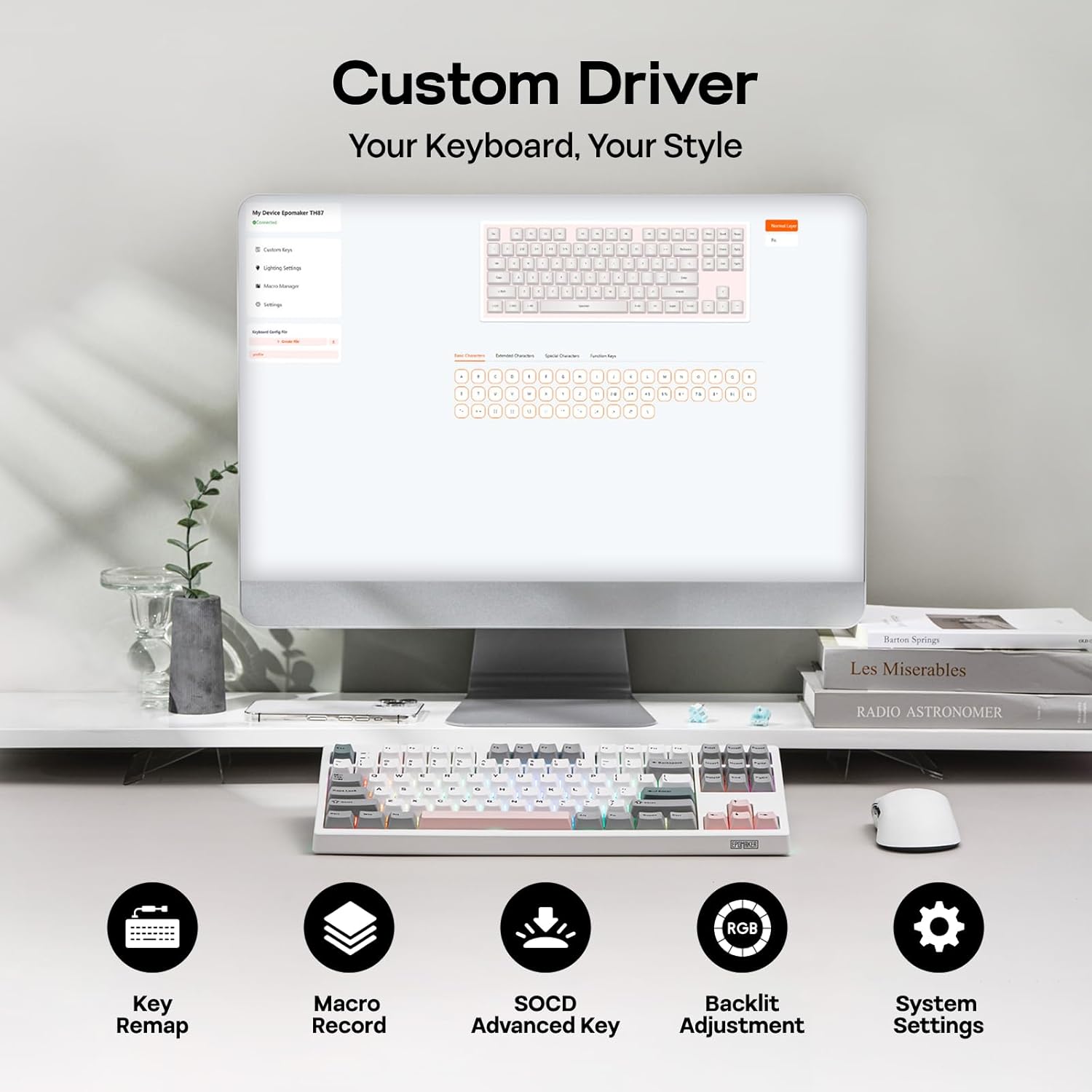
Figure 3: Custom Driver Interface
5.2. Interruptores intercambiables en quente
The TH87 features a hot-swappable PCB, allowing you to change mechanical switches without soldering. It is compatible with 3-pin and 5-pin switches.
Para substituír un interruptor:
- Use the provided keycap puller to remove the keycap.
- Use the provided switch puller to gently remove the switch from the PCB.
- Aliña os pines do novo interruptor cos orificios da placa de circuíto impreso e preme firmemente ata que encaixe no seu lugar.
- Substitúa a tapa das teclas.
The keyboard comes with pre-lubed EPOMAKER Sea Salt Silent V2 switches (Linear, 45±5gf Trigger Force, 51±5gf Bottom-Out Force, 1.8±0.4mm Pre-Travel, 3.5±0.4mm Total Travel).

Figure 4: Hot-Swappable Switches and Sea Salt Silent V2 Specifications
Video 3: EPOMAKER TH87 Typing with Creamy Jade/Sea Salt Silent Switch. This video demonstrates the sound profile of the included switches.
5.3. Retroiluminación RGB
The TH87 features per-key RGB backlighting with various effects. You can adjust the saturation, brightness, and speed of the lighting through the Fn key combinations or the custom driver software.
6. Información da batería
The keyboard is equipped with a 10000mAh battery, providing extended usage times:
- Up to 45 hours of continuous use with RGB backlight at brightest setting.
- Up to 200 hours of continuous use with RGB backlight off.
To charge the keyboard, connect it via the USB-C cable to a computer or a compatible USB power adapter. The keyboard charges when plugged in. Always use a computer USB port for charging. Using a power adapter directly may cause battery damage.
7. Mantemento
Un mantemento axeitado garante a lonxevidade e o rendemento do teu teclado:
- Limpeza: Regularly clean keycaps and the keyboard surface with a soft, dry cloth. For deeper cleaning, remove keycaps using the provided puller and use compressed air to clear debris.
- Almacenamento: Garda o teclado nun lugar fresco e seco, lonxe da luz solar directa e de temperaturas extremas.
- Manexo: Avoid dropping the keyboard or exposing it to liquids.
8 Solución de problemas
Se tes problemas co teclado, consulta as seguintes solucións habituais:
- O teclado non responde: Ensure the keyboard is charged and the correct connectivity mode (Wired, 2.4G, BT) is selected. Try reconnecting the cable or re-pairing the wireless connection.
- Chaves que non se rexistran: Check if the switches are properly seated. If a specific key is not working, try replacing its switch with one of the extra switches provided.
- Iluminación RGB non funciona/incorrecta: Verify lighting settings in the custom driver or cycle through effects using Fn key combinations. Ensure the keyboard is sufficiently charged.
- Problemas de conectividade: For 2.4GHz, ensure the dongle is securely plugged in and close to the keyboard. For Bluetooth, ensure your device's Bluetooth is enabled and the keyboard is paired correctly. Avoid interference from other wireless devices.
- Problemas de software: If the custom driver is not detecting the keyboard, ensure it is connected via USB-C and the mode switch is set to 'USB'.
9. Especificacións
| Característica | Detalle |
|---|---|
| Marca | EPOMAKER |
| Número de modelo | TH87 |
| Descrición do teclado | TKL Layout Mechanical Keyboard |
| Número de chaves | 87 |
| Tecnoloxía de conectividade | 2.4Ghz Wireless, BT, USB A-to-C Wired |
| Fonte de enerxía | Alimentado por batería (10000 mAh) |
| Retroiluminación del teclado | RGB |
| Tipo de cambio | Linear (EPOMAKER Sea Salt Silent Switch) |
| Características especiais | Backlit, Ergonomic, Hot-Swappable, Programmable Keys, Rechargeable |
| Dimensións do produto | 14.43 cm de longo x 1.63 cm de ancho x 5.59 cm de alto |
| Material | Plástico |
| Dispositivos compatibles | Gaming Console, Laptop, PC, Projector, Tablet |

Figure 5: Technical Specifications and Layout
10. Garantía e soporte
The EPOMAKER TH87 Wireless Mechanical Keyboard comes with a 1 ano de garantía desde a data de compra.
For technical support, warranty claims, or any inquiries, please contact EPOMAKER customer service:
- Correo electrónico: support@epomaker.com
- Oficial Websitio: www.epomaker.com
Please have your purchase receipt and product model number (TH87) ready when contacting support.