
Introdución
Thank you for choosing the Jedel WD154 Wireless Mouse. This manual provides essential information for setting up, operating, and maintaining your new mouse. Please read these instructions carefully before use to ensure optimal performance and longevity of your device.
Contido do paquete
- Jedel WD154 Wireless Mouse
- Cable de carga USB-C
- Receptor USB de 2.4 GHz
- Manual de usuario

Image: The retail packaging for the Jedel WD154 Wireless Mouse, displaying the mouse, its features, and technical specifications on the box.
Produto rematadoview
The Jedel WD154 features a transparent 6D design with RGB lighting and a digital LED battery display. It offers dual-mode connectivity for versatile use.
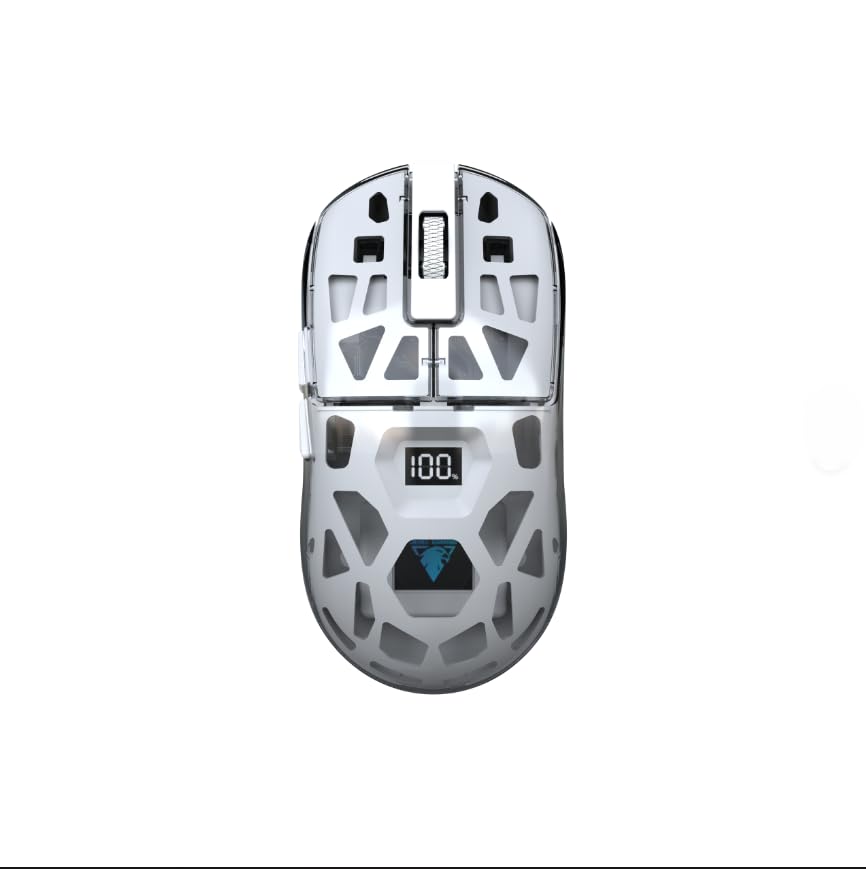
Imaxe: Un primeiro plano lateral view of the Jedel WD154 Wireless Mouse, showcasing its unique transparent shell and the integrated digital LED display indicating a 100% battery charge.
Funcións do botón:
- Botón esquerdo para premer: Función estándar do clic esquerdo.
- Botón dereito do rato: Función estándar do clic dereito.
- Roda de desprazamento: Desprazarse cara arriba/abaixo, premer co botón central.
- Botón DPI: Axusta a sensibilidade do rato (DPI).
- Botón de avance: Navega cara adiante web navegadores/aplicacións.
- Botón de retroceso: Navega cara atrás en web navegadores/aplicacións.
- Mode Switch Button (underneath): Toggles between 2.4GHz and Bluetooth modes.
Configuración
1. Cargar o rato
Before first use, fully charge the mouse using the provided USB-C cable.
- Connect the USB-C end of the cable to the mouse's charging port.
- Conecta o extremo USB-A a unha fonte de alimentación (por exemplo, un porto USB do ordenador ou un adaptador de parede USB).
- The digital LED display will show the charging progress. A full charge is indicated by '100'.

Imaxe: Unha detallada view of the front of the Jedel WD154 Wireless Mouse, illustrating the USB-C charging port with the charging cable securely connected.
2. Conexión mediante unha rede sen fíos de 2.4 GHz
- Localiza o receptor USB de 2.4 GHz, que normalmente se garda nun compartimento na parte inferior do rato.
- Conecta o receptor USB a un porto USB dispoñible no teu ordenador ou dispositivo.
- Acenda o rato usando o interruptor de alimentación que se atopa na parte inferior.
- Press the Mode Switch button (if present) until the mouse is in 2.4GHz mode (often indicated by a specific LED color or pattern).
- O rato debería conectarse automaticamente.
3. Conexión mediante Bluetooth 5.1
- Acenda o rato usando o interruptor de alimentación que se atopa na parte inferior.
- Press the Mode Switch button (if present) until the mouse is in Bluetooth mode. The LED indicator will typically flash, indicating it's in pairing mode.
- On your device (PC, Mac, tablet, smartphone), go to Bluetooth settings.
- Busca new devices and select "Jedel WD154" (or similar name) from the list.
- Siga as indicacións en pantalla para completar o proceso de vinculación.
Instrucións de funcionamento
Axuste de DPI
The mouse features adjustable DPI settings (800/1200/1600) to control cursor sensitivity.
- Preme o Botón DPI (usually located behind the scroll wheel) to cycle through the available DPI settings.
- Each press will change the sensitivity, allowing you to find your preferred speed for different tasks or games.
Control de iluminación RGB
O rato conta con iluminación RGB dinámica.
- The RGB lighting typically activates automatically when the mouse is powered on.
- Specific button combinations (e.g., DPI button + a side button) might cycle through different lighting modes or turn the RGB on/off. Refer to the quick start guide for specific controls if available.

Image: A compilation of images demonstrating the Jedel WD154 Wireless Mouse with its RGB lighting set to various colors, showcasing the customizable aesthetic.
Xestión de enerxía
- The digital LED display shows the current battery percentage (1-100%).
- When the battery is low, recharge the mouse using the USB-C cable.
- The mouse may enter an automatic sleep mode after a period of inactivity to conserve battery. Move the mouse or click a button to wake it up.
Mantemento
- Limpeza: Usa un pano suave e seco para limpar o rato. Para a sucidade persistente, usa un pano lixeiramente seco.amp Pódese usar un pano, pero asegúrese de que non entre humidade no dispositivo.
- Almacenamento: Garda o rato nun lugar fresco e seco, lonxe da luz solar directa e de temperaturas extremas.
- Coidado da batería: Evita descargar completamente a batería con frecuencia. Cárgaa regularmente para manter o estado da batería.
- Evita gotas: Protect the mouse from drops and impacts, which can damage internal components or the transparent casing.
Resolución de problemas
| Problema | Posible Solución |
|---|---|
| O rato non responde |
|
| O movemento do cursor é errático ou lento |
|
| A iluminación RGB non funciona |
|
| Non se pode conectar a través de Bluetooth |
|
Especificacións
- Modelo: WD154
- Tecnoloxía de conectividade: Bluetooth 5.1 + 2.4GHz (Dual Mode)
- Configuración de DPI: 800 / 1200 / 1600 (Axustable)
- Número de botóns: 6
- Detección de movemento: Óptica
- Características especiais: Transparent Design, RGB Lighting, Digital Battery Percentage Mostrar
- Fonte de enerxía: Batería recargable (USB-C)
- Dispositivos compatibles: PC, Laptop, Tablet, Smartphone
- Sistemas operativos compatibles: Windows, Mac OS
- Peso do artigo: 96 gramos
- Dimensións do produto (L x A): 12.7 cm x 6.4 cm
Garantía e Soporte
Información da garantía
Este produto vén cun Garantía de 14 días from the date of purchase. This warranty covers manufacturing defects under normal use. It does not cover damage caused by misuse, accidents, unauthorized modifications, or normal wear and tear.
Atención ao cliente
For technical assistance, troubleshooting, or warranty claims, please contact your retailer or the point of purchase. Please have your proof of purchase and product model number (WD154) ready when contacting support.