
1. Introdución
This manual provides detailed instructions for the setup, operation, maintenance, and troubleshooting of your SOLAKAKA A99 Pro Mechanical Keyboard. Please read this manual thoroughly to ensure proper use and to maximize your keyboard's features.
2. Contido do paquete
- SOLAKAKA A99 Pro Mechanical Keyboard
- Tirador de chaves
- Cable USB (USB-C a USB-A)
- Manual de usuario
3. Produto rematadoview
The SOLAKAKA A99 Pro is a 96% layout mechanical keyboard featuring 97 keys, an LCD screen, and a multifunctional metal knob. It supports tri-mode connectivity (Bluetooth 5.0, 2.4GHz wireless, and USB-C wired) and is compatible with Windows, iOS, Mac, and Android systems. The keyboard includes RGB backlighting, hot-swappable switches, and PBT keycaps.
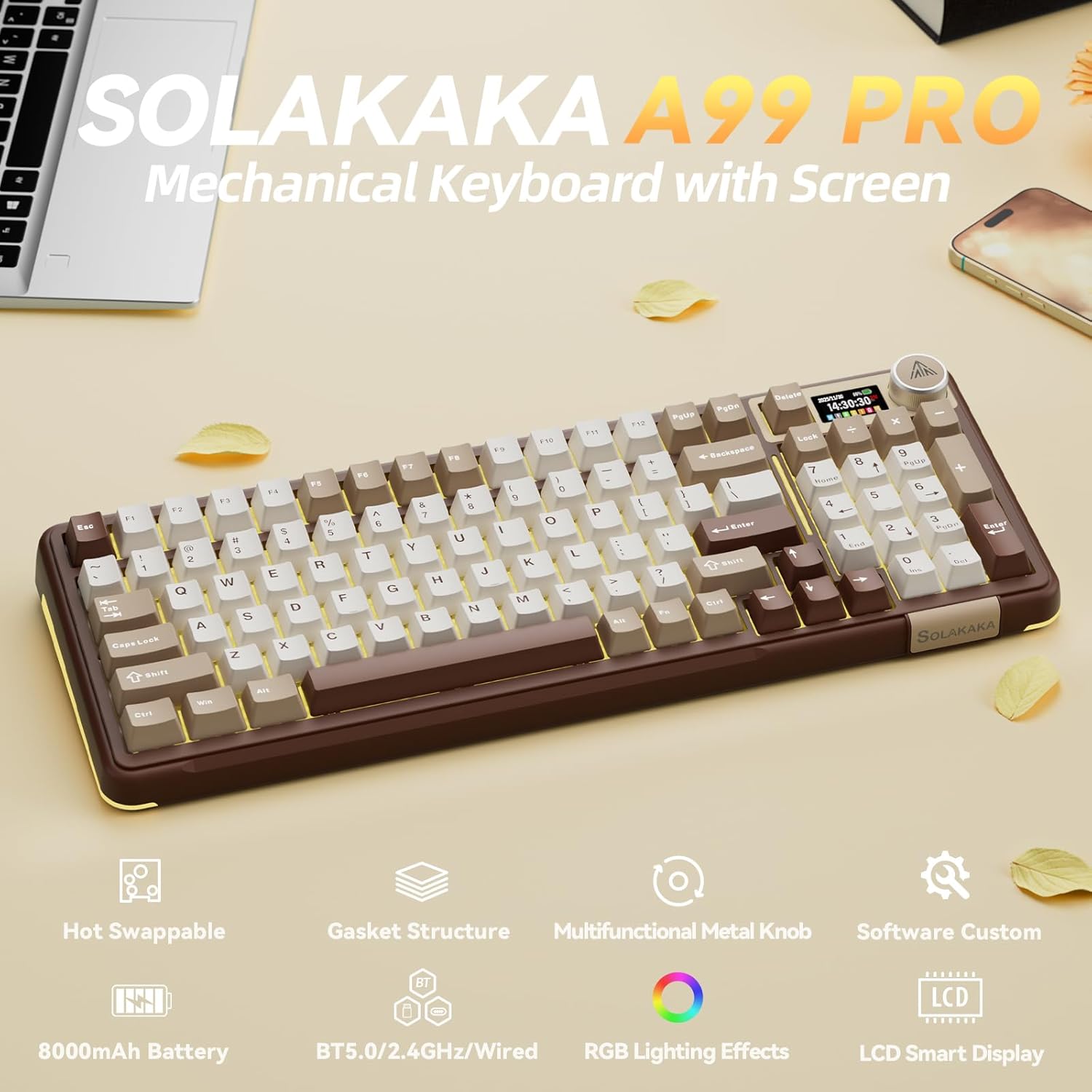
Image: SOLAKAKA A99 Pro Mechanical Keyboard, showcasing its layout, LCD screen, and metal knob.
4. Configuración e conexión
4.1. Acendido/apagado
Locate the power switch on the side or back of the keyboard to turn it on or off.
4.2. Conectividade trimodo
The keyboard supports three connection modes: USB-C wired, 2.4GHz wireless, and Bluetooth 5.0. A switch on the keyboard allows selection between these modes.
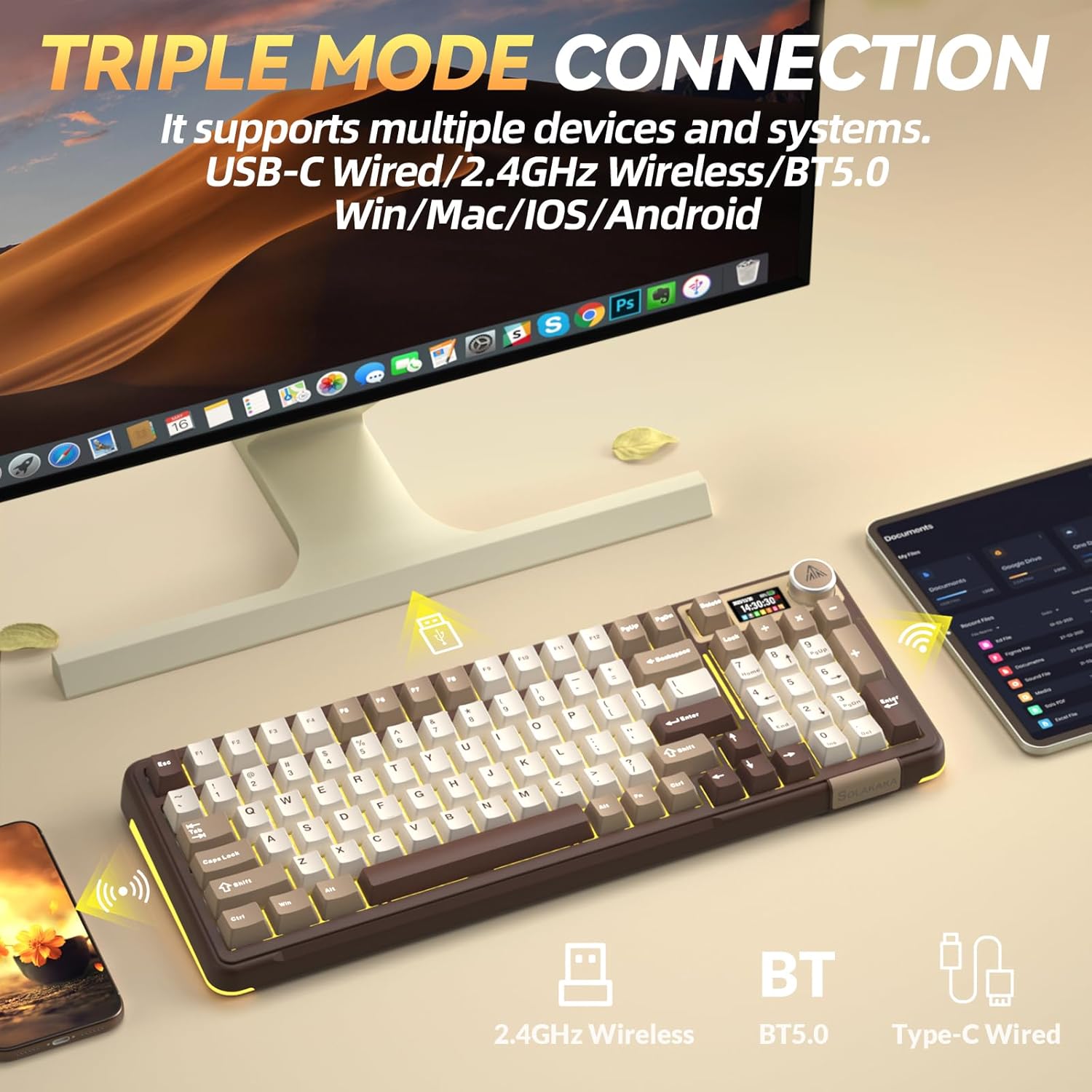
Image: The SOLAKAKA A99 Pro keyboard connected to a desktop and a tablet, illustrating its triple-mode connectivity.
Conexión sen fíos de 4.2.1 GHz
- Locate the 2.4GHz USB receiver, typically stored in a slot on the keyboard.
- Conecta o receptor USB a un porto USB dispoñible no teu ordenador ou dispositivo.
- Switch the keyboard to 2.4GHz mode using the selector switch. The keyboard should automatically connect.
Video: Demonstrates the various connection modes and features of the SOLAKAKA A99 Pro Mechanical Keyboard, including the 2.4GHz wireless connection.
4.2.2. Conexión Bluetooth 5.0
- Switch the keyboard to Bluetooth mode using the selector switch.
- No teu dispositivo (ordenador, tableta, teléfono), activa o Bluetooth e busca novos dispositivos.
- Select "SOLAKAKA A99 Pro" (or similar) from the list of available devices to pair.
- The keyboard can save up to 5 devices. Refer to the LCD screen for pairing indicators (B1, B2, A1, etc.).
4.2.3. Conexión con cable USB-C
- Conecta o cable USB-C fornecido ao porto USB-C do teclado.
- Connect the other end of the cable (USB-A) to your computer or device.
- O teclado cambiará automaticamente ao modo con fíos e comezará a cargarse se é necesario.
4.3. Cargar o teclado
Connect the keyboard via the USB-C cable to a powered USB port. The LCD screen will display the battery level. The keyboard features an 8000mAh rechargeable battery.

Image: The SOLAKAKA A99 Pro keyboard highlighting its 8000mAh battery capacity and estimated usage times.
5. Instrucións de funcionamento
5.1. LCD Smart Display and Multifunctional Knob
The LCD screen displays essential information such as date, time, battery level, connected system, and connection mode. The metal knob allows for quick adjustments.
- Rotación: Adjusts volume, lighting brightness, or navigates menu options.
- Prensa curta: Confirms selection or switches between modes/settings.
- Prensa longa: Accesses advanced settings or specific functions.

Imaxe: Detallada view of the LCD screen and multifunctional knob, showing various display options like home screen, system connection, lighting modes, colors, brightness, speed, volume, language, time, and GIF display.
Video: Demonstrates how to switch between different operating systems (Windows/Mac) and adjust lighting effects using the keyboard's knob and function keys.
Video: Shows the process of setting up custom GIF images on the keyboard's LCD screen using the driver software.
5.2. Cambio de sistema
The keyboard is compatible with Windows, iOS, Mac, and Android systems. You can switch between Windows and Mac modes using the LCD screen or shortcut keys.
- Via LCD Screen: Rotate the knob to navigate to "System" settings, then short press to confirm and select "WIN" or "MAC".
- Teclas de atallo:
- Preme Fn + W to switch to Windows mode.
- Preme fn+m to switch to Mac mode.
5.3. Retroiluminación RGB
The keyboard features 16 RGB lighting modes for the main keys and 5 modes for the side lights. South-facing LEDs enhance light transmission.
- Cambiar o modo de retroiluminación: Preme Fn + \
- Axustar o brillo da luz de fondo: Preme Fn + F5/F6
- Cambiar a cor da retroiluminación: Preme Fn + D
- Change Side Backlight Lighting Effects: Preme Fn + P
- Adjust Side Backlight Brightness: Preme Fn + ↑ / ↓
- Change Side Backlight Color: Preme Fn + Tab

Image: The RGB backlit keyboard showing various function key combinations for controlling backlight modes, brightness, and colors for both main keys and side lights.
5.4. Software programable
Customize your keyboard functions using the dedicated driver software. This software is compatible with Windows systems only and requires a wired connection for operation.
- Set sleep time, key mapping, and sensitivity.
- Optimize key bounce.
- Add GIF images to the LCD screen.
- Switch lighting modes and colors.
- Add music rhythm backlighting.
- Gravar macro files.
Descarga o software de: solakakadriver.com

Image: Screenshot of the SOLAKAKA A99 Pro's programmable software, showing options for adjusting lighting effects, setting shortcut keys, recording macros, and managing GIF images.
6. Mantemento
Para garantir a lonxevidade e o rendemento óptimo do teclado, siga estas pautas de mantemento:
- Limpeza: Use a soft, dry cloth to wipe the keyboard surface. For deeper cleaning, use a keycap puller to remove keycaps and clean underneath with compressed air or a small brush. Avoid using harsh chemicals or abrasive materials.
- Almacenamento: Garda o teclado nun lugar fresco e seco, lonxe da luz solar directa e de temperaturas extremas.
- Substitución do interruptor: The keyboard is hot-swappable, allowing for easy replacement of 3/5-pin switches without soldering. Use the provided keycap puller and switch puller (if included) for safe removal and installation.

Image: A close-up of the SOLAKAKA A99 Pro keyboard demonstrating its full hot-swappable feature, showing switches being removed and the underlying PCB with south-facing LEDs.
7 Solución de problemas
- O teclado non responde:
- Asegúrate de que o teclado estea acendido.
- Comproba o modo de conexión (2.4 GHz, Bluetooth ou con cable) e asegúrate de que coincida coa conexión do teu dispositivo.
- Para 2.4 GHz, asegúrate de que o receptor USB estea conectado correctamente.
- For Bluetooth, ensure the keyboard is paired and selected on your device.
- Tenta conectar a conexión mediante un cable USB-C para descartar problemas sen fíos.
- Asegúrese de que a batería estea cargada.
- LCD screen issues (e.g., detached):
- If the screen appears loose or detached, gently press it back into place. If the issue persists, contact customer support.
- Lighting not working or incorrect:
- Asegúrate de que o teclado estea acendido e non nun estado de baixo consumo.
- Use the Fn key combinations or the multifunctional knob to cycle through lighting modes and adjust brightness/color.
- If using programmable software, ensure settings are correctly applied.
- O software non detecta o teclado:
- Ensure the keyboard is connected via USB-C wired mode. The software only supports Windows systems and requires a wired connection.
- Reinicie o software e/ou o seu ordenador.
- Reinstall the driver software from solakakadriver.com.
8. Especificacións
| Característica | Detalle |
|---|---|
| Modelo | A99 Pro |
| Maquetación | 96 % (97 teclas) |
| Conectividade | Bluetooth 5.0, sen fíos de 2.4 GHz, USB-C con cable |
| Interruptores | LEOBOG Star Vector Switches, Full Hot-Swappable (3/5-pin) |
| Chaves | Double-shot PBT, OEM Height |
| Retroiluminación | RGB (16 modes main, 5 modes side), South-facing LEDs |
| Capacidade da batería | 8000 mAh |
| Características especiais | LCD Screen, Multifunctional Metal Knob, Gasket Structure, Programmable Software |
| Dispositivos compatibles | Portátil, PC, Tablet |
| Sistemas operativos | Windows, iOS, Mac, Android |
| Peso do elemento | 2.99 libras |
| Dimensións do paquete | 16.61 x 7.2 x 2.28 polgadas |

Image: An exploded diagram illustrating the multi-layer gasket structure of the SOLAKAKA A99 Pro keyboard, detailing components like the multifunctional knob, PBT keycaps, switches, positioning plate, and various sound-dampening pads.
9. Garantía e soporte
For warranty information, technical support, or any product-related inquiries, please refer to the official SOLAKAKA websitio web ou póñase en contacto directamente co servizo de atención ao cliente. Garde o recibo de compra para reclamacións de garantía.

