
1. Introdución
The GEEKOM A7 Max Mini PC is a compact and powerful computing solution designed for various applications, including remote work, creative tasks, and gaming. Featuring an AMD Ryzen 9 7940HS processor and Radeon 780M graphics, it offers high performance in a small form factor. This manual provides essential information for setting up, operating, and maintaining your device.
Contido do paquete
Verify that all items listed below are present in your package. If any items are missing or damaged, please contact GEEKOM support.
- GEEKOM A7 Max Mini PC Unit
- Monte VESA
- Adaptador de alimentación
- Japanese-spec AC Power Cable
- Cable HDMI
- Manual de instrucións (xaponés)

Image: GEEKOM A7 Max Mini PC and its included accessories.
2. Produto rematadoview
The GEEKOM A7 Max is designed for efficiency and versatility. Its compact size allows for easy integration into any workspace, while its robust connectivity options support a wide range of peripherals and display configurations.

Image: GEEKOM A7 Max Mini PC overview highlighting its main features and compact dimensions.
Paneis dianteiro e traseiro
Familiarize yourself with the ports and buttons on your Mini PC:

Imaxe: Detallada view of the GEEKOM A7 Max Mini PC's front and rear ports.
- Panel frontal: 1x SD Card Reader, 4x USB 3.2 Gen 2 Type-A, 1x 3.5mm Audio Jack, 1x Power Button, 1x Kensington Lock Slot.
- Panel traseiro: 1x DC Input, 2x 2.5G RJ45 LAN Ports, 2x USB4 (40Gbps, Power Delivery output), 2x HDMI 2.0, 1x USB 2.0 Type-A.
3. Configuración
Follow these steps to set up your GEEKOM A7 Max Mini PC for the first time.
- Conectar periféricos: Connect your monitor(s) using the HDMI or USB4 ports. Connect your keyboard and mouse to the available USB ports.
- Conectar á enerxía: Plug the power adapter into the DC input port on the rear panel, then connect the AC power cable to a power outlet.
- Encendido: Press the power button on the front panel. The system will boot up.
- Initial Windows 11 Setup: Follow the on-screen instructions to complete the Windows 11 setup process. This includes selecting your region, language, and setting up your user account.
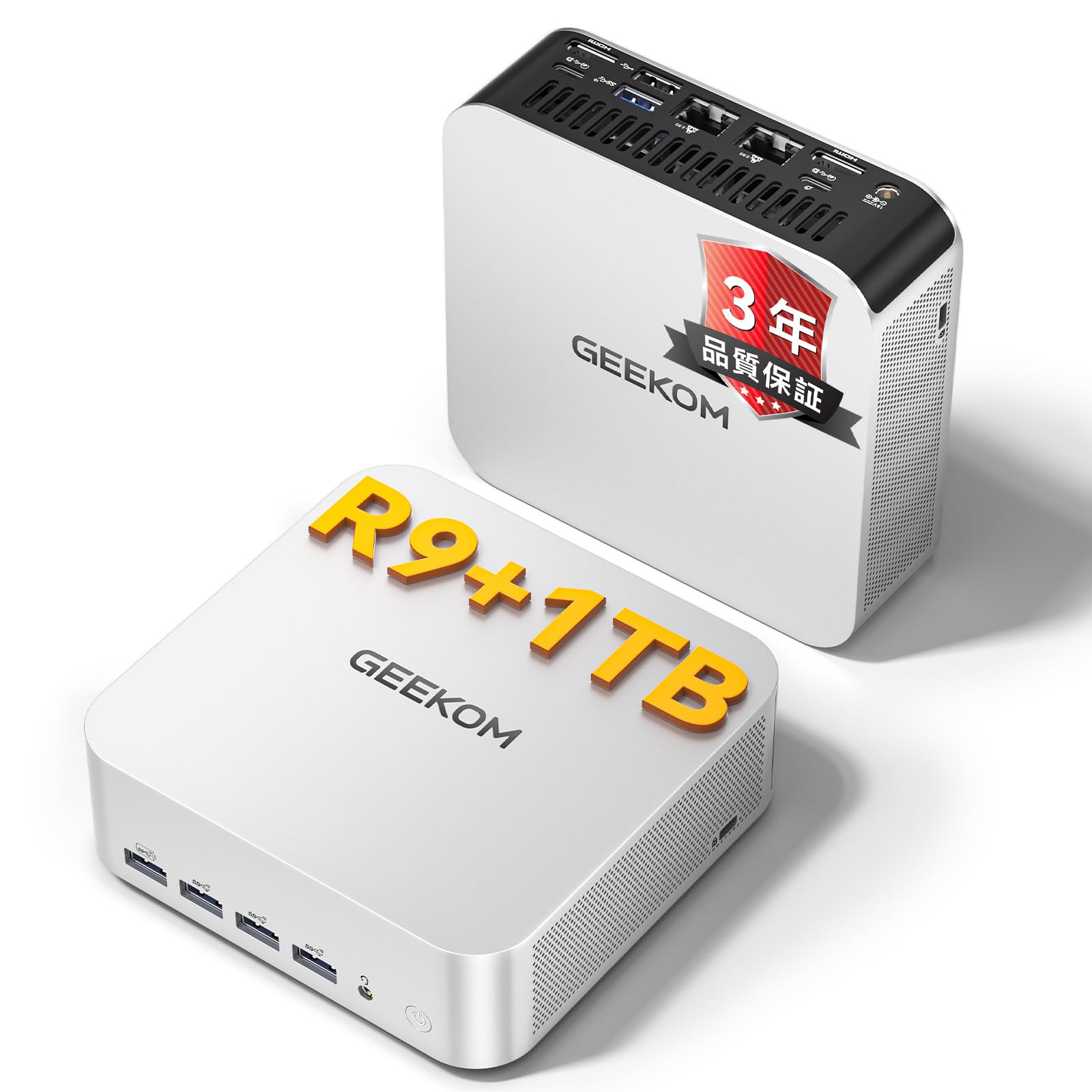
Image: The GEEKOM A7 Max Mini PC in a typical desktop setup.
4. Funcionamento do seu mini PC
Modos de rendemento
The GEEKOM A7 Max offers four performance modes to optimize power consumption and performance based on your needs:
- Modo silencioso (35 W): Ideal for light tasks and quiet environments, such as watching movies or browsing.
- Balanced Mode (45W): Suitable for everyday office work and general computing. This is the default mode.
- Performance Mode (54W): Provides enhanced performance for more demanding applications.
- Turbo Mode (70W): Maximizes performance for intensive tasks like gaming or video editing. The system automatically switches to Turbo mode under high load.

Image: Visual representation of the four intelligent scheduling modes.
Multi-Display Setup
The GEEKOM A7 Max supports up to four displays simultaneously, with 8K resolution output, using its two HDMI 2.0 ports and two USB4 ports. This allows for an expansive workspace for productivity, creative work, or immersive gaming.

Imaxe: Example of an 8K quad-display setup with the GEEKOM A7 Max.
Storage and Memory Expansion
The Mini PC comes with 16GB of DDR5 RAM and a 1TB PCIe 4.0 NVMe SSD. The DDR5 memory is user-replaceable and expandable up to 128GB, offering a future-proof solution. The storage can also be expanded up to 4TB.

Imaxe: Interna view emphasizing DDR5 memory and SSD expandability.
Conectividade
The GEEKOM A7 Max provides comprehensive connectivity options:
- Dual USB4 Ports: Two USB4 ports offer ultra-high-speed data transfer up to 40Gbps, 8K video output, and Power Delivery support. They also support eGPU connections for enhanced graphics performance.
- Dual 2.5G LAN Ports: Two 2.5 Gigabit Ethernet ports enable high-speed wired network connections, supporting network segmentation and Link Aggregation for advanced users and home servers.
- Wi-Fi 6E & Bluetooth 5.2: Integrated Wi-Fi 6E provides fast and stable wireless internet, while Bluetooth 5.2 allows seamless connection to wireless keyboards, mice, headphones, and other devices.
- Lector de tarxetas SD: A built-in SD card reader (UHS-II compatible) facilitates quick transfer of photos and files from cameras and other devices.

Image: Dual USB4 ports for next-generation connectivity.
5. Mantemento
Sistema de refrixeración
The GEEKOM A7 Max features a proprietary "SilentStorm" cooling system with dual copper heat pipes and a large silent fan. This design ensures efficient heat dissipation, keeping operating noise below 36dB even under heavy loads, providing a quiet working environment.

Image: SilentStorm cooling system components and performance.
Limpeza
To maintain optimal performance and longevity, regularly clean your Mini PC:
- Use un pano suave e seco para limpar as superficies exteriores.
- Para a acumulación de po nas reixas de ventilación, use aire comprimido. Asegúrese de que o dispositivo estea apagado e desconectado antes de limpalo.
- Evite o uso de produtos de limpeza líquidos ou materiais abrasivos.

Image: The GEEKOM A7 Max operates quietly, suitable for any environment.
6 Solución de problemas
This section addresses common issues you might encounter with your GEEKOM A7 Max Mini PC.
| Problema | Causa posible | Solución |
|---|---|---|
| Sen alimentación / O sistema non se acende | Power cable not connected properly; Power adapter malfunction; Power outlet issue. | Ensure all power cables are securely connected. Try a different power outlet. Check the power adapter for damage. |
| Sen visualización no monitor | Monitor cable loose or incorrect port; Monitor not powered on or incorrect input selected. | Check display cable connections. Ensure monitor is powered on and set to the correct input source. Try a different display cable or port. |
| System is slow or unresponsive | Too many applications running; Insufficient RAM; Overheating. | Close unnecessary applications. Check system resource usage. Ensure proper ventilation and clean dust from vents. Consider upgrading RAM if frequently encountering this issue. |
| Wi-Fi or Bluetooth not working | Drivers not installed or updated; Wireless features disabled; Interference. | Check device manager for wireless adapter status. Ensure Wi-Fi/Bluetooth is enabled in Windows settings. Update drivers from the GEEKOM website. Reduce interference from other devices. |
7. Especificacións técnicas
Detailed specifications for the GEEKOM A7 Max Mini PC.
| Característica | Especificación |
|---|---|
| Marca | GEEKOM |
| Modelo | A7 máx |
| Sistema Operativo | Windows 11 |
| Modelo CPU | AMD Ryzen 9 7940HS |
| Velocidade da CPU | 3.2 GHz (Max Boost 5.2 GHz) |
| Coprocesador gráfico | AMD Radeon 780M |
| Tecnoloxía de memoria RAM | DDR5 |
| RAM instalada | 16 GB (ampliable ata 128 GB) |
| Velocidade da memoria | 4800 MHz |
| Tipo de almacenamento | SSD (PCIe 4.0 NVMe) |
| Capacidade de almacenamento | 1 TB (Expandable up to 4 TB) |
| Portos USB | 4x USB 3.2 Gen 2 Type-A, 1x USB 2.0 Type-A, 2x USB4 (40Gbps, PD output) |
| Saída de vídeo | 2x HDMI 2.0, 2x USB4 (DisplayPort Alt Mode) |
| Resolución máxima da pantalla | 8K (7680 x 4320) |
| LAN | 2x 2.5G RJ45 LAN |
| Conectividade sen fíos | Wi-Fi 6E, Bluetooth 5.2 |
| Método de arrefriamento | Air Cooling (SilentStorm System) |
| Dimensións do produto | 112.4 x 112.4 x 37 mm (approx. 0.47L volume) |
| Consumo de enerxía | 54 vatios (típico) |
| Certificacións | PSE, TELEC, CE, FCC, CB, RoHS |
8. Garantía e soporte
GEEKOM is committed to providing high-quality products and excellent customer service.
Información da garantía
The GEEKOM A7 Max Mini PC comes with a Garantía completa de 3 ano, which is a testament to its quality and reliability. This includes:
- Garantía de substitución gratuíta de 1 anos
- 2-year free repair warranty
- 24/7/365 customer support
Atención ao cliente
For any inquiries or technical assistance, please contact GEEKOM support:
- Soporte por correo electrónico: service@geekom.jp (Responses typically within 24 hours)
- Soporte en liña: Visit the official GEEKOM websitio para preguntas frecuentes e máis axuda.

Image: GEEKOM's quality standards and support commitment.


