
ESX VMX1000DAB
ESX Vision VMX1000DAB User Manual
Universal 1-DIN Multi-Angle Media Moniceiver with 10 Inch Touchscreen
Introdución
Thank you for choosing the ESX Vision VMX1000DAB Multi-Angle Media Moniceiver. This device is a universal 1-DIN car multimedia system featuring a 10-inch touchscreen display. It offers advanced connectivity options including wireless Apple CarPlay and Android Auto, DAB+ digital radio, Bluetooth hands-free calling and audio streaming, and a versatile media player. This manual provides essential information for the proper installation, operation, and maintenance of your VMX1000DAB unit.
O que hai na caixa
Carefully unpack your ESX Vision VMX1000DAB and ensure all items are present:
- VMX1000DAB Moniceiver Unit
- Receptor GPS
- DAB+ Window Adhesive Antenna
- Micrófono externo
- Mounting Hardware and Cables (ISO harness, USB cables, RCA cables)
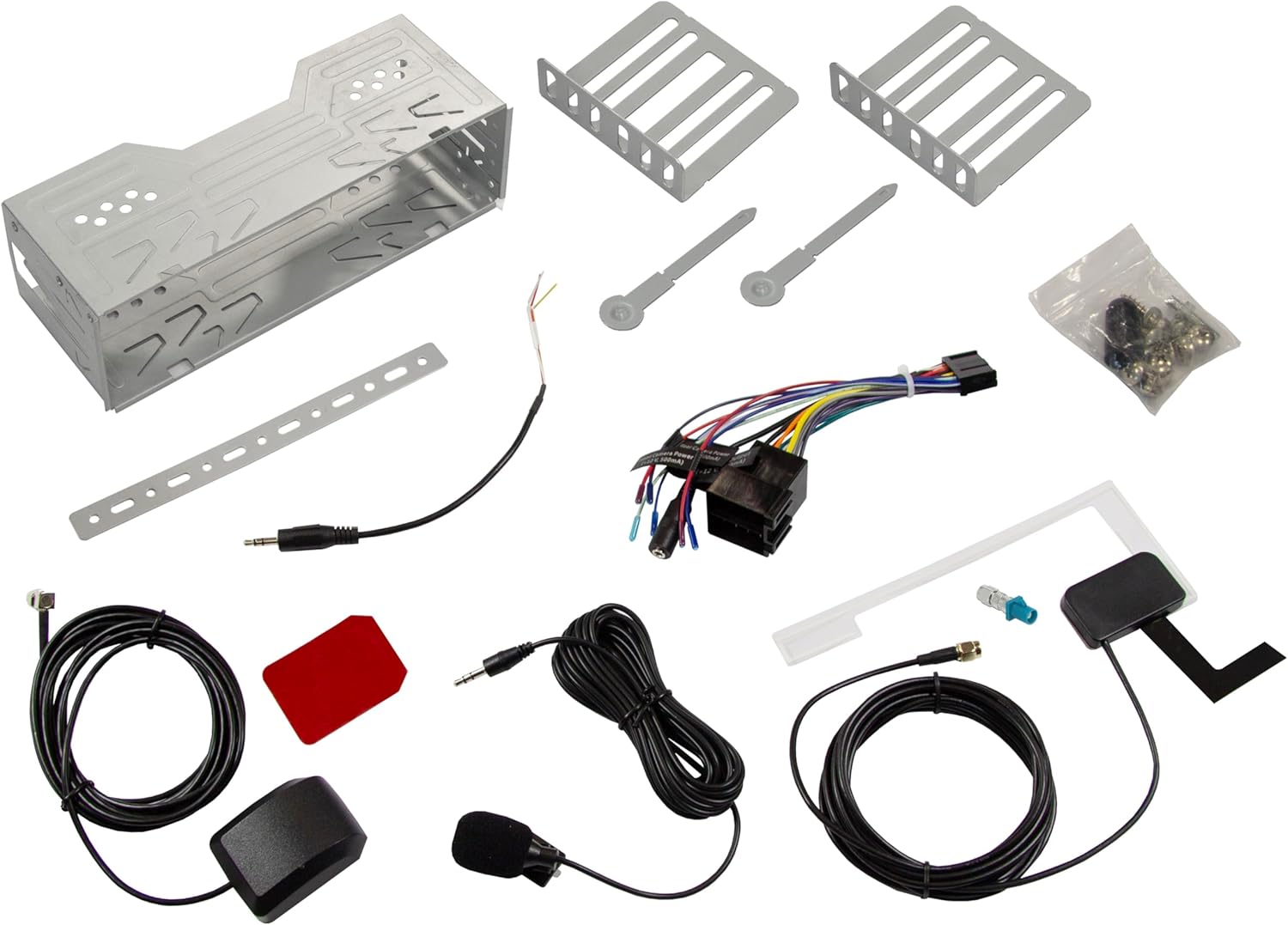
Image: All components included in the ESX Vision VMX1000DAB package.
Configuración e instalación
The VMX1000DAB is designed for universal 1-DIN installation. Professional installation is recommended to ensure correct wiring and functionality.
1. Montaxe da Unidade
- Install the 1-DIN chassis into your vehicle's dashboard opening using the provided mounting cage and brackets.
- The 10-inch monitor is multi-angle adjustable and removable for anti-theft protection. To attach, slide the monitor onto the front of the main unit until it clicks securely into place. To remove, press the release button (if applicable) and slide it off.

Image: The VMX1000DAB unit with its detachable monitor.
2. Conexións de cableado
Connect the wiring harness, antennas, and external devices to the rear of the moniceiver. Refer to the wiring diagram provided with your unit for specific connections.
- Power/Speaker Harness: Connect the main ISO harness to your vehicle's wiring.
- Portos USB-A: Two USB-A ports are available. One for media playback and charging (1.5A), and another specifically for Apple CarPlay/Android Auto and charging (1.5A).
- Saídas de preamplificación RCA: Six 4V RCA preamplifier outputs (FL/FR/RL/RR/SUB1/SUB2) for connecting external amplevantadores.
- RCA AUX Inputs: Stereo audio (L/R) and video input for external sources.
- Entradas da cámara: Dedicated RCA inputs for front and rear cameras.
- Antena GPS: Connect the GPS receiver for optimized navigation.
- DAB+ Antenna: Connect the included DAB+ window adhesive antenna for digital radio reception.
- Micrófono externo: Plug in the external microphone for clear hands-free calls.
- Control do volante: Connect to your vehicle's analog steering wheel controls (learnable function).

Image: Rear connections of the VMX1000DAB unit.
Instrucións de funcionamento
The VMX1000DAB features a user-friendly interface controlled via its 10-inch touchscreen, a large volume knob, and four function keys.
1. Controis básicos
- Encendido/apagado: Press and hold the power button (usually integrated with the volume knob).
- Volume: Rotate the large knob to adjust the volume.
- Teclas de función: Use the dedicated function keys for quick access to common features.
- Pantalla táctil: Navigate menus and control functions by touching the display icons.

Image: VMX1000DAB Home Screen with various application icons.
2. Apple CarPlay e Android Auto
The VMX1000DAB supports both wireless and wired (via USB) Apple CarPlay and Android Auto. This allows you to mirror and control compatible smartphone apps directly from the 10-inch touchscreen.
- Conexión sen fíos: Enable Bluetooth and Wi-Fi on your smartphone and pair it with the VMX1000DAB. Follow the on-screen prompts to initiate CarPlay or Android Auto.
- Conexión por cable: Connect your smartphone to the dedicated USB-A port using a certified USB cable.
- Características: Access navigation apps (e.g., Google Maps with Live Trading), music streaming services (e.g., Spotify), phone calls, messages, and other compatible applications.
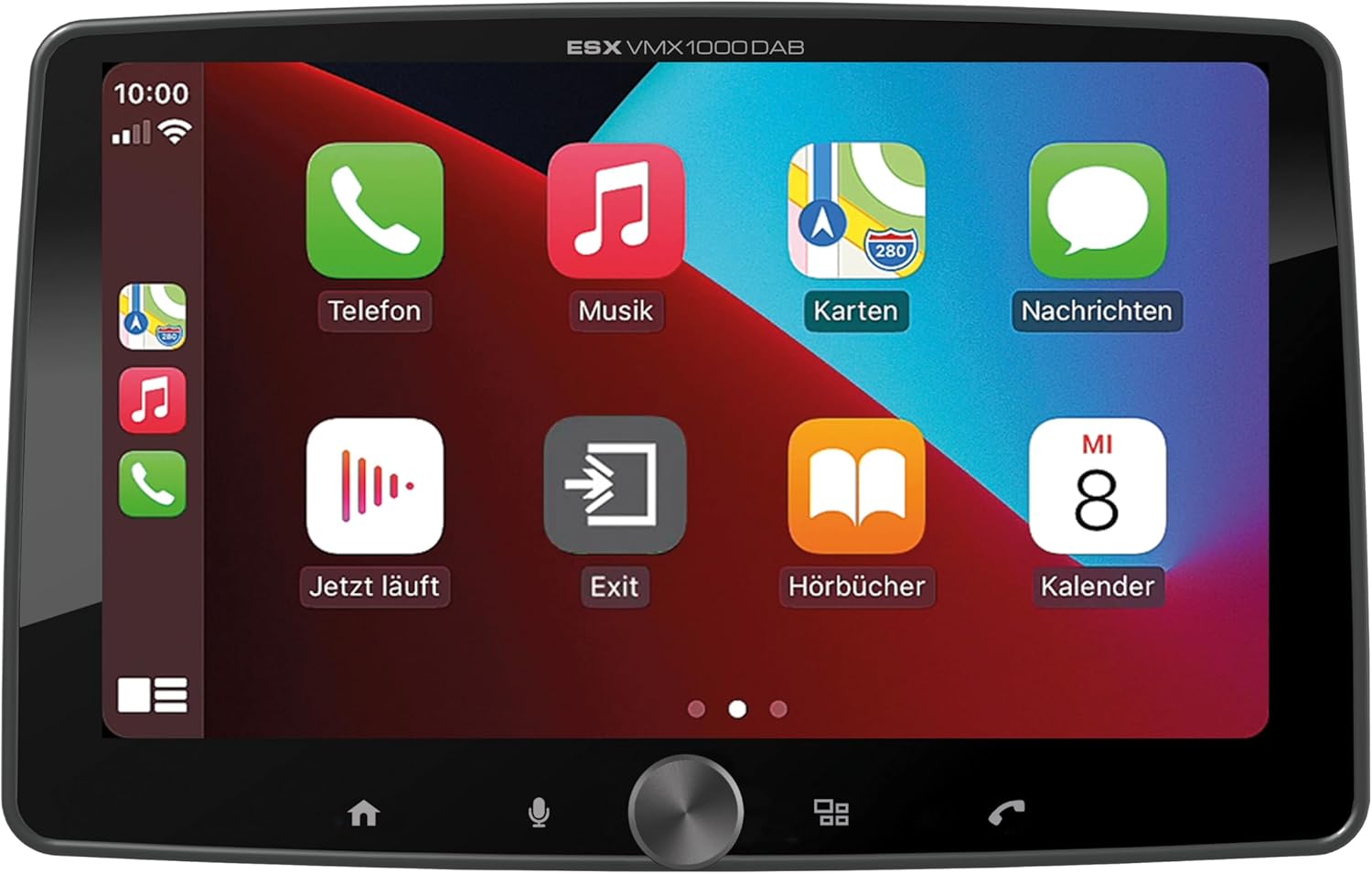
Image: Apple CarPlay interface on the VMX1000DAB.
3. Funcións da radio
- Radio dixital DAB+: Select the DAB+ source to enjoy high-quality digital radio. Ensure the DAB+ antenna is properly installed.
- Radio FM/AM: Tune into FM or AM stations. The RDS (Radio Data System) function provides station information and traffic announcements where available.
- Estación predefinida: Garda as túas emisoras favoritas para acceder a elas rapidamente.
4. Conectividade Bluetooth
- Emparejamento: Go to the Bluetooth menu on the moniceiver and your smartphone. Busca and select the VMX1000DAB to pair.
- Chamadas mans libres: Make and receive calls directly through the moniceiver using the external microphone and your car's speakers.
- Transmisión de audio: Play music from your smartphone via Bluetooth audio streaming (A2DP).
5. Reproductor multimedia
The integrated media player supports various audio, video, and photo formats from USB storage devices.
- Formatos compatibles: AVI, FLV, MOV, MKV, WMV (video); WMA, MP3, FLAC (audio); JPEG, PNG, BMP (photo).
- Reprodución USB: Insert a USB drive into the media USB-A port. The unit will automatically detect and allow you to browse and play media files.
6. Camera Inputs
Connect front and rear cameras to the dedicated RCA inputs for enhanced safety and parking assistance. The unit will automatically switch to the rear camera view when reverse gear is engaged (if properly wired).
7. Axustes de son
The VMX1000DAB features a 4 x 80 Watt max integrated amplifier. Access the equalizer (EQ) and sound settings to customize your audio experience. Future software updates (available from ESX homepage) will include advanced audio features such as variable high-pass/low-pass filters, time alignment for front, rear, and subwoofer, and dual HD camera input support.
Mantemento
To ensure the longevity and optimal performance of your ESX Vision VMX1000DAB, follow these maintenance guidelines:
- Limpeza da pantalla: Usa un pano suave e sen pelusa para limpar con suavidade a pantalla táctil. Para manchas difíciles, limpa lixeiramenteampLimpe o pano con auga ou cun limpador de pantallas. Evite materiais abrasivos ou produtos químicos agresivos.
- Limpeza da unidade: Wipe the main unit and buttons with a dry, soft cloth. Do not allow liquids to enter the unit.
- Conexións: Comprobe periodicamente todas as conexións dos cables para garantir que estean seguras e libres de corrosión.
- Actualizacións de software: Check the official ESX homepage for available software updates to benefit from new features and improvements.
Resolución de problemas
If you encounter issues with your VMX1000DAB, refer to the following common troubleshooting steps:
- Sen enerxía: Check the power connections and the vehicle's fuse box. Ensure the unit is properly seated in its harness.
- Sen son: Verify speaker connections. Check volume levels and ensure the mute function is not active. Confirm that the correct audio source is selected.
- Problemas de conexión Bluetooth: Ensure Bluetooth is enabled on both the moniceiver and your smartphone. Delete previous pairings and attempt to re-pair. Try restarting both devices.
- CarPlay/Android Auto non conecta: For wired connections, try a different USB cable or port. For wireless, ensure Wi-Fi is also enabled on your phone. Check for any software updates for your phone or the moniceiver.
- Mala recepción de radio: Check the antenna connection. For DAB+, ensure the adhesive antenna is correctly positioned and not obstructed.
- Pantalla táctil sen resposta: Try restarting the unit. If the issue persists, a factory reset might be necessary (refer to the on-screen settings for this option).
- Monitor Detachment: Ensure the monitor is fully inserted and clicked into place. If it detaches easily, inspect the locking mechanism for any damage.
If these steps do not resolve the issue, please contact customer support or a qualified technician.
Especificacións
| Característica | Detalle |
|---|---|
| Marca | ESX |
| Número de modelo | VMX1000DAB |
| Tecnoloxía de conectividade | AUX, Bluetooth, USB, Wi-Fi |
| Método de control | Touch, Mechanical Knob |
| Características especiais | Apple CarPlay/Android Auto (Wireless & USB), Removable Monitor with CLICK System |
| Dispositivos compatibles | Smartphones |
| Modo de saída de audio | Estéreo |
| Codificación de vídeo | AVI, FLV, MOV, MKV, WMV |
| Formatos de audio | WMA, MP3, FLAC |
| Formatos de imaxe | JPEG, PNG, BMP |
| Potencia de saída (RMS) | 80 Watts (per channel, max) |
| Wat totaltage | 320 vatios (máx.) |
| Número de canles | 4 |
| PreampSaídas máis vivas | 4V RCA (FL/FR/RL/RR/SUB1/SUB2) |
| Entrada USB | USB Type A (with 1.5A charging) |
| Contido do paquete | Moniceiver, GPS receiver, DAB+ window adhesive antenna |
Garantía e Soporte
Información da garantía: Please refer to your purchase documentation, retailer, or the official ESX website for detailed warranty terms and conditions applicable to your region.
Atención ao cliente: For technical assistance, troubleshooting beyond this manual, or inquiries regarding service, please contact your authorized ESX dealer or visit the official ESX homepage for support resources and contact information.
Actualizacións de software: New functions and software updates are periodically released and made available free of charge via the ESX homepage. It is recommended to check for updates to ensure your device has the latest features and performance enhancements.
Ask a question about this manual
Ask about setup, troubleshooting, compatibility, parts, safety, or missing instructions. Manuals+ will review the question and use this page’s manual context to help answer it.