
1. Introdución
This manual provides essential information for setting up, operating, and maintaining your HP OmniDesk Slim Desktop PC, Model S03-0006. This desktop PC is designed for daily tasks, offering an Intel Core i3-14100 processor, ample memory, and various connectivity options for productivity and entertainment.
2. Contido do paquete
Verifica que todos os elementos estean presentes no paquete:
- HP S03-000 OmniDesk Slim Desktop PC
- Fonte de alimentación
- USB Black Wired Keyboard (if included with specific bundle)
- USB Wired Mouse (if included with specific bundle)
Nota: É posible que se vendan accesorios adicionais por separado.
3. Produto rematadoview
The HP OmniDesk Slim Desktop PC features a compact design with essential components for efficient computing.

Figura 3.1: HP OmniDesk Slim Desktop PC showcasing é Slim Profile, Intel Core i3-14100 processor, 8GB DDR5 RAM, 256GB SSD, Intel UHD Graphics 710, Wi-Fi 6, Bluetooth 5.4, Windows 11, and dual display support.
3.1. Portos e conectores
Familiarize yourself with the various ports on your desktop PC for connecting peripherals and displays.
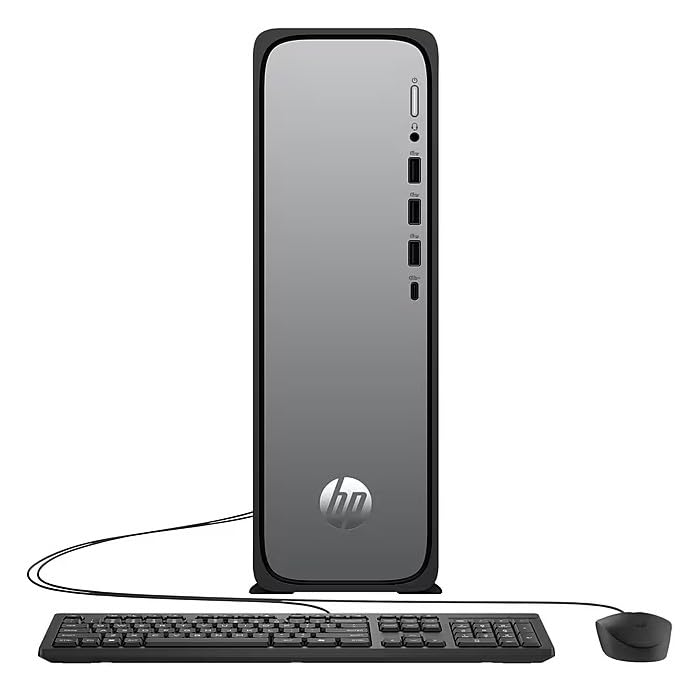
Figura 3.2: Front and rear port layout of the HP OmniDesk Slim Desktop PC. Front ports include a headphone/microphone combo jack, USB Type-A 5Gbps ports, and a USB Type-C 10Gbps port. Additional ports (typically rear) include 4 USB 2.0 Type-A, 1 RJ-45 (Ethernet), 1 HDMI Out, and 1 DisplayPort 1.4.
- Portos frontales:
- Combinación de auriculares/micrófono
- USB Type-A 5Gbps signaling rate (3 ports)
- USB Type-C 10Gbps signaling rate (1 port)
- Portos traseiros:
- USB 2.0 Type-A (4 ports)
- RJ-45 (Ethernet)
- HDMI 1.4b (1 port)
- DisplayPort 1.4a (1 port)
4. Guía de configuración
Follow these steps to set up your HP OmniDesk Slim Desktop PC:
- Conectar o monitor: Connect your monitor to the PC using an HDMI or DisplayPort cable. Ensure the cable is securely plugged into both the PC and the monitor.
- Conectar periféricos: Plug in your USB keyboard and mouse into the available USB ports on the PC.
- Conectar enerxía: Connect the power supply cable to the PC's power input, then plug the other end into a wall outlet or surge protector.
- Encendido: Press the power button on the front of the PC. The system will boot up, and you will see the Windows 11 setup screen.
- Configuración inicial de Windows: Follow the on-screen instructions to complete the Windows 11 setup, including language, region, network connection, and user account creation.
5. Instrucións de funcionamento
5.1. Funcionamento básico
- Encendido/apagado: Press the power button to turn on the PC. To shut down, click the Start button, then Power > Shut down.
- Reiniciar: Fai clic no botón Inicio e, a seguir, en Acendido/Apagado > Reiniciar.
- Modo de suspensión: Click the Start button, then Power > Sleep.
5.2. Conectarse a unha rede
Your PC supports both wired (Ethernet) and wireless (Wi-Fi) network connections.
- Conexión por cable: Connect an Ethernet cable from your router or modem to the RJ-45 port on the back of the PC.
- Conexión sen fíos (Wi-Fi 6):
- Fai clic na icona Wi-Fi da barra de tarefas.
- Selecciona a rede Wi-Fi desexada da lista.
- Introduza a clave de seguridade da rede (contrasinal) se se lle solicita e, a seguir, faga clic en Conectar.
5.3. Compatibilidade con pantalla dual
To extend your desktop to a second monitor:
- Connect the second monitor to an available video output port (HDMI or DisplayPort) on your PC.
- Right-click on the desktop and select Configuración de visualización.
- Under "Multiple displays," select how you want the displays to behave (e.g., Extend these displays, Duplicate these displays).
6. Mantemento
- Actualizacións de software: Regularly check for and install Windows updates to ensure system stability and security. Go to Configuración > Actualización de Windows.
- Actualizacións de controladores: Keep your device drivers updated. HP Support Assistant (MyHP) can help manage these updates.
- Limpeza: Use a soft, dry cloth to clean the exterior of the PC. Avoid liquid cleaners directly on components. Ensure ventilation openings are clear of dust.
- Datos de copia de seguridade: Fai unha copia de seguranza regularmente importante files a unha unidade externa ou almacenamento na nube para evitar a perda de datos.
7 Solución de problemas
| Problema | Posible Solución |
|---|---|
| O PC non se acende. |
|
| Sen visualización no monitor. |
|
| Sen conexión a internet. |
|
| Peripherals (keyboard/mouse) not working. |
|
8. Especificacións
| Nome do modelo | HP OmniDesk Desktop HP S03-000 PC |
| Número de modelo | OmniDesk Slim S03-0006 |
| Procesador | Intel Core i3-14100 (3.5 GHz, 6 MB Cache) |
| Gráficos | Gráficos Intel UHD 710 (integrados) |
| RAM | 8 GB DDR5 (4800 MT/s), Max 64 GB |
| Almacenamento | SSD de 256 GB (unidade de estado sólido) |
| Sistema Operativo | Windows 11 Home |
| Conectividade | Realtek Wi-Fi 6 (2x2), Bluetooth 5.4, Gigabit Ethernet (RJ-45) |
| Portos |
|
| Dimensións (H x W x D) | 11.61 x 3.94 x 11.97 polgadas |
| Peso | 8.38 libras |
| Certificacións | ENERGY STAR certified, EPEAT Gold with Climate+ |
9. Garantía e soporte
9.1. Información da garantía
This HP OmniDesk Slim Desktop PC comes with a Garantía limitada de 90 días. Please refer to the warranty documentation included with your product for specific terms and conditions.
9.2. Soporte técnico
Para obter asistencia técnica, descargas de controladores ou máis información, visite o sitio web de soporte oficial de HP website. You can also utilize the pre-installed MyHP application for device customization, optimization, and access to helpful messages and settings.
Always provide your product model number (S03-0006) and serial number when contacting support.