
1. Introdución
Welcome to the user manual for your new ASUS TUF A18 Gaming Laptop. This document provides essential information to help you set up, operate, and maintain your device. Please read this manual thoroughly to ensure optimal performance and longevity of your laptop.
2. Contido do paquete
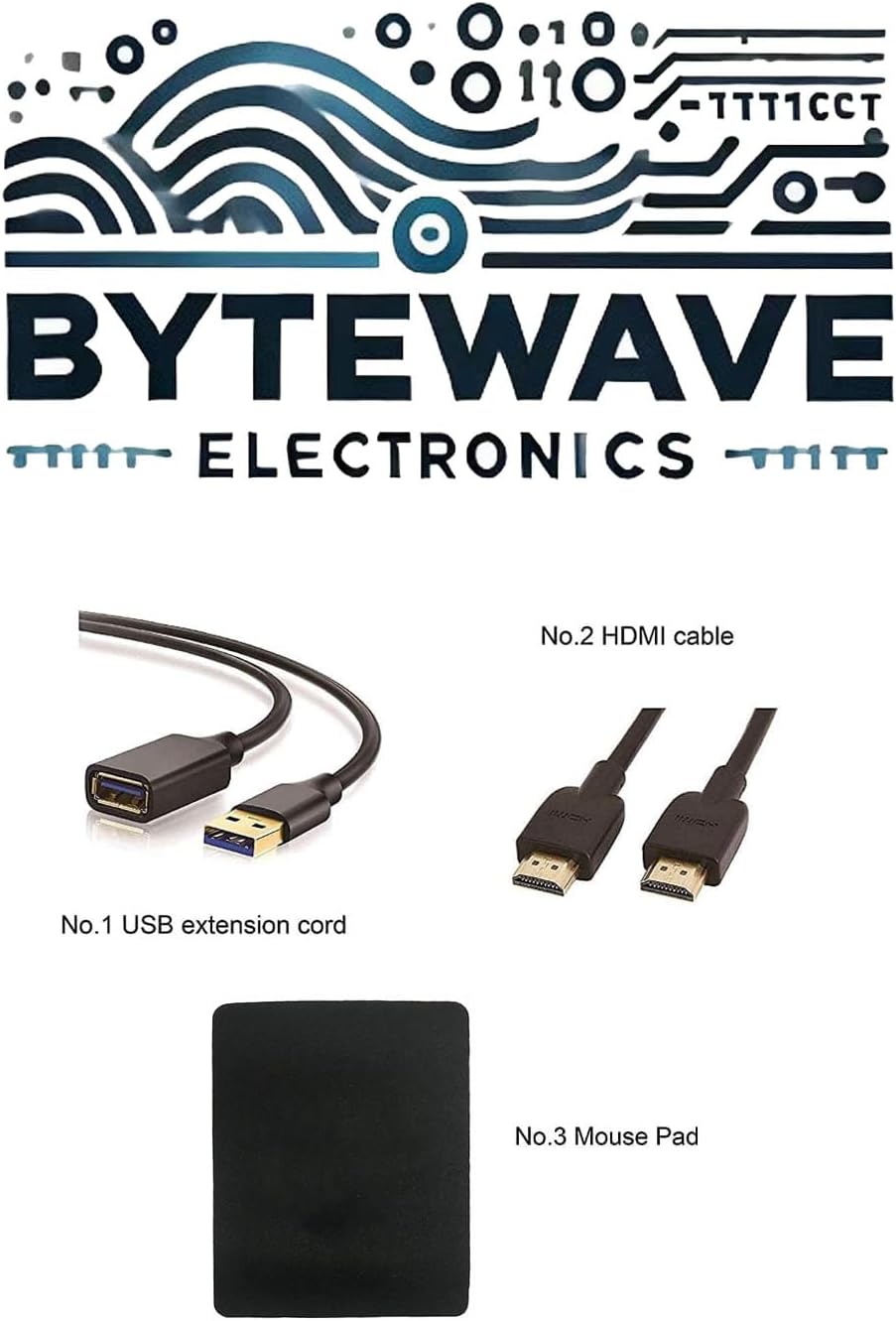
Carefully unpack your ASUS TUF A18 Gaming Laptop and verify that all items listed below are present and in good condition. If any item is missing or damaged, please contact your retailer.
- Portátil para xogos ASUS TUF A18
- Adaptador de alimentación e cable
- USB Extension Cord
- Cable HDMI
- Alfombrilla de rato
3. Produto rematadoview
Familiarize yourself with the physical features and components of your ASUS TUF A18 Gaming Laptop.
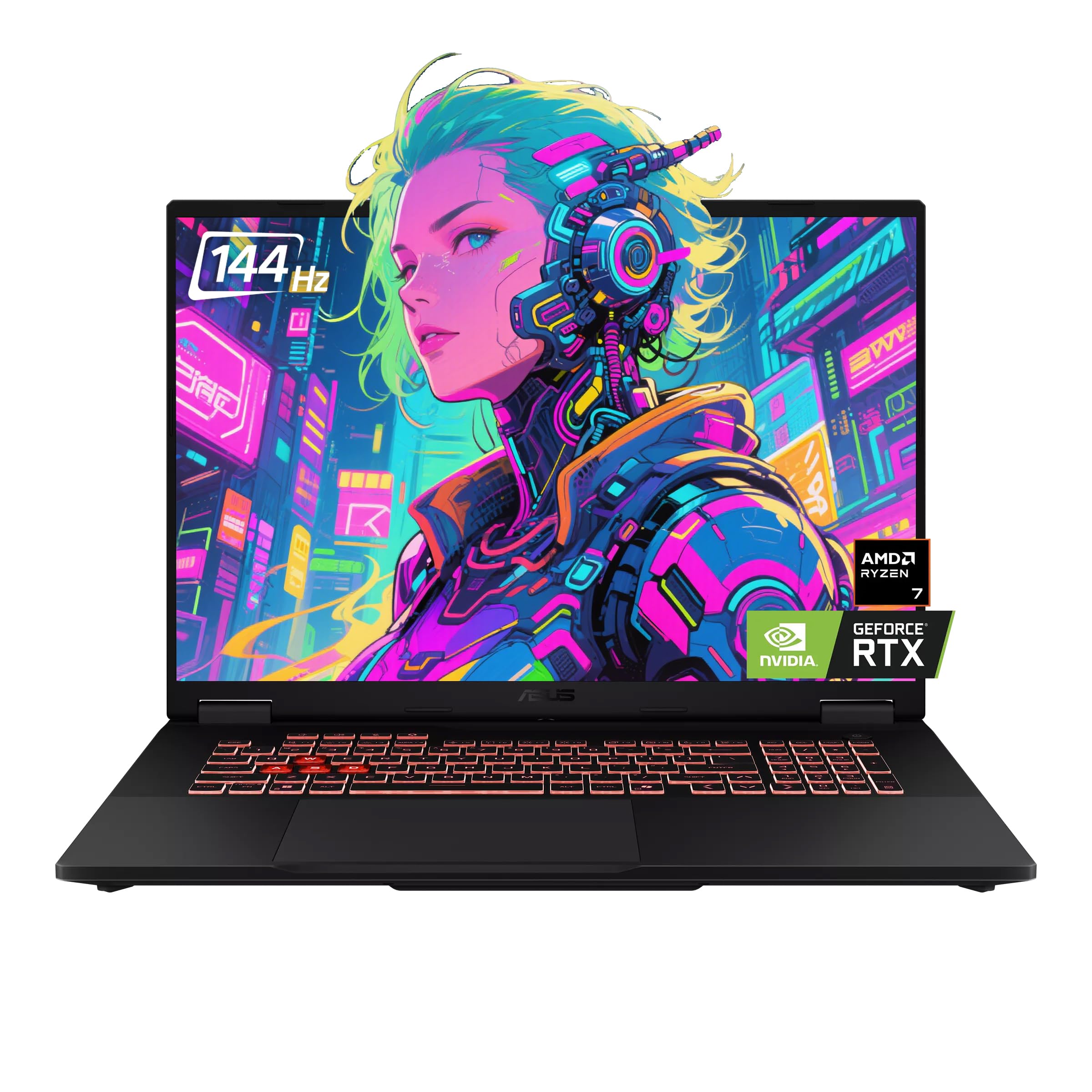
3.1. Front and Keyboard View
3.2. Lado Views e Portos
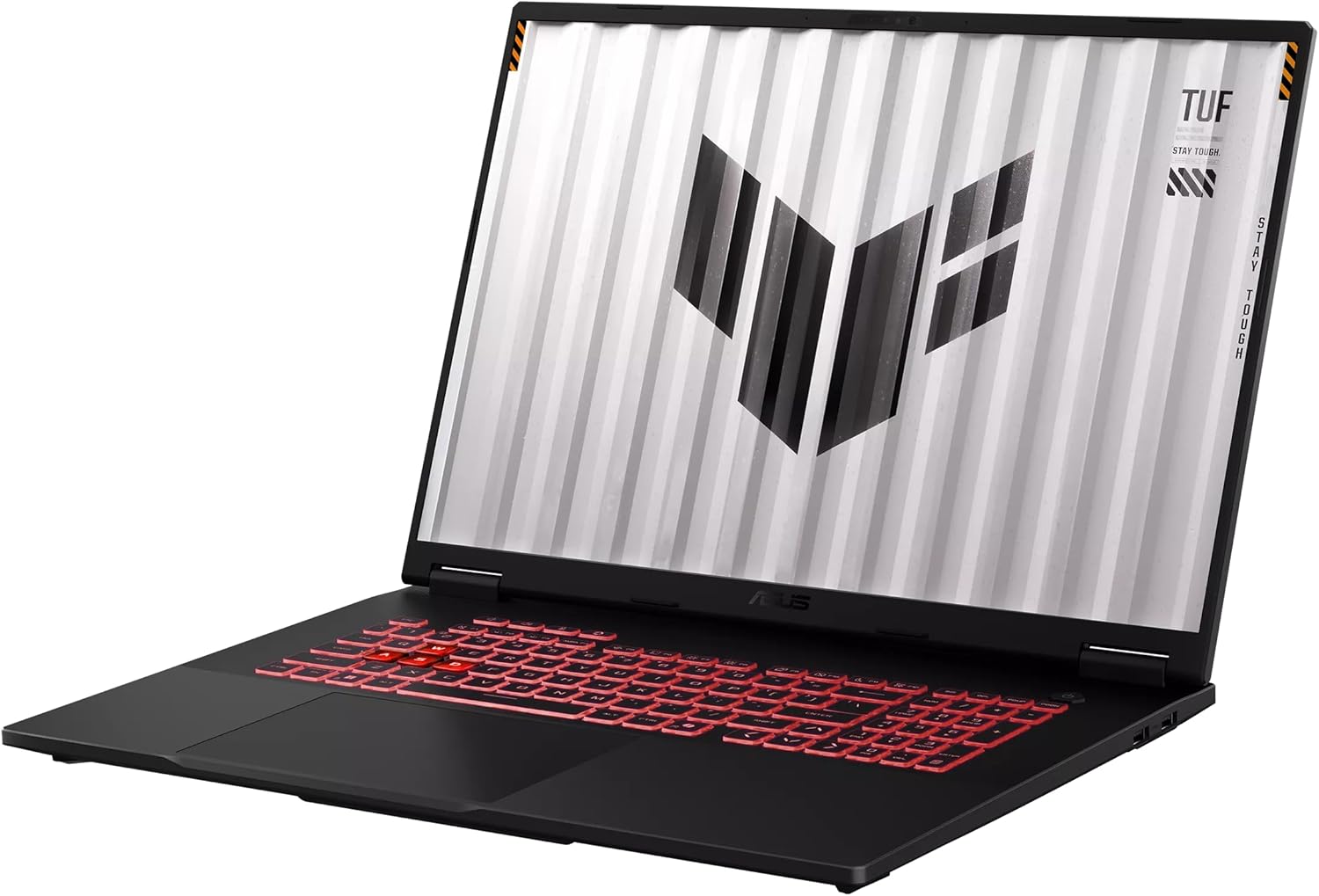
The laptop features various ports for connectivity. Refer to the image below for port locations.

- Lado esquerdo: 1 x 3.5mm Combo Audio Jack, 1 x HDMI 2.1 FRL, 2 x USB 3.2 Gen 2 Type-A, 1 x USB 3.2 Gen 2 Type-C with DisplayPort / power delivery / G-SYNC, 1 x Type-C USB 4 with DisplayPort, 1 x RJ45 LAN port.
- Lado dereito: 1 x USB 2.0 Type-A.
3.3. Traseira View

4. Configuración
Follow these steps for the initial setup of your ASUS TUF A18 Gaming Laptop.
- Conectar enerxía: Plug the power adapter into the laptop's power input port and then into a wall outlet. Ensure the power indicator light illuminates.
- Primeiro arranque: Open the laptop lid and press the power button. The laptop will automatically power on.
- Configuración de Windows 11 Pro: Follow the on-screen instructions to complete the Windows 11 Pro operating system setup. This includes selecting your region, connecting to a Wi-Fi network, and creating a user account.
- Initial Updates: After setup, it is recommended to check for and install any available Windows updates and driver updates to ensure system stability and performance.
5. Instrucións de funcionamento
This section covers basic operation of your ASUS TUF A18 Gaming Laptop.
5.1. Teclado e panel táctil
- Teclado: The laptop features a backlit chiclet keyboard with 1-Zone RGB lighting. Use the function keys (Fn) in combination with other keys to control backlight brightness, volume, screen brightness, and other system functions.
- Touchpad: The integrated touchpad supports multi-touch gestures for navigation. Refer to Windows settings for customizing touchpad sensitivity and gestures.
5.2. Configuración da pantalla
- Your 18-inch FHD+ (1920 x 1200) display has a 144Hz refresh rate and supports G-Sync. To adjust display settings, right-click on the desktop and select 'Display settings' or 'NVIDIA Control Panel'.
- Ensure the refresh rate is set to 144Hz for the smoothest visual experience, especially during gaming.
5.3. Conectividade
- Wi-Fi: The laptop supports Wi-Fi 6E (802.11ax). Connect to your wireless network via the Windows network settings.
- Bluetooth: Bluetooth 5.3 is integrated for connecting wireless peripherals such as mice, keyboards, and headphones. Pair devices through Windows Bluetooth settings.
- Pantallas externas: Use the HDMI 2.1 FRL port or the USB-C ports with DisplayPort support to connect external monitors.
6. Mantemento
Un mantemento axeitado garante a lonxevidade e o rendemento óptimo do teu portátil.
- Limpeza: Usa un pano suave e sen fiapos para limpar a pantalla e o chasis. Para manchas difíciles, dampen the cloth slightly with water or a screen-safe cleaning solution. Avoid harsh chemicals.
- Ventilación: Ensure the laptop's ventilation openings are clear and unobstructed to prevent overheating. Avoid using the laptop on soft surfaces like beds or couches that can block airflow.
- Coidado da batería: For optimal battery life, avoid frequently discharging the battery completely. If storing the laptop for an extended period, charge it to about 50-60% and store it in a cool, dry place.
- Actualizacións de software: Regularly update your operating system, drivers, and applications to benefit from performance improvements, security patches, and new features.
7 Solución de problemas
This section addresses common issues you might encounter with your ASUS TUF A18 Gaming Laptop.
7.1. System Crashes or Unexpected Shutdowns
- Sobrequecemento: Ensure ventilation vents are clear. Consider using a cooling pad during intensive tasks.
- Problemas do controlador: Update graphics drivers (NVIDIA GeForce RTX 5060) and chipset drivers from the ASUS support website. Outdated or corrupted drivers can cause instability.
- Conflitos de software: Identify recently installed software that might be causing conflicts. Try uninstalling recent applications or performing a system restore to an earlier point.
- Operating System Corruption: If issues persist, consider reinstalling Windows 11 Pro. Back up your data before proceeding.
7.2. Problemas de visualización
- Sen visualización: Ensure the laptop is powered on. Try connecting an external monitor to check if the issue is with the laptop's internal display.
- Resolución/taxa de actualización incorrecta: Adjust display settings in Windows or NVIDIA Control Panel to the native 1920x1200 resolution and 144Hz refresh rate.
7.3. Problemas de conectividade
- Wi-Fi/Bluetooth Not Working: Check if Wi-Fi and Bluetooth are enabled in Windows settings. Update wireless adapter drivers. Restart your router for Wi-Fi issues.
- Dispositivos USB non recoñecidos: Try connecting the device to a different USB port. Update USB controller drivers.
8. Especificacións
Detailed technical specifications for the ASUS TUF A18 Gaming Laptop.
| Característica | Especificación |
|---|---|
| Marca | ASUS |
| Nome do modelo | TUF A18 |
| Procesador | AMD Ryzen 7 260 (8 Cores, 16 Threads, 3.8GHz base, up to 5.1 GHz boost) |
| Gráficos | GPU para portátil NVIDIA GeForce RTX 5060 (8 GB GDDR7) |
| Mostrar | 18-inch FHD+ (1920 x 1200) IPS-level, Anti-glare, 144Hz Refresh Rate, 3ms Response Time, G-Sync, MUX Switch + NVIDIA Advanced Optimus |
| RAM | 32 GB de RAM DDR5 |
| Almacenamento | 2TB NVMe SSD (PCI-e x 4) |
| Sistema Operativo | Windows 11 Pro |
| Portos de E/S | 1x 3.5mm Combo Audio Jack, 1x HDMI 2.1 FRL, 2x USB 3.2 Gen 2 Type-A, 1x USB 3.2 Gen 2 Type-C (DP/PD/G-SYNC), 1x USB 2.0 Type-A, 1x Type-C USB 4 (DP), 1x RJ45 LAN port |
| Teclado | Teclado Chiclet retroiluminado RGB de 1 zona |
| Cámara | Cámara IR FHD de 1080P para Windows Hello |
| Network & Communication | Wi-Fi 6E(802.11ax) (Triple band) 2*2, Bluetooth 5.3 |
| Dimensións (ancho x profundo x alto) | 15.71" x 11.14" x 0.74" ~ 1.05" |
| Peso | 5.73 libras |
| Cor | Jaeger Gray |
9. Garantía e soporte
Your ASUS TUF A18 Gaming Laptop comes with a manufacturer's warranty. For specific warranty terms and conditions, please refer to the warranty card included with your product or visit the official ASUS support websitio.
- Devolucións: This product typically has a 30-day return policy from the date of purchase. Please check with your retailer for their specific return guidelines.
- Soporte técnico: For technical assistance, driver downloads, or service inquiries, please visit the official ASUS support websitio: www.asus.com/support/
- Recursos en liña: The ASUS support website provides FAQs, troubleshooting guides, and contact information for customer service.