
1. Introdución
The Lemorele 13-in-1 USB-C Docking Station (Model TC500) is designed to significantly expand the connectivity of your USB-C enabled laptop. This versatile docking station provides multiple ports for external displays, various peripherals, network access, and power delivery, offering a comprehensive solution to enhance your workspace and productivity. It supports triple monitor setups, making it ideal for users requiring extensive display configurations.
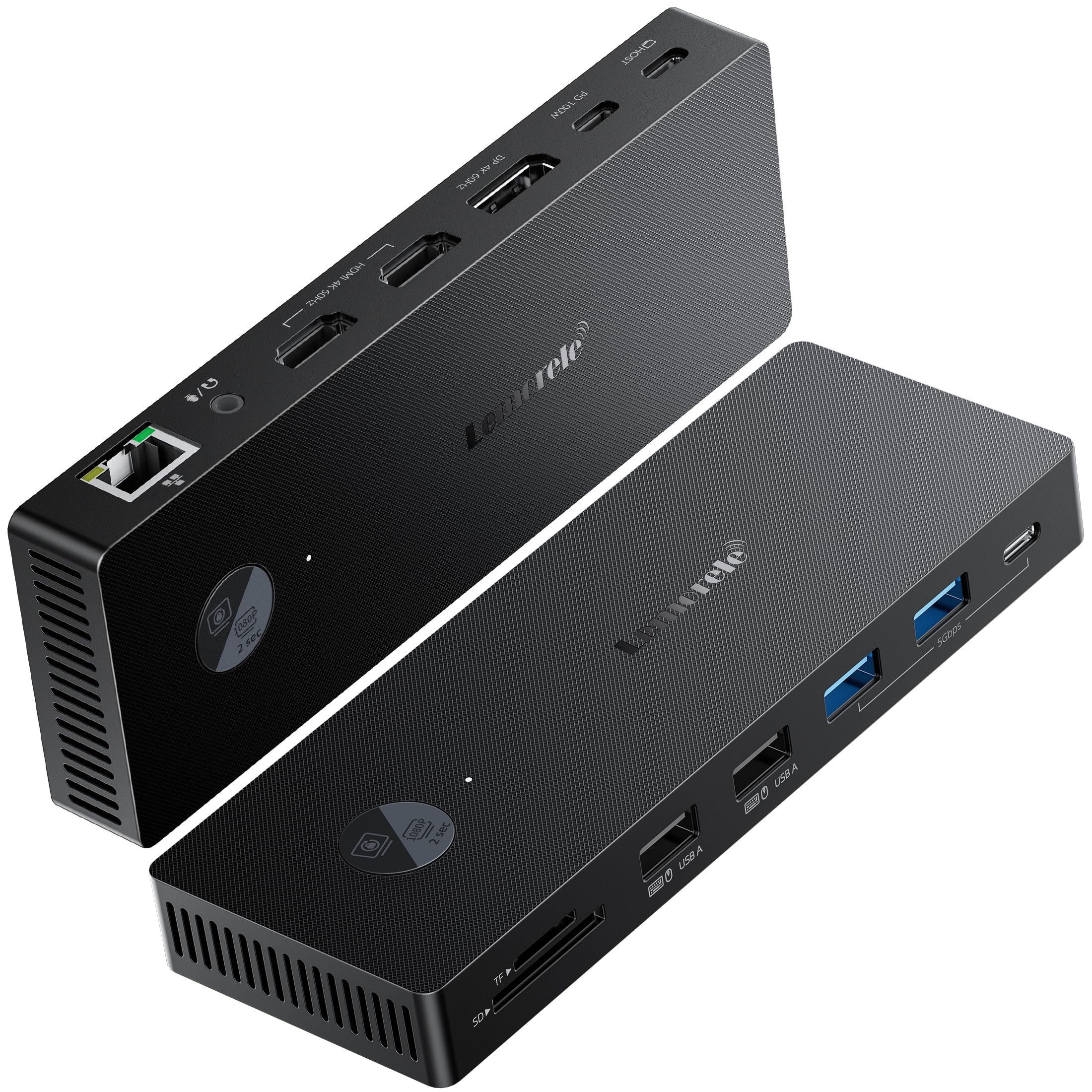
Figure 1: Lemorele 13-in-1 USB-C Docking Station (Model TC500)
2. Product Features and Port Layout
The TC500 docking station integrates a wide array of ports to meet diverse connectivity needs:
- Saída de vídeo: 2x HDMI 2.0 ports (up to 4K@60Hz) and 1x DisplayPort 1.2 (up to 4K@60Hz). Supports triple monitor extended display configurations. Note: For triple 4K@30Hz output, DisplayPort requires Display Stream Compression (DSC) support from the host device.
- Entrega de enerxía: 1x USB-C Power Delivery port, supporting up to 100W charging for your laptop (requires a compatible USB-C power adapter, not included).
- Transferencia de datos: Multiple USB ports including 1x USB-C 3.0 and 3x USB-A ports (mix of USB 3.0 and USB 2.0 for various peripherals).
- Rede: 1x Gigabit Ethernet (RJ45) port for stable and high-speed wired internet connection.
- Lector de tarxetas: Integrated SD and TF (Micro SD) card slots for convenient data transfer from memory cards.
- Audio: 1x 3.5mm Audio/Microphone combo jack for headphones or speakers.
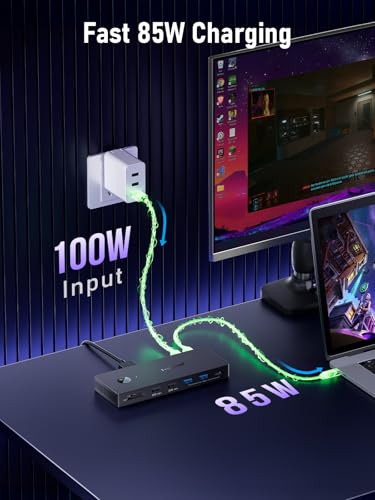
Figure 2: Port layout of the Lemorele TC500 Docking Station
3. Contido do paquete
Comprobe se o paquete contén os seguintes elementos:
- 1x Lemorele 13-in-1 USB-C Docking Station (Model TC500)
- 1x USB-C to USB-C Cable (1.0 meter)
- 1 x Manual de usuario
4. Instrucións de configuración
Siga estes pasos para configurar a súa estación de acoplamento:
- Conectar a alimentación (opcional pero recomendado): If your laptop requires charging via the docking station, connect your laptop's original USB-C power adapter (or a compatible 100W USB-C PD charger) to the USB-C PD input port on the docking station.
- Conectar ao portátil: Use the provided 1.0-meter USB-C to USB-C cable to connect the docking station's host port to a full-featured USB-C port on your laptop. Ensure your laptop's USB-C port supports video output (DisplayPort Alternate Mode) and power delivery for full functionality.
- Conectar pantallas: Connect your external monitors to the HDMI and/or DisplayPort outputs on the docking station using appropriate cables.
- Conectar periféricos: Plug in your USB devices (keyboard, mouse, external hard drives, etc.) into the available USB-A and USB-C data ports. Connect your Ethernet cable to the RJ45 port for wired network access. Insert SD/TF cards as needed.
- Conectar audio: Se o desexa, conecte auriculares ou altofalantes á toma de son de 3.5 mm.
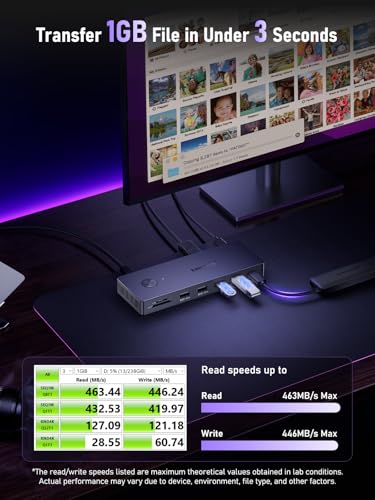
Figure 3: Typical connection diagram for the docking station
5. Instrucións de funcionamento
5.1. Configuración da pantalla
After connecting your monitors, your operating system should automatically detect them. You may need to adjust display settings:
- Windows: Right-click on the desktop, select 'Display settings'. Here you can arrange your displays, choose between 'Extend these displays' or 'Duplicate these displays', and set resolutions and refresh rates.
- macOS: Go to 'System Settings' (or 'System Preferences') > 'Displays'. You can arrange displays, set resolutions, and choose between 'Mirror Displays' or 'Use as separate displays'. Note that macOS may have limitations on the number of extended displays, especially with certain MacBook models.
The docking station supports single, dual, and triple monitor setups. Ensure your laptop's graphics card and USB-C port support the desired display configuration and resolutions.
Figura 4: Example of a triple display setup with the docking station
5.2. Entrega de enerxía
When a compatible USB-C power adapter is connected to the PD port, the docking station will pass through up to 100W of power to charge your connected laptop. This allows you to power your laptop and use all connected peripherals with a single USB-C cable connection.
5.3. Transferencia de datos
The USB 3.0 ports offer high-speed data transfer for external storage devices, while the USB 2.0 ports are suitable for keyboards, mice, and other low-bandwidth peripherals. The SD/TF card slots allow for quick access to data from memory cards.
6 Solución de problemas
Se tes problemas, consulta os seguintes pasos habituais para a resolución de problemas:
- Sen saída de visualización:
- Ensure the USB-C cable is securely connected to both the docking station and your laptop.
- Verify that your laptop's USB-C port supports DisplayPort Alternate Mode.
- Check that monitor cables are correctly connected and monitors are powered on and set to the correct input source.
- Tenta actualizar os controladores gráficos do teu portátil.
- Reinicia o portátil e volve conectar a estación de acoplamento.
- Sen subministración de enerxía ao portátil:
- Ensure your USB-C power adapter is connected to the PD input port on the docking station and is functional.
- Verifica que o porto USB-C do teu portátil sexa compatible con Power Delivery.
- Check the power rating of your adapter; it should be sufficient for your laptop's charging requirements (up to 100W supported by the dock).
- Os dispositivos USB non funcionan:
- Volva conectar o dispositivo USB a un porto diferente da estación de acoplamento.
- Ensure the device is properly powered, if applicable.
- Try connecting the USB device directly to your laptop to rule out device issues.
- Problemas de conexión Ethernet:
- Comprobe a conexión do cable Ethernet tanto á estación de acoplamento como ao seu enrutador/módem.
- Verifica a configuración de rede no teu portátil.
- Try connecting your laptop directly to the router/modem to confirm internet functionality.
- A estación de acoplamento ten unha sensación de calor:
It is normal for the docking station to become warm during operation, especially when multiple high-power devices or displays are connected. Ensure adequate ventilation around the device.
7. Especificacións
| Característica | Especificación |
|---|---|
| Marca | Lemorele |
| Número de modelo | TC500 |
| Interface de hardware | USB-C, HDMI, DisplayPort, USB-A, RJ45, SD/TF, 3.5mm Audio |
| Saída de vídeo | 2x HDMI 2.0 (4K@60Hz), 1x DisplayPort 1.2 (4K@60Hz) |
| Soporte de visualización triple | Yes (DP requires DSC for 4K@30Hz in triple mode) |
| Portos USB | 1x USB-C 3.0, 3x USB-A (mix of 3.0/2.0) |
| Entrega de enerxía | Up to 100W (via USB-C PD input) |
| Ethernet | Gigabit (RJ45) |
| Lector de tarxetas | SD, TF (Micro SD) |
| Audio | 3.5mm Audio/Mic Combo Jack |
| Peso do elemento | 240 g |
| Dispositivos compatibles | Laptops with full-featured USB-C ports (Windows, macOS) |
| Lonxitude do cable | 1.0m USB-C to USB-C |
8. Mantemento
Para garantir a lonxevidade e o rendemento óptimo da súa estación de acoplamento:
- Limpeza: Usa un pano suave e seco para limpar o exterior da estación de carga. Evita produtos de limpeza líquidos ou solventes.
- Almacenamento: Garde o dispositivo nun lugar fresco e seco, lonxe da luz solar directa e de temperaturas extremas.
- Manexo: Avoid dropping or subjecting the device to strong impacts. Do not attempt to disassemble or repair the unit yourself.
9. Garantía e soporte
This Lemorele TC500 USB-C Docking Station comes with a 2 anos de garantía do fabricante.
For technical support, warranty claims, or further assistance, please contact Lemorele customer service through the retailer where you purchased the product or visit the official Lemorele websitio para información de contacto.


