
1. Configuración
1.1 Contido do paquete
Antes da montaxe, comproba que todos os compoñentes estean presentes no paquete:
- KTC H24F7 24 Inch 240Hz Monitor
- Base do monitor
- Soporte para monitor
- Adaptador de alimentación
- Cable HDMI
- Guía de inicio rápido (QSG)
1.2 Instrucións de montaxe
Siga estes pasos para montar o monitor:
- Retire con coidado o monitor e todos os compoñentes da embalaxe.
- Attach the monitor stand to the monitor base. Ensure it clicks securely into place.
- Connect the assembled stand and base to the back of the monitor. The stand is designed for easy snap-in installation.
- Coloque o monitor nunha superficie plana e estable.

1.3 Instalación do soporte VESA
The KTC H24F7 monitor supports VESA 100mm x 100mm mounting for alternative stand or wall mount solutions. Ensure you use M4-0.7 x 10mm screws (not included) for secure installation.

1.4 Conexión a dispositivos
Connect your computer or other devices to the monitor using the appropriate cables.
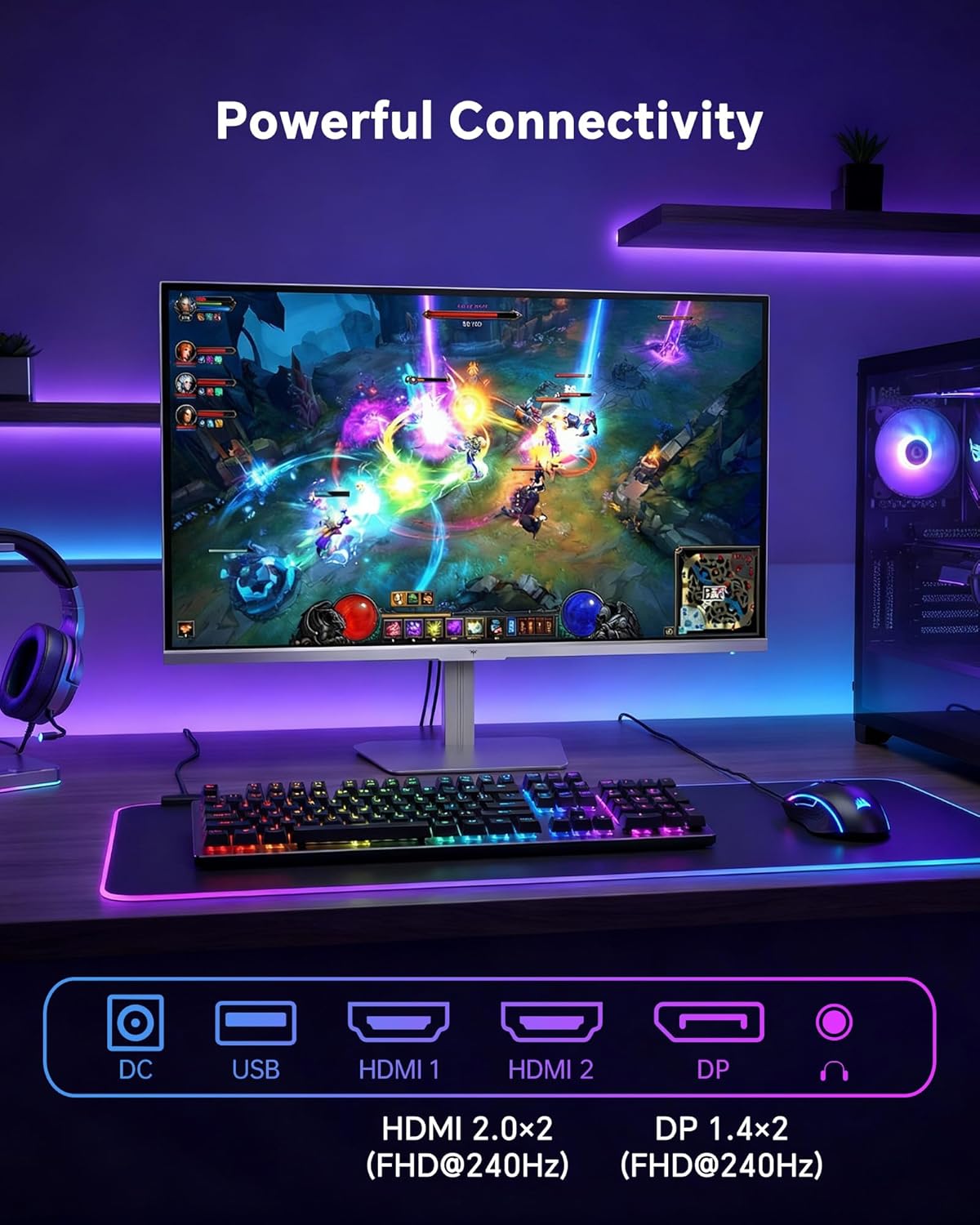
- HDMI: Use an HDMI cable to connect to devices with HDMI output. The monitor has two HDMI 2.0 ports, supporting FHD at 240Hz.
- DisplayPort: Use a DisplayPort cable for devices with DisplayPort output. The monitor has one DisplayPort 1.4, supporting FHD at 240Hz.
- Potencia: Connect the power adaptor to the DC input on the monitor and then to a power outlet.
- USB: A USB 2.0 port is available for connecting peripherals.
- Saída de audio: A 3.5mm audio jack is available for connecting headphones or external speakers.
2. Instrucións de funcionamento
2.1 Encendido/apagado
Prema o botón de acendido/apagado situado no monitor para acender ou apagar o monitor. O indicador luminoso de acendido/acendido acenderase cando o monitor estea activo.
2.2 Menú de visualización en pantalla (OSD).
The OSD menu allows you to adjust various monitor settings. Use the control buttons (typically located on the back or bottom of the monitor) to navigate the menu and select options. Refer to the Quick Start Guide for specific button functions.
2.3 Configuración da pantalla
Optimice o seu viewexperiencia de ing axustando a seguinte configuración:
- Frecuencia de actualización: The monitor supports a 240Hz refresh rate for smooth motion. Ensure your graphics card settings are configured to utilize this rate.

- Sincronización adaptativa: This technology synchronizes the monitor's refresh rate with your graphics card's frame rate to eliminate screen tearing and stuttering. Enable Adaptive Sync in the OSD menu and ensure it is also enabled in your graphics card control panel (FreeSync/G-Sync compatible).

- HDR 400: High Dynamic Range 400 provides enhanced contrast and color accuracy, delivering brighter highlights and deeper shadows. Activate HDR in the OSD menu and your operating system display settings for compatible content.

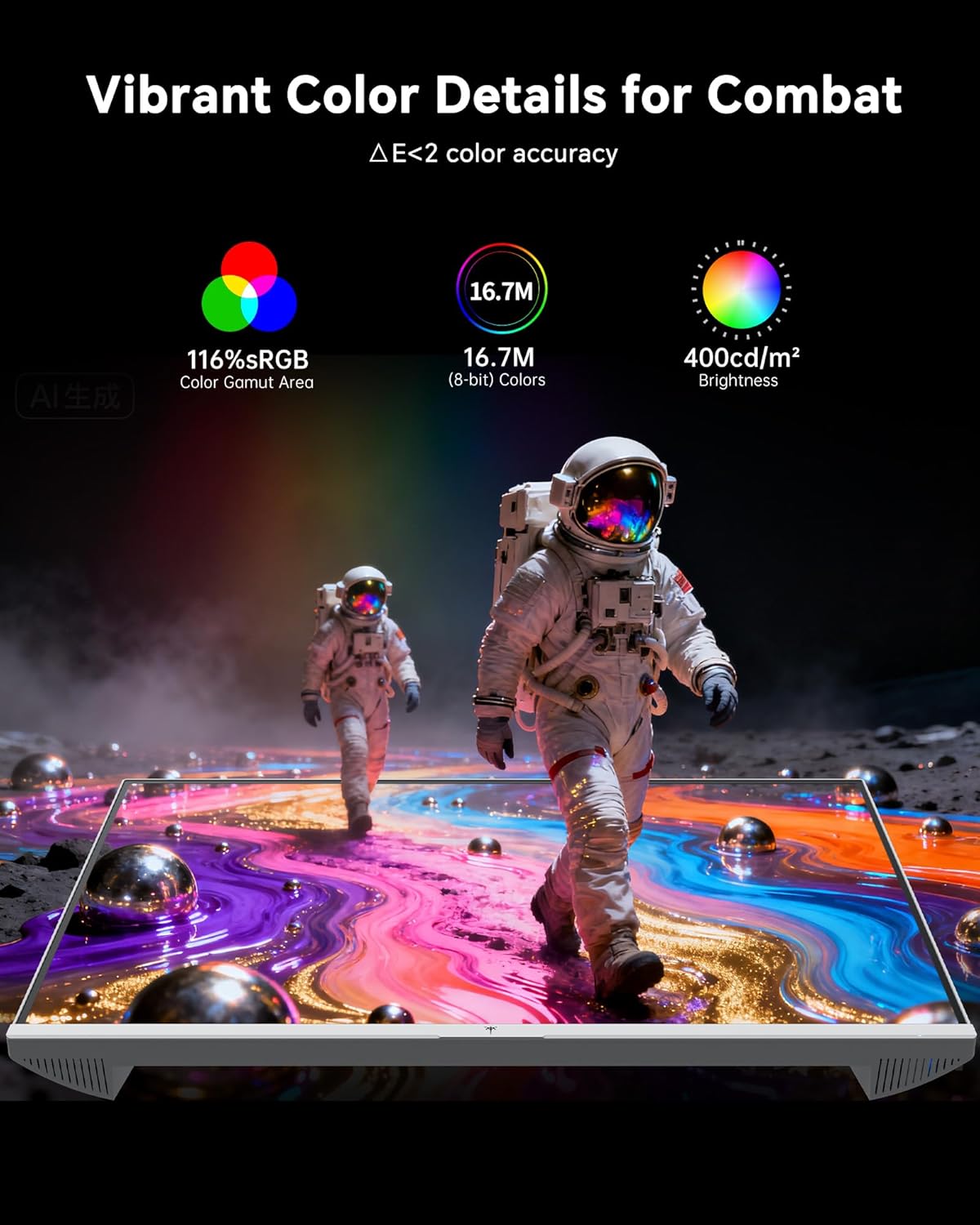
- Configuración de cor: The monitor offers 116% sRGB color gamut and 16.7 million colors. Adjust brightness (up to 400 cd/m²) and color temperature through the OSD menu to suit your preference.
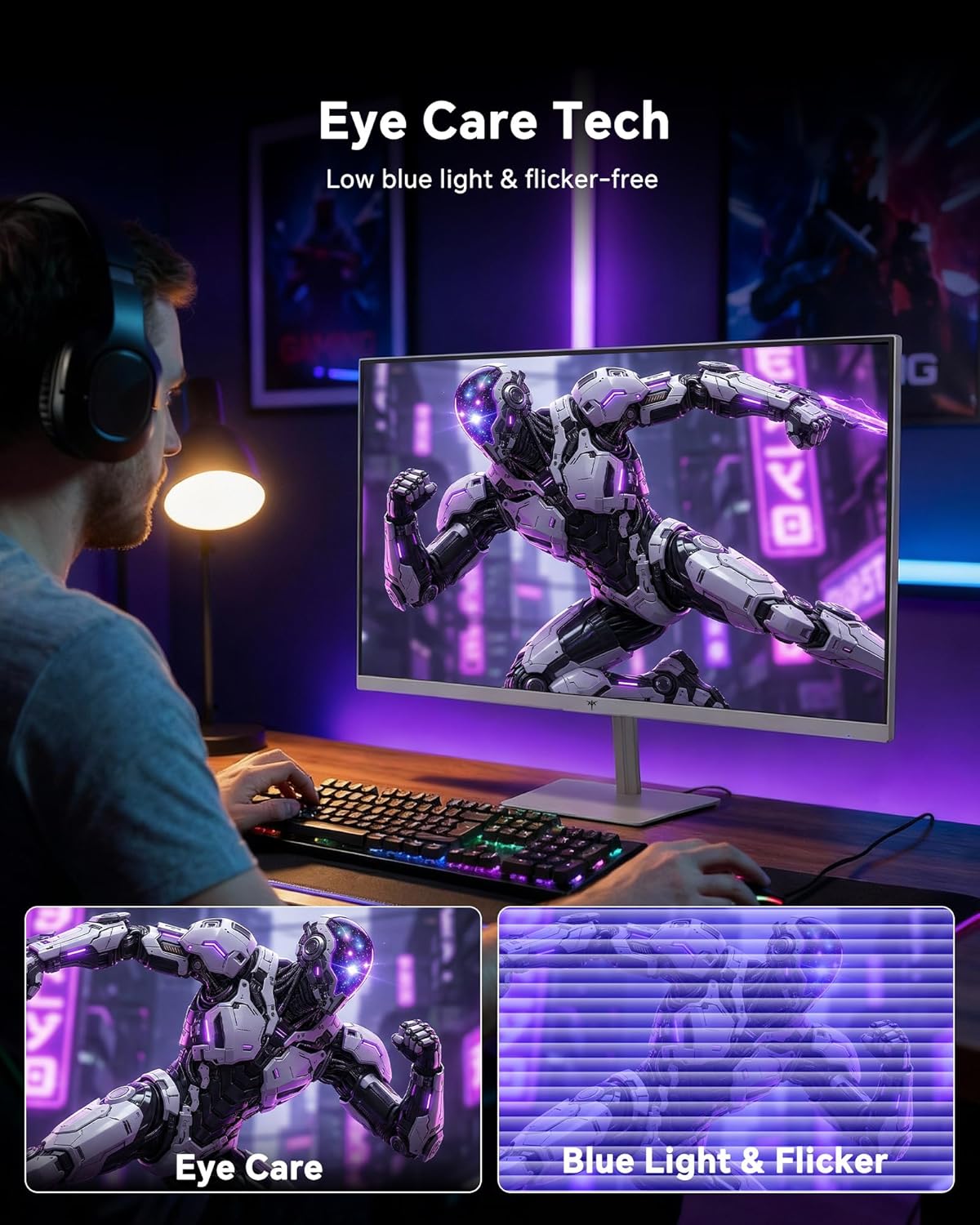
- Tecnoloxía do coidado dos ollos: The monitor features low blue light and flicker-free technology to reduce eye strain during prolonged use. These settings can typically be adjusted or enabled within the OSD menu.
2.4 Monitor Tilt Adjustment
The monitor supports tilt adjustment from -5° to 15° (±3°). Gently adjust the monitor panel to your desired viewángulo de ing.
3. Mantemento
3.1 Limpeza do monitor
Para limpar a pantalla do monitor e casing:
- Apague sempre o monitor e desconecte o cable de alimentación antes de limpalo.
- Use un pano suave e sen pelusa lixeiramente damplimpas con auga ou cun limpador de pantallas suave e non abrasivo.
- Wipe the screen gently to remove dust and smudges. Avoid applying excessive pressure.
- Para o casing, use a dry, soft cloth. Do not use alcohol, ammonia, or abrasive cleaners, as these can damage the surface.
3.2 Coidados xerais
- Evite colocar obxectos pesados sobre o monitor ou os seus cables.
- Non expoña o monitor á luz solar directa, á calor excesiva ou ao frío extremo.
- Manteña o monitor lonxe de líquidos e da humidade elevada.
- Asegure unha ventilación adecuada ao redor do monitor para evitar o sobreenriquecido.
4 Solución de problemas
If you encounter issues with your KTC H24F7 monitor, refer to the following common problems and solutions:
| Problema | Causa posible | Solución |
|---|---|---|
| Non hai imaxe na pantalla | Power cable disconnected; Video cable disconnected or loose; Incorrect input source selected; Monitor is off. | Ensure power cable is securely connected and monitor is on. Check video cable connections (HDMI/DisplayPort) at both the monitor and computer. Press the input source button on the monitor to cycle through inputs. |
| Parpadeo ou rasgadura da imaxe | Adaptive Sync not enabled; Graphics card driver issues; Faulty video cable. | Enable Adaptive Sync in the OSD menu and your graphics card control panel. Update graphics card drivers. Try a different video cable. If using DisplayPort 1, try DisplayPort 2 or HDMI if available, as some units may experience issues with specific ports. |
| As cores aparecen incorrectas ou descoloridas | Color settings incorrect; HDR not properly configured; Faulty video cable. | Adjust color settings (brightness, contrast, color temperature) in the OSD menu. Ensure HDR is enabled in both the OSD and your operating system for HDR content. Try a different video cable. |
| Monitor not reaching 240Hz | Graphics card limitations; Incorrect display settings in OS; Cable bandwidth limitations. | Ensure your graphics card supports 240Hz at 1080p. Verify display settings in your operating system (e.g., Windows Display Settings or NVIDIA/AMD control panel) are set to 240Hz. Use the provided HDMI cable or a certified DisplayPort 1.4 cable. |
| Stuck or dead pixels | Defecto de fabricación. | A small number of stuck or dead pixels (typically 1-3) may be considered normal for LCD panels. If the issue is severe or persistent, contact customer support. |
5. Especificacións
| Característica | Detalle |
|---|---|
| Marca | KTC |
| Número de modelo | H24F7 |
| Tamaño da pantalla | 24 polgadas |
| Resolución | FHD 1080p (1920 x 1080 píxeles) |
| Tipo de panel | IPS rápido |
| Taxa de actualización | 240 Hz |
| Tempo de resposta | 1 milisegundo (MPRT) |
| Relación de aspecto | 16:9 |
| Brillo | 400 candelas por metro cadrado |
| Relación de contraste | 1000:1 |
| Gama de cores | 116 % sRGB |
| Soporte HDR | HDR 400 |
| Sincronización adaptativa | FreeSync, G-Sync Compatible |
| Conectividade | 2x HDMI 2.0, 1x DisplayPort 1.4, 1x USB 2.0, 1x Audio Out (3.5mm) |
| Características do coidado dos ollos | Low Blue Light, Flicker-Free, Anti-Glare Screen |
| Axustes | Inclinación (de -5° a 15°) |
| Monte VESA | 100 mm x 100 mm |
| Dimensións (D x W x H) | 5.39" D x 21.25" W x 15.74" H |
| Peso do elemento | 3.2 quilogramos |
| Cor | Branco |
6. Garantía e soporte
6.1 Información da garantía
The KTC H24F7 monitor comes with a three-year manufacturer warranty. Esta garantía cobre os defectos nos materiais e na fabricación no uso normal.
Conserve o comprobante de compra para reclamacións de garantía.
6.2 Atención ao cliente
For technical assistance, warranty claims, or any questions regarding your KTC H24F7 monitor, please contact KTC customer support. KTC aims to provide responsive customer support and typically responds within 12 hours.
You can usually find contact information on the official KTC website or through the retailer where you purchased the product. When contacting support, please have your monitor model number (H24F7) and purchase details ready.