
Gtheos Captain 370
Gtheos Captain 370 Wireless Gaming Headset User Manual
Model: Captain 370 | Brand: Gtheos
Introdución
This manual provides detailed instructions for the Gtheos Captain 370 Wireless Gaming Headset. It covers setup, operation, maintenance, and troubleshooting to ensure optimal performance and longevity of your headset. The Captain 370 offers versatile connectivity options including 2.4GHz wireless, Bluetooth 5.3, and 3.5mm wired connections, making it compatible with various gaming platforms and devices.
Produto rematadoview
Características clave
- Conectividade 4 en 1: 2.4GHz USB (PS5, PS4, laptops, desktops, Switch - mic not supported on Switch), Type-C wireless (PS5, tablets, phones), Bluetooth 5.3 (mobile, work), 3.5mm wired (Xbox, other consoles).
- Audio de alta calidade: 50mm drivers with 3D surround sound.
- Micrófono con cancelación de ruído: External mic with ENC technology for clear communication, plus a built-in backup mic.
- Batería de longa duración: Up to 45 hours of wireless play, 3-hour Type-C fast charging.
- Iluminación RGB: Customizable RGB breathing lights.
- Deseño cómodo: Premium protein material for comfortable, skin-friendly, and breathable wear.
Controis e portos
Familiarize yourself with the headset's controls for easy operation.
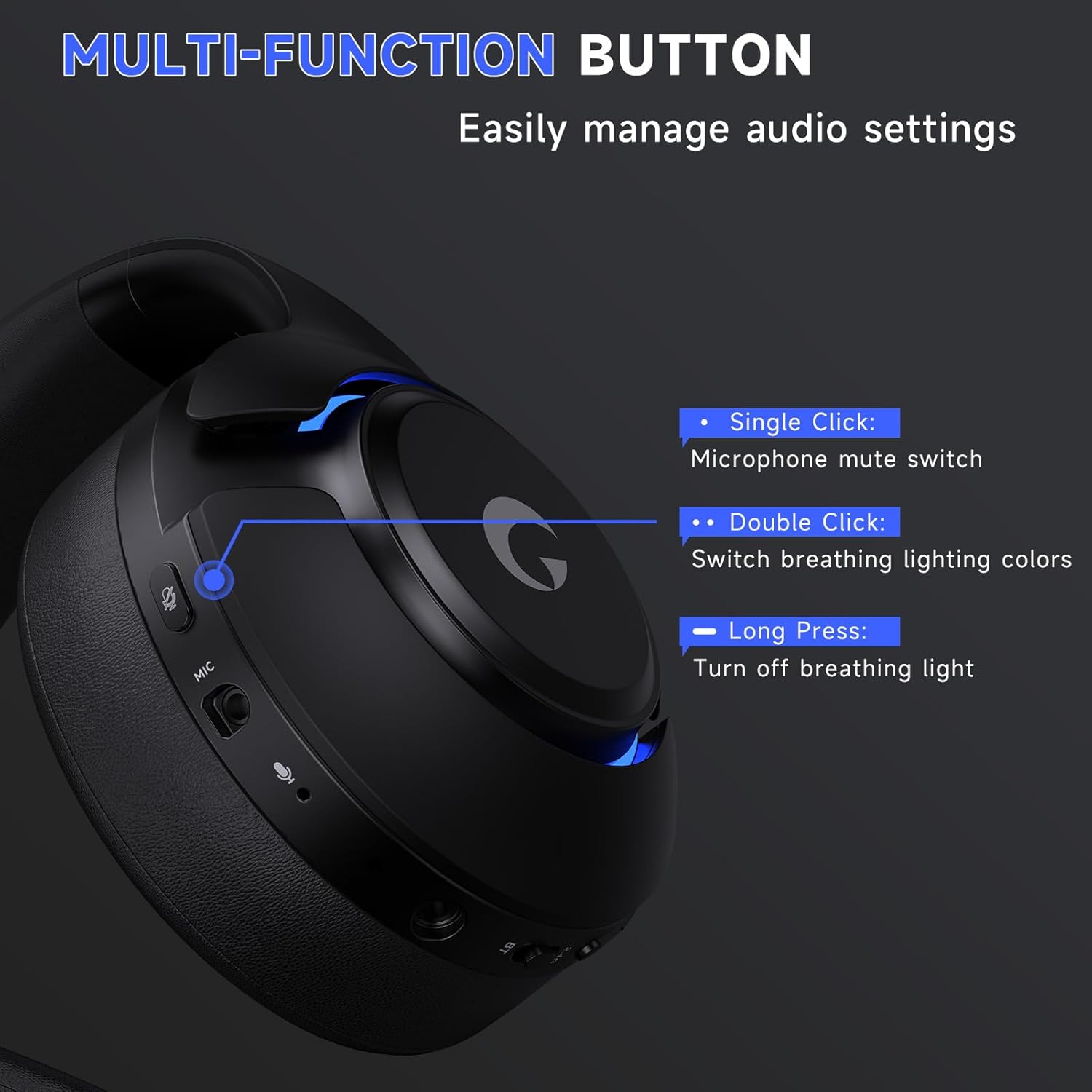
Imaxe: Close-up of the headset's multi-function buttons. This image illustrates the controls for microphone mute (single click), RGB light color change (double click), and turning off RGB lights (long press).
- Un só clic: Interruptor de silencio do micrófono.
- Dobre clic: Switch breathing lighting colors.
- Prensa longa: Turn off breathing light.
- Rodillo de volume: Axustar o volume do son.
- Interruptor 2.4G/BT: Toggle between 2.4GHz wireless and Bluetooth modes.
- Porto de audio de 3.5 mm: Para conexións por cable.
- Porto do micrófono: For detachable boom microphone.
- Porto de carga USB-C: Para cargar os auriculares.
Configuración
1. Detachable Microphone Installation
To use the boom microphone, firmly insert it into the microphone port on the headset until you feel a slight 'click'. This indicates a secure connection.
Vídeo: Demonstrates how to properly install the detachable microphone into the Gtheos Captain 370 headset.
2. 2.4GHz Wireless Connection (for PS5, PS4, PC, Mac)
This mode offers low-latency wireless audio for compatible devices.
- Plug the 2.4GHz USB transmitter into an available USB port on your PS5, PS4, PC, or Mac. The transmitter's indicator light will flash blue while waiting for pairing.
- Hold down the power button on the headset for 3 seconds to turn it on. The white indicator light on the headset will flash, indicating it's in pairing mode.
- Once successfully paired, the transmitter's indicator light will turn solid blue, and the headset's indicator light will remain white.
- Para PS5: Go to the PS5 settings menu. Select "Sound" > "Microphone" > "Input Device" and choose "USB Headset (Captain 370)". Then select "Audio Output" > "Output Device" and choose "USB Headset (Captain 370)". Finally, select "Volume" and adjust the headphone volume to the appropriate level. You can also adjust the microphone level under "Microphone" settings.
- Para PC: Go to System Settings > Sound. Select "Captain 370" as the output device and adjust the volume. Select "Captain 370" as the input device (microphone) and adjust its volume level.
Vídeo: Shows the 2.4GHz wireless connection method for the Gtheos Captain 370 headset, including pairing and audio setup on a PS5 and PC.
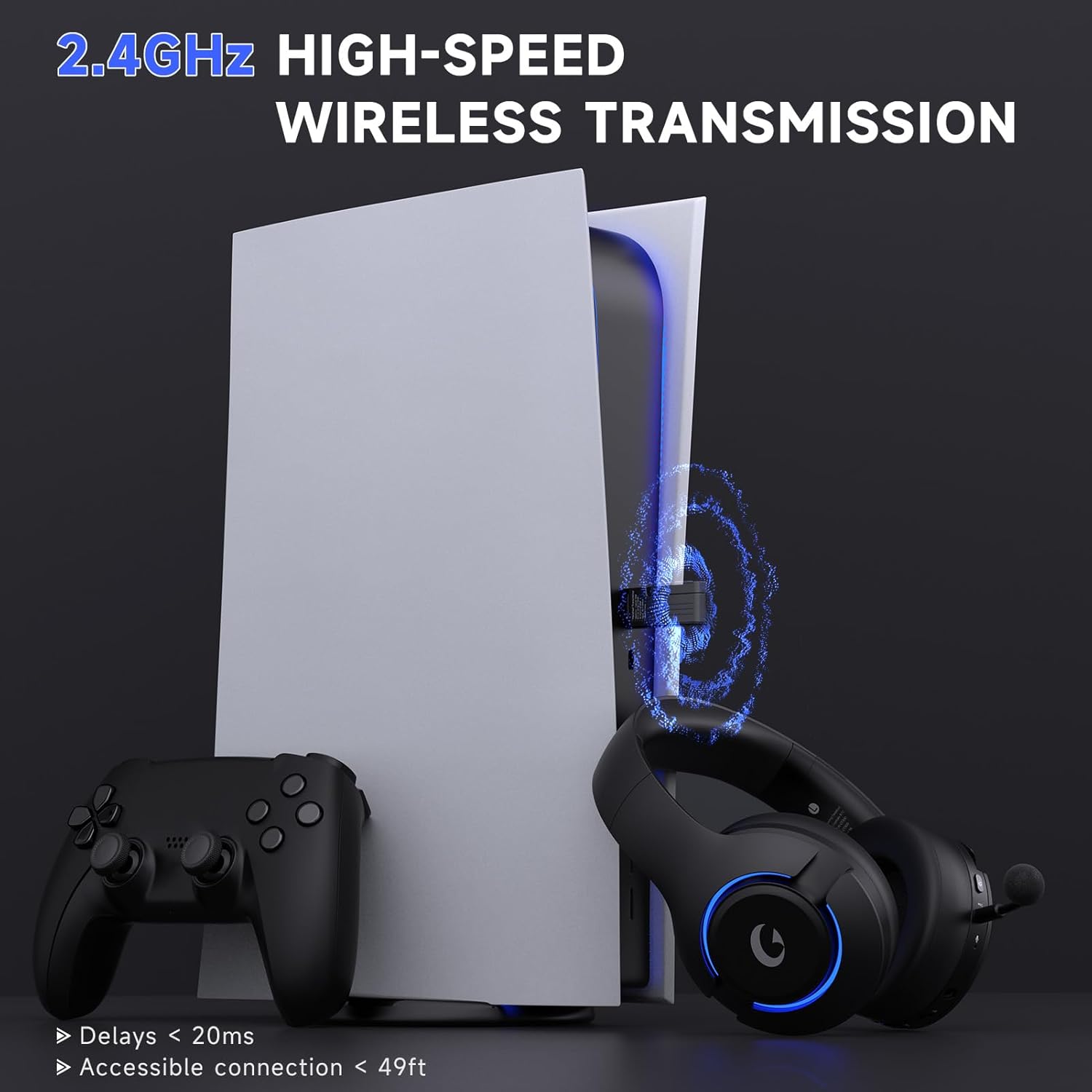
Imaxe: The Gtheos Captain 370 headset and its 2.4GHz USB transmitter connected to a PS5 console, highlighting low latency and accessible connection range.
3. Bluetooth 5.3 Connection (for Mobile, Tablets, PS5)
Use Bluetooth for convenient wireless connection with mobile devices and PS5.
- Switch the headset from 2.4GHz mode to Bluetooth mode using the switch on the headset. The white indicator light will flash, indicating it's in pairing mode.
- On your device (phone, tablet, or PS5), go to Bluetooth settings and search for nearby devices.
- Select "Captain 370" from the list to pair.
- Para PS5: Access the Bluetooth settings on your PS5. Select "Bluetooth Audio" and then "Pair Device". Once "Captain 370" appears, select it to pair.
- Nota: Bluetooth audio on Switch is supported, but the microphone is not compatible in this mode.
Vídeo: Demonstrates how to connect the Gtheos Captain 370 headset to a PS5 using Bluetooth wireless connectivity.
4. 3.5mm Wired Connection (for Xbox, PS4, PS5, Switch, PC)
For devices that require a wired connection, use the included 3.5mm audio cable.
- Insert the 3.5mm jack plug into the headset's 3.5mm audio port.
- Connect the other end of the 3.5mm audio cable to your device (e.g., Xbox controller, PS5 controller, Switch, PC).
- Adjust the volume level on your device to the appropriate setting.
- Nota 1: When using a 3.5mm audio cable to connect an Xbox controller, an adapter (not included) is required. Audio cables alone are not directly compatible with Xbox controllers.
- Nota 2: The microphone of this gaming headset is not compatible with Nintendo Switch in any mode.
Vídeo: Illustrates the wired connection method for the Gtheos Captain 370 headset, specifically connecting to a Nintendo Switch via the 3.5mm jack.
Imaxe: A table detailing the compatibility of voice and microphone functions across different connection modes (2.4G, Bluetooth 5.3, 3.5mm Wired) for various devices including PS4/PS5, PC, Switch, Pad/Phone, and Xbox Series.
Instrucións de funcionamento
Encendido/apagado
- Para acender, manteña premido o botón de acendido durante 3 segundos.
- Para apagalo, mantén premido o botón de acendido durante 3 segundos.
Control de volume
- Use the volume roller on the headset to adjust the audio output level.
- To reduce echo when using for PS5, keep the volume at around 80%–85%.
Uso do micrófono
- Silenciar/Activar o silencio: Single click the microphone mute switch button.
- The external microphone utilizes advanced ENC (Noise Cancellation) technology to filter out background noise.
- The headset includes a built-in backup microphone for clear calls even when the boom mic is detached.
- If the microphone does not work, check if the "Microphone Button" is muted and switch it to unmute.

Imaxe: A close-up of the Gtheos Captain 370 headset's noise-canceling microphone, illustrating its function and the ability to support normal calling even when removed.
Iluminación RGB
- Cambiar cores: Double click the RGB light button to cycle through different breathing light colors.
- Desactivar: Long press the RGB light button to turn off the breathing lights.
- To extend battery usage time, consider turning off the breathing lights.
Mantemento
- Limpeza: Use a soft, dry cloth to clean the headset. Avoid harsh chemicals or abrasive materials.
- Almacenamento: Garde os auriculares nun lugar fresco e seco, lonxe da luz solar directa e de temperaturas extremas.
- Coidado da batería: Para unha duración óptima da batería, evita descargar completamente os auriculares con frecuencia. Cárgaos con regularidade.
- Coidado do micrófono: When not in use, detach the boom microphone to prevent damage.
Resolución de problemas
No Audio/Microphone Not Working
- Comprobar a conexión: Ensure the 2.4GHz transmitter is securely plugged in, Bluetooth is paired, or the 3.5mm cable is fully inserted.
- Selección de modo: Verify the headset is in the correct mode (2.4GHz, Bluetooth, or wired) for your device.
- Silenciar o micrófono: Check if the microphone is muted via the headset button or device settings.
- Configuración do dispositivo: Confirm that "Captain 370" is selected as the input/output device in your console or PC sound settings.
- Xbox Controller: Remember that an adapter (not included) is required for 3.5mm wired connection to Xbox controllers.
- Switch Microphone: The microphone is not compatible with Nintendo Switch in any mode.
Poor Audio Quality/Echo
- Nivel de volume: Adjust the volume on both the headset and your device. For PS5, keep headset volume at 80%-85% to reduce echo.
- Interferencia: Afastese doutros dispositivos sen fíos que poidan causar interferencias.
- Distancia: Ensure you are within the effective range of the 2.4GHz transmitter (up to 49 feet).
Headset Not Charging
- Cable and Port: Check the USB-C charging cable and port for any damage. Try a different cable or power source.
- Tempo de carga: Permite ata 3 horas para unha carga completa.
Especificacións
| Característica | Detalle |
|---|---|
| Marca | Gtheos |
| Número de modelo | Capitán 370 |
| Cor | Negro |
| Conectividade | Sen fíos de 2.4 GHz, Bluetooth 5.3, cable de 3.5 mm |
| Tamaño do controlador | 50 mm |
| Duración da batería | Ata 45 horas |
| Tempo de carga | 3 Hours (Type-C) |
| distancia wireless | Ata 49 pés (2.4 GHz) |
| Latencia | Ultra-low 20ms (2.4GHz) |
| Micrófono | Detachable, Noise-Canceling (ENC), Built-in backup mic |
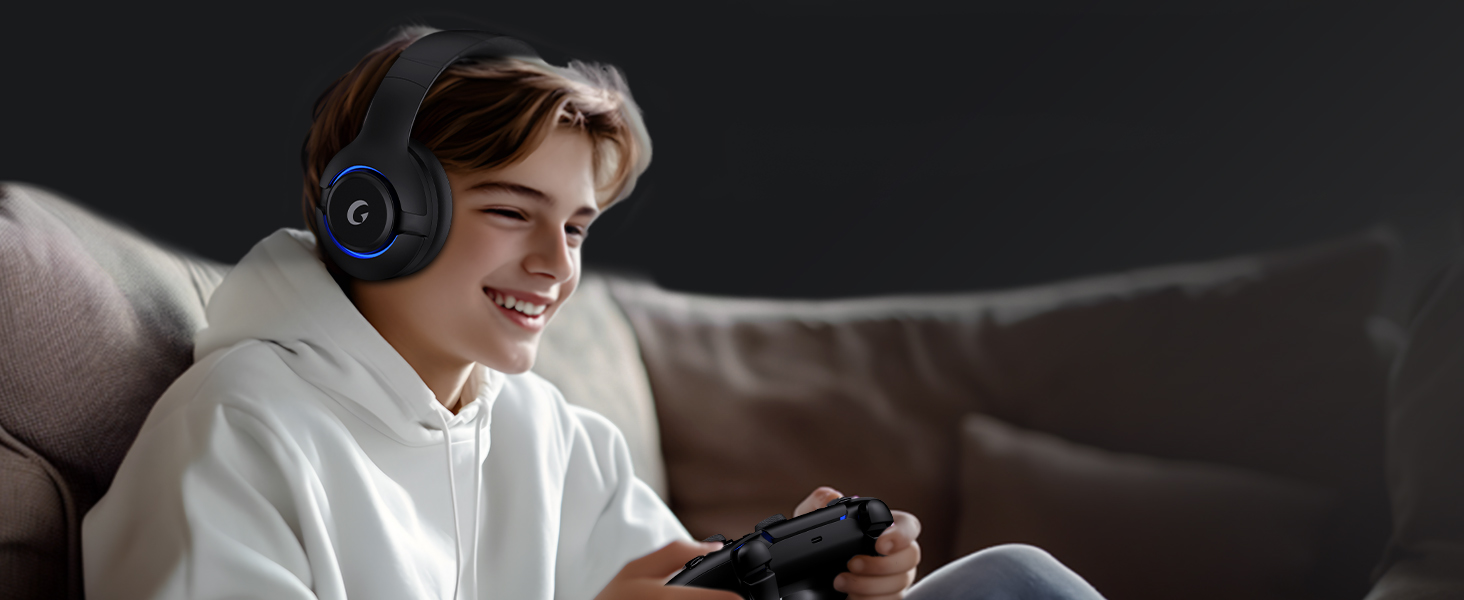
| Características adicionais | RGB Lighting, Comfortable Protein Material Earcups |

Imaxe: The Gtheos Captain 370 headset showcasing its 45-hour long-lasting battery life, 1000mAh battery capacity, and 3-hour charging time.
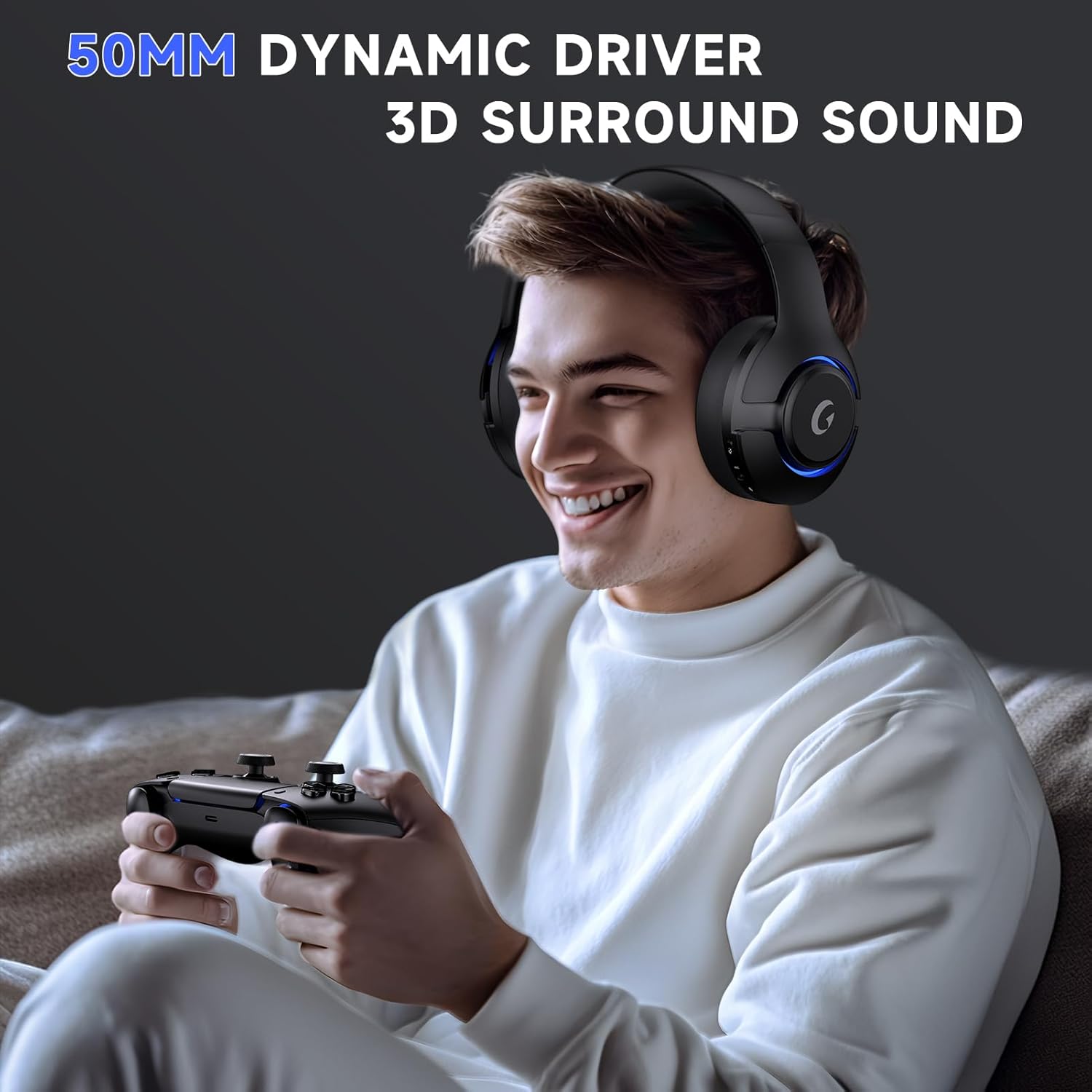
Imaxe: A user wearing the Gtheos Captain 370 headset, emphasizing the 50mm dynamic drivers and 3D surround sound for an immersive gaming experience.
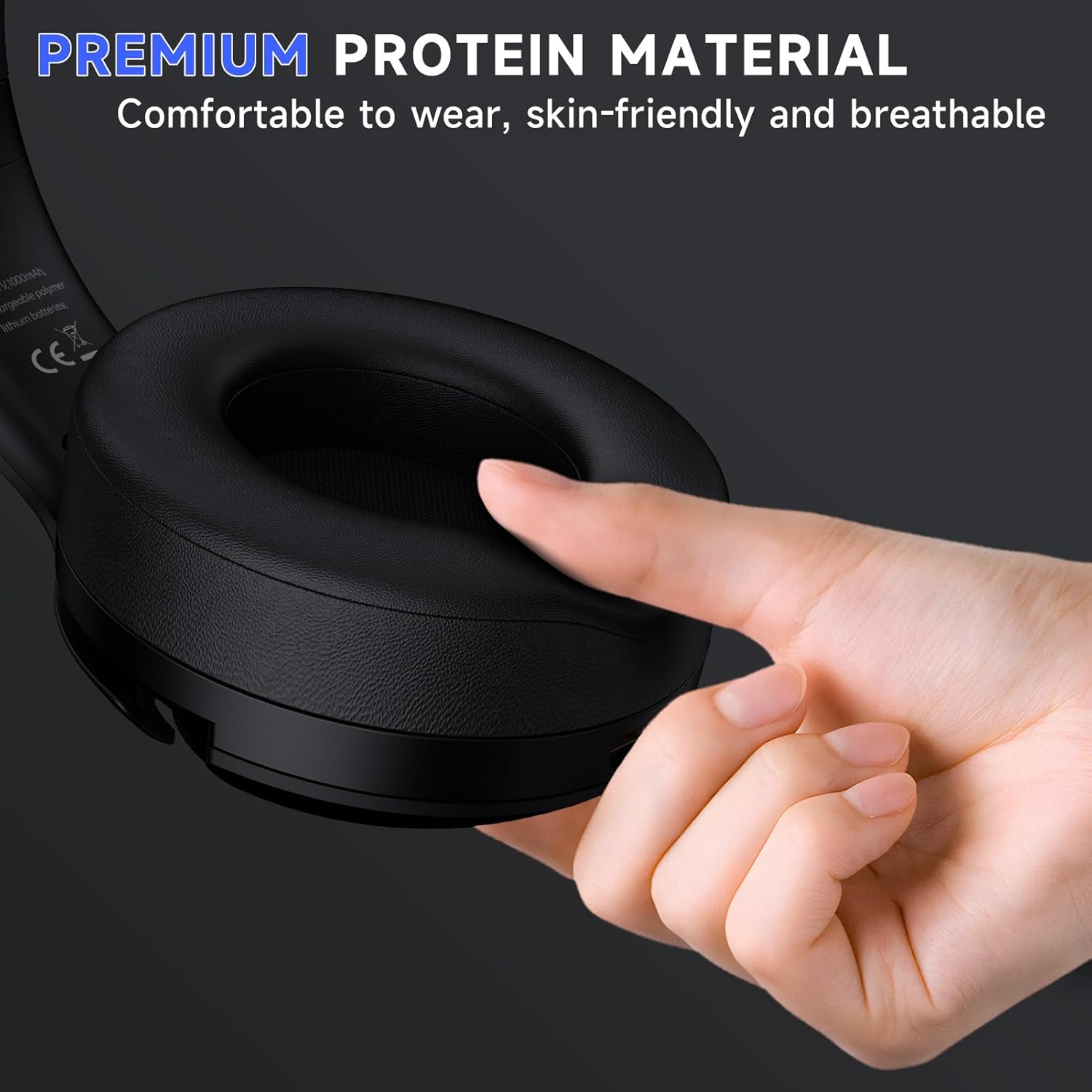
Imaxe: A hand pressing the earcup of the Gtheos Captain 370 headset, illustrating the premium protein material for comfortable and breathable wear.
Garantía e soporte
Información da garantía
The Gtheos Captain 370 Wireless Gaming Headset comes with a 1 ano de garantía desde a data de compra. Esta garantía cobre os defectos de fabricación e garante que o seu produto estea libre de defectos de materiais e de fabricación en condicións de uso normal.
Soporte técnico
Gtheos provides 24/7 Service & Technical Support for all customers. If you encounter any issues or have questions regarding your headset, please contact our support team for assistance. Contact information can typically be found on the product packaging or the official Gtheos websitio.
Ask a question about this manual
Ask about setup, troubleshooting, compatibility, parts, safety, or missing instructions. Manuals+ will review the question and use this page’s manual context to help answer it.