
1. Introdución
The EPOMAKER TH108 V2 PRO is a full-size mechanical keyboard designed for versatility and performance. It features multi-mode connectivity (Bluetooth, 2.4GHz wireless, and wired USB-C), a customizable screen and knob, hot-swappable switches, RGB lighting, and a gasket-mounted design for a comfortable typing experience. This manual provides instructions for setting up, operating, maintaining, and troubleshooting your keyboard.
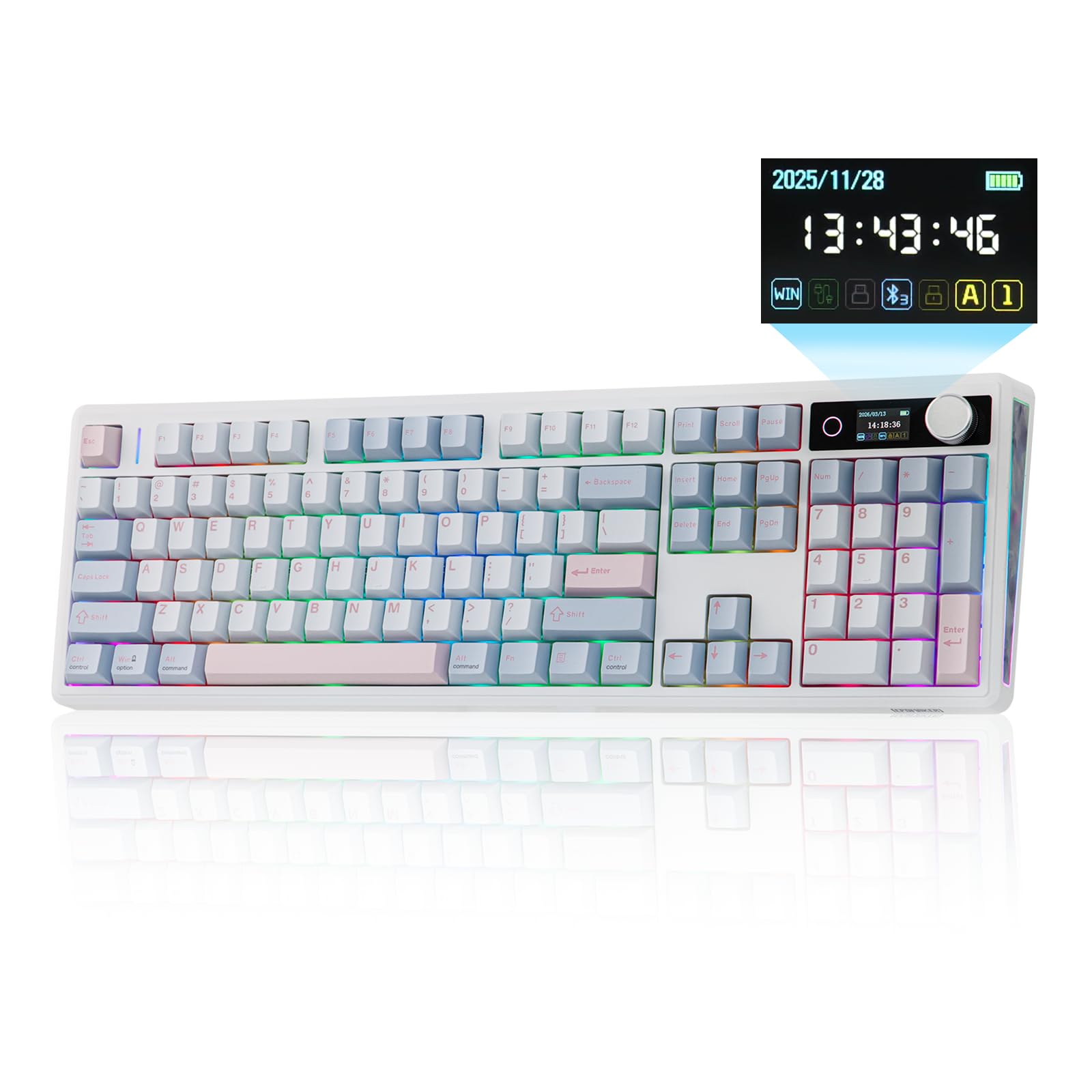
Figure 1.1: EPOMAKER TH108 V2 PRO Mechanical Keyboard
2. Que hai na caixa
- EPOMAKER TH108 V2 PRO Full-Sized Gaming Keyboard
- Detachable USB A-to-C Cable
- Wireless 2.4Ghz Receiver (stored under the left kick-stand)
- Extra Switch
- 2-in-1 Switch-and-Keycap Puller
- Summarized Multilingual Manual and Product Card

Figure 2.1: Location of the 2.4Ghz Wireless Receiver
3. Produto rematadoview
The TH108 V2 PRO keyboard integrates several features for enhanced user experience:
- Conectividade multimodo: Supports Bluetooth, 2.4GHz wireless, and wired USB-C connections.
- Customizable Screen & Knob: A 1.06-inch functional glass screen displays real-time keyboard information, backlight settings, and supports custom GIFs or images. The rotary knob controls volume and screen pages, and is customizable.
- Interruptores intercambiables en quente: Permite a sinxela substitución de interruptores mecánicos sen soldadura.
- Deseño de montaxe da xunta: Multiple layers of sound-dampening materials (PORON, latex, IXPE, silicone, foams) provide a soft, bouncy typing feel and a deep acoustic profile.
- Iluminación RGB: Features per-key adjustable south-facing LEDs, an integrated light bar, and a custom decor panel for vibrant lighting effects.
- Batería de longa duración: Equipped with a 10000mAh battery, providing up to 200 hours of continuous use.
- Mac/Windows Compatibility: Includes dedicated Mac modifier keycaps for seamless switching between operating systems.

Figure 3.1: Cushioned Gasket Structure

Figure 3.2: Pre-Lubed Linear Switches

Figure 3.3: Mac Modifier PBT Keycaps

Figure 3.4: Vibrant RGB Lighting
Vídeos de produtos
Video 3.1: Comparison between TH108 PRO and TH108 V2 PRO, highlighting key differences and improvements.
Video 3.2: Demonstrates the typing sound and feel of Creamy Jade and Sea Salt Silent V2 switches on the TH108 V2 PRO.
Video 3.3: Provides close-up views of various components and design elements of the TH108 V2 PRO keyboard.
4. Configuración
4.1 Opcións de conectividade
The TH108 V2 PRO supports three connection modes:
- Modo cableado: Connect the keyboard to your device using the provided USB A-to-C cable.
- Modo sen fíos de 2.4 GHz: Insert the 2.4GHz USB receiver (found under the left kick-stand) into your device's USB port. Switch the keyboard's mode selector to 2.4G.
- Modo Bluetooth: Cambia o selector de modo do teclado a BT. Preme FN + Q/W/E to select a Bluetooth channel. The indicator light will flash, indicating pairing mode. Busca "TH108 V2 PRO" on your device and connect.
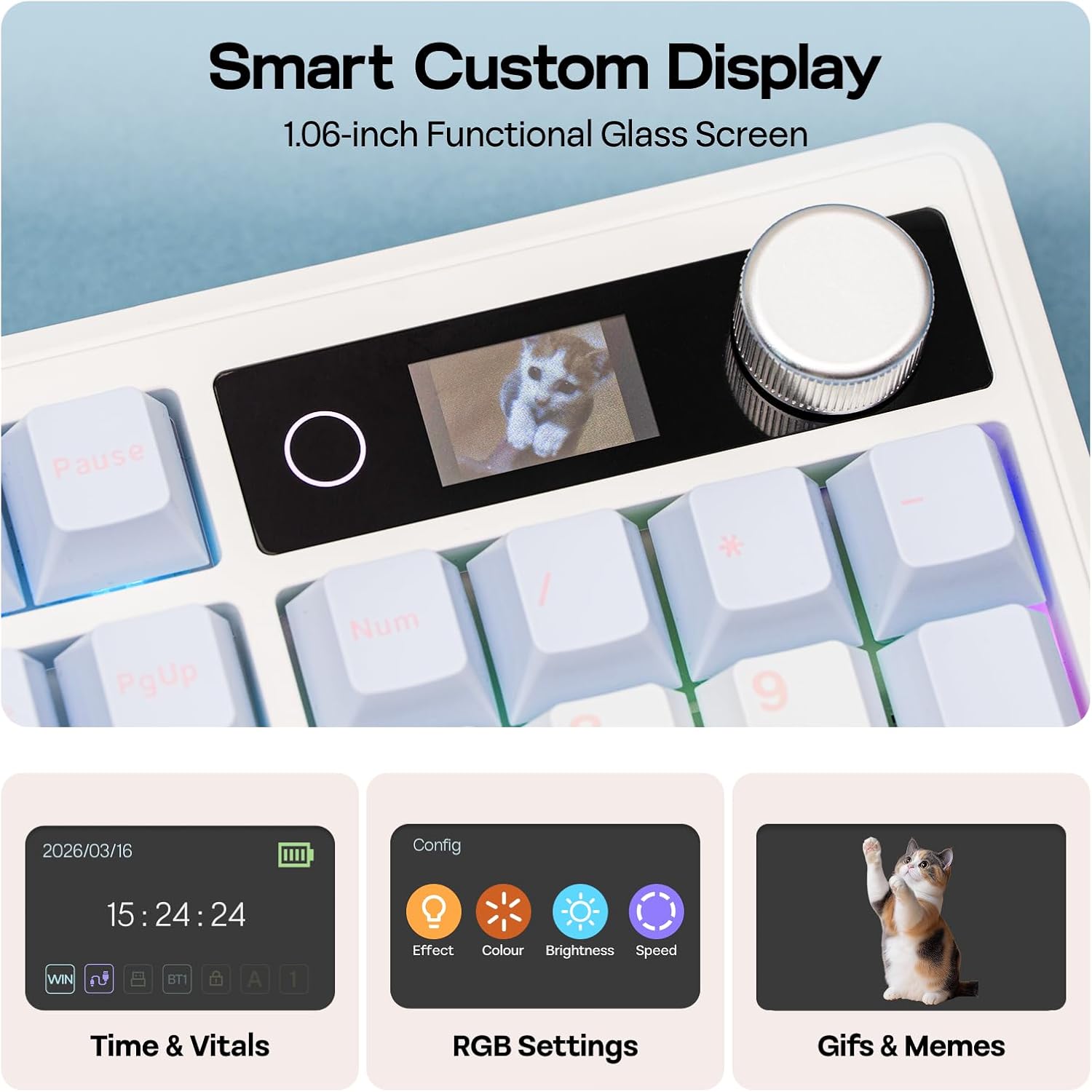
Figure 4.1: Connection Hub and Mode Switches
4.2 Cambio de sistema operativo
Use the dedicated switch on the keyboard to toggle between Windows (WIN) and Mac operating system layouts. This ensures correct key mapping for your system.
4.3 Cargo inicial
Before first use, it is recommended to fully charge the keyboard using the provided USB-C cable. The screen will indicate charging status.
Video 4.2: An unboxing video of the TH108 V2 PRO, showing initial setup components.
5. Instrucións de funcionamento
5.1 Screen and Knob Functions
The 1.06-inch screen displays various information and settings. The rotary knob allows for quick adjustments:
- Default Knob Function: Rotate to adjust volume. Press to mute/unmute.
- FN + Knob: Toggles between screen pages (e.g., time, battery, connection status, RGB settings).
- Personalización: The screen can display custom GIFs, drawings, or photos. This is managed via the web-compatible software.

Figure 5.1: Smart Custom Display and Knob
5.2 Control de iluminación RGB
The keyboard features customizable RGB backlighting. You can adjust effects, colors, brightness, and speed using:
- Integrated Knob and Screen: Use FN + Knob to navigate to RGB settings on the screen, then use the knob to adjust.
- Atallos de teclado: Refer to the included quick guide for specific FN key combinations to change RGB modes.
- Web-Based Software: For advanced customization, including per-key lighting and custom effects.
5.3 Software programable
The TH108 V2 PRO utilizes a web-compatible software for advanced customization. This software allows you to:
- Remapear claves
- Record macros
- Customize RGB lighting
- Adjust keyboard settings
- Upload GIFs or images to the screen
Access the software via the official EPOMAKER website. It is compatible across various devices and operating systems.
Video 5.2: A guide on how to customize your TH108 V2 PRO using the available software and features.
6. Mantemento
6.1 Limpeza
- Desconecte o teclado de todas as fontes de alimentación antes de limpalo.
- Use un pano suave e sen pelusa lixeiramente dampEnxágüe con auga ou unha solución de limpeza suave para limpar as teclas e o chasis.
- Para o po e os residuos entre as tapas das teclas, use aire comprimido ou un cepillo pequeno.
- Evitar produtos químicos agresivos, abrasivos ou humidade excesiva.
6.2 Substitución da tapa das teclas e do interruptor
The TH108 V2 PRO features hot-swappable switches, allowing for easy replacement without soldering.
- Use the provided 2-in-1 switch-and-keycap puller.
- To remove a keycap, gently pull it upwards with the keycap puller.
- To remove a switch, use the switch puller to grasp the top and bottom clips of the switch and pull straight upwards.
- When inserting a new switch, ensure the pins are straight and align with the PCB sockets. Press firmly until it clicks into place.
- When replacing keycaps, align them with the switch stem and press down gently.
7 Solución de problemas
- O teclado non responde:
- Asegúrate de que o teclado estea cargado.
- Check the connection mode switch (wired, 2.4GHz, Bluetooth) matches your setup.
- For 2.4GHz, ensure the receiver is properly inserted.
- For Bluetooth, re-pair the device.
- Tenta conectar a conexión mediante un cable USB-C para descartar problemas sen fíos.
- Iluminación RGB non funciona/incorrecta:
- Check RGB settings via the screen or software.
- Ensure brightness is not set to zero.
- Update keyboard firmware if available.
- Chaves que non se rexistran:
- If a specific key is not working, try removing and re-inserting its switch.
- Ensure the switch pins are not bent.
- Proba cun interruptor diferente se está dispoñible.
- Problemas de software:
- Ensure you are using a compatible browser (e.g., Chrome) for the websoftware baseado.
- Limpa a caché do navegador ou proba cun navegador diferente.
- Refer to the EPOMAKER support website for software-specific FAQs.
8. Especificacións
| Marca | EPOMAKER |
| Nome do modelo | TH108 V2 PRO |
| Tecnoloxía de conectividade | 2.4Ghz Wireless, Bluetooth, USB Cable |
| Descrición do teclado | Mecánica |
| Número de chaves | 104 |
| Disposición do teclado | QWERTY |
| Tipo de cambio | Linear, Linear Silent (depending on variant) |
| Características especiais | Backlit, Ergonomic, Hot-Swappable, Programmable Keys, Volume Roller, Screen |
| Retroiluminación del teclado | RGB |
| Fonte de enerxía | Alimentado por batería (10000 mAh) |
| Material | Plastic (Enclosure), Polycarbonate (Plate) |
| Dispositivos compatibles | Consola de xogos, portátil, PC, teléfono intelixente, tableta |
| OS compatible | Android, Windows, Mac OS 11 Big Sur and above |
| Taxa de sondaxe (con cable) | 1000 Hz |
| Latency (Wired) | 2 ms |
9. Garantía e soporte
The EPOMAKER TH108 V2 PRO Mechanical Keyboard comes with a 1 ano de garantía desde a data de compra.
For technical support, warranty claims, or additional information, please visit the official EPOMAKER website or contact their customer service directly. You can also find more resources and product information on the EPOMAKER Store on Amazon.