
Introdución
Thank you for choosing the CHIVALZ PM220 Portable Thermal Label Printer. This manual provides essential information for setting up, operating, maintaining, and troubleshooting your device. Please read it thoroughly before use to ensure optimal performance and longevity of your printer.
The CHIVALZ PM220 is a compact, wireless thermal label printer designed for various labeling needs, including clothing, addresses, barcodes, and household products. It connects seamlessly with smartphones via Bluetooth for convenient printing.
Contido do paquete
Antes de continuar coa configuración, comproba que todos os elementos estean presentes no paquete:
- CHIVALZ PM220 Thermal Label Printer
- Cable de carga USB
- One roll of thermal labels
- Manual de usuario (este documento)
Configuración
1. Cargando a impresora
Before initial use, fully charge the printer. Connect the provided USB charging cable to the printer's charging port and a compatible USB power adapter (not included) or a computer's USB port. The charging indicator light will show the charging status.
2. Carga de etiquetas térmicas
- Abra a tapa do compartimento das etiquetas.
- Insert the thermal label roll with the printing surface facing upwards. Ensure the labels are aligned correctly with the feed mechanism.
- Pull a small portion of the label roll out past the print head.
- Peche ben a tapa do compartimento das etiquetas.
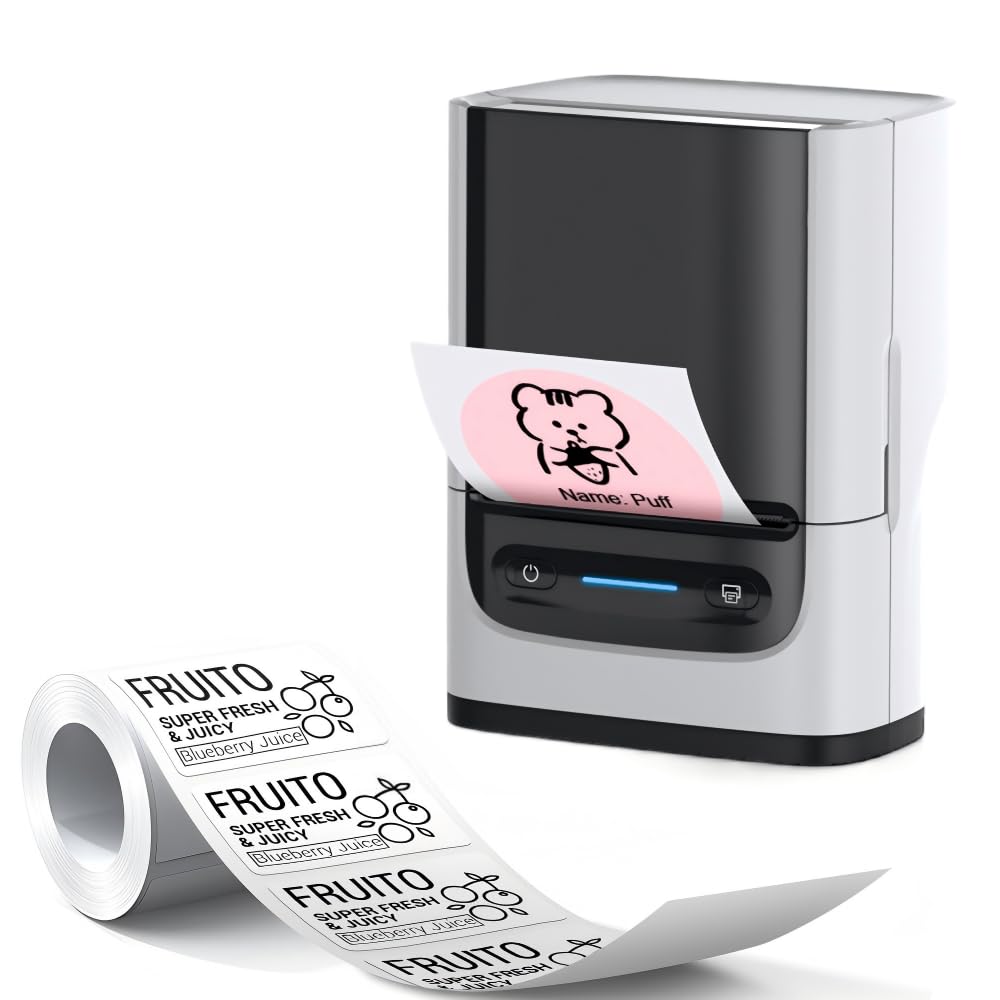
Image: The CHIVALZ PM220 printer with a thermal label roll correctly inserted into its compartment. The label roll is visible, extending slightly from the printer's output slot.
3. Installing the Mobile Application
Busca the official CHIVALZ label printing application on your smartphone's app store (e.g., Apple App Store for iOS or Google Play Store for Android). Download and install the application.
4. Conectando a través de Bluetooth
- Ensure your CHIVALZ PM220 printer is powered on.
- Activa o Bluetooth no teu smartphone.
- Open the CHIVALZ label printing application.
- Within the app, navigate to the device connection settings. Select the CHIVALZ PM220 from the list of available Bluetooth devices. The printer's name typically includes "CHIVALZ" or "PM220".
- Follow any on-screen prompts to complete the pairing process. A successful connection will usually be indicated within the app.
Instrucións de funcionamento
1. Acendido/apagado
- Para acender: Press and hold the power button for approximately 3 seconds until the indicator light illuminates.
- Para apagar: Manteña premido o botón de acendido durante aproximadamente 3 segundos ata que o indicador luminoso se apague.
2. Creación e impresión de etiquetas
- Ensure the printer is connected to your smartphone via Bluetooth.
- Open the CHIVALZ label printing application.
- Select a label template or create a new label design. The app allows for text, images, barcodes, and QR codes.
- Personaliza o contido da túa etiqueta segundo as túas necesidades.
- Preview a etiqueta para garantir que apareza como se desexa.
- Tap the "Print" button within the application. Select the number of copies if applicable.
- The printer will feed and print the labels. Carefully tear off the printed labels along the perforation.
Mantemento
1. Limpeza do cabezal de impresión
Regular cleaning of the print head ensures optimal print quality. Use a soft, lint-free cloth lightly dampened with isopropyl alcohol. Gently wipe the print head surface. Allow it to dry completely before using the printer.
- Frecuencia: Clean the print head after every 5-10 rolls of labels or if print quality degrades.
- Atención: Do not touch the print head with bare hands as oils can affect print quality.
2. Coidado da batería
Para prolongar a duración da batería:
- Evite descargar completamente a batería con frecuencia.
- Garde a impresora nun lugar fresco e seco cando non a use durante períodos prolongados.
- Charge the printer at least once every three months if stored for a long time.
3. Almacenamento de etiquetas
Store thermal labels in a cool, dry place away from direct sunlight and heat sources. Exposure to heat or light can cause labels to fade prematurely.
Resolución de problemas
| Problema | Causa posible | Solución |
|---|---|---|
| A impresora non se acende. | Batería baixa; Botón de acendido non premido correctamente. | Charge the printer; Press and hold the power button for 3 seconds. |
| Non se pode conectar por Bluetooth. | Bluetooth off on phone/printer; Printer not discoverable; App issue. | Ensure Bluetooth is enabled on both devices; Restart printer and phone; Reinstall app. |
| Mala calidade de impresión (liñas tenues e en branco). | Print head dirty; Incorrect label orientation; Low battery. | Clean the print head; Re-insert labels correctly; Charge the printer. |
| Labels not feeding or jamming. | Labels incorrectly loaded; Label compartment not closed properly. | Open and re-load labels, ensuring proper alignment; Close cover firmly. |
| Printer stops responding. | Fallo temporal do software. | Perform a soft reset by powering off and on the printer. |
Especificacións
| Característica | Detalle |
|---|---|
| Marca | CHIVALZ |
| Nome do modelo | PM220 |
| Tecnoloxía de conectividade | Bluetooth |
| Tecnoloxía de impresión | Térmica |
| Cor | Branco |
| Saída da impresora | Monocromo |
| Velocidade máxima de impresión monocromática | 203 ppp (puntos por polgada) |
| Dimensións do produto (L x W x H) | 13 x 8 x 10 centímetros (aprox. 5.1 x 3.1 x 3.9 polgadas) |
| Tamaño máximo de medios | 4 x 6 polgadas |
| Compoñentes incluídos | Rolo de etiquetas |
| Fabricante | CHIVALZ |
| ASIN | B0GSGB976P |
Garantía e Soporte
Información da garantía
The CHIVALZ PM220 Thermal Label Printer comes with a standard manufacturer's warranty. Please refer to the warranty card included in your package or visit the official CHIVALZ websitio web para obter termos e condicións detallados relativos á cobertura e duración da garantía.
Atención ao cliente
For technical assistance, troubleshooting not covered in this manual, or warranty claims, please contact CHIVALZ customer support. Contact details can typically be found on the official CHIVALZ websitio web ou na embalaxe do produto.
When contacting support, please have your product model (PM220) and purchase information ready.