
1. Introdución
Thank you for choosing the THOMSON TDF-1001P Digital Photo Frame. This device allows you to display your favorite photos and videos, play music, and utilize features like a calendar, clock, and alarm. With Wi-Fi connectivity, you can easily share media and receive weather updates. Please read this manual thoroughly before operating the device to ensure proper use and maintenance.
2. Información de seguridade
- Non expoñas o dispositivo á humidade, á choiva nin a temperaturas extremas.
- Evite colocar o dispositivo preto de fontes de calor ou baixo a luz solar directa.
- Emprega só o adaptador de corrente fornecido. O uso de adaptadores non autorizados pode danar o dispositivo e anular a garantía.
- Non intente desmontar nin reparar o dispositivo vostede mesmo. Encargue todo o mantemento a persoal cualificado.
- Manteña o dispositivo lonxe de campos magnéticos fortes.
- Clean the screen with a soft, dry cloth. Do not use liquid cleaners or sprays directly on the screen.
3. Contido do paquete
Comprobe se o paquete contén os seguintes elementos:
- THOMSON TDF-1001P Digital Photo Frame
- Adaptador de alimentación
- Manual de usuario (este documento)
- Soporte (se corresponde)
4. Produto rematadoview
Familiarízate cos compoñentes do teu marco de fotos dixital.
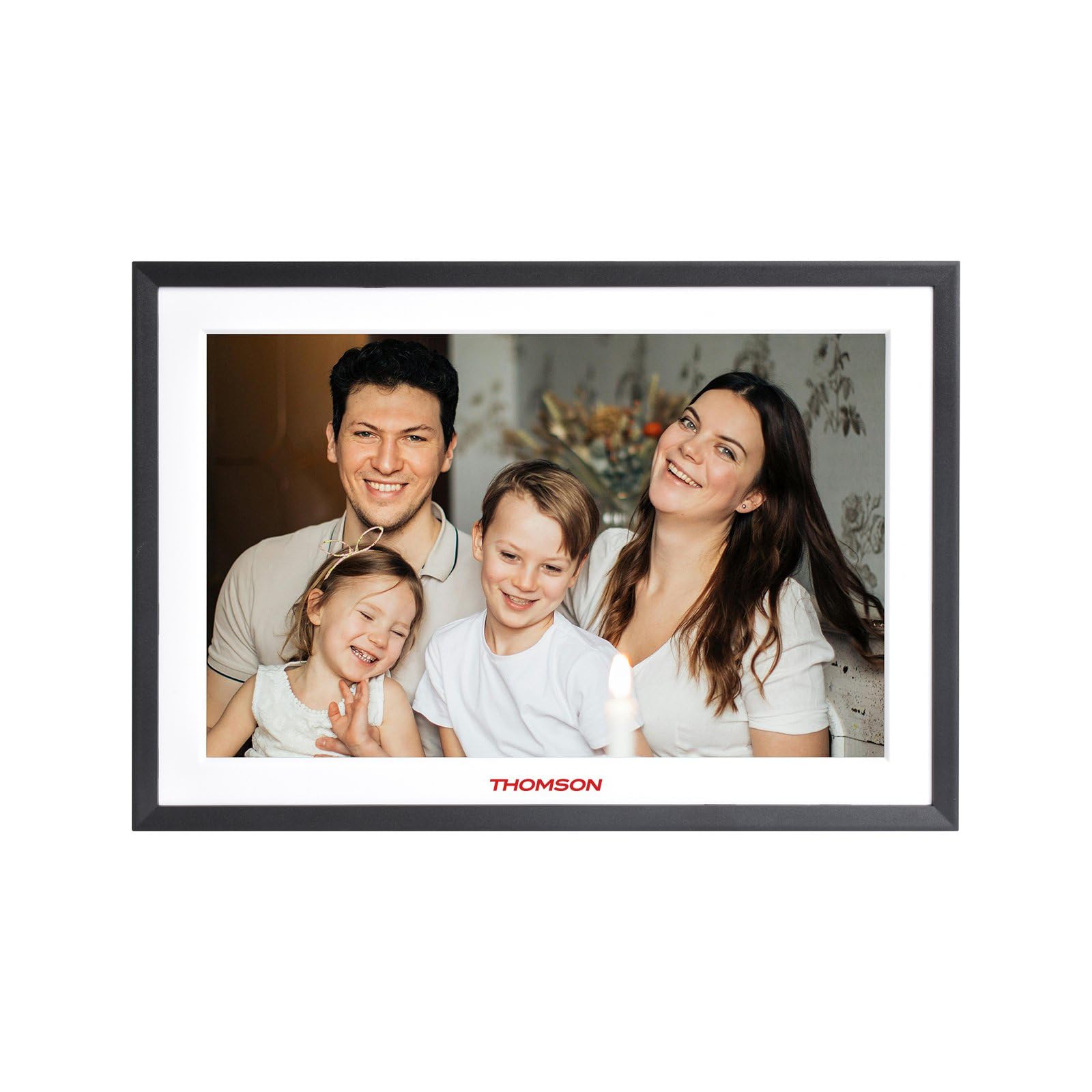
Figura 4.1: Fronte view of the THOMSON TDF-1001P Digital Photo Frame. This image shows the 10.1-inch IPS display with a black frame, designed for clear photo and video playback.
4.1. Panel frontal
- Pantalla táctil IPS de 10.1 polgadas: The main display for viewing content and interacting with the device.
4.2. Panel traseiro e portos
The rear panel typically includes various ports for connectivity and power.
- Entrada de enerxía: Conéctase ao adaptador de corrente fornecido.
- Porto USB: For connecting USB drives to transfer media.
- Ranura para tarxetas SD: For inserting SD cards to expand storage or transfer media.
- Botón de reinicio: A small pinhole button to reset the device if necessary.
5. Configuración
5.1. Acendido inicial
- Unpack the digital photo frame and its accessories.
- Attach the stand to the back of the frame, ensuring it is securely fastened.
- Connect the power adapter to the power input port on the frame.
- Plug the power adapter into a wall outlet. The frame will automatically power on.
- Siga as instrucións en pantalla para seleccionar o seu idioma e rexión.
5.2. Conexión Wi-Fi
Connecting to Wi-Fi enables online features like photo sharing and weather updates.
- No menú principal, toca en "Configuración".
- Selecciona "Wi-Fi" ou "Configuración de rede".
- Toggle Wi-Fi to 'On'. The frame will scan for available networks.
- Selecciona a rede Wi-Fi desexada da lista.
- Enter the Wi-Fi password using the on-screen keyboard and tap 'Connect'.
- Once connected, a Wi-Fi icon will appear on the status bar.
5.3. App Setup for Sharing
To share photos and videos via Wi-Fi, you will need to install the dedicated app on your smartphone.
- Locate the app name or QR code in the frame's settings under 'Cloud Services' or 'App Connection'.
- Download and install the app on your smartphone from your device's app store.
- Abre a aplicación e crea unha conta ou inicia sesión.
- Follow the app's instructions to pair your smartphone with the digital photo frame, typically by scanning a QR code displayed on the frame or entering a unique device ID.
- Once paired, you can send photos and videos directly from your smartphone to the frame.
6. Operating the Digital Photo Frame
6.1. Navegación pola interface
The frame features a touch screen for easy navigation. Tap icons to open applications and swipe to browse content or menus.
6.2. Photo and Video Playback
- From the main menu, tap the 'Photos' or 'Gallery' icon.
- Select the source of your media (Internal Storage, SD Card, USB Drive, or Cloud/App).
- Browse through your albums or individual files. Tap on a photo or video to view iso.
- During playback, you can typically swipe left/right to navigate between files, or tap the screen to reveal playback controls (play/pause, next, previous, rotate, delete).
6.3. Reprodución de música
- Tap the 'Music' icon from the main menu.
- Select the source of your music files.
- Browse and tap on a song to begin playback.
- Use the on-screen controls for play/pause, skip, volume adjustment, and repeat modes.
6.4. Calendar, Clock, and Alarm
- Calendario: Tap the 'Calendar' icon to view the current date and month. Some models may allow adding events.
- Reloxo: The current time is usually displayed on the home screen. Time settings can be adjusted in the 'Settings' menu.
- Alarma: Access the 'Alarm' function via the main menu or 'Settings'. You can set multiple alarms with custom times and sounds.
6.5. Weather Updates
If connected to Wi-Fi, the frame can display local weather information.
- Asegúrate de que o marco estea conectado á wifi.
- Go to 'Settings' and find 'Weather' or 'Location Services'.
- Enable weather updates and set your location (either automatically or manually).
- The weather forecast will then be displayed on the home screen or a dedicated weather widget.
7. Mantemento
7.1. Limpeza do dispositivo
- Apague e desconecte sempre o dispositivo antes de limpalo.
- Usa un pano suave e sen fiapos para limpar con coidado a pantalla e o marco.
- Para manchas difíciles na pantalla, aplique un toque lixeiroampen the cloth with water or a screen-safe cleaning solution, then wipe gently. Do not spray liquids directly onto the screen.
- Evite produtos de limpeza ou disolventes abrasivos.
7.2. Almacenamento
When not in use for extended periods, store the digital photo frame in a cool, dry place, away from direct sunlight and extreme temperatures. It is recommended to keep the original packaging for storage.
8 Solución de problemas
Esta sección aborda problemas comúns cos que podes atoparte.
| Problema | Causa posible | Solución |
|---|---|---|
| O marco non se acende. | O adaptador de corrente non está conectado ou está avariado. | Asegúrate de que o adaptador de corrente estea conectado correctamente á estrutura e a unha toma de corrente que funcione. Proba cunha toma diferente. |
| Non se pode conectar á wifi. | Contrasinal incorrecto, fóra de alcance ou problema co enrutador. | Verify the Wi-Fi password. Move the frame closer to the router. Restart your Wi-Fi router. |
| Non se mostran as fotos/vídeos. | Non é compatible file formato, corrompido files, or incorrect source selected. | Garantir files are in supported formats (e.g., JPEG for photos, MP4 for videos). Check if the files are corrupted. Select the correct storage source (SD card, USB, internal). |
| A pantalla táctil non responde. | Fallo temporal do software. | Restart the frame by unplugging and replugging the power adapter. If the issue persists, use a pin to press the reset button on the back. |
9. Especificacións
| Característica | Especificación |
|---|---|
| Modelo | TDF-1001P |
| Tamaño de visualización | 10.1 polgadas |
| Resolución | 800 * 1280 IPS |
| Relación de aspecto | 16:10 |
| Internal Flash Storage | 32 GB |
| Pantalla táctil | G+P Type |
| Conectividade | Wi-Fi |
| Funcións | Photo, Music, Video, Calendar, Clock, Alarm, Weather, Wi-Fi Sharing |
| Material | Plastic black frame and white middle frame |
| Dimensións do artigo (L x W) | 7.25" de longo x 10.44" de ancho |
| Fonte de enerxía | Eléctrico con cable |
10. Información da garantía
The THOMSON TDF-1001P Digital Photo Frame comes with a 1 ano de garantía limitada from the date of purchase. This warranty covers manufacturing defects in materials and workmanship under normal use. It does not cover damage caused by misuse, accidents, unauthorized modifications, or external causes such as power surges.
Please retain your proof of purchase for warranty claims. For detailed warranty terms and conditions, refer to the warranty card included in your package or contact customer support.
11. Atención ao cliente
If you have any questions, require technical assistance, or need to make a warranty claim, please contact THOMSON customer support. Refer to the contact information provided on the product packaging or the official THOMSON websitio.
When contacting support, please have your product model number (TDF-1001P) and proof of purchase readily available.