1. Produto rematadoview
The D-Link DIR-655 Xtreme N Gigabit Router is an IEEE 802.11n (draft) compliant device designed to deliver faster speeds and extended range compared to IEEE 802.11g, while maintaining backward compatibility with IEEE 802.11g and IEEE 802.11b devices. This router enables high-speed internet access for multiple computers, game consoles, and media players when connected to a cable or DSL modem. It facilitates the creation of a secure wireless network for sharing photos, files, music, videos, printers, and network storage.
2. Guía de configuración
Follow these steps to set up your D-Link DIR-655 Xtreme N Wireless Router:
2.1. Desembalaxe e colocación
- Retire con coidado todos os elementos da embalaxe.
- Place the router in a central location in your home or office for optimal wireless coverage. Avoid placing it near large metal objects, concrete walls, or devices that emit radio frequency interference (e.g., microwave ovens, cordless phones).
- Ensure proper ventilation around the router.
2.2. Conexión de hardware
- Conecta as antenas: Attach the three external antennas to the connectors on the back of the router. Ensure they are securely tightened.
- Conectar ao módem:
- Apague o módem por cable ou DSL.
- Connect one end of an Ethernet cable to the Internet (WAN) port on the back of the DIR-655 router.
- Connect the other end of this Ethernet cable to the Ethernet port on your cable or DSL modem.
- Power on your modem and wait for its indicator lights to stabilize (usually indicating an active internet connection).
- Conectar enerxía: Plug the power adapter into the power port (12V===2A) on the back of the router, then plug the other end into a wall outlet or power strip. The power LED on the front of the router should illuminate.
- Conectar dispositivos (con cable opcional): For wired connections, connect Ethernet cables from your computers or other network devices to any of the four LAN ports (1-4) on the back of the router.
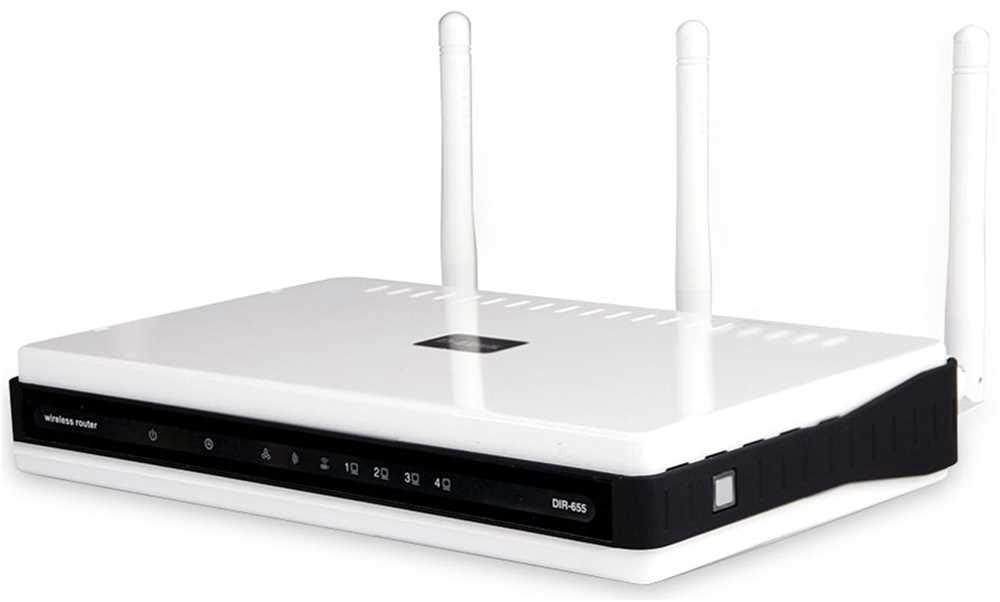
Figura 1: Traseira view of the D-Link DIR-655 router, highlighting the LAN, Internet, USB, Reset, and Power ports, along with the three external antennas.

Figura 2: Fronte view of the D-Link DIR-655 router, displaying the D-Link logo and various status indicator lights.
2.3. Configuración inicial (sen fíos)
To connect wirelessly and configure your router:
- Atopar o nome da rede (SSID): Look for the Wi-Fi network name (SSID) printed on a label on the bottom or back of your router.
- Conectar a wifi: On your computer or mobile device, search for available Wi-Fi networks and select the SSID of your D-Link DIR-655.
- Introduza o contrasinal: Enter the Wi-Fi password (also known as the network key or passphrase) found on the same label as the SSID.
- Acceso á interface do router: Abrir a web navegador e escriba
http://dlinkrouter.localor192.168.0.1(default IP address) into the address bar. - Iniciar sesión: Introduza o nome de usuario predeterminado (normalmente
admin) e contrasinal (a miúdo en branco ouadmin). Refer to your router's label for default login credentials. - Executar o asistente de configuración: Follow the on-screen instructions of the D-Link setup wizard to configure your internet connection and personalize your Wi-Fi network name and password.
3. Instrucións de funcionamento
The D-Link DIR-655 is designed for high-performance wireless networking:
- Wireless N Technology: Utilizes IEEE 802.11n (draft) for enhanced speed and range, ideal for streaming HD video, online gaming, and large file transferencias.
- Portos Gigabit Ethernet: Four LAN ports provide 10x faster wired connections than standard Ethernet, ensuring high-speed data transfer for connected devices.
- Soporte de banda dual: The router supports dual-band operation, allowing for flexible network configurations and reduced interference.
- Multiple Antennas: Three external antennas help to optimize wireless signal strength and coverage throughout your home or office.
- USB SharePort: The USB port allows you to connect a USB storage device or printer and share it across your network.
4. Mantemento
Para garantir un rendemento e unha lonxevidade óptimos do teu router:
- Actualizacións de firmware: Comprobe regularmente o soporte de D-Link websitio para actualizacións de firmware. A actualización do firmware pode mellorar o rendemento, engadir novas funcións e corrixir vulnerabilidades de seguridade.
- Limpeza física: Manteña o router limpo e libre de po. Use un pano suave e seco para limpar o exterior. Asegúrese de que os orificios de ventilación non estean bloqueados.
- Reiniciar periodicamente: Restarting your router every few weeks can help clear its memory and resolve minor network issues, improving overall performance.
- Colocación segura: Ensure the router is placed in a secure location where it won't be easily knocked over or exposed to extreme temperatures or moisture.
5 Solución de problemas
If you encounter issues with your D-Link DIR-655 router, try these common troubleshooting steps:
- Sen conexión a Internet:
- Comprobe todas as conexións dos cables (alimentación, Ethernet ao módem, Ethernet aos dispositivos).
- Restart your modem, then your router, and then your connected devices.
- Verifica que a conexión do teu provedor de servizos de Internet (ISP) estea activa.
- Velocidade sen fíos lenta:
- Asegúrate de que os teus dispositivos estean dentro do alcance óptimo do router.
- Minimizar as interferencias doutros dispositivos electrónicos.
- Consider changing your Wi-Fi channel in the router settings to avoid congestion.
- Actualiza os controladores sen fíos do teu dispositivo.
- Non se pode acceder á configuración do enrutador:
- Asegúrate de que o dispositivo estea conectado á rede do enrutador (con fíos ou sen fíos).
- Tenta usar o enderezo IP predeterminado
192.168.0.1orhttp://dlinkrouter.local. - Borra a caché e as cookies do teu navegador ou proba cun navegador diferente.
- If you forgot your password, perform a factory reset (see below).
- Restablecemento de fábrica: To restore the router to its factory default settings, locate the "Reset" button on the back of the router. With the router powered on, use a paperclip or similar pointed object to press and hold the reset button for about 10 seconds. Release the button and wait for the router to restart. Nota: Isto borrará toda a configuración personalizada, incluído o nome e o contrasinal da wifi.
6. Especificacións
| Característica | Detalle |
|---|---|
| Nome do modelo | DIR-655 |
| Tipo sen fíos | 802.11n |
| Marca | D-Link |
| Número de modelo do artigo | DIR-655/E |
| Sistema Operativo | Zinose |
| Peso do elemento | 2.65 onzas (75 gramos) |
| Dimensións do produto | 47.44 x 77.95 x 12.6 polgadas |
| Voltage | 110 voltios |
| Característica especial | WPS |
| Clase de banda de frecuencia | Dobre banda |
| Estándar de comunicación sen fíos | 802.11n |
| Dispositivos compatibles | Gaming Console, Printer |
| Usos recomendados | Negocios, Xogos, Fogar |
| Tecnoloxía de conectividade | Ethernet |
| Tipo de antena | Fixo |
7. Garantía e soporte
For detailed warranty information and technical support, please refer to the official D-Link website or the documentation included with your product. You can also visit the D-Link support portal for FAQs, firmware downloads, and contact options.
Soporte en liña: www.dlink.com/soporte


