1. Introdución
O punto de acceso sen fíos WLA532 de Juniper Networks está deseñado para proporcionar un alto nivel de integración en canto a seguridade, rendemento e capacidade de xestión, garantindo unha experiencia de usuario WLAN óptima cunha fiabilidade mellorada. Este dispositivo presenta un deseño de alimentación eficiente enerxeticamente, protocolos de seguridade robustos, radios duplas, tecnoloxía MIMO 3x3, 3 fluxos espaciais e un porto de enlace ascendente Ethernet de 1 Gigabit. O seu tamaño compacto permite unha implementación eficiente. O WLA532 axuda a reducir os gastos de capital (CAPEX) ao requirir menos puntos de acceso por andar e reduce os custos operativos (OPEX) mediante a redución das demandas de persoal de TI, grazas á mellora da fiabilidade coa análise simultánea do espectro e as implementacións optimizadas para fontes de interferencia coñecidas.
2. Contido do paquete
Verifique que todos os elementos estean presentes no seu paquete. Se falta algún elemento ou está danado, póñase en contacto co seu provedor ou co servizo de asistencia de Juniper Networks inmediatamente.
- Punto de acceso sen fíos Juniper WLA532
- Soporte de montaxe (para montaxe no teito ou na parede)
- Ferraxes de montaxe (parafusos, ancoraxes)
- Guía de inicio rápido / Documentación
- (Opcional, dependendo da SKU) Adaptador de corrente ou inxector PoE
3. Información de seguridade
Lea todos os avisos e instrucións de seguridade antes de instalar ou operar este dispositivo. Garde este manual para futuras consultas.
- Fonte de enerxía: Empregue só o adaptador de corrente ou a fonte de alimentación a través de Ethernet (PoE) especificada para este dispositivo. Vol. incorrectotage pode causar danos ou incendios.
- Ventilación: Asegúrate de que haxa unha ventilación axeitada. Non bloquees ningunha abertura de ventilación. O sobrequecemento pode causar danos.
- Ambiente: Non expoñas o dispositivo á auga, á humidade nin a temperaturas extremas. Evita colocalo preto de fontes de calor ou baixo a luz solar directa.
- Servizo: Non intente abrir nin reparar o dispositivo vostede mesmo. Encargue calquera mantemento a persoal cualificado.
- Montaxe: Asegúrate de que o dispositivo estea fixado firmemente nunha superficie estable para evitar que caia.
4. Configuración e instalación
Esta sección guíao pola instalación física e o acendido inicial do seu punto de acceso Juniper WLA532.
4.1. Sobrecarga físicaview
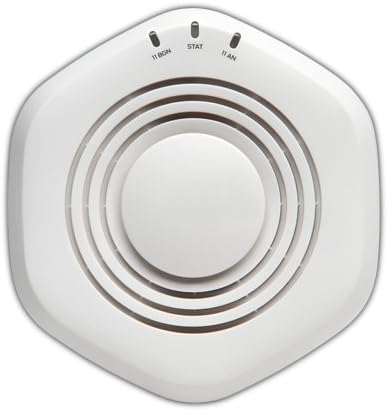
Figura 1: Arriba view do punto de acceso sen fíos Juniper WLA532. Observe as luces indicadoras para 11 BGN, STAT e 11 AN.
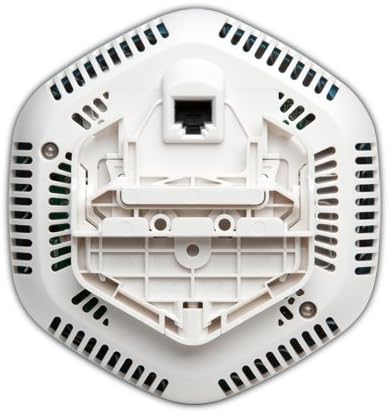
Figura 2: Abaixo view do punto de acceso sen fíos Juniper WLA532, que ilustra o soporte de montaxe integrado e o porto Gigabit Ethernet para conectividade de rede e alimentación a través de Ethernet (PoE).
4.2. Montaxe do punto de acceso
O WLA532 pódese montar no teito ou na parede. Escolla unha localización central e libre de obstáculos para unha cobertura sen fíos óptima.
- Prepare a superficie de montaxe: Use o soporte de montaxe como patrón para marcar os orificios no teito ou na parede.
- Instalar áncoras: Perfore buratos guía e insira as ancoraxes de parede axeitadas se vai montar en cartón xeso ou xeso.
- Asegure o soporte: Fixe o soporte de montaxe á superficie usando os parafusos proporcionados.
- Conecta o punto de acceso: Aliña o punto de acceso co soporte de montaxe e xirao no sentido das agullas do reloxo ata que encaixe firmemente no seu lugar.
4.3. Conexión á rede e á electricidade
O WLA532 admite alimentación a través de Ethernet (PoE) para unha instalación simplificada.
- Conexión Ethernet: Conecta un cable Ethernet estándar desde o teu conmutador de rede (preferiblemente un conmutador compatible con PoE) ao porto Gigabit Ethernet na parte inferior do WLA532.
- Alimentación (PoE): Se se usa un conmutador compatible con PoE, o dispositivo acenderase automaticamente unha vez que se conecte o cable Ethernet.
- Alimentación (adaptador CA opcional): Se o PoE non está dispoñible, conecte un adaptador de corrente alterna Juniper Networks compatible (véndese por separado) ao porto de entrada de alimentación do dispositivo e, a seguir, a unha toma de corrente.
- Verificar potencia: Unha vez acendido, as luces indicadoras da parte superior do dispositivo (Figura 1) deberían acenderse, indicando a alimentación e a actividade da rede. Consulte a sección "Luces indicadoras" para obter máis detalles.
4.4. Configuración inicial
A configuración inicial normalmente implica acceder ao dispositivo webinterface de xestión baseada en ou usando o software de xestión de rede de Juniper. Consulte a Guía de configuración do software Juniper Networks WLA532 que se inclúe por separado para obter instrucións detalladas sobre a configuración de SSID, seguridade e outros parámetros de rede.
5. Funcionamento do punto de acceso
Unha vez instalado e configurado, o Juniper WLA532 funciona como un punto de acceso sen fíos, emitindo sinais Wi-Fi para que os dispositivos cliente se conecten á túa rede.
5.1. Luces indicadoras
| Luz | Estado | Descrición |
|---|---|---|
| 11 BGN | Verde sólido | A radio 802.11b/g/n (2.4 GHz) está operativa. |
| Verde parpadeante | Actividade na radio de 2.4 GHz. | |
| STAT | Verde sólido | O dispositivo está acendido e funciona con normalidade. |
| Verde parpadeante | Actualización do firmware en curso ou outra actividade do sistema. | |
| 11 AN | Verde sólido | A radio 802.11a/n (5 GHz) está operativa. |
| Verde parpadeante | Actividade na radio de 5 GHz. |
5.2. Conexión de dispositivos cliente
Os dispositivos cliente (portátiles, teléfonos intelixentes, tabletas) poden conectarse ao WLA532 usando a rede Wi-Fi (SSID) e o contrasinal configurados. Asegúrate de que os teus dispositivos admitan 802.11n para un rendemento óptimo.
6. Mantemento
Un mantemento regular axuda a garantir a lonxevidade e o rendemento óptimo do seu punto de acceso.
- Limpeza: Limpe con coidado o exterior do dispositivo cun pano suave e seco. Non empregue produtos de limpeza líquidos nin aerosois. Asegúrese de que as aberturas de ventilación estean libres de acumulación de po.
- Actualizacións de firmware: Comprobe periodicamente o soporte de Juniper Networks websitio para obter as últimas actualizacións de firmware. Manter o firmware actualizado garante o mellor rendemento, seguridade e acceso a novas funcións. Siga atentamente as instrucións que se inclúen no paquete de actualización do firmware.
- Condicións ambientais: Asegúrese de que o ambiente de funcionamento se manteña dentro dos rangos de temperatura e humidade recomendados para evitar danos.
7 Solución de problemas
Esta sección ofrece solucións para problemas comúns que podes atopar co teu punto de acceso Juniper WLA532.
7.1. Sen alimentación / Luces apagadas
- Comprobar a fonte de alimentación: Asegúrate de que o cable Ethernet estea conectado de forma segura a un conmutador compatible con PoE ou que un adaptador de corrente CA compatible estea conectado correctamente a unha toma de corrente que funcione.
- Verificar PoE: Se usa PoE, confirme que o porto do conmutador está configurado para PoE e que subministra enerxía. Probe cun porto ou conmutador PoE diferente.
7.2. Sen conectividade sen fíos
- Comprobar as luces indicadoras: Asegúrate de que as luces "11 BGN" e "11 AN" estean acesas de cor verde fixa, o que indica que as radios funcionan. Se non, comproba a conectividade da rede.
- Cable de rede: Verifique que o cable Ethernet que conecta o punto de acceso á súa rede estea conectado correctamente e funcione.
- Estado do enrutador/conmutador: Asegúrate de que o teu enrutador ou conmutador augas arriba funcione correctamente e proporcione acceso a internet.
- Emisión SSID: Confirma que o SSID (nome da rede Wi-Fi) se está a transmitir e que é visible para os dispositivos cliente. Comproba a configuración do teu punto de acceso.
- Configuración de seguranza: Comproba dúas veces o contrasinal da wifi e a configuración de seguridade (por exemplo, WPA2-PSK).
- Reiniciar: Apague e volva conectar o punto de acceso desconectando e volvendo conectar a fonte de alimentación.
7.3. Velocidade sen fíos lenta
- Interferencia: O rendemento sen fíos pode verse afectado polas interferencias doutras redes Wi-Fi, teléfonos sen fíos, microondas ou outros dispositivos electrónicos. Considere cambiar a canle Wi-Fi na configuración do punto de acceso.
- Potencia do sinal: Asegúrate de que os dispositivos cliente estean dentro do alcance óptimo do punto de acceso. Obstáculos como paredes grosas poden degradar o sinal.
- Capacidade do dispositivo cliente: Asegúrate de que os teus dispositivos cliente admitan 802.11n e que estean a usar os controladores de adaptador sen fíos axeitados.
- Conxestión da rede: Demasiados dispositivos na rede ou un uso elevado do ancho de banda poden reducir a velocidade.
7.4. Non se pode acceder á interface de xestión
- Enderezo IP: Asegúrate de que o teu computador estea no mesmo segmento de rede que o punto de acceso e de que esteas a usar o enderezo IP correcto para a interface de administración.
- Firewall: Desactiva temporalmente calquera cortafuegos do teu ordenador para descartar problemas de bloqueo.
- Restablecer os valores predeterminados de fábrica: Como último recurso, se non podes acceder ao dispositivo, pode que teñas que realizar un restablecemento de fábrica. Consulta a Guía de configuración do software Juniper Networks WLA532 para obter instrucións sobre como realizar un restablecemento de fábrica. Aviso: Isto borrará todas as configuracións personalizadas.
8. Especificacións técnicas
| Característica | Detalle |
|---|---|
| Número de modelo | WLA532-WW |
| Tipo sen fíos | 802.11n |
| Clase de banda de frecuencia | Banda dual (2.4 GHz e 5 GHz) |
| Estándar de comunicación sen fíos | 802.11n |
| Tecnoloxía de conectividade | Ethernet, Wi-Fi |
| Protocolo de seguridade | WPS (configuración protexida por Wi-Fi) |
| Sistema Operativo | Junos OS |
| Peso do elemento | 13.9 onzas (393 gramos) |
| Dimensións do produto (LxWxH) | 5.71 x 5.37 x 1.77 polgadas |
| Voltage | 48 voltios (DC) |
| Número de procesadores | 1 |
| Usos recomendados | Negocios |
| Fabricante | Juniper Networks, Inc. |
| Primeira data dispoñible | 6 de setembro de 2012 |
9. Garantía e soporte
Para obter información detallada sobre a garantía, consulte a tarxeta de garantía incluída co produto ou visite o sitio web oficial de Juniper Networks. websitio. Os termos da garantía poden variar segundo a rexión e o contrato de compra.
Para obter asistencia técnica, documentación do produto, descargas de software e recursos adicionais, visite o portal de asistencia de Juniper Networks:
Ao contactar co servizo de asistencia, teña á man o número de modelo do produto (WLA532-WW) e o número de serie.