1. Introdución
This manual provides instructions for the installation, operation, and maintenance of your DIGITUS DN-70542 Wireless LAN USB 2.0 Adapter. This device allows your computer to connect to a wireless network using the 802.11n standard, offering data transfer rates of up to 300 Mbps.
The adapter is backward compatible with IEEE 802.11g and 802.11b standards and operates within the 2.4-2.4835GHz frequency range. It also features a Wireless Protected Setup (WPS) function for easy and secure network connection.

Figura 1.1: Arriba view of the DIGITUS DN-70542 Wireless LAN USB 2.0 Adapter.

Figura 1.2: En ángulo view of the DIGITUS DN-70542 adapter, highlighting its compact design.

Figura 1.3: detallada view of the USB 2.0 connector of the DIGITUS DN-70542 adapter.
2. Contido do paquete
Comprobe que todos os elementos estean presentes no paquete:
- 1 x DIGITUS DN-70542 Mini USB WiFi Adapter
- 1 x Product Support CD-ROM (containing drivers and utilities)
- 1 x Manual de usuario (este documento)
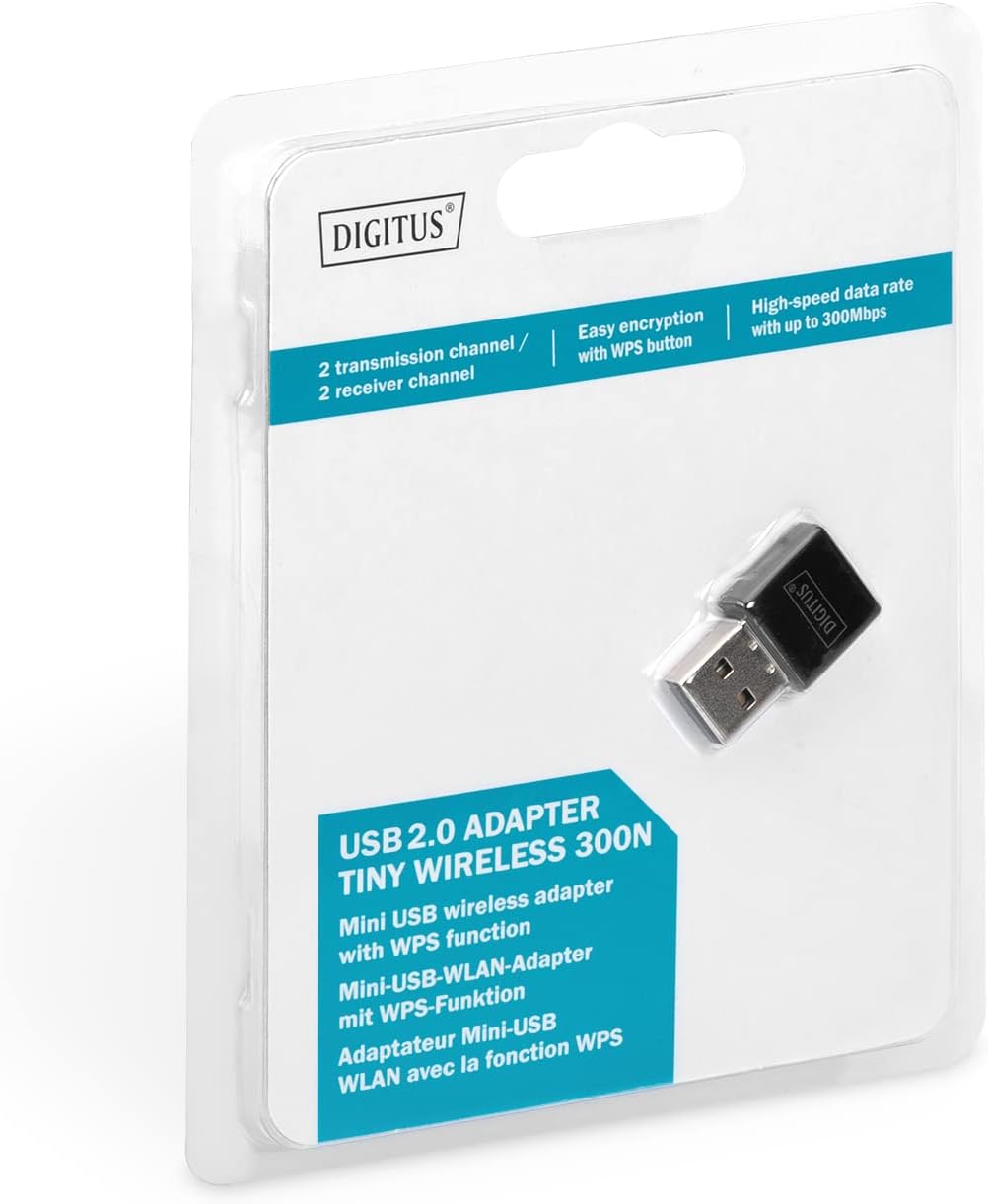
Figure 2.1: Retail packaging of the DIGITUS DN-70542 adapter, showing the adapter and its key features.
3. Guía de configuración
Follow these steps to install your Wireless LAN USB Adapter:
- Instalar controladores: Before connecting the adapter, insert the included Product Support CD-ROM into your computer's optical drive. Follow the on-screen instructions to install the necessary drivers. If your computer does not have an optical drive, or if you encounter issues, please visit the official DIGITUS website to download the latest drivers for your operating system (Windows).
Note: Some operating systems, particularly older versions of Windows, may require driver installation prior to connecting the device. Refer to the Troubleshooting section if you encounter issues during this step.
- Conecte o adaptador: Locate an available USB 2.0 port on your computer. Carefully insert the DIGITUS DN-70542 Wireless LAN USB 2.0 Adapter into the USB port.
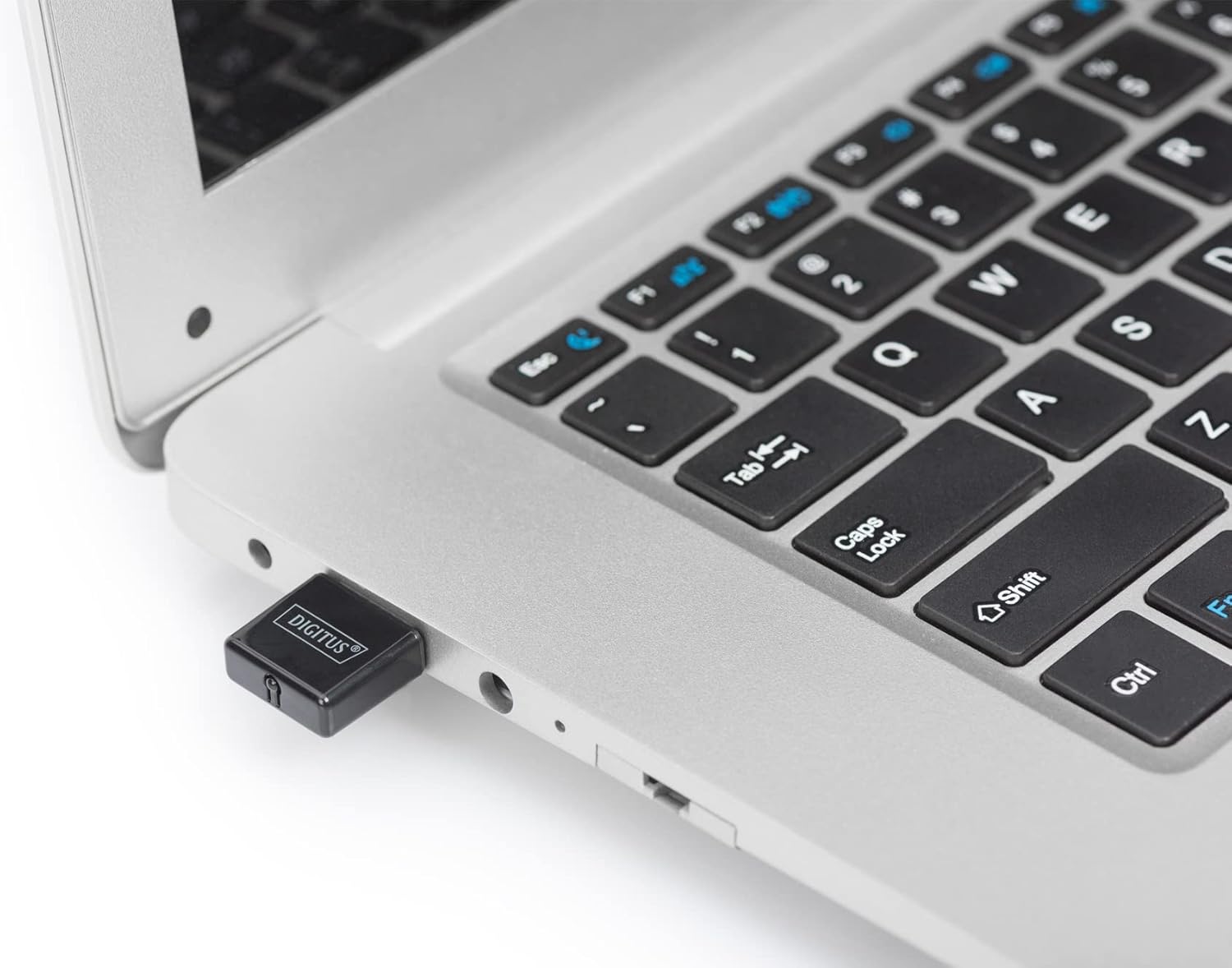
Figure 3.1: The DIGITUS DN-70542 adapter inserted into a laptop's USB port.

Figura 3.2: Un peche view of the adapter connected to a laptop, showing its compact size.
- Verificar a instalación: After connecting, your operating system should detect the new hardware and complete the installation. You can verify the installation by checking your computer's Device Manager (for Windows) to ensure the wireless adapter is listed and functioning correctly.
4. Instrucións de funcionamento
Once the adapter is successfully installed, you can connect to a wireless network.
- Conexión a unha rede sen fíos:
- Abre a configuración de rede sen fíos do teu ordenador.
- Busca redes sen fíos dispoñibles.
- Select your desired network (SSID) from the list.
- Introduza a clave de seguridade da rede (contrasinal) se se lle solicita.
- Click "Connect" to establish the wireless connection.
- Usando WPS (configuración protexida Wi-Fi):
The adapter supports WPS for a simplified and secure connection to compatible routers.
- Preme o botón WPS do teu enrutador sen fíos.
- Within two minutes, press the WPS button on the DIGITUS DN-70542 adapter. The WPS button is a small, recessed button on the side of the adapter.
- The adapter and router will automatically establish a secure connection.

Figure 4.1: The WPS button located on the side of the adapter.
5. Mantemento
To ensure optimal performance and longevity of your DIGITUS DN-70542 adapter, follow these guidelines:
- Manteña o adaptador limpo e libre de po. Use un pano suave e seco para limpalo.
- Evite expoñer o adaptador a temperaturas extremas, humidade ou luz solar directa.
- Non intente desmontar nin reparar o adaptador vostede mesmo. Isto anulará a garantía.
- Garde o adaptador nun lugar seguro cando non o use para evitar danos físicos.
6 Solución de problemas
If you encounter issues with your DIGITUS DN-70542 Wireless LAN USB 2.0 Adapter, refer to the following common problems and solutions:
- Adapter Not Detected / Driver Installation Issues:
- Ensure the adapter is fully inserted into a functional USB port.
- Proba cun porto USB diferente.
- Reinstall the drivers from the provided CD-ROM.
- Download the latest drivers from the official DIGITUS websitio.
- If using Windows 8.1 or newer and encountering issues like "Bluescreen" or "infected file" warnings during driver installation, temporarily disable antivirus software (like Windows Defender) during driver installation, then re-enable it immediately after. Ensure you are downloading drivers from a trusted source (DIGITUS official websitio).
- Check Device Manager to see if the adapter is listed with any error symbols.
- Cannot Connect to Wireless Network:
- Verifica que o teu enrutador sen fíos estea acendido e emitindo sinal.
- Ensure you are entering the correct network security key (password).
- Move closer to the wireless router to improve signal strength.
- Restart your computer and the wireless router.
- Check if other devices can connect to the same wireless network.
- Velocidade de conexión lenta:
- Ensure your router supports 802.11n for optimal speeds.
- Minimizar as interferencias doutros dispositivos electrónicos (por exemplo, microondas, teléfonos sen fíos).
- Actualiza o firmware do teu enrutador.
- Comprobe se hai outros dispositivos que estean a consumir ancho de banda na súa rede.
7. Especificacións
| Característica | Descrición |
|---|---|
| Modelo | DN-70542 |
| Interface de hardware | USB 2.0 |
| Estándares sen fíos | IEEE 802.11n, IEEE 802.11g, IEEE 802.11b |
| Taxa de transferencia de datos | Ata 300 Mbps |
| Rango de frecuencias | 2.4 - 2.4835 GHz |
| Características de seguridade | WPS (Wireless Protected Setup) function |
| Soporte do sistema operativo | Windows |
| Dimensións do produto | 24 x 15 x 2 mm (approximate); 15 g |
| Fabricante | ASSMANN Electronic GmbH PES - BO DE |
8. Garantía e soporte
For warranty information and technical support, please refer to the documentation included with your product or visit the official DIGITUS website. Contact details for customer support can typically be found on the manufacturer's websitio.
Conserve o comprobante de compra para calquera reclamación de garantía.


