1. Introdución
This manual provides detailed instructions for the installation, operation, and maintenance of the Supermicro MBD-X10SLH-F-O uATX Server Motherboard. Please read this manual thoroughly before beginning installation to ensure proper setup and to maximize the performance and longevity of your system. This motherboard is designed for server applications, supporting Intel LGA1150 processors and DDR3 memory.
2. Produto rematadoview
The Supermicro MBD-X10SLH-F-O is a high-performance uATX server motherboard featuring the Intel C226 chipset. It is engineered for reliability and efficiency in server environments.
Características principais:
- Zócalo da CPU: LGA1150, supporting Intel Xeon E3-1200 v3/v4 series, 4th/5th Gen Core i3, Pentium, Celeron processors.
- Memoria: 4x 204-pin DDR3-1600 SODIMM slots, supporting up to 32GB ECC/non-ECC Unbuffered memory.
- Slots de expansión: 1x PCI-Express 3.0 x16, 1x PCI-Express 2.0 x8, 1x PCI-Express 2.0 x4.
- Almacenamento: 6x SATA3 (6Gbps) ports.
- Conectividade: Dual Gigabit Ethernet LAN ports (2x RJ45) and 1x Dedicated IPMI LAN port (RJ45).
- Portos USB: 4x USB 3.0 ports, 6x USB 2.0 ports.
- Saída de vídeo: 1x VGA port.
- Factor de forma: uATX (9.6" x 9.6").
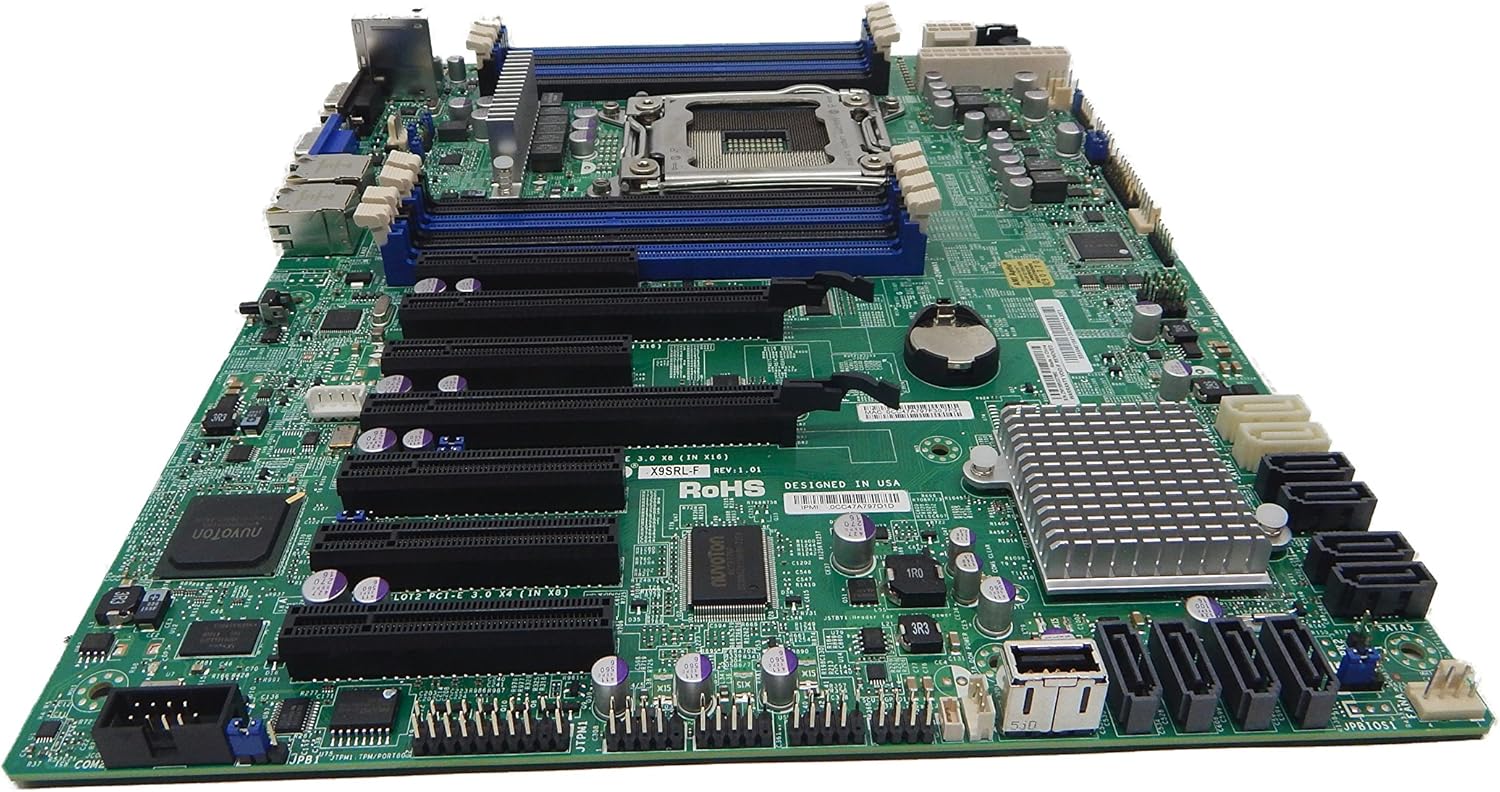
Figura 2.1: Arriba abaixo view of the Supermicro MBD-X10SLH-F-O motherboard, showing the CPU socket, RAM slots, and various expansion slots.

Figura 2.2: En ángulo view of the motherboard, highlighting the LGA1150 CPU socket and the four DDR3 SODIMM memory slots.

Figura 2.3: Traseira view of the Supermicro MBD-X10SLH-F-O motherboard, displaying the I/O panel with USB, VGA, LAN, and IPMI ports.

Figura 2.4: Primeiro plano view of the motherboard, showing the six SATA3 ports and other onboard connectors.
3. Especificacións
| Característica | Especificación |
|---|---|
| Marca | Supermicro |
| Nome do modelo | MBD-X10SLH-F-O |
| Socket CPU | LGA 1150 |
| Tipo de chipset | Intel C226 |
| Procesadores compatibles | Intel Core i3-4xxx, i5-4xxx, i7-4xxx, i3-5xxx, i5-5xxx, i7-5xxx, Intel Xeon E3-1200 v3/v4 series |
| Tecnoloxía de memoria RAM | DDR3 |
| Velocidade da memoria | 1600 MHz |
| RAM máxima compatible | 32 GB |
| Número de portos USB 2.0 | 6 |
| Número de portos USB 3.0 | 4 |
| Portos SATA | 6x SATA3 (6Gbps) |
| Ranuras de expansión | 1x PCIe 3.0 x16, 1x PCIe 2.0 x8, 1x PCIe 2.0 x4 |
| Factor de forma | uATX |
| Dimensións (LxWxH) | 14 x 11 x 3.5 polgadas |
| Peso do elemento | 3.52 onzas |
4. Configuración
Before beginning installation, ensure your system is powered off and disconnected from the power source. Always handle the motherboard by its edges to avoid static discharge.
4.1. Instalación da CPU
- Levante con coidado a palanca do socket da CPU.
- Aliña a CPU co socket, asegurándote de que o triángulo dourado da CPU coincida co triángulo do socket.
- Coloque a CPU no socket con coidado sen forzala.
- Lower the socket lever and secure it.
- Aplica pasta térmica e instala o refrigerador da CPU segundo as instrucións do fabricante.
4.2. Instalación da memoria
- Abra os clips nos dous extremos da ranura DIMM.
- Align the memory module's notch with the key in the DIMM slot.
- Prema firmemente os dous extremos do módulo de memoria ata que os clips encaixen no seu lugar.
4.3. Instalación da tarxeta de expansión
- Remove the corresponding slot cover from your chassis.
- Align the expansion card with the desired PCIe slot.
- Prema firmemente ata que a tarxeta estea completamente asentada.
- Secure the card with a screw or retention clip.
4.4. Conexión do dispositivo de almacenamento
- Conecta un extremo dun cable de datos SATA a un porto SATA da placa base.
- Connect the other end of the SATA data cable to your storage device (HDD/SSD).
- Connect a SATA power cable from your power supply to the storage device.
4.5. Conexións de alimentación
- Conecta o conector de alimentación principal ATX de 24 pines da fonte de alimentación á placa base.
- Conecta o conector de alimentación da CPU ATX de 12 V de 8 pines (ou 4 pines) á placa base.
4.6. Conexións do panel frontal
Connect the front panel headers (Power LED, HDD LED, Power Switch, Reset Switch, USB, Audio) to the corresponding pins on the motherboard. Refer to the motherboard's silkscreen labels for correct pin orientation.
5. Instrucións de funcionamento
5.1. Arranque inicial
- After all components are installed and connected, connect the power cord to your power supply and turn on the power switch.
- Press the power button on your chassis.
- O sistema debería acenderse e deberías ver unha imaxe no monitor.
5.2. Acceso á BIOS/UEFI
To enter the BIOS/UEFI setup utility, press the designated key (commonly DEL or F2) during the initial boot sequence. The exact key may vary; observe the on-screen prompts.
5.3. IPMI Remote Management
This motherboard features a dedicated IPMI LAN port for remote management. To access the IPMI interface, connect the IPMI LAN port to your network. Obtain the IP address assigned to the IPMI interface (either from BIOS or a network scan) and access it via a web browser from another computer on the same network. Java may be required for remote console functionality.
6. Mantemento
Un mantemento regular axuda a garantir a estabilidade e a lonxevidade da placa base e do sistema.
- Eliminación de po: Limpa periodicamente o po da placa base e dos compoñentes con aire comprimido. Asegúrate de que o sistema estea apagado e desconectado antes de limpalo.
- Xestión de cables Ensure all cables are neatly routed and secured to prevent obstruction of airflow and accidental disconnections.
- Actualizacións da BIOS/firmware: Comproba o Supermicro website for the latest BIOS and IPMI firmware updates. Follow the provided instructions carefully. Note that IPMI BIOS upgrades may require a separate license. Always update BIOS before IPMI firmware.
- Comprobacións de compoñentes: Occasionally inspect all connections (power, data, expansion cards) to ensure they are securely seated.
7 Solución de problemas
Esta sección aborda problemas comúns cos que podes atoparte.
7.1. O sistema non se inicia
- Comproba as conexións de alimentación: Ensure the 24-pin ATX and 8-pin CPU power connectors are securely attached.
- Reasentar compoñentes: Remove and re-install the CPU, memory modules, and any expansion cards to ensure they are properly seated.
- Borrar CMOS: Refer to your motherboard's detailed manual for instructions on how to clear the CMOS, which can resolve boot issues caused by incorrect BIOS settings.
- Configuración mínima: Try booting with only essential components (CPU, one RAM stick, power supply, and display) to isolate the problem.
7.2. Fan Speed Issues
Some low RPM, high-efficiency fans may not be accurately detected by the motherboard's fan controller, leading to erratic fan speed behavior (e.g., fans spinning up to max RPM). This is often due to the controller expecting server-grade fans with higher RPM ranges.
- Configuración da BIOS: Check BIOS settings for fan control options. Adjust fan curves or modes if available.
- 3-Pin vs. 4-Pin Fans: If using 4-pin PWM fans that exhibit this behavior, consider using 3-pin adapters if available with your fans. This can sometimes provide a more stable, albeit less precise, fan control.
- IPMI Fan Control: While IPMI offers fan control, it may have limitations for low RPM fans.
7.3. SATA Port Obstruction
When installing a full-size graphics processing unit (GPU), some SATA ports may become physically blocked or difficult to access.
- Planificar con antelación: Connect SATA cables to the necessary ports before installing large expansion cards.
- Angled SATA Cables: Use SATA cables with angled connectors if straight connectors are obstructed.
- Alternative Ports: Utilize any unblocked SATA ports first.
8. Información sobre garantía e soporte
For detailed warranty information, including terms, conditions, and duration, please refer to the official Supermicro website or the warranty card included with your product. For technical support, driver downloads, and additional documentation, visit the Supermicro support portal.
Supermicro Official Websitio: www.supermicro.com


