Introdución
This user manual provides essential information for setting up, operating, maintaining, and troubleshooting your Vibox Standard 3XL Gaming PC. Please read this manual thoroughly before using your computer to ensure proper function and longevity of the product. Keep this manual for future reference.
Información de seguridade
- Ensure the PC is placed on a stable, flat surface with adequate ventilation.
- Do not block ventilation openings. Overheating can damage components.
- Keep the PC away from direct sunlight, heat sources, and liquids.
- Use only the power supply unit provided with the PC.
- Desconecte o cable de alimentación antes de limpar ou realizar calquera mantemento.
- Do not open the PC casing a menos que o indique un técnico cualificado.
- Avoid placing heavy objects on the PC or its cables.
Contido do paquete
Verifique que todos os elementos que se indican a continuación estean presentes no seu paquete:
- Vibox Standard 3XL Gaming PC Tower
- 21.5-inch LED HD Monitor
- UK QWERTY Gamer Keyboard
- Rato Gamer
- Cable(s) de alimentación
- Cable HDMI
- Windows 10 Operating System Disk/License Key
- Manual de usuario (este documento)
Guía de configuración
1. Desembalaxe e colocación
Carefully remove all components from their packaging. Place the PC tower on a flat, stable surface, ensuring sufficient space around it for airflow. Avoid placing it in enclosed cabinets.

Figura 1: Fronte view of the Vibox Standard 3XL Gaming PC tower, showcasing its design and blue LED accents.
2. Conexión de periféricos
- Monitor: Connect the HDMI cable from your monitor to the HDMI port on the back of the PC.
- Teclado e rato: Connect the USB cables from your keyboard and mouse to any available USB ports on the back or front of the PC.
- Potencia: Connect the power cable to the power supply unit on the back of the PC, then plug the other end into a wall outlet. Connect the monitor's power cable to an outlet as well.
- Rede (opcional): For a wired internet connection, connect an Ethernet cable from your router to the Ethernet port on the back of the PC. For Wi-Fi, ensure the Wi-Fi antenna (if provided) is connected.

Figura 2: De arriba abaixo view of the PC, illustrating the location of top-mounted USB ports and ventilation.
3. Initial Power-On and Windows Setup
- Press the power button on the front of the PC tower.
- Acende o monitor.
- Follow the on-screen instructions to complete the Windows 10 setup process. This typically involves selecting your region, language, creating a user account, and accepting terms.
- Once Windows 10 is set up, you may need to install drivers for any additional peripherals or update existing drivers.
Instrucións de funcionamento
Activando/Desactivando
- Para activar: Prema o botón de acendido/acendido na parte frontal do PC.
- Para apagar: Click the Start button in Windows 10, then select Power > Shut down. Do not force shut down by holding the power button unless absolutely necessary to prevent data loss.
- Para reiniciar: Fai clic no botón Inicio e, a seguir, selecciona Enerxía > Reiniciar.
Conexión de dispositivos USB
Your PC is equipped with multiple USB 2.0 and USB 3.0 ports. USB 3.0 ports are typically blue and offer faster data transfer speeds. Simply plug your USB device into an available port.
Usando o lector de tarxetas
The integrated card reader supports various memory card formats. Insert your memory card into the appropriate slot on the PC. The card will appear as a removable drive in 'This PC' (or 'My Computer').
Mantemento
Limpeza
- Exterior: Use un suave, damp cloth to wipe the exterior of the PC. Avoid abrasive cleaners or solvents.
- Ventilación: Periodically use compressed air to clear dust from the ventilation grilles to ensure optimal airflow and prevent overheating. Ensure the PC is powered off and unplugged before doing so.
- Monitor: Use a specialized screen cleaner and a microfiber cloth for the monitor display.
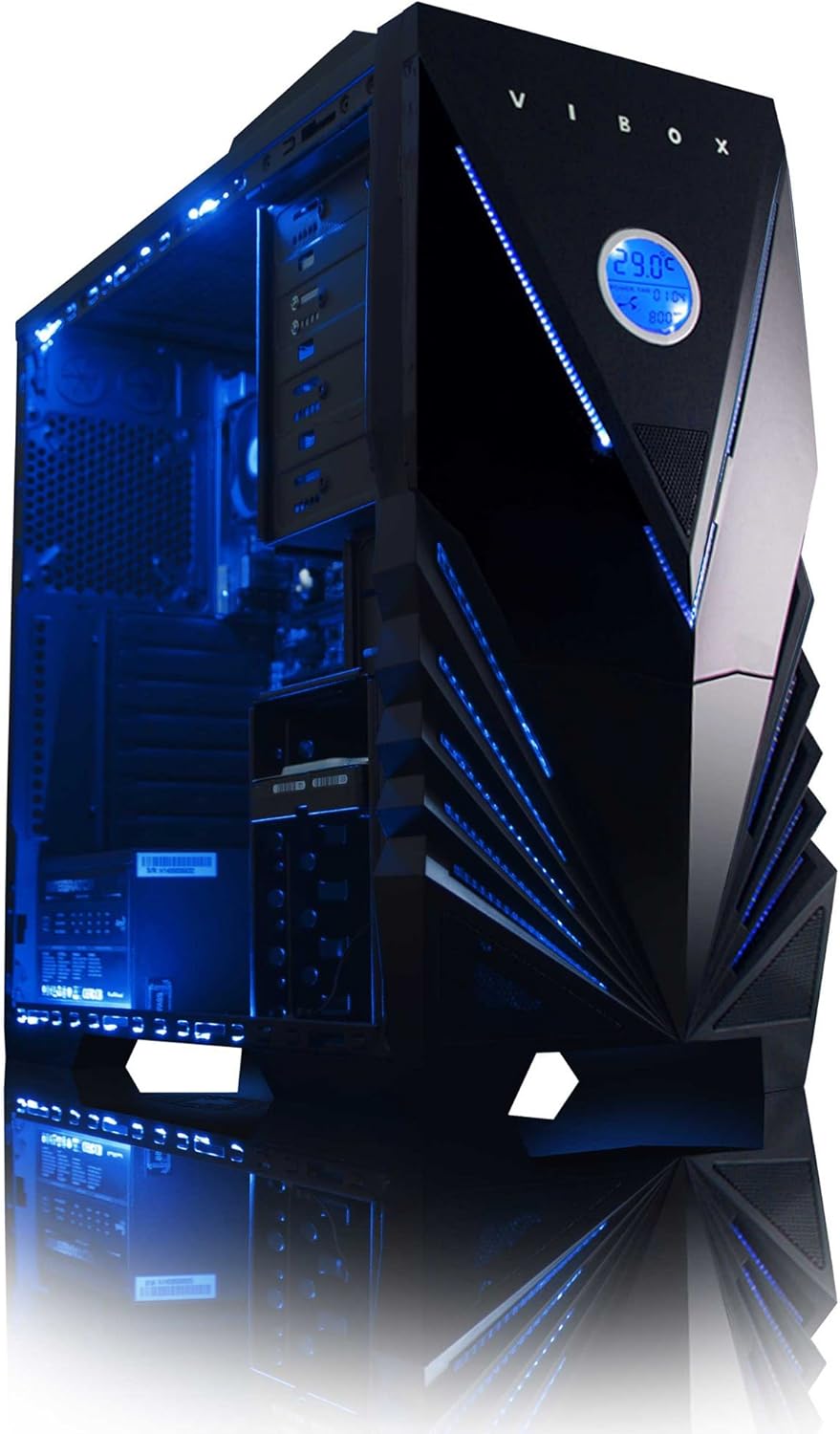
Figura 3: Interno view of the Vibox Standard 3XL Gaming PC, highlighting the arrangement of components and cooling system.
Actualizacións de software
Regularly update your Windows operating system, drivers, and antivirus software to ensure system stability, security, and optimal performance.
Copia de seguridade de datos
It is recommended to regularly back up important data to an external drive or cloud storage to prevent data loss in case of system failure.
Resolución de problemas
| Problema | Causa posible | Solución |
|---|---|---|
| O PC non se acende. | Power cable loose, power supply issue, power button malfunction. | Check all power connections. Ensure the wall outlet is functional. Try a different power cable if available. |
| Sen visualización no monitor. | Monitor not powered, video cable loose, incorrect input selected on monitor. | Ensure monitor is powered on and connected. Check video cable connections. Select correct input source on monitor (e.g., HDMI). |
| PC is running slow. | Too many programs running, insufficient RAM, hard drive full, malware. | Close unnecessary applications. Check disk space. Run antivirus scans. Consider upgrading RAM if consistently slow. |
| Peripherals (keyboard/mouse) not responding. | Loose USB connection, driver issue. | Reconnect the peripheral to a different USB port. Restart the PC. Check device manager for driver issues. |
If you encounter issues not covered here or require further assistance, please refer to the Support section.
Especificacións
| Característica | Detalle |
|---|---|
| Marca | Vibox |
| Número de modelo | VBX-PC-6450 |
| Serie | VIBOX Standard |
| Sistema Operativo | Windows 10 |
| Marca de procesador | AMD |
| Tipo de procesador | Athlon 64 FX (AMD A8 Quad-Core) |
| Velocidade do procesador | 3.1 GHz (3.8 GHz Turbo) |
| Número de núcleos | 4 |
| RAM | 32 GB DDR3 1600MHz |
| Memoria máxima admitida | 32 GB |
| Tamaño do disco duro | 2000 GB (2 TB) |
| Tecnoloxía de disco duro | HDD (7200 RPM, Serial ATA 600) |
| Marca de chips gráficos | Radeon |
| Descrición da tarxeta gráfica | AMD Radeon R7 (integrada) |
| Tecnoloxía de visualización | Non táctil |
| Screen Size (Included Monitor) | 21.5 polgadas |
| Screen Resolution (Included Monitor) | 1920 x 1080 (1080p Full HD) |
| Relación de aspecto | 16:9 |
| Tipo de conectividade | Wi-Fi (802.11bgn) |
| Compatible con Bluetooth | Non |
| Portos HDMI | 1 |
| Portos USB 2.0 | 6 |
| Portos USB 3.0 | 3 |
| Portos Ethernet | 1 |
| Características especiais | Lector de tarxetas |
| Dimensións (L x W x H) | 51.5 x 19 x 44 cm |
| Peso do produto | 16 Grams (PC Tower only) |
Información da garantía
Your Vibox Standard 3XL Gaming PC comes with a Garantía de por vida. This warranty covers manufacturing defects and hardware failures under normal use conditions. For specific terms and conditions, please refer to the warranty documentation included with your purchase or contact Vibox customer support.
To claim warranty service, you will typically need your proof of purchase and the product's serial number. Do not attempt to repair the product yourself, as this may void your warranty.
Atención ao cliente
For technical assistance, troubleshooting beyond this manual, or warranty inquiries, please contact Vibox customer support. You can usually find contact information (phone number, email, or support websitio web) no sitio oficial do fabricante webno sitio web ou nos materiais de embalaxe.
When contacting support, please have your product model number (VBX-PC-6450) and serial number ready to expedite the service process.


