1. Produto rematadoview
The BUFFALO DriveStation Ultra is a high-performance, high-capacity direct attached storage (DAS) solution designed for demanding data transfer needs, such as high-resolution video editing. This 10-drive desktop model offers a 40 TB storage capacity and features multi-interface support for both Mac and PC systems.
As características principais inclúen:
- Industry-leading throughput: Up to 972 MB/s Read and 737 MB/s Write speeds.
- Multi-interface support: Thunderbolt 2 for Mac, and eSATA/USB 3.0 for Windows.
- Advanced data protection: Supports RAID 6 configurations, allowing for up to two drive failures without data loss.
- Equipped with enterprise or NAS hard drives for continuous operation.
1.1 Que hai na caixa
- DriveStation™ Ultra unit
- Cable Thunderbolt
- Cable USB 3.0
- Cable eSATA
- Guía de configuración rápida
- Declaración de garantía
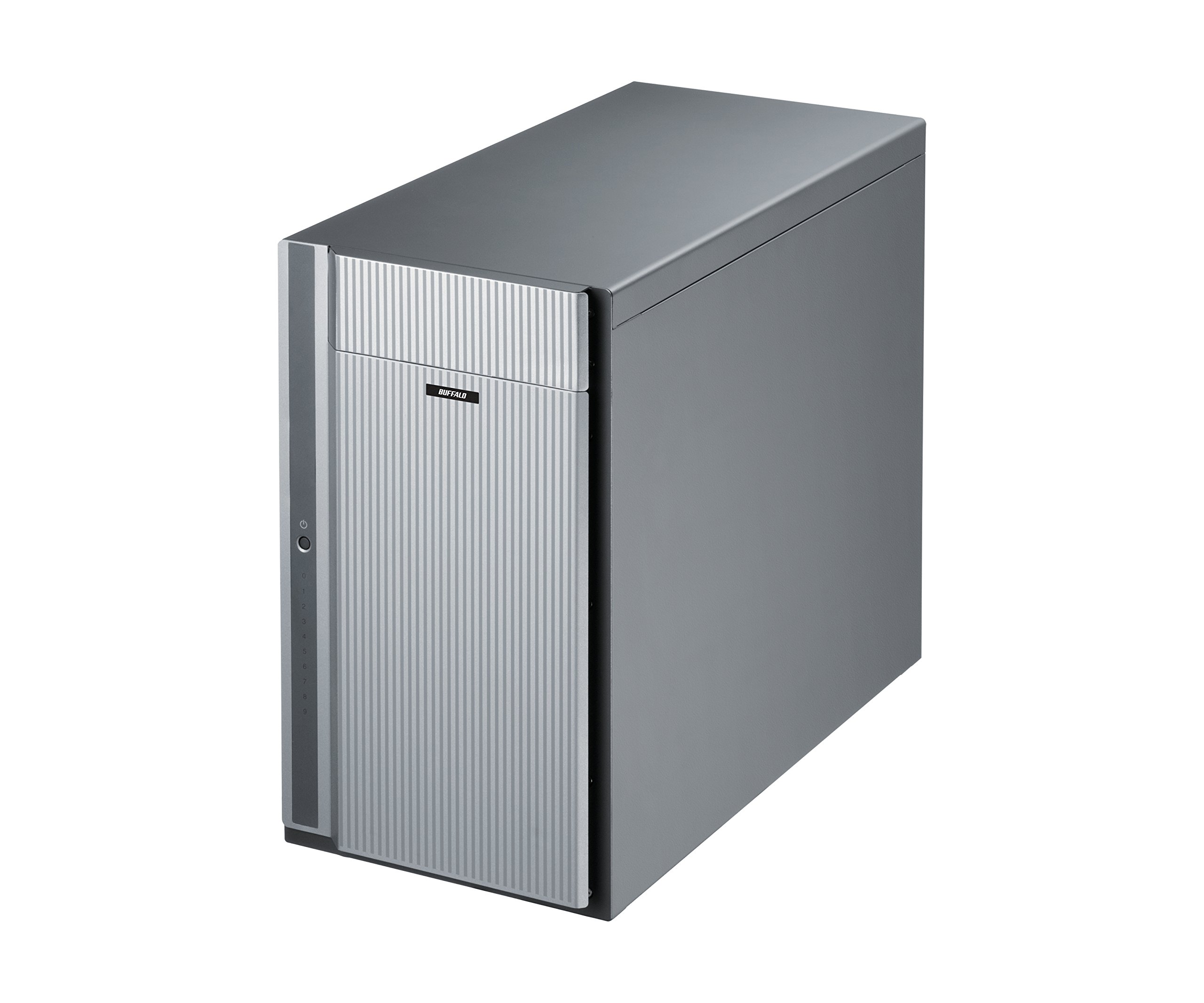
Figura 1: Fronte view of the BUFFALO DriveStation Ultra unit.
2. Instrucións de configuración
Follow these steps to set up your DriveStation Ultra:
- Desempaquetar o dispositivo: Carefully remove the DriveStation Ultra and all accessories from its packaging.
- Posicionar o dispositivo: Coloque a unidade sobre unha superficie estable e plana con ventilación axeitada. Asegúrese de que non haxa obstrucións nas aberturas de ventilación.
- Conectar enerxía: Connect the power cable to the unit and then to a power outlet. Do not power on the device yet.
- Conectar ao ordenador: Escolla un dos seguintes métodos de conexión:
- Thunderbolt 2 (Mac): Use the provided Thunderbolt cable to connect the DriveStation Ultra to your Mac's Thunderbolt port.
- USB 3.0 (PC/Mac): Use the provided USB 3.0 cable to connect the DriveStation Ultra to your computer's USB 3.0 port.
- eSATA (PC): Use the provided eSATA cable to connect the DriveStation Ultra to your computer's eSATA port.
- Encendido: Once connected, press the power button on the DriveStation Ultra. The device will initialize.
- Instalación do controlador (se é necesario): Your operating system should automatically detect the device. If prompted, install any necessary drivers from the included software or BUFFALO's support websitio.
- Configuración RAID: The DriveStation Ultra comes pre-configured. For advanced RAID configurations (e.g., changing from default RAID 6), refer to the detailed software manual available on the BUFFALO support websitio.

Figura 2: Traseira view of the DriveStation Ultra, highlighting Thunderbolt, USB 3.0, and eSATA ports.
3. Instrucións de funcionamento
Once the DriveStation Ultra is set up and recognized by your computer, it functions as an external storage device. You can access it like any other connected drive.
- Transferencia de datos: Arrastra e solta files to and from the DriveStation Ultra. For optimal performance, use the Thunderbolt 2 connection on Mac systems or USB 3.0/eSATA on PC systems.
- Rendemento: Expect high-speed data transfers, particularly with large files, due to the optimized hardware and RAID configuration.
- Eliminación segura: Always safely eject the DriveStation Ultra from your operating system before disconnecting the cables or powering down the unit to prevent data corruption.
- Xestión de enerxía: The device is designed for continuous operation. If you need to power it off, use the power button on the unit after safely ejecting it from your computer.
4. Mantemento
Proper maintenance ensures the longevity and reliability of your DriveStation Ultra:
- Limpeza: Use a soft, dry cloth to clean the exterior of the unit. Do not use liquid cleaners or aerosols directly on the device.
- Ventilación: Asegúrate de que as aberturas de ventilación estean libres de po e obstrucións para evitar o sobrequecemento.
- Actualizacións de firmware: Periodically check the BUFFALO support website for firmware updates. Keeping the firmware updated can improve performance and stability.
- Copia de seguridade de datos: While the DriveStation Ultra offers RAID 6 for data protection, it is always recommended to maintain separate backups of critical data.
- Saúde da unidade: Monitor the health of the drives using the included utility software or your operating system's disk management tools.
5 Solución de problemas
If you encounter issues with your DriveStation Ultra, try the following steps:
- Dispositivo non detectado:
- Ensure the power cable is securely connected and the unit is powered on.
- Verify that the data cable (Thunderbolt, USB, or eSATA) is firmly connected to both the DriveStation Ultra and your computer.
- Try connecting to a different port on your computer or using a different cable.
- Restart your computer and the DriveStation Ultra.
- Rendemento lento:
- Ensure you are using the correct high-speed interface (Thunderbolt 2, USB 3.0, or eSATA) and compatible cables.
- Check for background processes on your computer that might be consuming resources.
- Verify that the DriveStation Ultra has adequate ventilation to prevent thermal throttling.
- Indicación de fallo da unidade:
- The DriveStation Ultra's RAID 6 configuration provides protection against up to two drive failures. Consult the detailed manual or BUFFALO support for drive replacement procedures.
- Do not attempt to replace drives without proper guidance to avoid data loss.
- Outras cuestións: If the problem persists after trying these steps, refer to the comprehensive user manual on the BUFFALO support websitio ou póñase en contacto co soporte técnico.
6. Especificacións
| Característica | Detalle |
|---|---|
| Capacidade do disco duro | Disco duro mecánico de 40 TB |
| Marca | BÚFALO |
| Serie | DriveStation Ultra |
| Número de modelo | HD-DN040T/R6 |
| Plataforma de hardware | Mac, PC |
| Peso do elemento | 39.7 libras |
| Dimensións do produto (LxWxH) | 15.24 x 7.48 x 12.6 polgadas |
| Cor | Prata |
| Interface de disco duro | eSATA |
| Velocidade de rotación do disco duro | 7200 RPM |
| Tecnoloxía de conectividade | Thunderbolt, USB, eSATA |
| Tipo de instalación | Disco duro externo |
| Primeira data dispoñible | 22 de xullo de 2015 |
7. Información da garantía
The BUFFALO DriveStation Ultra 10-Drive Thunderbolt Desktop DAS 40 TB (Model HD-DN040T/R6) comes with a Garantía limitada de 3 anos.
For detailed terms and conditions of the warranty, please refer to the warranty statement included in your product packaging or visit the official BUFFALO websitio.
8. Apoio
For technical assistance, additional documentation, or to download the latest drivers and firmware, please visit the official BUFFALO support websitio.
You can typically find support resources by searching for your product model (HD-DN040T/R6) on the BUFFALO support portal.
Contact information for customer service may also be available on the BUFFALO website or in your product's quick setup guide.


