1. Contido do paquete
Verifique que o seu paquete conteña os seguintes elementos:
- WiFi Mesh Extender (EX6120-100NAS)
- Guía de inicio rápido
2. Características
The NETGEAR EX6120 WiFi Range Extender offers several key features to enhance your wireless network:
- Cobertura estendida: Adds WiFi range coverage up to 1500 sq ft, connecting up to 32 devices such as laptops, smartphones, speakers, IP cameras, tablets, and IoT devices.
- Rendemento de alta velocidade: AC1200 WiFi (up to 1200Mbps speed) performance using dual-band and patented FastLane™ technology for video streaming and casual gaming.
- Compatibilidade universal: Works with any wireless router, gateway, or cable modem with WiFi, and with any internet service provider.
- Conectividade por cable: Includes one 10/100M Ethernet port for connecting game consoles, streaming players, or other nearby wired devices for maximum speed.
- Fácil configuración: Features a simple 5-minute setup with one button press (WPS).
- Seguridade: Admite os protocolos de seguridade sen fíos WEP e WPA/WPA2.
- Uso rexional: Built for use in the U.S. only.

Image: The extender expands WiFi coverage, eliminating dead zones and supporting multiple devices across your home.

Image: Key features of the EX6120, including dual-band WiFi for speeds up to 1200Mbps, FastLane Technology, external antennas for better performance, and a convenient Ethernet port.
3. Configuración
Follow these steps to set up your NETGEAR EX6120 WiFi Range Extender:
- Colocación: Plug the extender into an electrical outlet halfway between your router and the area where you want to improve WiFi coverage. Ensure the location is within the range of your existing router.
- Encendido: Agarde a que o LED de alimentación do extensor se acenda en verde fixo.
- Connect via WPS (Recommended):
- Press the WPS button on your existing WiFi router.
- Within two minutes, press the WPS button on the extender. The WPS LED on the extender should blink and then turn solid green, indicating a successful connection.
- Connect via NETGEAR Nighthawk App (Alternative):
- Download the NETGEAR Nighthawk app on your mobile device.
- Follow the in-app instructions to connect your extender to your existing WiFi network.
- Verificar a conexión: Once connected, the Router LED and Device LED on the extender should be solid green. This indicates a strong connection to both your router and your devices.
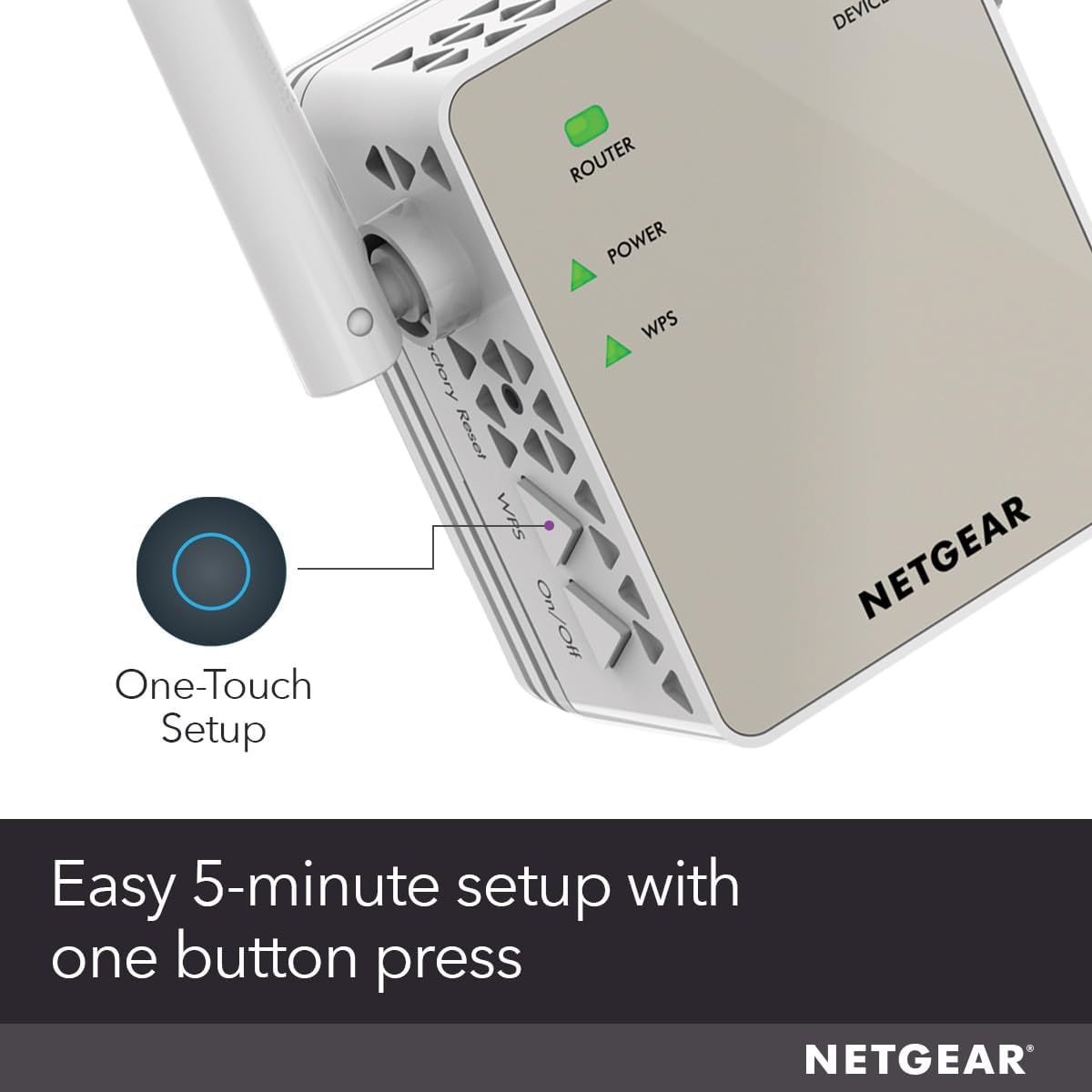
Image: The WPS button on the extender allows for a quick, one-touch setup process.
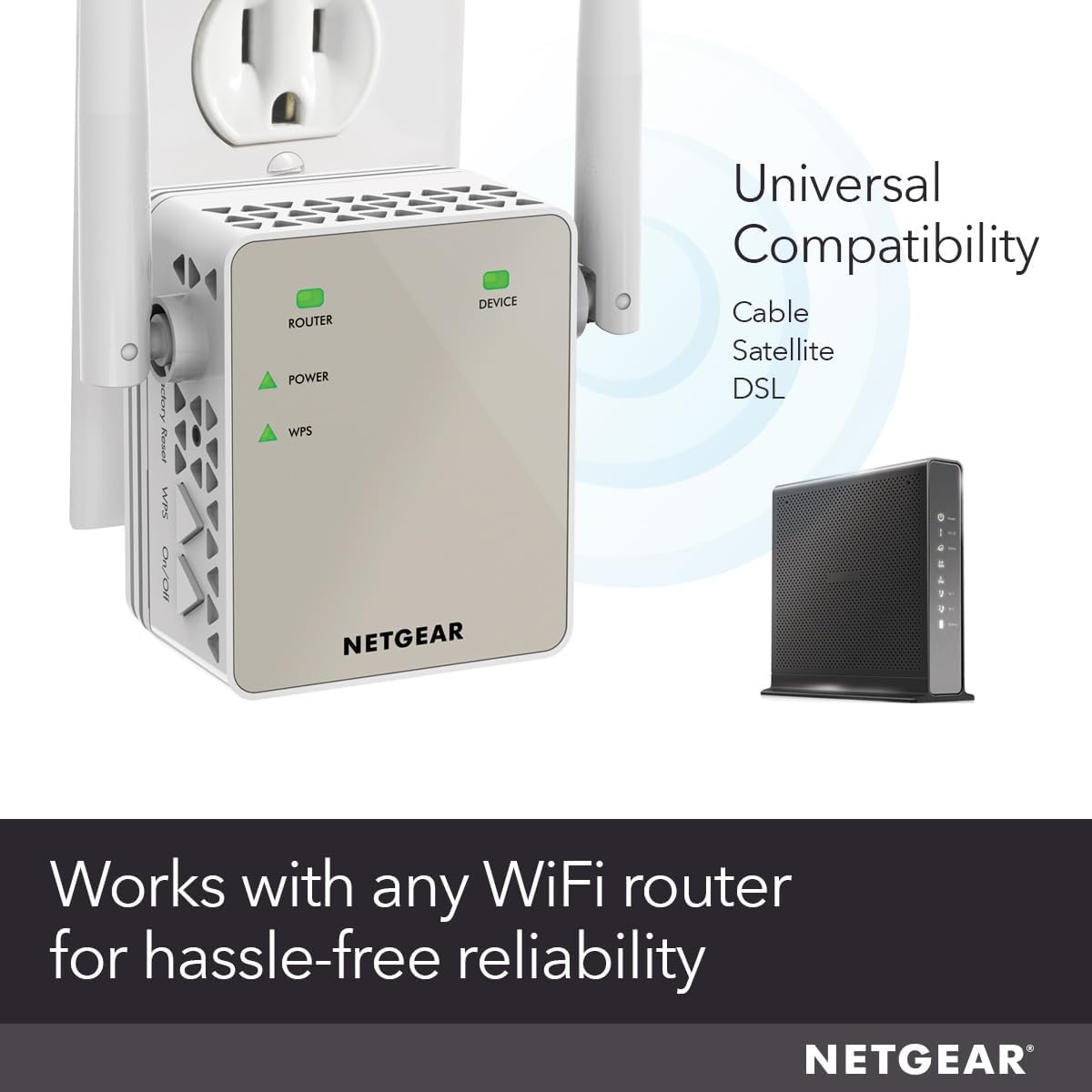
Image: The extender is universally compatible with various WiFi routers and modems.
Video: Official NETGEAR guide on how to set up Wall Plug WiFi Range Extenders. This video demonstrates the step-by-step process for connecting your extender to your existing network.
4. En funcionamento
Once your extender is set up, it will create new extended WiFi networks. These networks will typically have your existing WiFi network name followed by '_EXT' (e.g., 'MyWiFi_EXT') for 2.4GHz and '_5GEXT' for 5GHz.
- Dispositivos de conexión: Connect your wireless devices (laptops, smartphones, etc.) to the extended WiFi network for improved coverage.
- Porto Ethernet: Use the Ethernet port on the side of the extender to connect a wired device directly for a stable and fast connection.
- Indicadores LED: Monitor the LEDs on the front of the extender. A solid green light indicates a good connection, while a red light may indicate a weak signal or no connection to the router. Adjust placement if necessary.
5. Mantemento
To ensure optimal performance and longevity of your NETGEAR EX6120:
- Actualizacións de firmware: Comprobe periodicamente a asistencia de NETGEAR website for firmware updates. Keeping your firmware up-to-date ensures the best performance and security.
- Limpeza: Keep the extender clean and free from dust. Use a soft, dry cloth to wipe the exterior. Do not use liquid cleaners.
- Colocación óptima: If you notice a drop in performance, re-evaluate the extender's placement. Ensure it's still optimally located between your router and the devices needing extended coverage.
6 Solución de problemas
If you encounter issues with your NETGEAR EX6120, consider the following:
- Sen conexión/sinal débil: If the Router LED is red or off, the extender might be too far from your router. Try moving it closer.
- Velocidades lentas: Ensure your devices are connected to the appropriate extended network (2.4GHz for wider range, 5GHz for faster speeds over shorter distances). Check for interference from other electronic devices.
- WPS Setup Failure: If WPS setup fails, try using the NETGEAR Nighthawk app or manually connecting via a web browser (refer to the quick start guide for detailed instructions).
- Restablecer: If problems persist, perform a factory reset. Locate the reset button (usually a small pinhole) and press it for 5-10 seconds with a paperclip until the LEDs flash. Then, reconfigure the extender.
Para obter máis axuda, visite o Tenda NETGEAR en Amazon or consult the official NETGEAR support resources.
7. Especificacións
| Atributo | Valor |
|---|---|
| Dimensións do produto | 2.64 x 1.54 x 2.17 polgadas |
| Peso do elemento | 4.6 onzas |
| Número de modelo do artigo | EX6120-100NAS |
| Marca | NETGEAR |
| Estándar de comunicación sen fíos | 802.11ac |
| Taxa de transferencia de datos | 1200 megabits por segundo |
| Clase de banda de frecuencia | Dobre banda |
| Característica especial | FastLane Technology |
| Fabricante | Netgear |
| Data de primeira dispoñibilidade | 14 de setembro de 2015 |
8. Garantía e soporte
NETGEAR products are designed for reliability and performance. For information regarding your product's warranty, please refer to the documentation included in your package or visit the official NETGEAR support websitio.
Para obter asistencia técnica, preguntas frecuentes e recursos adicionais, visite a Tenda NETGEAR en Amazon or the official NETGEAR support portal.

Image: NETGEAR offers free expert help for product setup and optimization.


