Introdución
This manual provides essential information for the proper setup, operation, and maintenance of your RCA Cambio 10.1 W101 V2 Windows 10 2-in-1 Tablet PC. Please read these instructions thoroughly before using your device to ensure optimal performance and longevity.
The RCA Cambio 10.1 W101 V2 is a versatile 10-inch tablet powered by an Intel quad-core processor and preloaded with Windows 10. It features a detachable keyboard, allowing for flexible use as both a tablet and a laptop. Key features include Bluetooth connectivity, front and rear 2MP cameras, and 32GB of internal storage.
Configuración
1. Desembalaxe e Inspección Inicial
Retire con coidado todos os compoñentes da embalaxe. Asegúrese de que estean presentes os seguintes elementos:
- RCA Cambio 10.1 W101 V2 Tablet
- Teclado desmontable
- Adaptador de alimentación
Inspect the device for any visible damage. If any components are missing or damaged, contact customer support.
2. Cargando o dispositivo
Before first use, fully charge the tablet. Connect the power adapter to the charging port on the tablet and then to a power outlet. The charging indicator will illuminate. A full charge may take several hours.
3. Attaching the Detachable Keyboard
Align the tablet with the magnetic connector on the detachable keyboard. Gently push the tablet down until it securely clicks into place. The keyboard does not require separate power or pairing.

Imaxe: Traseira view of the RCA Cambio 10.1 W101 V2 tablet with the detachable keyboard attached, illustrating the connection point and available ports.
4. Initial Power On and Windows 10 Setup
Press and hold the power button located on the side of the tablet until the screen illuminates. Follow the on-screen prompts to complete the initial Windows 10 setup, including language selection, network connection, and user account creation.
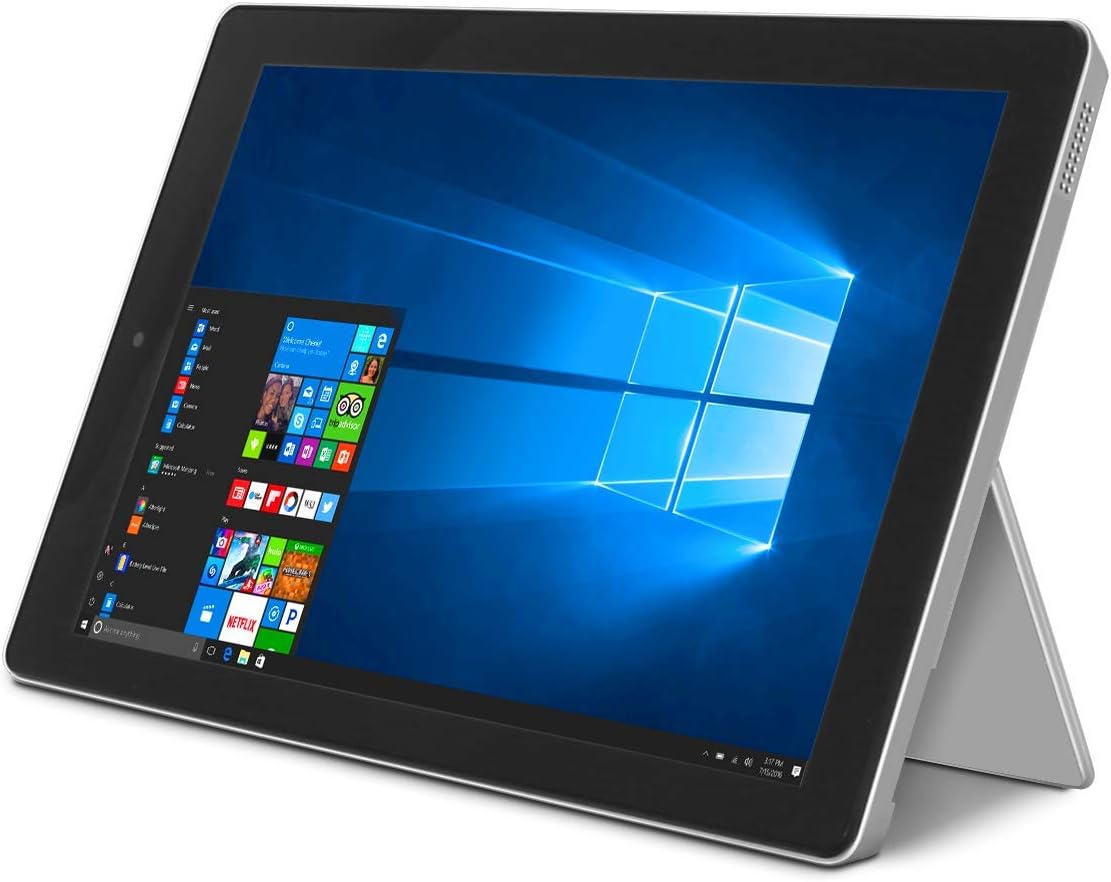
Image: The RCA Cambio 10.1 W101 V2 tablet in laptop mode, showcasing the Windows 10 operating system interface.
Instrucións de funcionamento
1. Navegación básica
Pantalla táctil:
The tablet features a multi-touch display. Use gestures such as tap, swipe, pinch-to-zoom, and press-and-hold to interact with the interface.
Teclado e Touchpad:
When the detachable keyboard is connected, you can use the physical keys for typing and the integrated touchpad for cursor control. The touchpad supports multi-touch gestures similar to a laptop touchpad.

Image: The RCA Cambio 10.1 W101 V2 tablet in portrait orientation, showing the Windows 10 Start screen with application tiles.
2. Conectando a wifi
- Abre o Menú Inicio e fai clic en Configuración.
- Seleccione Rede e Internet.
- Escolle Wi-Fi from the left-hand menu.
- Activar/desactivar Wi-Fi On se está apagado.
- Select your desired network from the list and click Conectar.
- Introduza o contrasinal da rede se se lle solicita.
3. Emparellamento Bluetooth
- Abre o Menú Inicio e fai clic en Configuración.
- Seleccione Dispositivos.
- Escolle Bluetooth e outros dispositivos from the left-hand menu.
- Activa o Bluetooth On.
- Fai clic Engade Bluetooth ou outro dispositivo and follow the instructions to pair with your desired device.
4. Uso das cámaras
The tablet is equipped with front and rear 2MP cameras. To access the camera, open the Cámara application from the Start Menu or search bar. You can switch between front and rear cameras within the application interface.
5. Productivity with Microsoft Office 365
The device comes preloaded with Windows 10, which supports Microsoft Office 365 applications. You can create and edit documents, spreadsheets, and presentations. An active subscription to Microsoft Office 365 may be required for full functionality.

Image: The RCA Cambio 10.1 W101 V2 tablet running Microsoft Office applications, highlighting its use for productivity tasks.
6. Xestión do almacenamento
The tablet includes 32GB of internal storage. To manage your storage, go to Configuración > Sistema > Almacenamento. Podes view storage usage, free up space, and change where new content is saved. Consider using cloud storage or an external microSD card (not included) for additional space.
Mantemento
1. Limpeza do dispositivo
Usa un pano suave e sen pelusa para limpar a pantalla e as superficies exteriores. Para manchas difíciles, lixeiramenteampEnxágüe o pano con auga ou unha solución para limpar pantallas. Evite o uso de produtos químicos agresivos ou materiais abrasivos.
2. Actualizacións de software
Comprobe e instale regularmente actualizacións de Windows para garantir que o seu sistema teña os parches e as funcións de seguridade máis recentes. Vaia a Configuración > Actualización e seguranza > Actualización de Windows para comprobar as actualizacións.
3. Coidado da batería
Para prolongar a duración da batería:
- Evite descargar completamente a batería con frecuencia.
- Non expoña o dispositivo a temperaturas extremas.
- Unplug the charger once the battery is fully charged, especially during extended periods of non-use.
4. Copia de seguridade de datos
Regularly back up important data to an external drive or cloud storage to prevent data loss in case of device malfunction.
Resolución de problemas
This section addresses common issues you might encounter with your RCA Cambio 10.1 W101 V2.
O dispositivo non se acende:
- Ensure the device is fully charged. Connect the power adapter and wait a few minutes before attempting to power on again.
- Manteña premido o botón de acendido durante polo menos 10-15 segundos para realizar un reinicio completo.
Slow Performance or Freezing:
- Pecha as aplicacións innecesarias que se executan en segundo plano.
- Comprobe e instale as actualizacións pendentes de Windows.
- Ensure sufficient free storage space. Delete unnecessary files ou movelos a un almacenamento externo.
- Reinicie o dispositivo.
Problemas de conectividade wifi:
- Asegúrate de que o Wi-Fi estea activado en Configuración > Rede e Internet > Wi-Fi.
- Reinicia o teu enrutador Wi-Fi e a tableta.
- Forget the network and reconnect by entering the password again.
- Asegúrate de estar dentro do alcance do sinal Wi-Fi.
Problemas de sincronización Bluetooth:
- Ensure Bluetooth is enabled on both the tablet and the device you are trying to pair.
- Make sure both devices are in pairing mode and within close proximity.
- Remove previously paired devices from the tablet's Bluetooth settings if you are experiencing conflicts.
O teclado non responde:
- Ensure the keyboard is securely attached to the tablet's magnetic connector.
- Desconecta e volve conectar o teclado.
- Reinicie a tableta.
A batería se descarga rapidamente:
- Axusta o brillo da pantalla a un valor máis baixo.
- Close background applications and disable unnecessary features like Bluetooth or Wi-Fi when not in use.
- Comprobar o uso da batería en Settings > System > Battery para identificar aplicacións que consumen enerxía.
Restablecemento de fábrica (último recurso):
If issues persist, you may consider performing a factory reset. This will erase all data and reinstall Windows 10. Fai unha copia de seguridade de todos os datos importantes antes de continuar. Ir a Settings > Update & Security > Recovery > Reset this PC e siga as instrucións que aparecen na pantalla.
Especificacións
| Característica | Especificación |
|---|---|
| Número de modelo | W101 V2 |
| Sistema Operativo | Windows 10 |
| Tamaño da pantalla | 10.1 polgadas |
| Resolución de pantalla | 1280 x 800 |
| Procesador | Intel Quad-Core (1.83 GHz) |
| RAM | 2 GB DDR3 SDRAM |
| Almacenamento interno | Memoria Flash de 32 GB |
| Conectividade sen fíos | 802.11b Wi-Fi, Bluetooth |
| Cámaras | Front and Rear (2 MP) |
| Batería | 1 batería de iones de litio (incluída) |
| Dimensións (LxWxH) | 12.2 x 8.5 x 3.15 polgadas |
| Peso do elemento | 2.75 libras |
Garantía e Soporte
For warranty information and technical support, please refer to the documentation included with your product or visit the official RCA support websitio. Garda o comprobante de compra para reclamacións de garantía.
For further assistance, you may contact RCA customer service. Contact details are typically available on the manufacturer's websitio.


