Introdución
This manual provides essential information for the proper use and maintenance of your Transcend 2 x 32GB microSDHC Memory Card with SD Adapter. Please read these instructions carefully before use to ensure optimal performance and longevity of your product.
Configuración
1. Unpacking the Memory Cards
Your package contains two 32GB microSDHC cards and one standard SD adapter. The microSD cards are very small, so handle them with care to avoid loss or damage.
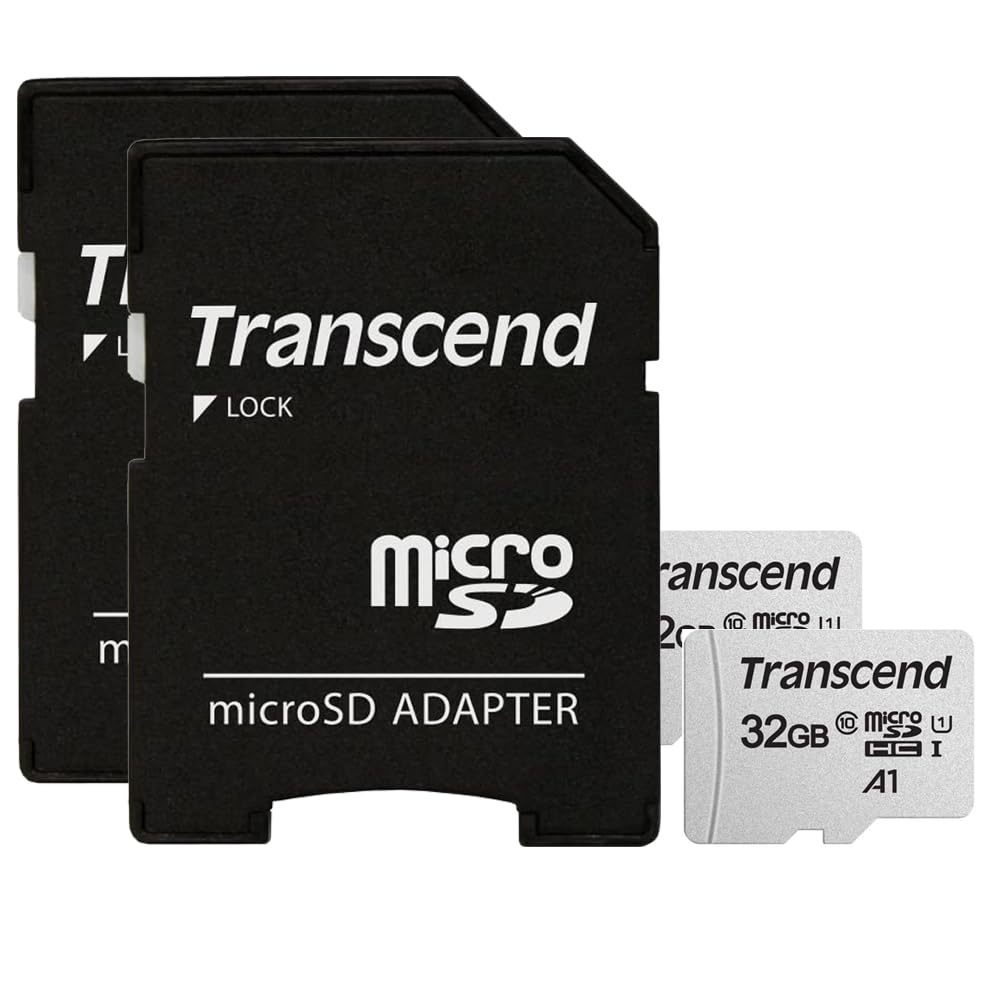
Image: Two Transcend 32GB microSDHC cards and one standard SD adapter. The microSD cards are tiny, while the adapter is the size of a standard SD card.
2. Inserting microSD Card into SD Adapter
If your device uses a standard SD card slot, you will need to insert the microSD card into the provided SD adapter. Gently slide the microSD card into the designated slot on the adapter until it clicks into place. Ensure the card is inserted correctly, with the gold contacts facing down (or as indicated by the adapter's markings).
3. Inserting Memory Card into Device
Locate the memory card slot on your device (e.g., camera, drone, laptop). Insert the microSD card (or the SD adapter with the microSD card inside) into the device's slot. Push gently until it is fully seated and clicks into place. Refer to your device's instruction manual for specific insertion directions.
4. Initializing/Formatting the Card
For first-time use or if you encounter issues, it is recommended to format the memory card using your device's internal formatting function. This prepares the card for optimal performance with your specific device and ensures compatibility. Caution: Formatting will erase all data on the card. Back up any important files antes de continuar.
Instrucións de funcionamento
Almacenamento e transferencia de datos
Once installed and formatted, your Transcend microSDHC card is ready for use. It provides 32GB of storage capacity for photos, videos, and other data. The card supports read and write speeds of up to 100 Megabytes Per Second, ensuring quick data transfer and smooth recording of high-resolution content.
Using the SD Adapter Lock Switch
The standard SD adapter features a small lock switch on its side. Sliding this switch to the "Lock" position prevents new data from being written to the card and protects existing data from being erased or modified. To write or delete data, ensure the switch is in the "Unlock" position.

Image: The reverse side of the SD adapter, showing the gold contacts and a small lock switch on the left side.
Mantemento
- Expulsión correcta: Always safely eject the memory card from your device before physically removing it. This prevents data corruption.
- Protección física: Store memory cards in their protective cases when not in use to prevent physical damage, dust, and static electricity. Avoid bending or dropping the cards.
- Temperatura e humidade: Keep cards away from extreme temperatures, direct sunlight, and moisture. This product features a "Water Proof" special feature, but it's best practice to avoid unnecessary exposure.
- Regular Backup: Regularly back up important data from your memory cards to another storage device (e.g., computer hard drive, cloud storage) to prevent data loss.
- Card Lifespan: Memory cards have a finite number of write cycles. While durable, they can eventually wear out. Consider replacing cards used for continuous recording (like dashcams) periodically to prevent unexpected failures.
Resolución de problemas
- Tarxeta non recoñecida:
- Asegúrate de que a tarxeta estea completa e correctamente inserida no dispositivo ou adaptador.
- Check the SD adapter's lock switch; if it's in the "Lock" position, the device might not recognize it for writing.
- Try inserting the card into another compatible device to rule out a device-specific issue.
- If the card is new, try formatting it (see Setup section).
- Cannot Write/Delete Files:
- Verify the SD adapter's lock switch is in the "Unlock" position.
- Check if the card is full. Transfer files to another storage device to free up space.
- The card might be corrupted. Try backing up any accessible data and then formatting the card.
- Rendemento lento:
- Ensure your device supports the card's speed class (Class 10).
- Regularly format the card to maintain optimal performance.
- Avoid filling the card to its absolute maximum capacity, as this can sometimes slow down performance.
- Perda de datos:
- Immediately stop using the card to prevent further data overwriting.
- Consult data recovery specialists if the data is critical. Regular backups are the best defense against data loss.
Especificacións
| Nome do modelo | 2PKSDC4 |
| Capacidade de almacenamento da memoria | 32 GB (per card) |
| Tipo de memoria flash | Micro SDHC, SD |
| Interface de hardware | microSDHC |
| Clase de velocidade da Asociación Dixital Segura | Clase 10 |
| Velocidade de lectura | 100 megabytes por segundo |
| Velocidade de escritura | 100 megabytes por segundo |
| Característica especial | A proba de auga |
| Cor | Negro |
| Peso do elemento | 0.42 onzas |
| Dimensións do paquete | 5.31 x 4.72 x 0.63 polgadas |
| Fabricante | Transcender |
| UPC | 724327534771 |
Información da garantía
This Transcend microSDHC Memory Card comes with a 3 ano de garantía. For detailed terms and conditions, please refer to the official Transcend websitio ou póñase en contacto co seu servizo de atención ao cliente.
Apoio
For further assistance, technical support, or warranty claims, please visit the Transcend Store on Amazon or the official Transcend website. Always ensure you have your product model number (2PKSDC4) and proof of purchase ready when contacting support.


