1. Introdución
The Hikvision DS-7104HGHI-F1 is a 4-channel Turbo HD Digital Video Recorder (DVR) designed for surveillance systems. This DVR supports 720P (1MP) resolution and offers versatile connectivity for both HD-TVI/analog and AHD cameras with adaptive access. It features H.264 video compression and dual-stream capabilities, ensuring efficient storage and transmission.
This manual provides essential information for the proper installation, operation, and maintenance of your Hikvision DS-7104HGHI-F1 DVR. Please read it thoroughly before using the device.
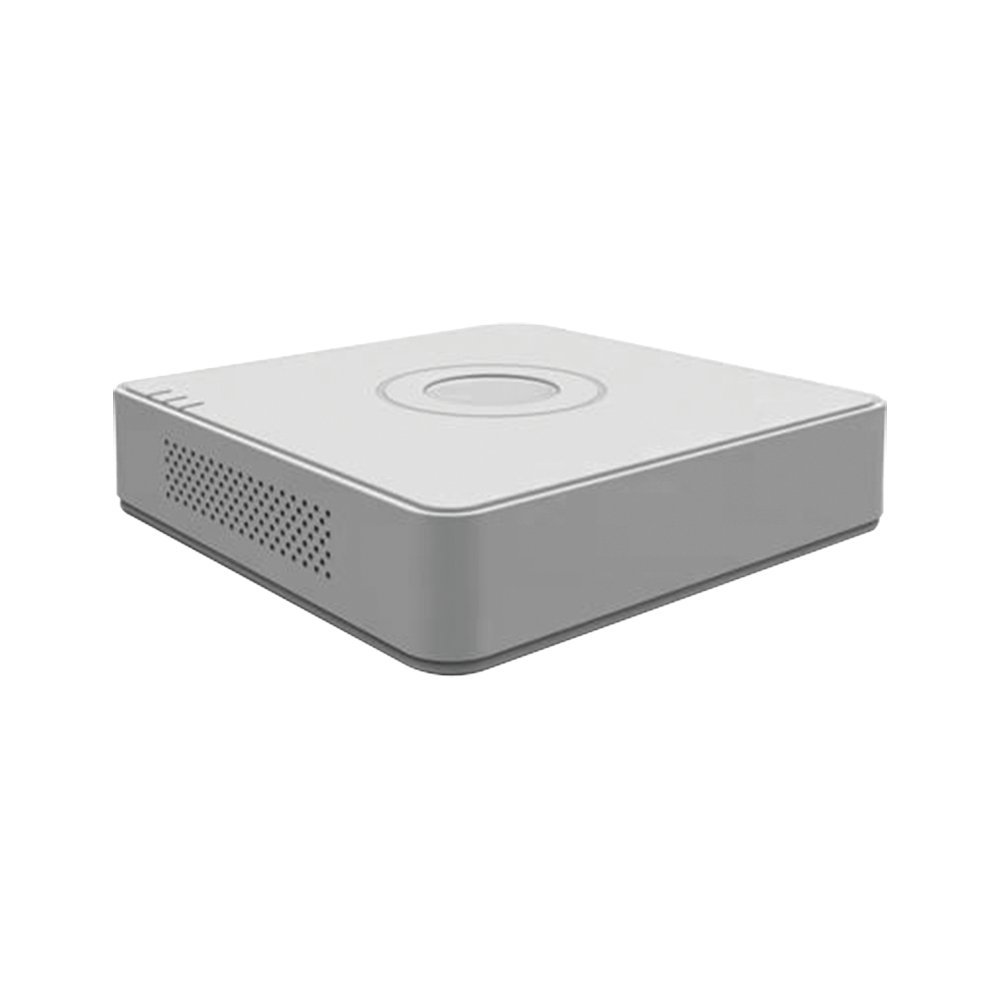
Figure 1: Hikvision DS-7104HGHI-F1 Turbo HD DVR
Características principais:
- 4-channel 720P (1MP) Turbo HD DVR.
- Full channel@720P resolution non-real-time recording.
- HDMI and VGA output at up to 1920x1080P resolution.
- H.264 & Dual-stream video compression.
- Support for HD-TVI /analog and AHD cameras with adaptive access.
- Long transmission distance over coax cable.
- Support for 4-ch synchronous playback at 720P resolution.
- RJ45 Ethernet port and 2 USB ports.
- Supports up to 4TB HDD (Hard Disk Drive not included).
- In-built Free DDNS for mobile viewing (Android and Windows Phone compatible).
2. Configuración e instalación
2.1 Contido do paquete
Before proceeding with installation, verify that all items are present in the package:
- Hikvision DS-7104HGHI-F1 DVR Unit
- Adaptador de alimentación
- Rato USB
- Tornillos para a instalación do disco duro
- Guía de inicio rápido
Note: Hard Disk Drive (HDD) and cameras are not included and must be purchased separately.
2.2 Instalación de hardware
- Instalar o disco duro (HDD):
- Desenrosque e retire a tapa superior do DVR.
- Connect the SATA power and data cables from the DVR to the HDD.
- Fixe o disco duro á carcasa do DVR usando os parafusos fornecidos.
- Volva colocar a tapa superior e asegúreaa con parafusos.
- Conectar cámaras:
- Connect your HD-TVI, AHD, or analog cameras to the BNC video input ports on the rear panel of the DVR.
- Conectar o monitor:
- Connect a monitor to the HDMI or VGA output port on the DVR using an appropriate cable.
- Conectar o rato:
- Conecta o rato USB a un dos portos USB do DVR.
- Conectar á rede (opcional):
- Para control remoto viewing and network access, connect an Ethernet cable from the RJ45 port on the DVR to your router or network switch.
- Conectar enerxía:
- Conecta o adaptador de corrente á entrada de alimentación do DVR e logo conéctao a unha toma de corrente. O DVR acenderase automaticamente.
2.3 Configuración inicial
Ao primeiro arranque, o DVR guiarache a través dun asistente de configuración inicial. Sigue as instrucións en pantalla para:
- Configura un contrasinal forte para a conta de administrador.
- Configura a configuración de data e hora.
- Format the installed HDD for recording.
- Configure network settings (DHCP recommended for most home users).
3. Instrucións de funcionamento
3.1 En directo View
Despois da configuración inicial, o DVR mostrará a imaxe en directo view desde as cámaras conectadas no monitor. Podes cambiar entre unha soa cámara view e grella multicámara view usando os controis en pantalla ou o rato.
3.2 Gravación
The DVR is typically configured for continuous recording by default after HDD formatting. You can access the recording schedule settings via the main menu to configure motion-detection recording, scheduled recording, or alarm-triggered recording for individual channels.
3.3 Reprodución
Para review gravado footage:
- Fai clic co botón dereito no directo view screen to open the main menu.
- Select "Playback".
- Choose the desired camera channel(s) and date/time range.
- Usa os controis de reprodución (reproducir, pausar, avanzar, rebobinar) para navegar polas imaxes.tage.

Figure 2: Video Resolution Comparison
3.4 Móbil Viewing (Hik-Connect / DDNS)
The DVR supports remote viewing via Hik-Connect P2P service or DDNS.
- Asegúrate de que o DVR estea conectado a Internet.
- Enable the Hik-Connect service or configure DDNS settings in the DVR's network menu.
- Download the Hik-Connect app on your Android or Windows Phone device.
- Register an account and add your DVR by scanning the QR code or entering the serial number.
- Agora podes view vivir footage and playback recordings remotely.

Figure 3: Hik-Connect P2P Service
4. Mantemento
4.1 Limpeza regular
- Keep the DVR unit clean and free from dust. Use a soft, dry cloth for cleaning.
- Asegúrese de que as aberturas de ventilación non estean bloqueadas para evitar o sobrequecemento.
- Do not use liquid or aerosol cleaners directly on the unit.
4.2 Actualizacións de firmware
Consulta periodicamente a páxina oficial de Hikvision website for firmware updates. Firmware updates can improve performance, add new features, and address security vulnerabilities. Follow the instructions provided by Hikvision carefully when performing firmware updates.
4.3 Copia de seguranza de datos
Fai copias de seguridade regulares dos contidos gravados importantestage to an external USB drive or network storage. This ensures data retention in case of HDD failure or other unforeseen issues.
5 Solución de problemas
| Problema | Causa posible | Solución |
|---|---|---|
| Sen saída de vídeo no monitor |
|
|
| Sen imaxe da cámara |
|
|
| Cannot access DVR remotely |
|
|
| Sen gravación |
|
|
6. Especificacións
| Característica | Detalle |
|---|---|
| Número de modelo | DS-7104HGHI-F1 |
| Compresión de vídeo | H.264 |
| Entrada de vídeo | 4-ch BNC (HD-TVI, AHD, Analog adaptive access) |
| Entrada de audio | RCA de 1 canal |
| Saída HDMI/VGA | 1-ch, 1920 × 1080P/60Hz, 1280 × 1024/60Hz, 1280 × 720/60Hz, 1024 × 768/60Hz |
| Resolución de gravación | 720P (1MP) non-real-time |
| Reprodución síncrona | 4-ch at 720P |
| Soporte de disco duro | 1 interface SATA, capacidade de ata 4 TB |
| Interface de rede | 1 interface Ethernet autoadaptable RJ45 10M/100M |
| Interface USB | 2 interfaces USB 2.0 |
| Dimensións (L x W x H) | 12 x 3.5 x 10 cm |
| Peso | 1.06 kg (aprox. 2.34 lbs) |

Figure 4: Turbo HD Technology Support
7. Información da garantía
This Hikvision DS-7104HGHI-F1 DVR typically comes with a 2 ano de garantía desde a data de compra.
Please note that the warranty generally covers manufacturing defects. It does not cover physical damage or damage caused by burning. For specific terms and conditions, please refer to the warranty card included with your product or contact Hikvision customer support.
8. Soporte e contacto
For technical assistance, product inquiries, or warranty claims, please contact Hikvision customer support.
- Oficial Websitio: Visita a páxina oficial de Hikvision websitio web con recursos de asistencia, preguntas frecuentes e información de contacto.
- Recursos en liña: Check for updated manuals, firmware, and software tools on the Hikvision support portal.
Always refer to the latest documentation available from the manufacturer for the most accurate and up-to-date information.


