Características do produto
- Xbox One S 500GB Console: A compact and powerful gaming console.
- Xbox Wireless Controller: Includes one controller with a 3.5mm headset jack for audio and chat.
- 4K Blu-ray Movies: Watch Ultra HD Blu-ray discs for stunning visual clarity.
- 4K Content Streaming: Stream 4K content from popular apps like Amazon, Netflix, Hulu, and Microsoft Movies.
- Alto rango dinámico (HDR): Experience richer, more luminous colors and video in supported games and content.
- Biblioteca de xogos extensa: Play over 100 console exclusives and a growing library of Xbox 360 games through backward compatibility.
- Cables incluídos: Comes with an HDMI cable (4K Capable) and an AC Power cable.
- Xbox Live Gold Trial: Includes a 14-day Xbox Live Gold Trial for online multiplayer and free games.
Guía de configuración
1. Unboxing and Contents Check
Retire con coidado todos os elementos da embalaxe. Asegúrese de que estean presentes os seguintes compoñentes:
- Xbox One S 500GB Console
- 1 mando sen fíos Xbox
- HDMI Cable (4K Capable)
- Cable de alimentación de CA.
- 14-day Xbox Live Gold Trial (digital code or card)
2. Conectando a Consola
- Conectar o cable HDMI: Insert one end of the HDMI cable into the HDMI OUT port on the back of your Xbox One S console. Connect the other end to an HDMI input on your TV or monitor.
- Conectar o cable de alimentación: Plug the AC Power Cable into the power input on the back of the console. Connect the other end of the power cable to a wall outlet.

Imaxe: Traseira view of the Xbox One S console, highlighting the HDMI OUT and power input ports for easy connection.
3. Setting Up the Controller
- Inserir pilas: Open the battery compartment on the back of the Xbox Wireless Controller and insert two AA batteries (included).
- Controlador de acendido: Mantén premido o botón Xbox do controlador para activalo.
- Emparejamento: Press the Pair button on the top of the controller (small circular button). Then, press the Pair button on the front of the console (small circular button near the USB port). The Xbox button on the controller will flash rapidly and then become solid when paired.
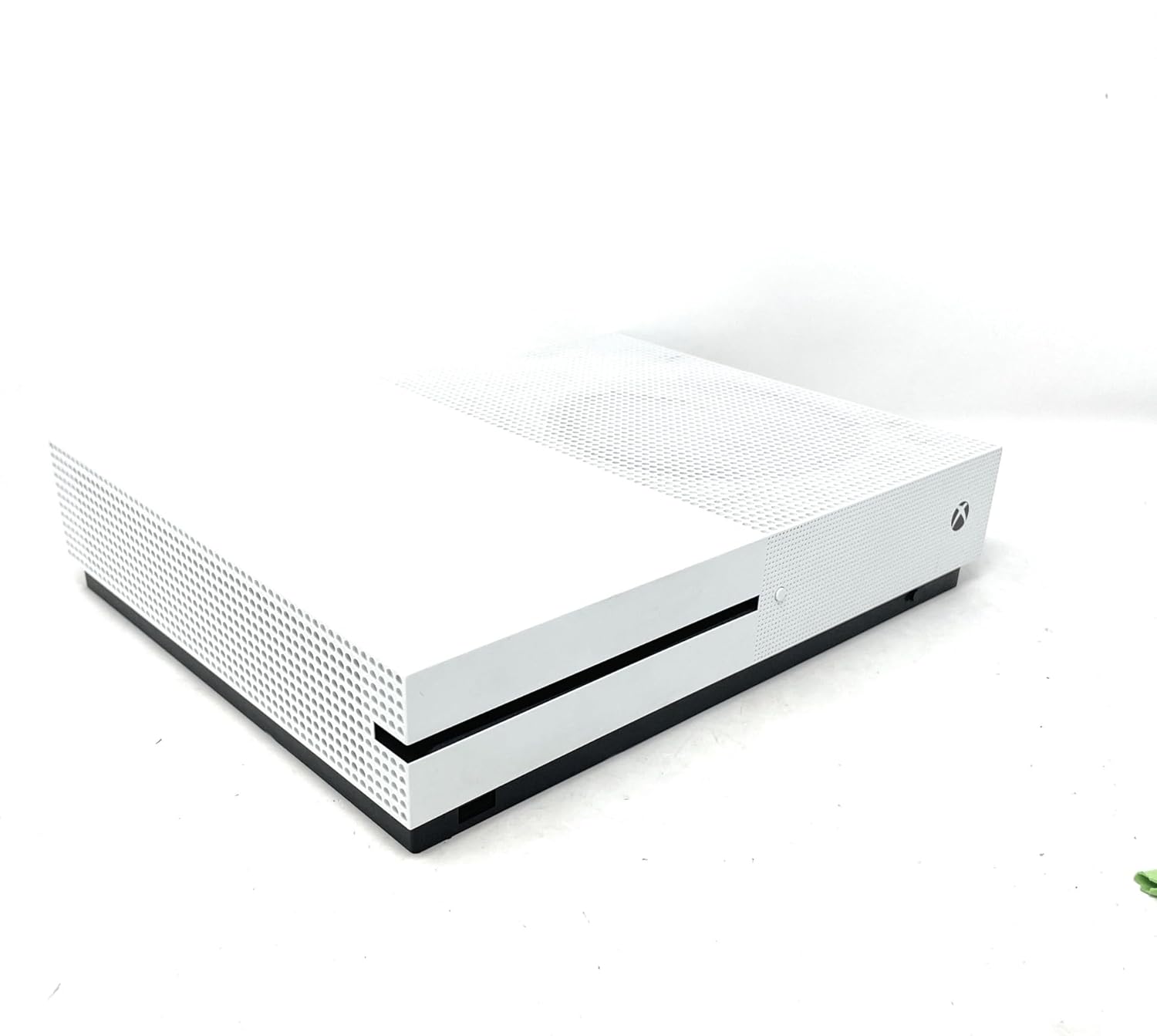
Imaxe: Fronte view of the Xbox One S console, showing the power button and controller pairing button. A white Xbox Wireless Controller is placed on top of the console.
4. Initial Console Power On and Configuration
Press the Xbox button on the front of the console to power it on. Follow the on-screen instructions to:
- Seleccione o seu idioma e rexión.
- Conéctate á túa rede Wi-Fi ou usa un cable Ethernet para unha conexión con fíos.
- Inicia sesión coa túa conta de Microsoft ou crea unha nova.
- Install any necessary system updates. This may take some time.
Operating Your Xbox One S
1. Acendido/apagado
- Para acender: Press the Xbox button on the console or the Xbox button on your controller.
- Para apagar: Press and hold the Xbox button on your controller until the Power Center appears, then select "Turn console off". Alternatively, press and hold the Xbox button on the console for 10 seconds until it powers off.
2. Navigating the Dashboard
The Xbox dashboard is your central hub. Use the D-pad or left analog stick on your controller to navigate through menus, games, and apps. The Xbox button on the controller will always take you back to the Home screen.
3. Xogando a xogos
- Xogos baseados en disco: Insert a game disc into the disc drive on the front of the console. The game will appear on your Home screen or in "My games & apps".
- Xogos dixitais: Download games from the Microsoft Store. Once downloaded, they will appear in "My games & apps".
- Compatibilidade cara atrás: Many Xbox 360 and original Xbox games are playable on Xbox One S. Insert the disc or download the digital version if you own it.
4. Media Playback and Streaming
The Xbox One S features a built-in 4K Ultra HD Blu-ray player and supports streaming from various entertainment apps.
- Blu-ray 4K: Insert a 4K Ultra HD Blu-ray disc into the console. The Blu-ray player app will launch automatically.
- Aplicacións de streaming: Download apps like Netflix, Hulu, Amazon Prime Video, and Microsoft Movies from the Microsoft Store to stream 4K content (subscription and 4K TV required).
Mantemento
1. Cleaning Your Console
Regularly clean your Xbox One S to ensure optimal performance and longevity.
- Use a soft, lint-free cloth to wipe down the exterior of the console.
- Gently use a vacuum cleaner with a brush attachment to remove dust from ventilation grilles.
- Non empregue produtos de limpeza líquidos nin materiais abrasivos.
2. Ensuring Proper Ventilation
Place your console in a well-ventilated area. Avoid placing it in enclosed spaces or on soft surfaces that can block airflow.
3. Actualizacións de software
Keep your console's software up-to-date to access the latest features, improvements, and security patches. Updates are typically downloaded and installed automatically when the console is in Instant-On power mode.
4. Xestión do almacenamento
The 500GB internal storage can fill up quickly with games and apps. To manage storage:
- Delete games or apps you no longer play from "My games & apps".
- Connect an external USB 3.0 hard drive (256GB or larger) to expand your storage capacity.
Solución de problemas comúns
1. Console Not Powering On
- Ensure the power cable is securely connected to both the console and the wall outlet.
- Proba cunha toma de corrente diferente.
- If using a power strip, try plugging directly into a wall outlet.
2. No Display on TV
- Verify the HDMI cable is firmly connected to both the console's HDMI OUT port and your TV's HDMI input.
- Asegúrate de que o teu televisor estea configurado na fonte de entrada HDMI correcta.
- Try a different HDMI cable or TV.
3. Controller Not Connecting/Responding
- Check if the controller batteries are charged or replace them.
- Re-pair the controller with the console using the pairing buttons (refer to Setup Guide).
- Try connecting the controller to the console using a USB cable.
4. Network Connection Issues
- Restart your console and your network router/modem.
- Go to Settings > Network > Network settings > Test network connection to diagnose issues.
- Ensure your Wi-Fi password is correct if connecting wirelessly.
Especificacións técnicas
| Característica | Detalle |
|---|---|
| Número de modelo | Xbox One S 500GB |
| Capacidade de almacenamento | 500GB Internal Hard Drive |
| Saída de vídeo | 4K Ultra HD (Blu-ray & Streaming), High Dynamic Range (HDR) |
| Soporte de audio | Dolby Atmos, DTS:X |
| Unidade óptica | 4K Ultra HD Blu-ray / DVD |
| Conectividade | HDMI In/Out, USB 3.0 ports, Ethernet, Wi-Fi (802.11ac), Bluetooth |
| Dimensións | 21.65 x 23.62 x 21.65 polgadas |
| Peso | 6.36 libras |
| Fabricante | Microsoft |
| Data de lanzamento | 1 de xullo de 2017 |
Garantía e soporte
Información da garantía
Your Microsoft Xbox One S 500GB Console is covered by a limited manufacturer's warranty. Please refer to the warranty card included in your product packaging for specific terms, conditions, and duration of coverage. Keep your proof of purchase for warranty claims.
Atención ao cliente
For technical assistance, troubleshooting, or warranty inquiries, please contact Microsoft Support:
- Soporte en liña: Visit the official Xbox Support websitio con preguntas frecuentes, guías de resolución de problemas e foros da comunidade.
- Asistencia telefónica: Contact Microsoft Customer Service via phone. Refer to the official Xbox websitio para os números de contacto rexionais.
Before contacting support, please ensure you have your console's serial number and proof of purchase readily available.