Introdución
This manual provides essential information for the installation, operation, maintenance, and troubleshooting of your NVIDIA 699-51030-0501-101 graphics card. This component is designed for desktop computer systems to enhance graphics processing capabilities. Please read this manual thoroughly before proceeding with installation or use.
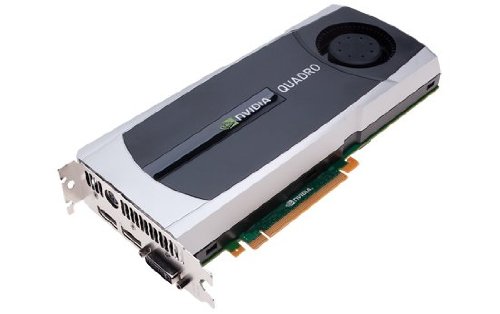
Image: NVIDIA 699-51030-0501-101 Graphics Card. This image displays the graphics card from an angled perspective, showing the cooling fan, heatsink, and the PCIe connector.
Pautas de seguridade
Observe the following safety precautions to prevent damage to the product or injury to yourself:
- Desconecte sempre a alimentación do ordenador antes de instalar ou retirar calquera compoñente.
- Use unha pulseira antiestática ou toque con frecuencia un obxecto metálico conectado á terra para descargar a electricidade estática.
- Sujete a tarxeta gráfica polos bordos para evitar tocar os compoñentes sensibles.
- Asegúrate de ventilar axeitadamente a carcasa do teu ordenador para evitar o sobrequecemento.
- Manteña o produto lonxe da humidade e das temperaturas extremas.
Configuración
1. Comprobacións previas á instalación
- Verifica que a túa fonte de alimentación (PSU) teña suficiente augatage and appropriate connectors for the graphics card.
- Ensure your motherboard has an available PCI Express (PCIe) x16 slot.
- Confirm your computer case has adequate space for the graphics card dimensions.
- Reúne as ferramentas necesarias: destornillador Phillips, correa de pulso antiestática (recomendada).
2. Instalación de hardware
- Apagar e desconectar: Apaga o ordenador completamente e desconecta o cable de alimentación da toma de corrente.
- Caso aberto: Retire o panel lateral da caixa do seu ordenador para acceder á placa base.
- Localizar a ranura PCIe: Identifica unha ranura PCI Express x16 dispoñible na túa placa base. Normalmente, esta é a ranura máis longa.
- Retirar a tapa da ranura: Remove the metal slot cover(s) from the back of your computer case corresponding to the PCIe slot you will use.
- Inserir tarxeta gráfica: Carefully align the graphics card with the PCIe slot. Press down firmly and evenly on both ends of the card until it is fully seated in the slot. You should hear a click from the retention clip.
- Tarxeta segura: Secure the graphics card to the computer case using the screw(s) removed from the slot cover(s).
- Conectar a alimentación (se corresponde): If your graphics card requires additional power, connect the appropriate PCIe power cables from your PSU to the graphics card. This model (NVIDIA 699-51030-0501-101) may not require external power, but always check the card itself for connectors.
- Pechar caso: Substitúa o panel lateral da caixa do teu ordenador.
- Reconnect Peripherals: Reconnect your monitor cable to one of the display outputs on the new graphics card. Reconnect all other peripherals and the power cord.
3. Instalación de controladores
- Encendido: Acende o teu ordenador.
- Descargar controladores: Navigate to the official NVIDIA websitio (www.nvidia.com/drivers) and download the latest drivers compatible with your NVIDIA 699-51030-0501-101 graphics card and operating system.
- Instalar controladores: Run the downloaded driver installer and follow the on-screen instructions. It is recommended to perform a clean installation if prompted.
- Reiniciar: Reinicie o computador despois de que remate a instalación do controlador.
En funcionamento
Once installed and drivers are updated, your NVIDIA 699-51030-0501-101 graphics card will automatically handle graphics processing for your system. You can verify its operation through your operating system's device manager or NVIDIA Control Panel.
- NVIDIA Control Panel: Access the NVIDIA Control Panel (usually via right-click on desktop or through Windows Control Panel) to adjust display settings, 3D settings, and monitor various aspects of your graphics card.
- Actualizacións de controladores: Regularly check the NVIDIA website for driver updates to ensure optimal performance and compatibility with new software and games.
Mantemento
Un mantemento axeitado garante a lonxevidade e o rendemento óptimo da túa tarxeta gráfica.
- Eliminación de po: Periodically (e.g., every 6-12 months), power off and unplug your computer. Open the case and use compressed air to gently clear dust from the graphics card's heatsink and fan. Hold the fan blades to prevent over-spinning during cleaning.
- Condicións ambientais: Operate your computer in a clean, dry, and well-ventilated environment. Avoid extreme temperatures and humidity.
Resolución de problemas
Se tes problemas, consulta os seguintes pasos comúns para a resolución de problemas:
- Sen saída de visualización:
- Asegúrate de que o cable do monitor estea conectado correctamente á tarxeta gráfica e ao monitor.
- Verifique que o monitor estea configurado na fonte de entrada correcta.
- Check if the graphics card is fully seated in its PCIe slot.
- If applicable, ensure all PCIe power connectors are securely attached.
- Proba cun monitor ou cable diferente se é posible.
- Problemas do controlador:
- Reinstall the latest drivers from the NVIDIA websitio.
- Try rolling back to a previous driver version if issues started after an update.
- Use o Desinstalador de controladores de pantalla (DDU) no modo seguro para eliminar completamente os controladores antigos antes de instalar os novos.
- Performance Problems (Low FPS, Stuttering):
- Asegúrate de que os controladores estean actualizados.
- Check for overheating using monitoring software (e.g., MSI Afterburner, HWMonitor). Clean dust if necessary.
- Verifica que o teu sistema cumpre cos requisitos mínimos para as aplicacións ou xogos que estás a executar.
- Comprobar a fonte de alimentación (PSU)tage; an insufficient PSU can cause performance issues.
- System Instability (Crashes, Blue Screens):
- Check for driver conflicts or corruption.
- Monitor temperatures to rule out overheating.
- Ensure the graphics card is properly seated and secured.
- Executa ferramentas de diagnóstico de memoria para comprobar se hai problemas coa RAM.
Especificacións técnicas
Key specifications for the NVIDIA 699-51030-0501-101 graphics card:
| Número de modelo | NVIDIA 699-51030-0501-101 |
| Marca | NVIDIA |
| Coprocesador gráfico | NVIDIA 699-51030 |
| Fabricante de procesadores gráficos | NVIDIA |
| Dispositivos compatibles | Escritorio |
| ASIN | B01NBI92VC |
| Data de primeira dispoñibilidade | 8 de decembro de 2016 |
Garantía e Soporte
This NVIDIA graphics card is covered by the manufacturer's standard warranty. For specific warranty terms, duration, and to register your product, please refer to the official NVIDIA website or contact NVIDIA customer support directly.
For technical assistance, driver downloads, and further support resources, visit the official NVIDIA support portal:
- NVIDIA Support: www.nvidia.com/support


